
Welcome to the Meet In The Music© (MITM) Program
This user guide is designed to help you begin using MITM© within the UnitusTI cloud system.
Hello! I'm Esther Thane, the creator of Meet In The Music©, the music therapy curriculum designed for neurodivergent children and individuals with diverse needs. My hope is that you will be able to utilize this curriculum and the associated goal bank to establish meaningful connections with your clients. This will enable you to guide them on their unique developmental journey and monitor their progress using evidence-based data, narrative reporting, or a combination of both.
The dynamic musical experience creates a safe and nurturing environment where children can feel secure and confident in their explorations. Music, with its stimulating, sensory, motivational, and emotional qualities, serves as a powerful tool for eliciting musical, verbal, emotional, or corporeal responses and promoting interaction and engagement in an enjoyable and often effortless manner. When a child is intrinsically motivated and curious, they naturally integrate new information and skills on a deeper level, with music acting as an inherent reward.
Tip: It's advisable to print this user guide and keep it within easy reach while working in your UnitusTI account. Thank you for subscribing to Meet In The Music©.
Esther Thane, BMT, MTA, AVPT
Author of Meet In The Music ©
TABLE OF CONTENTS:
1. Intervention Based Programs (songs & interventions) 22
2. Skill Based Program Templates (goal bank) 24
How To Use The MITM Goals & Interventions 24
Searching for specific programs 25
E. Where to find Sheet Music, Audio Files, Picture Cards 28
Creating Custom Program Templates 30
Assigning Programs to a Client 34
Checking for updates/new programs to MITM© & adding them to your UnitusTI account 55
Getting Started
Logging In
- Open a new web browser and enter in the URL address (we recommend using either Chrome or Safari as your web browsers):
United States, Australia subscribers, & New Zealand subscribers: https://app.unitusti.com/
Canada subscribers: https://unitusti.mundopato.ca/
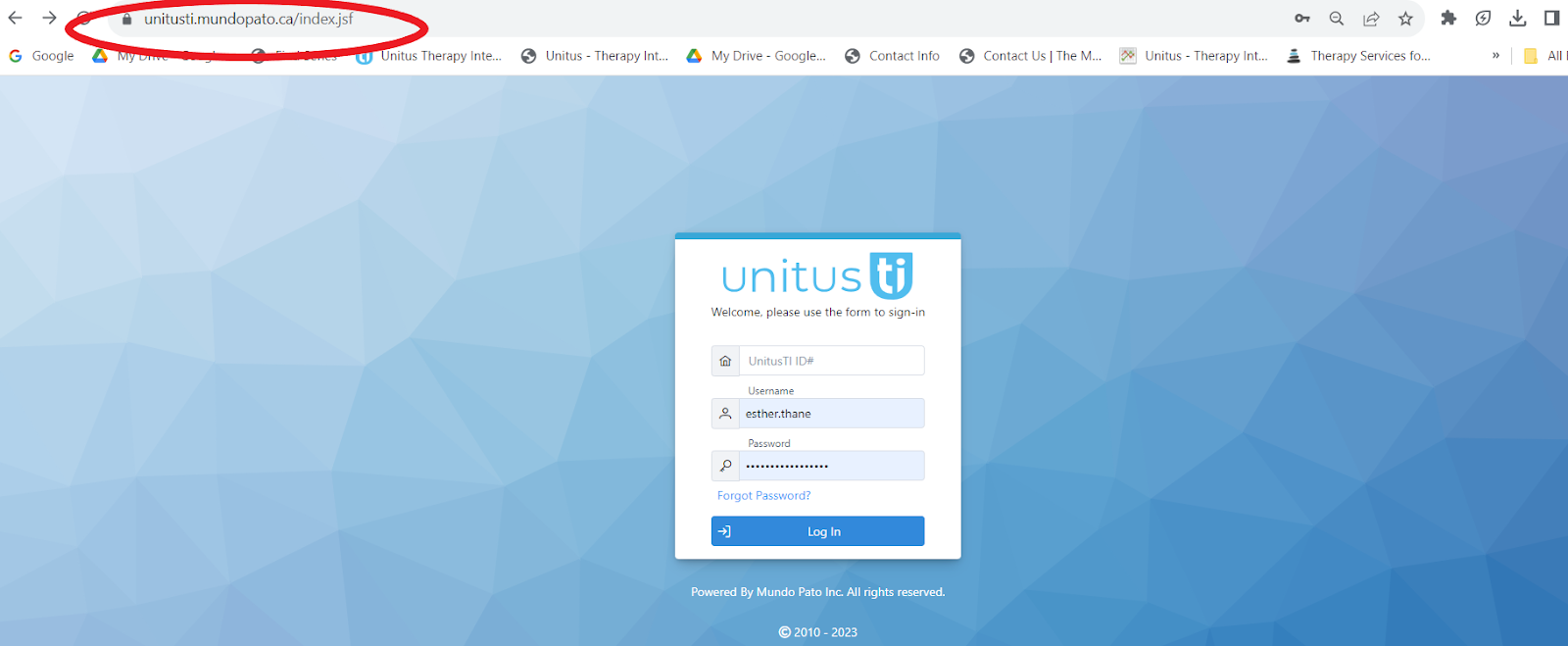
- Enter in your login info: UnitusTI ID#, username, password
The UnitusTI ID# is your account number. For example “12345”

Adding Icons With Labels
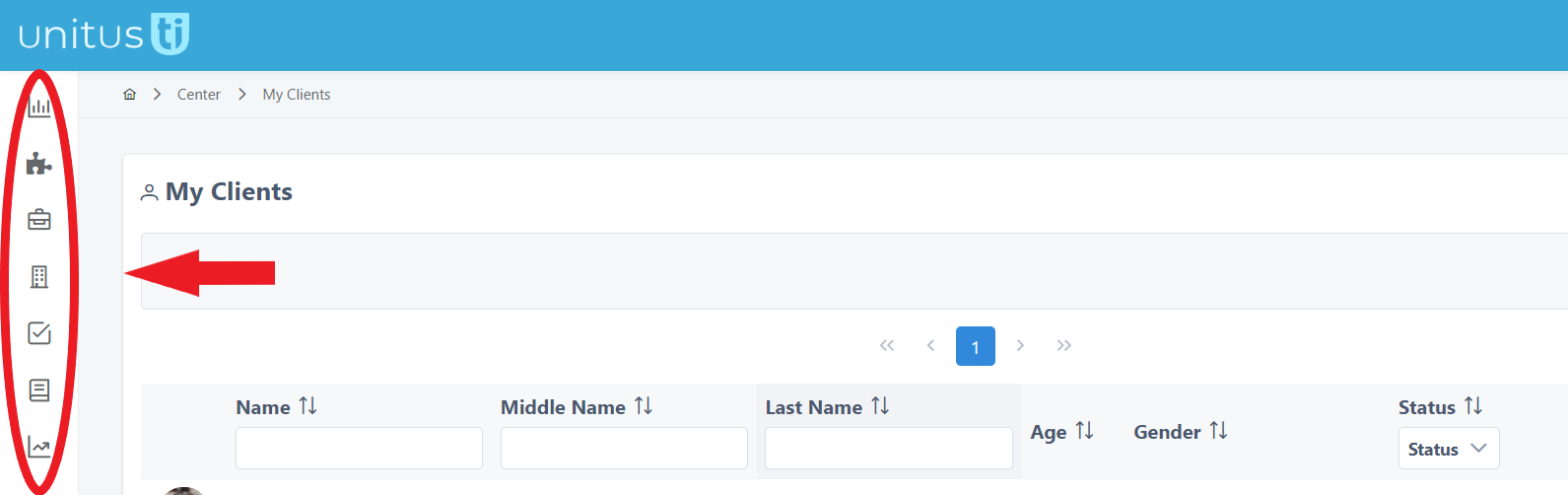
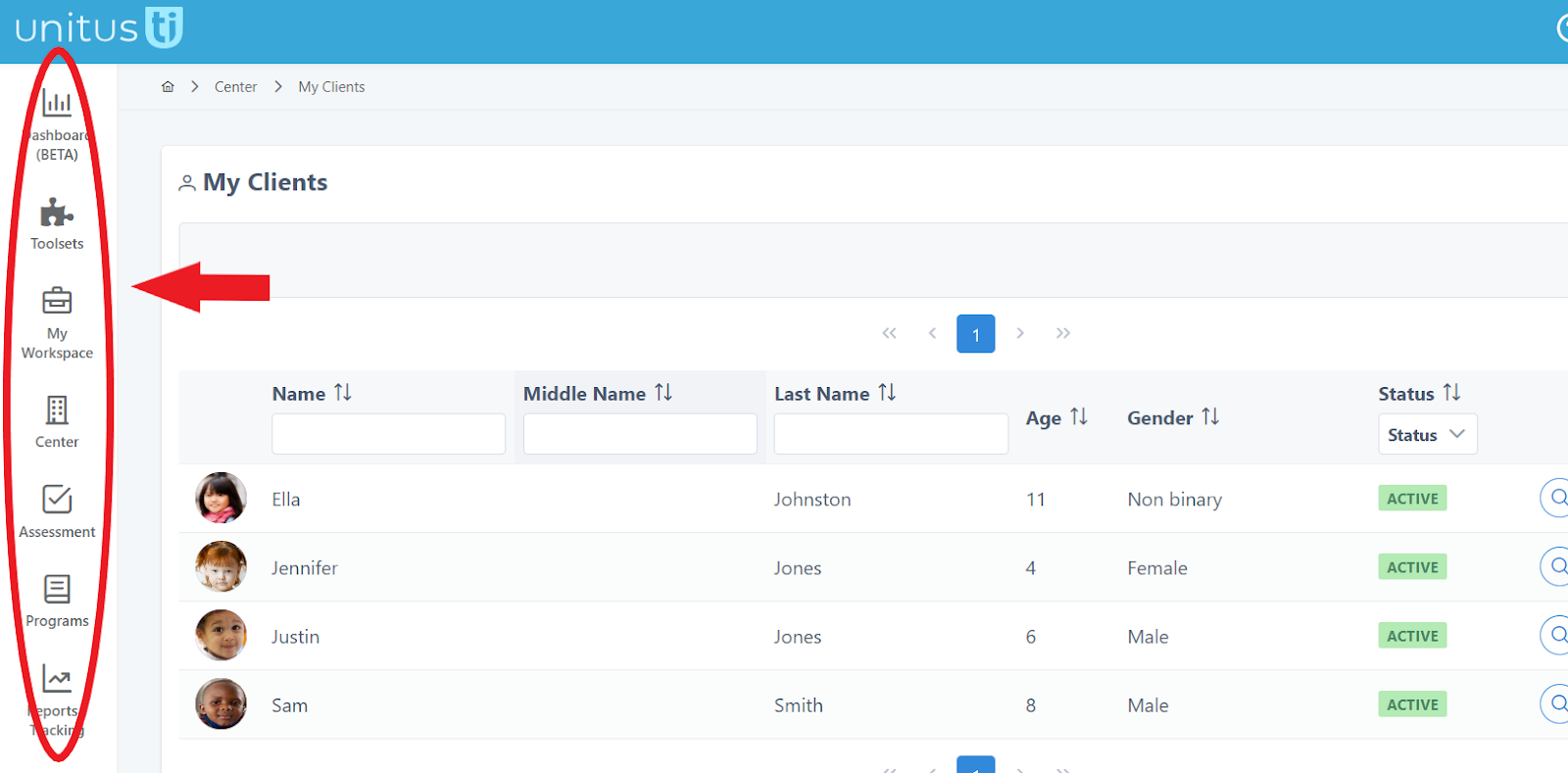
The icons in the main menu (found on the far left side of your screen) default to displaying images only. If you prefer, you can add text labels.
Main Menu Without Labels:
Main Menu With Labels:
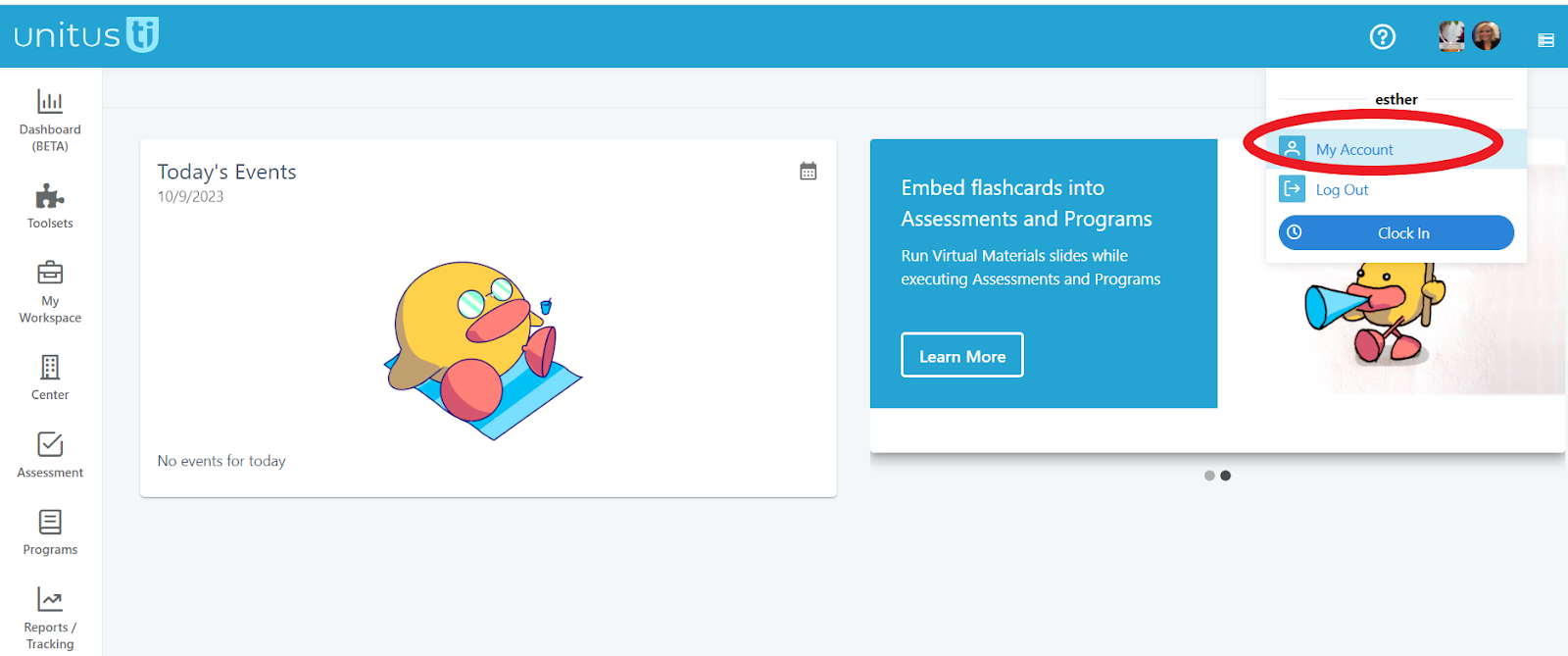
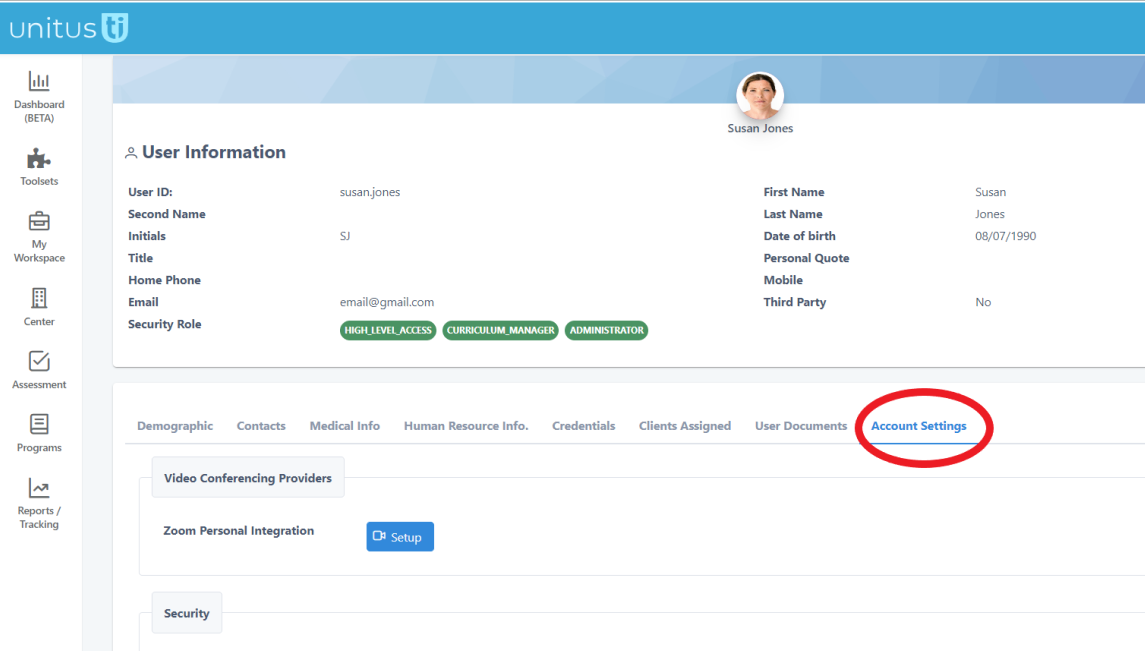
If you prefer to see the main menu displayed with labels, go to your account icon on the top right and click My Account :
Click on Account Settings :
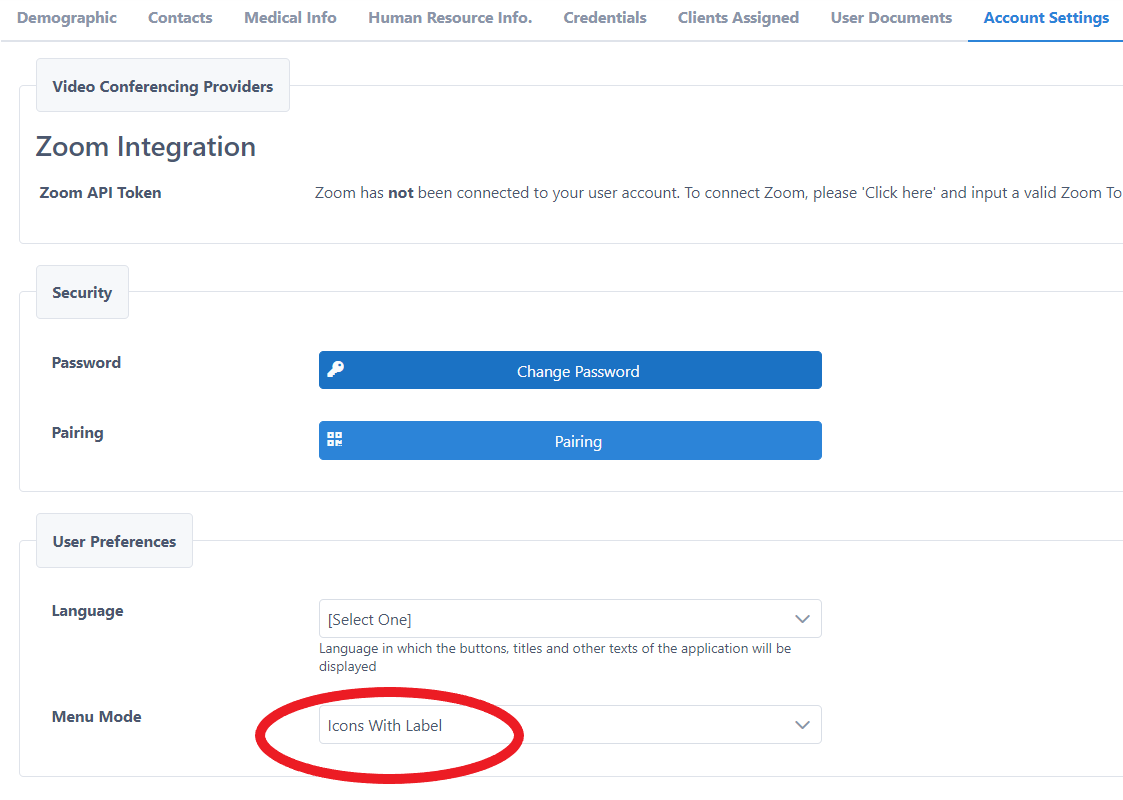
Click on Menu Mode, and choose Icons With Label:
The MITM © Assessments
The Meet In The Music © (MITM) program comes with 2 assessments:
MITM © Sensory Assessment
This is meant to be a preliminary assessment used when as a facilitator, you see some red flags in your client for sensory dysregulation. Complete this SCREENING TOOL, and then based on the results, reach out to the caregivers, case managers, or admin to suggest a full sensory assessment be completed by a licensed occupational therapist, or alternatively, request a completed sensory assessment report be shared with you.
MITM © Main Assessment
This assessment is consistent with the MITM © program in that it contains the same rating scale scoring criteria and skill domains (Categories). It has the added benefit of being mapped both on the front end and on the back end to the MITM © program templates. Specific activities or interventions will be suggested throughout the assessment to help you assess your client. After submitting the assessment, additional goals and activities will be suggested for your treatment plan, and can be assigned directly to each client.
It is recommended that you familiarize yourself with the assessments before administering them on clients.
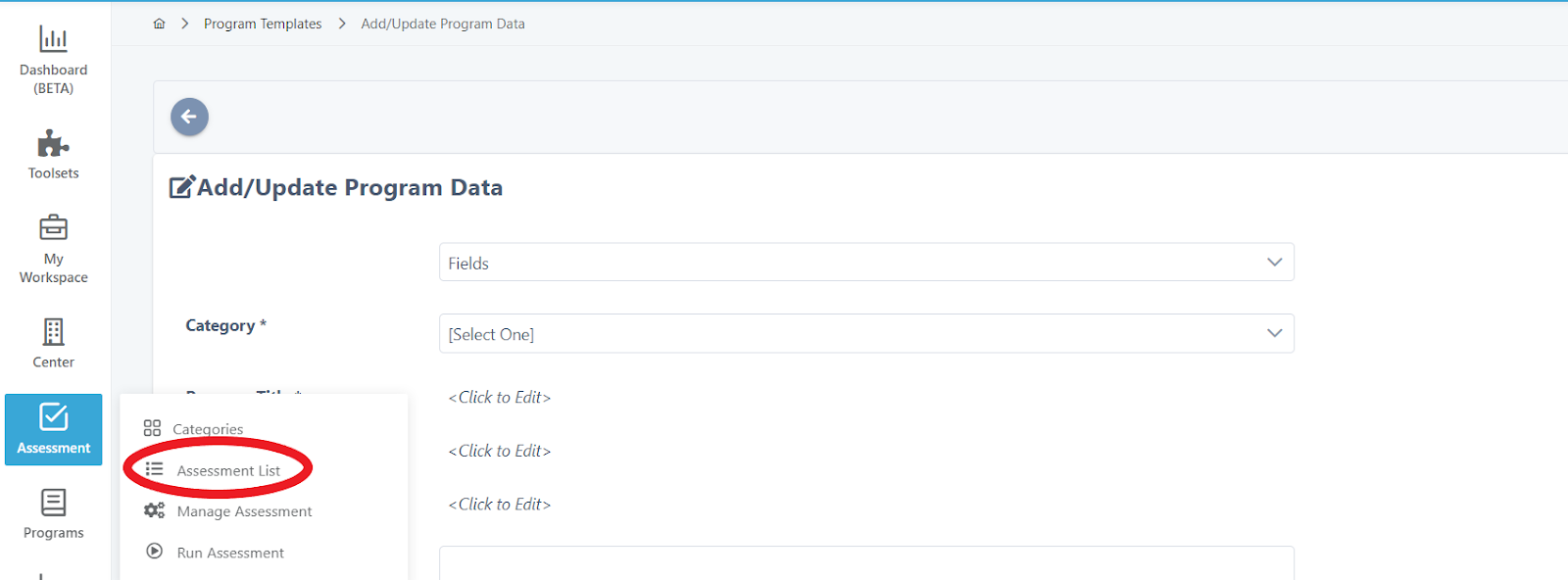
- Review them by going to Assessments, then Assessment List:
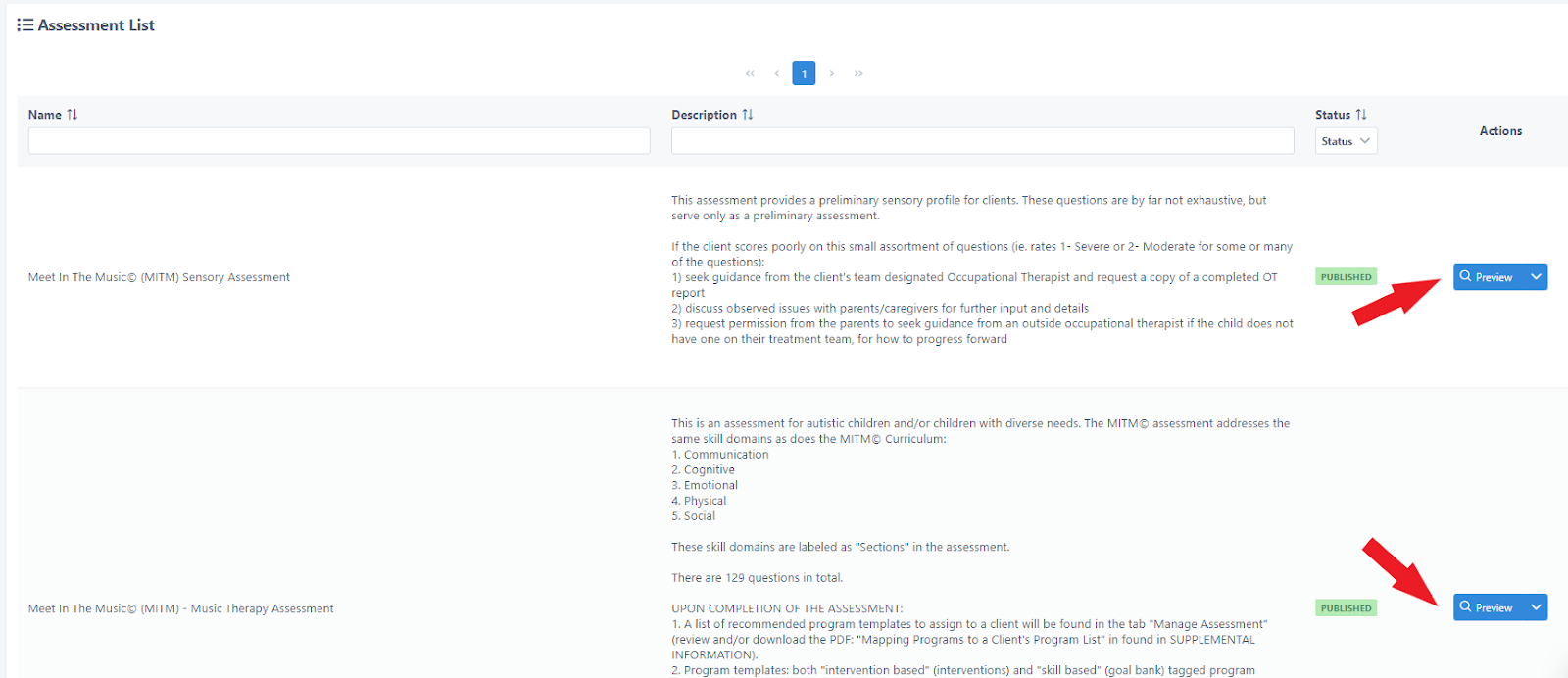
- Click on the Preview button to open up the assessment for review:
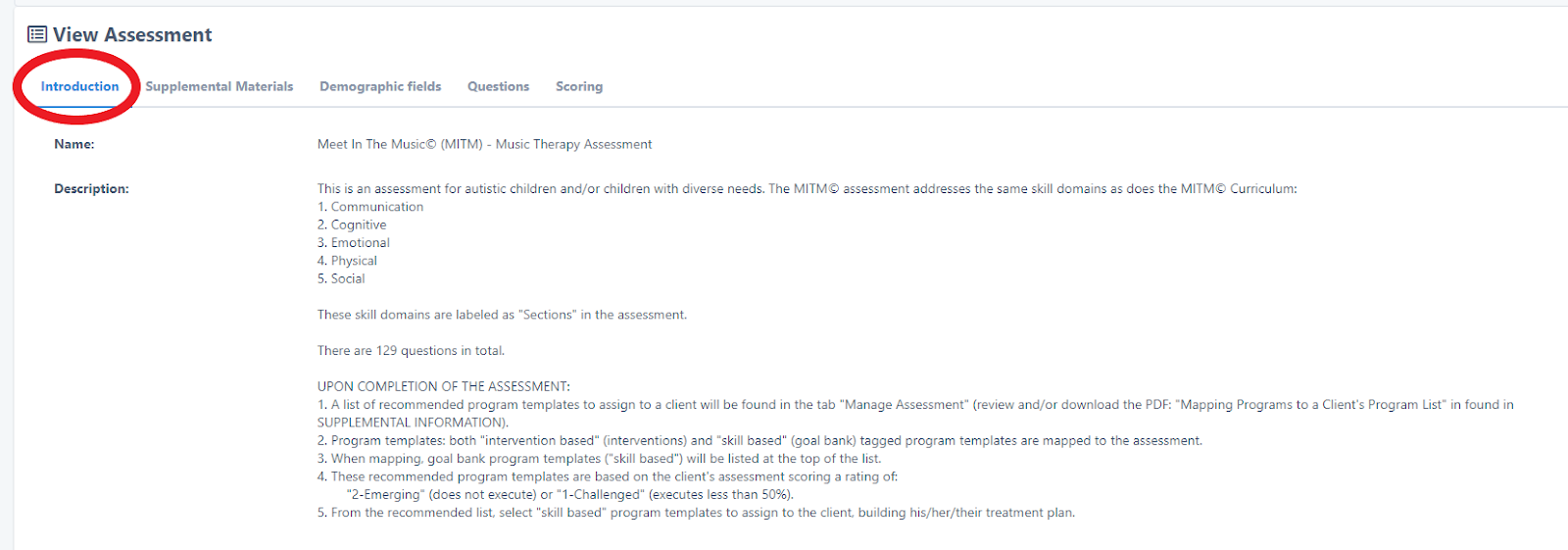
- Scroll through the various tabs. The Introduction tab will give recommendations on how to take the test, how results are reported etc.:
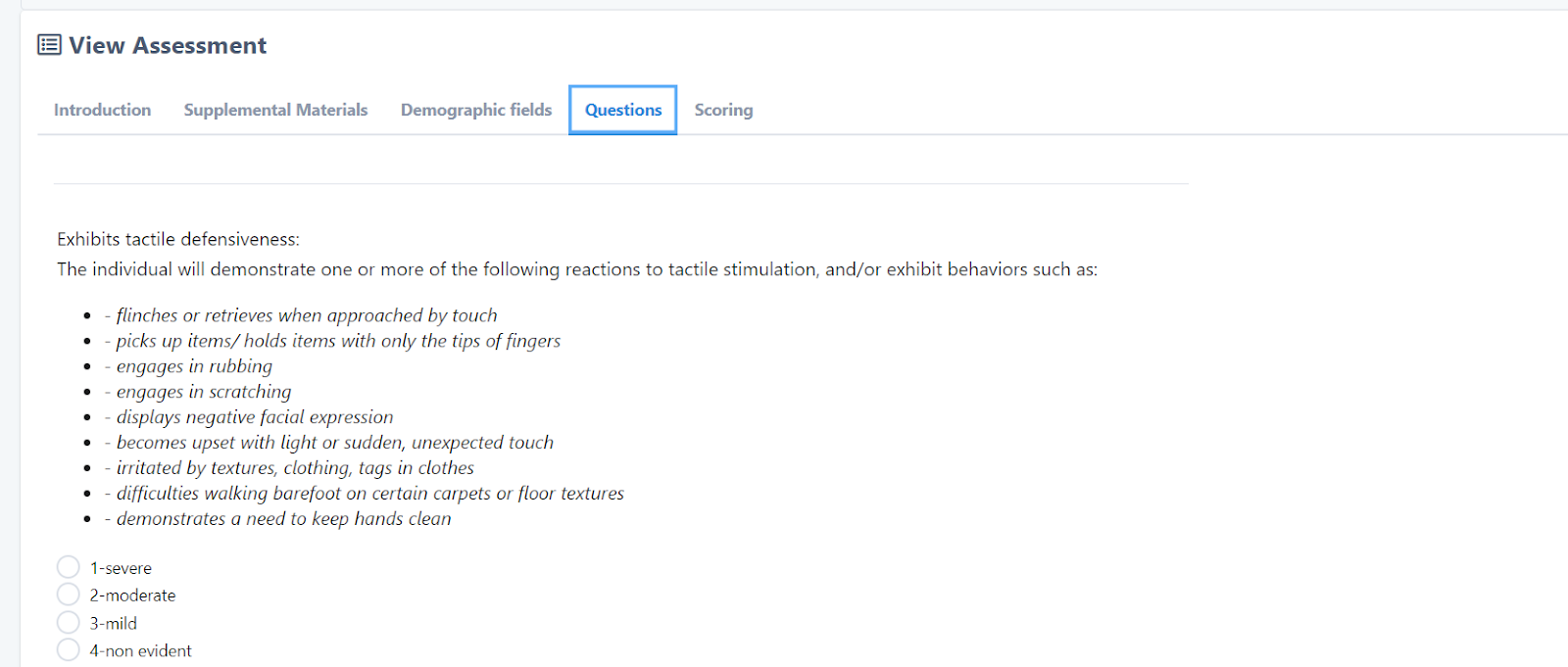
- You will notice in the Questions tab, it includes examples of possible observable behavior (bullet points) you might see in a session, in order to assess that particular assessment question. This is particularly valuable for practicum students, interns, and new staff, not experienced in this wheelhouse:
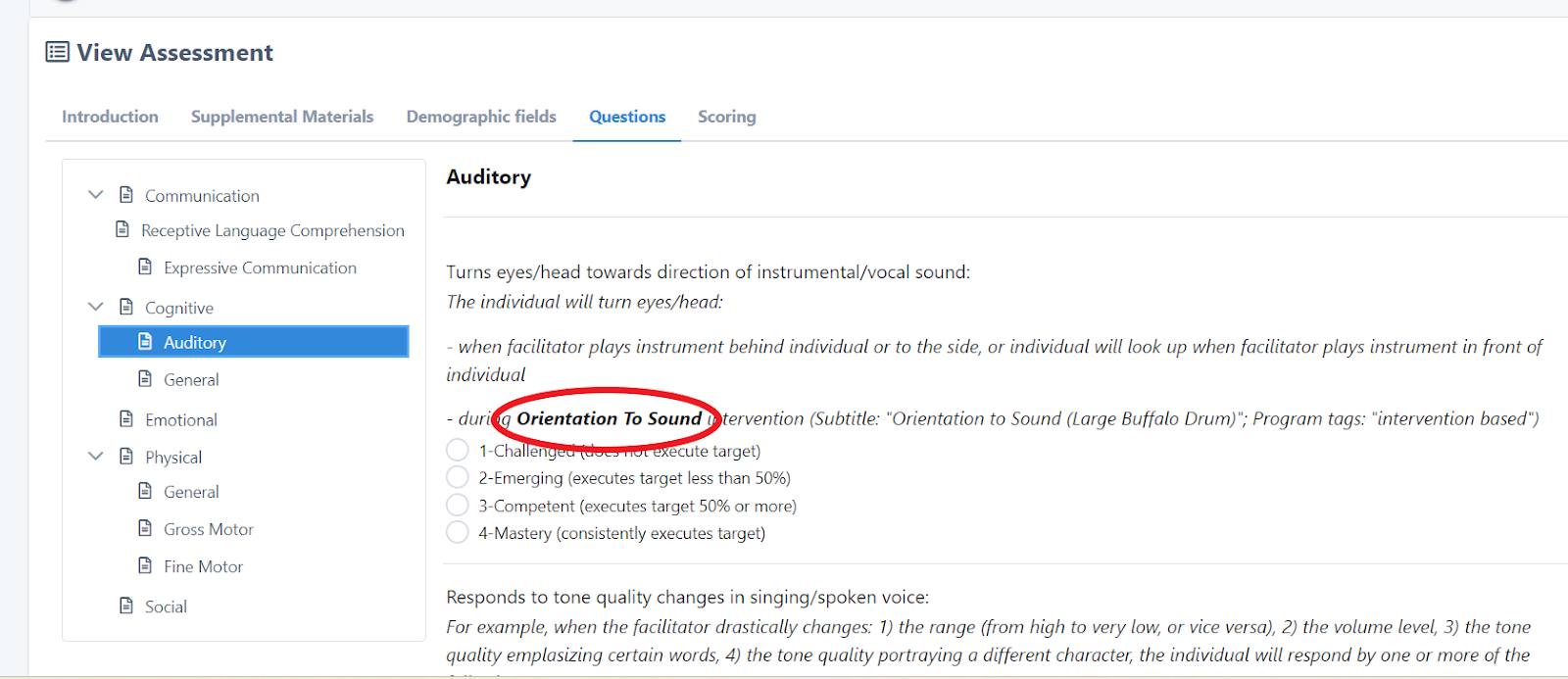
- The MITM© Main Assessment will suggest certain music therapy activities/ interventions to employ during assessment sessions, in order to target & answer each assessment question (as noted in the bolded areas). You may want to write these intervention titles down, review them, and implement them in in your assessment sessions (instructions on how to implement them can be found by searching for them by their title in the Program/Program Templates area of UnitusTI) :
B. Assigning an Assessment to a Client
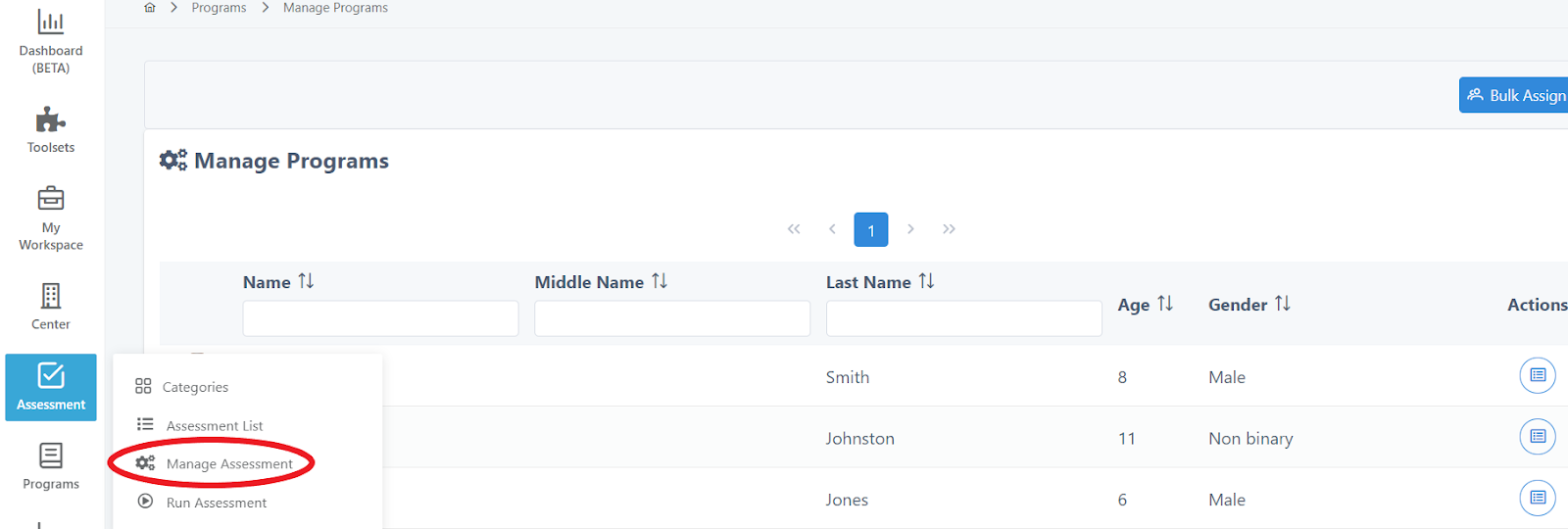
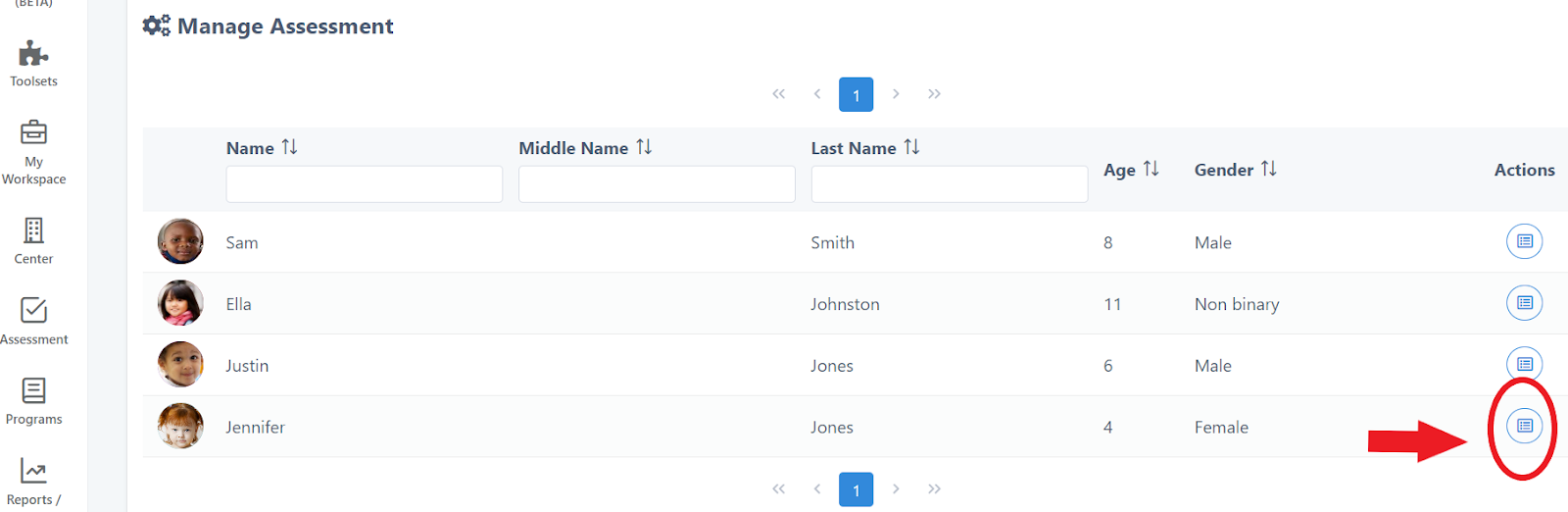
- Click Assessment , in the main menu, then Manage Assessment:
- Click on the Actions button:
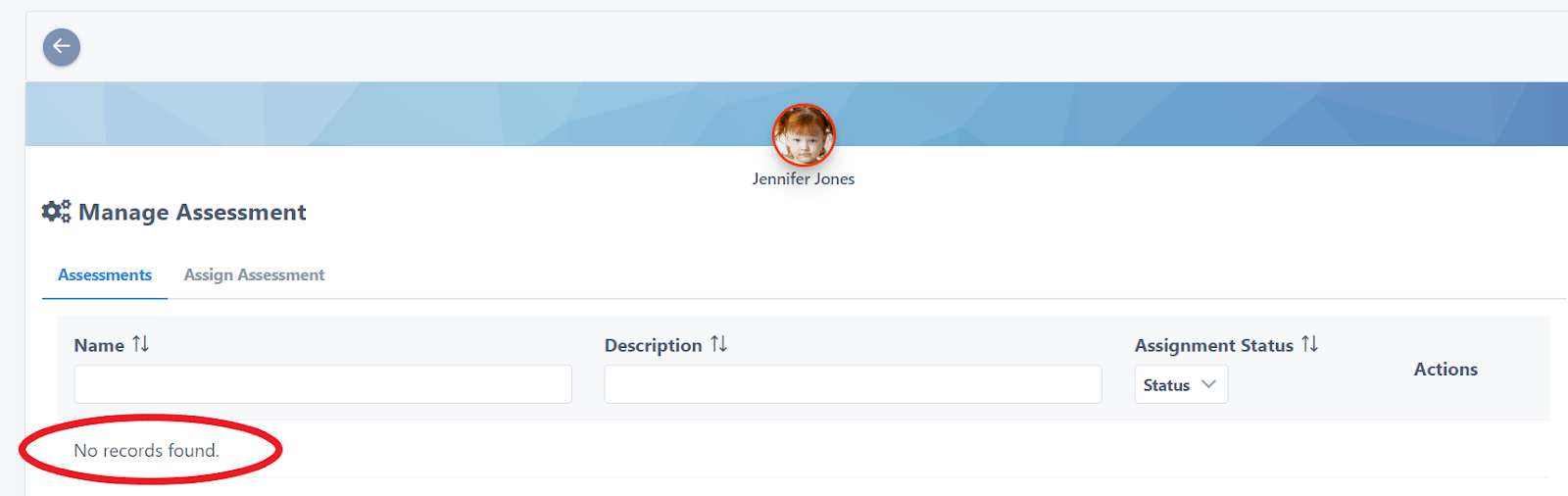
- You will see there are ‘no records found”. This means no assessment has yet to be assigned to this particular client. Click the Assign Assessment tab, and select the assessment you want to assign, using the Actions column, and the ” +” button:
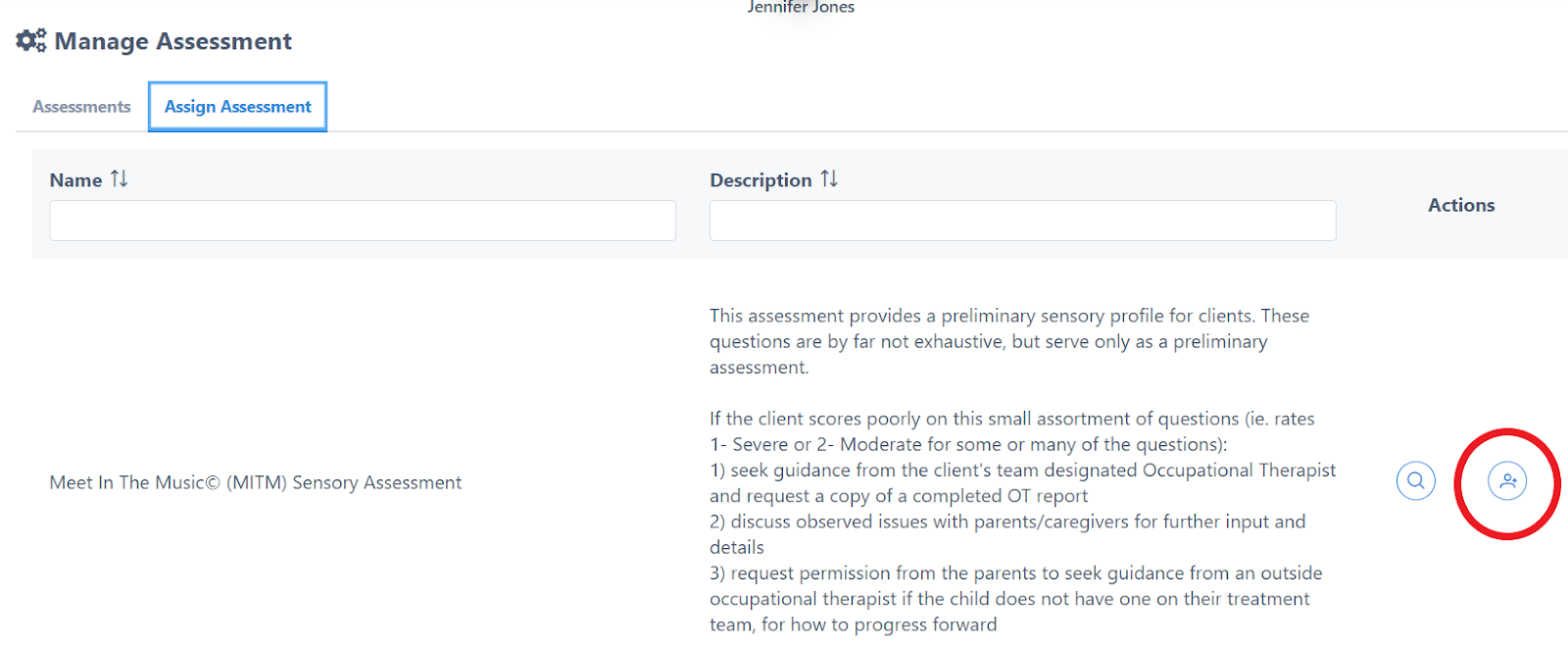
Now you are ready to run the assessment on the client!
C. Completing (“running”) an Assessment
- Click Assessment on the main menu
- Click Run Assessment
- Click the button in the Select column for the client you want to run the assessment on
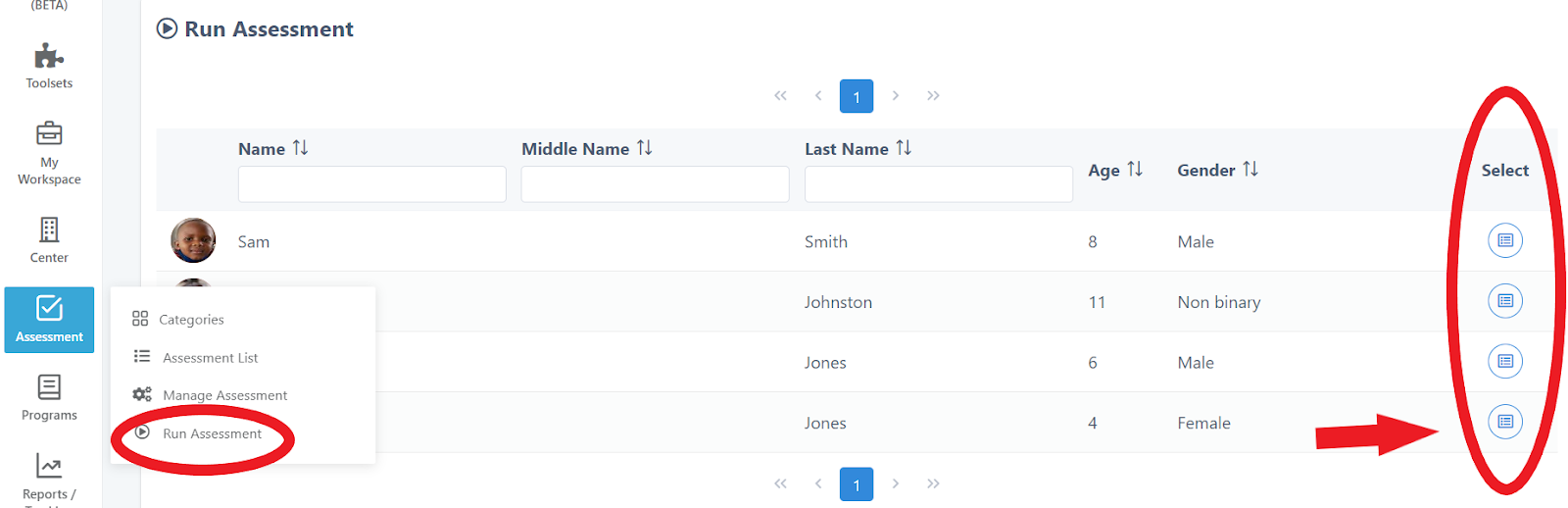
- Click the Arrow button in the Actions column:
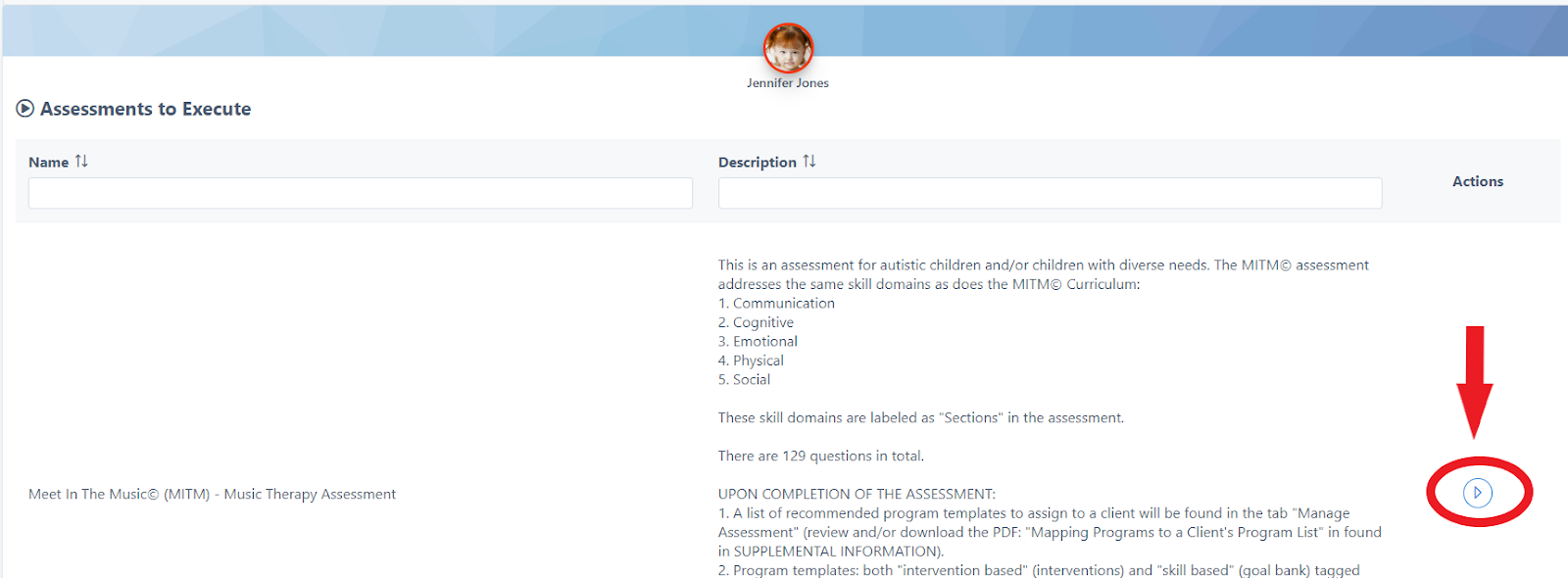
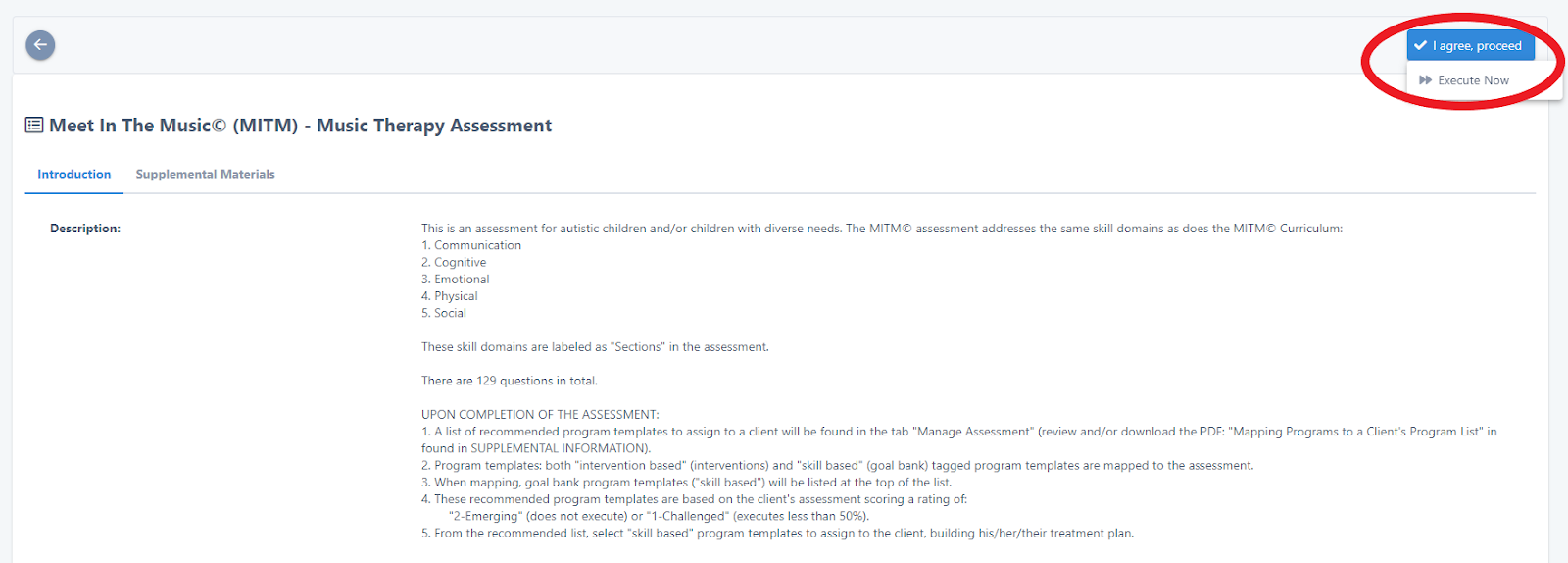
- Click I agree, proceed and Execute Now:
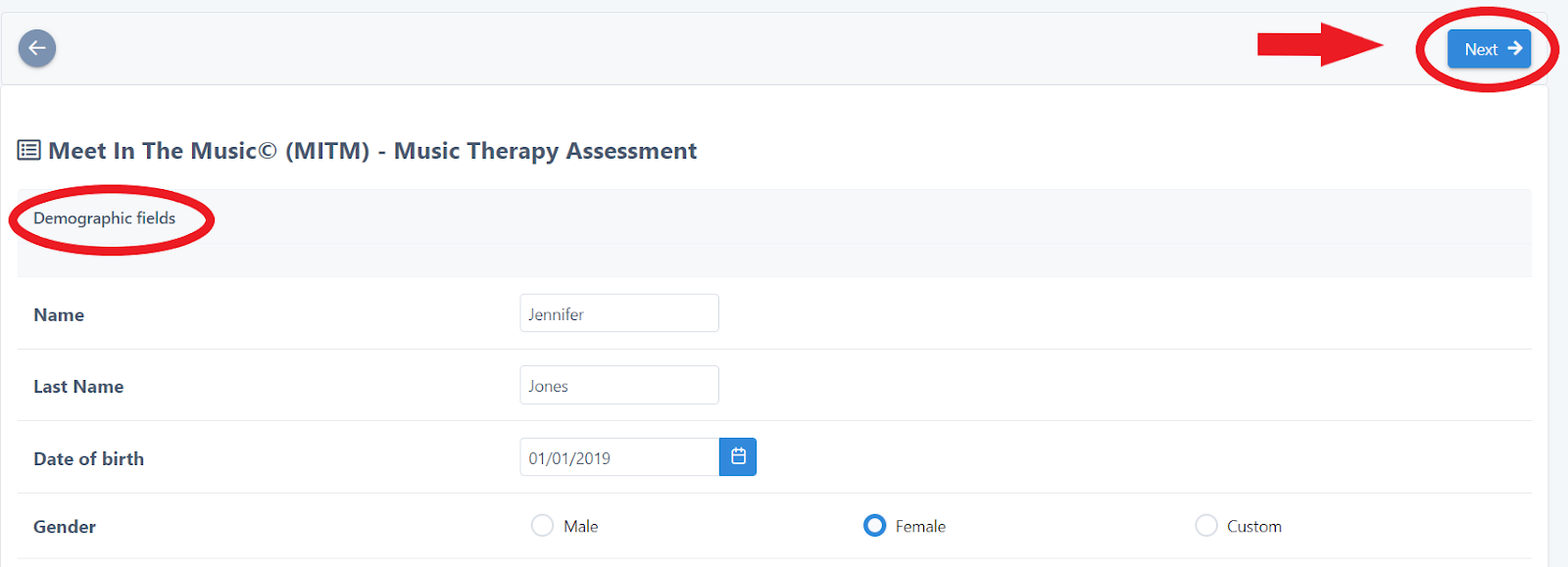
- The next screen displays the Demographic Fields of the client. These are autofilled from the client’s file in My Clients . Click Next:
- You have two options for completing the assessment- in sequence or out of sequence. The Next Section button moves you through the Sections in order, until you reach the end of the assessment. The Sections button allows you to jump around and complete sections/questions in any order:
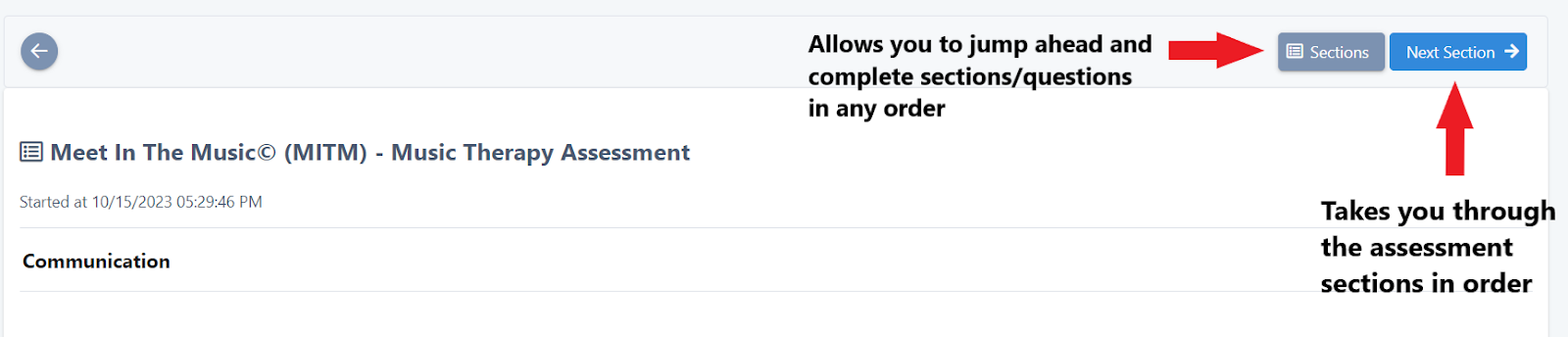
For example, you may have completed your first assessment session with a client, and only want to answer questions in the Emotional skill domain (section) that week. By clicking on the Sections button, you can skip to the Emotional Section.
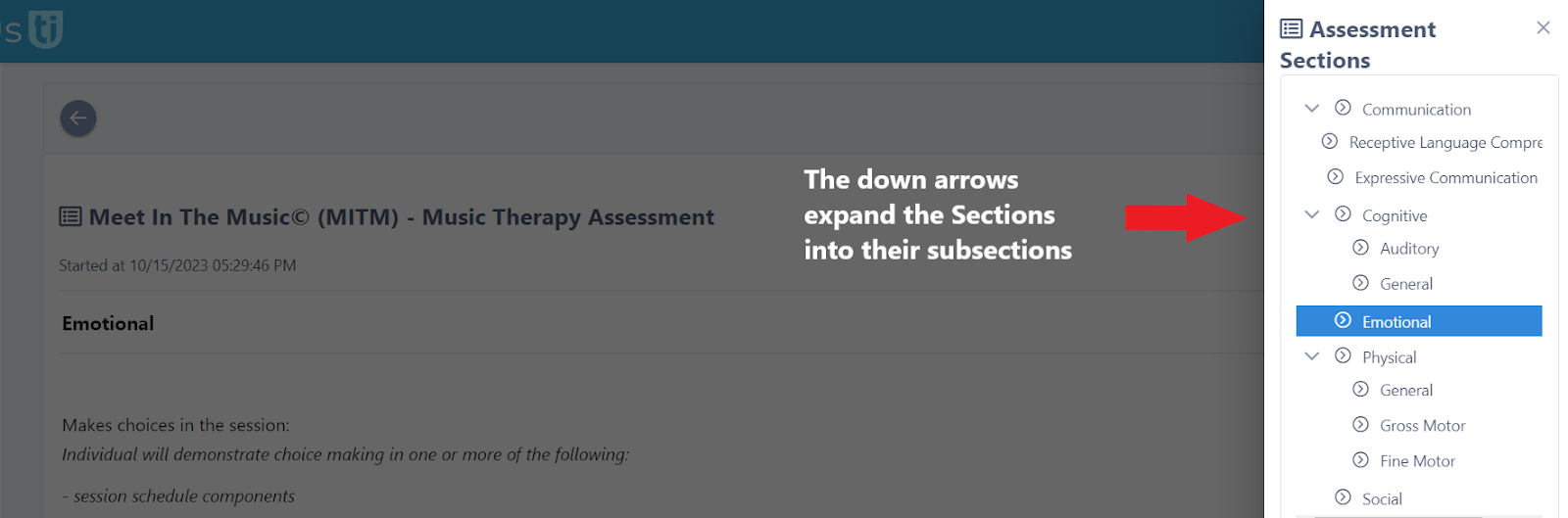
- All questions are automatically saved. You can go to another area in UnitusTI, and return back and continue answering other questions the following week, after another session with the client.
- You can change the scores to previously answered questions.
- You cannot, however, unclick an answer.
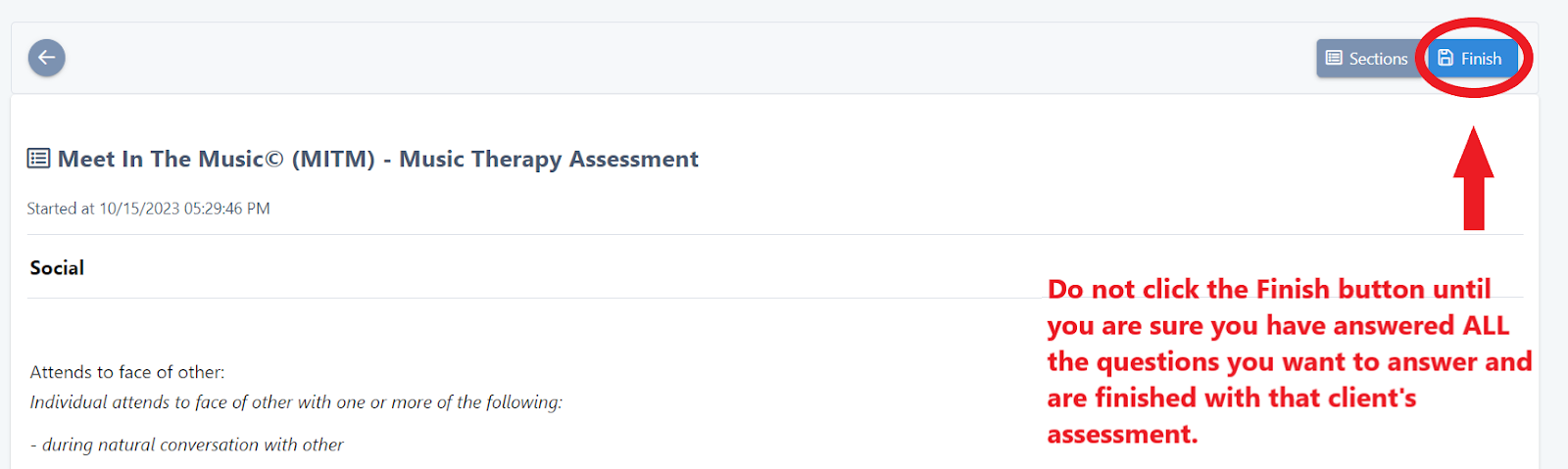
IMPORTANT NOTE:
When you click the Finish button, UnitusTI will score that assessment.
Scenario: If you take 3 weeks to complete an assessment, it is important to NOT click the Finish button until the 3rd week.
D. Viewing Assessment Results- Assessment Dashboard
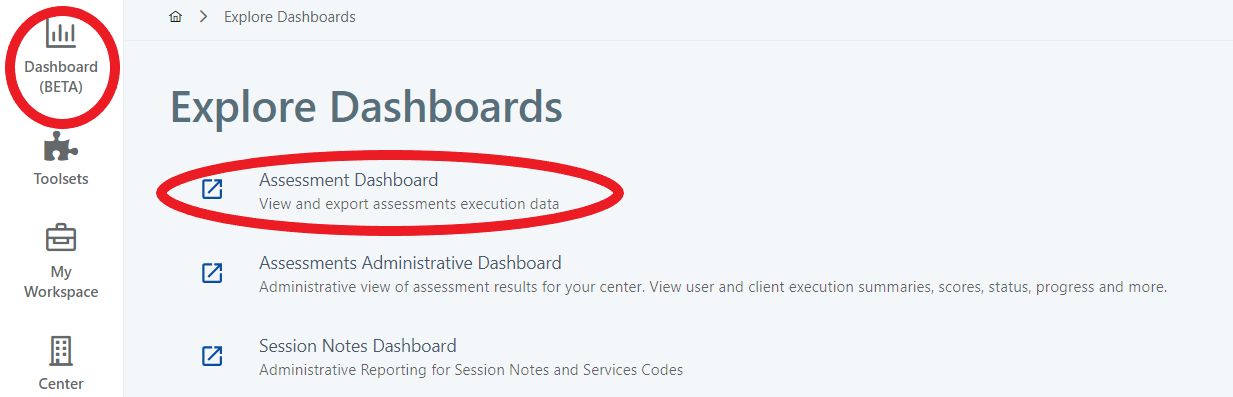
Now it’s time to see assessment results using the Assessment Dashboard.
- Go to Dashboard , and then Assessment Dashboard:
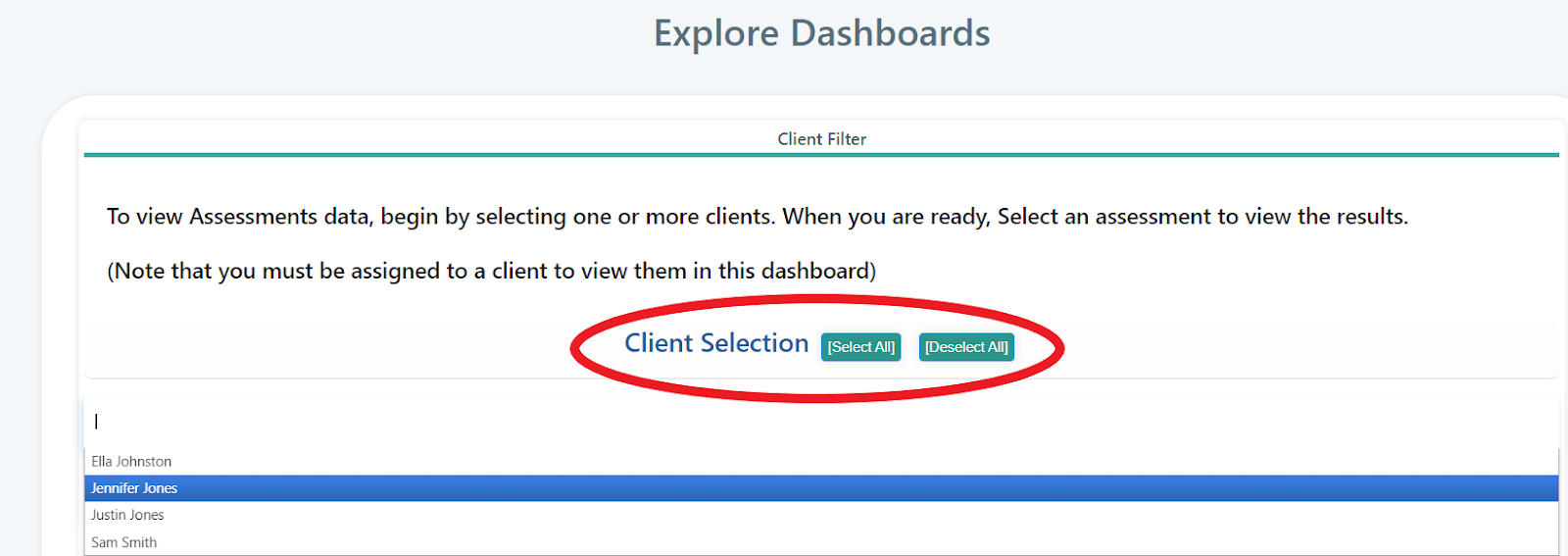
- Go to Client Selection and enter in the client’s name:
- Select Period:

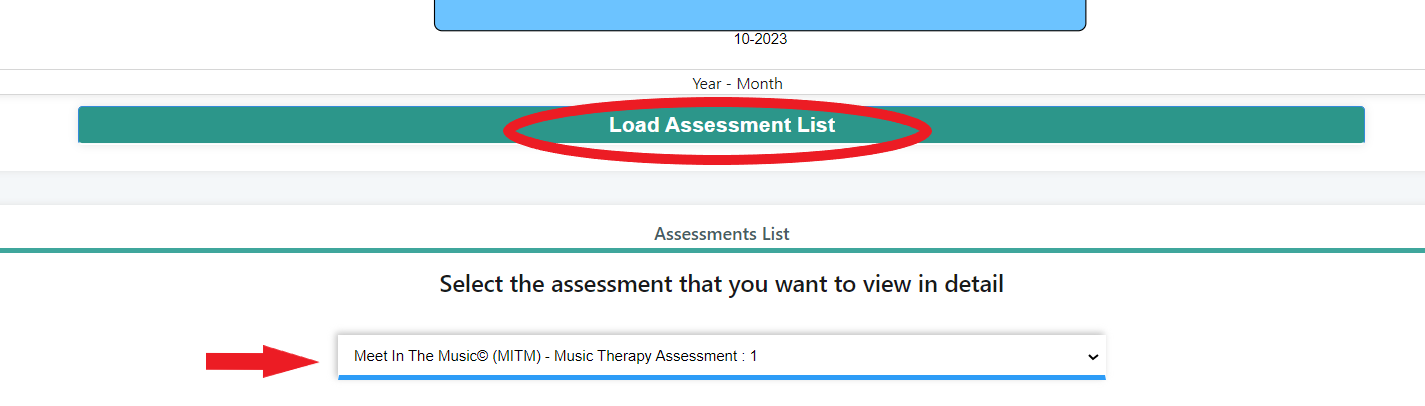
- Click Load Assessment List and select the assessment to view:
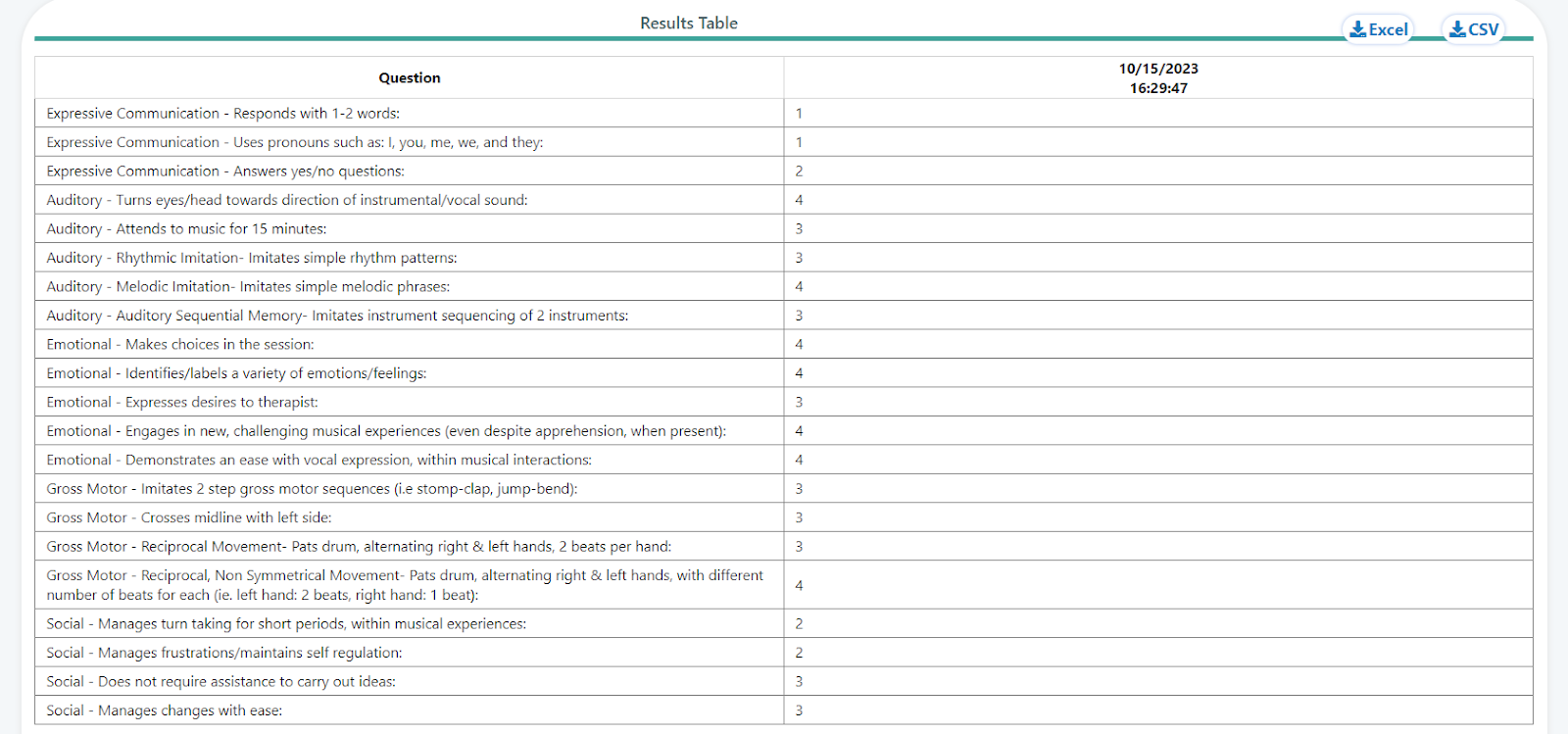
- View the raw data: questions and answers stored. Assessment questions and answers can be downloaded into an excel/CSV:
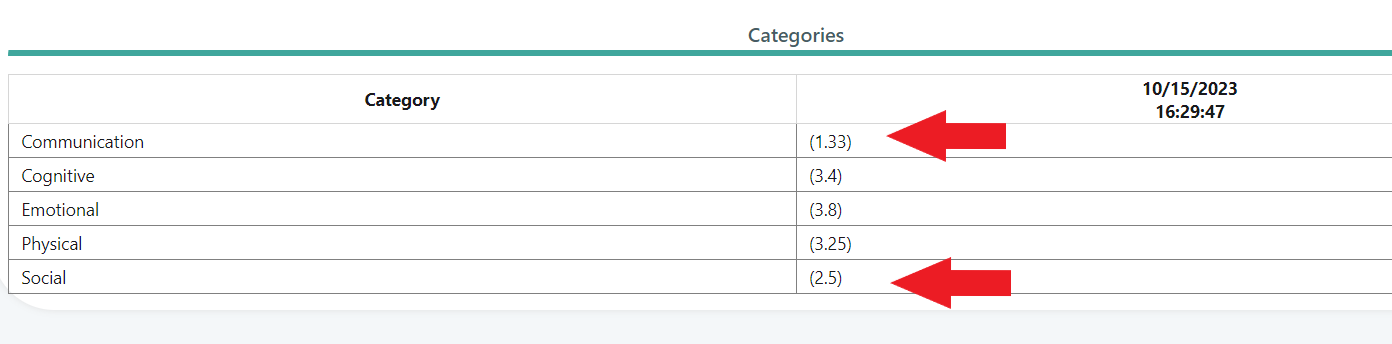
- The MITM© main assessment is scored by Category. It will give you an average score based on the 4 point rating scale for each skill domain. This informs which skill domain(s) (Categories) one should target for the client. In this instance, one can see that the client needs support in the Communication and Social areas:
E. Creating a Client Treatment Plan/Goal List (Program LIst), Based on Assessment Results
Based on the answer to each question, UnitusTI will provide a list of Suggested Programs to assign to the client goal list/plan. Suggested goals (programs templates) will be displayed for questions that were answered with a Rating Scale of a 1 (Challenged: Does not execute target) or a 2 (Emerging: less than 50%).
- Go to Assessment on the Main Menu
- Go to Manage Assessment
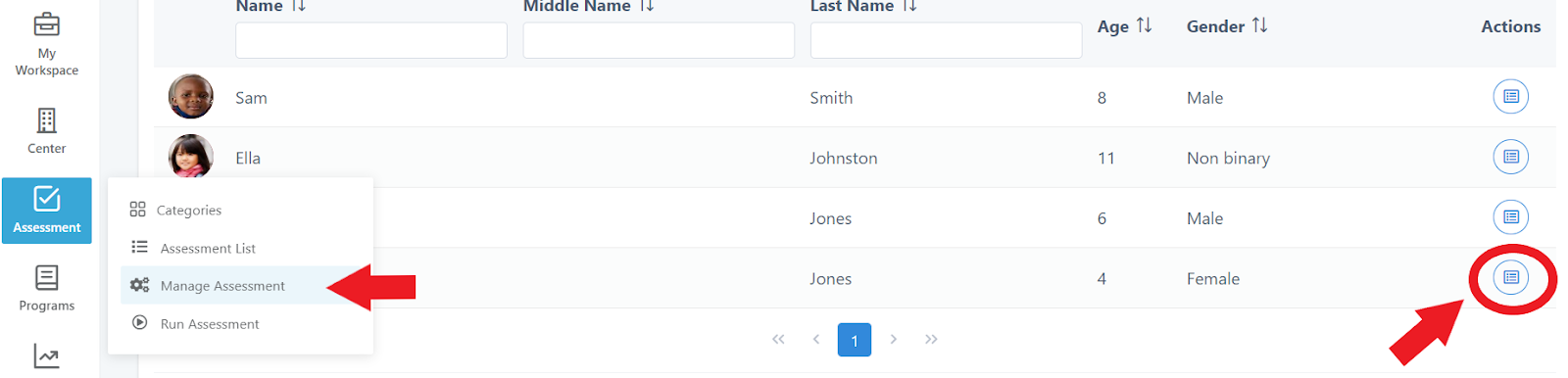
- Click the button in the Actions column for the client:
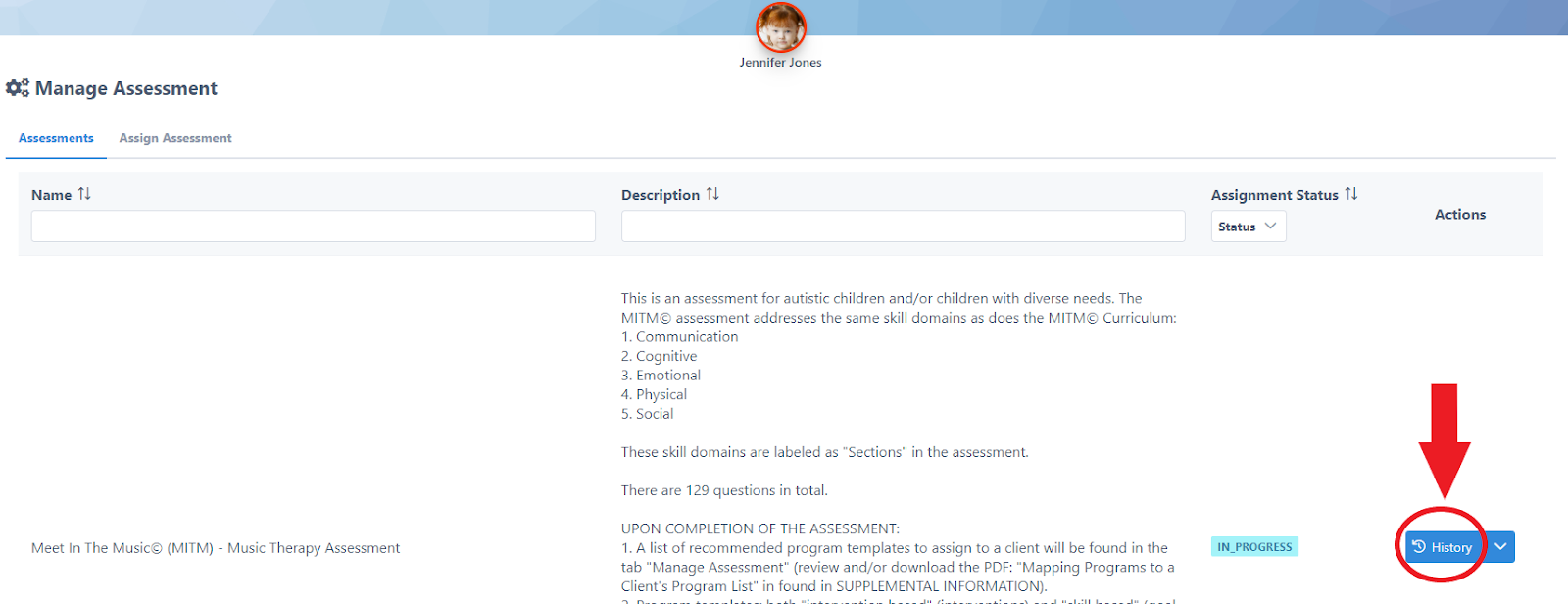
- Click the History button:
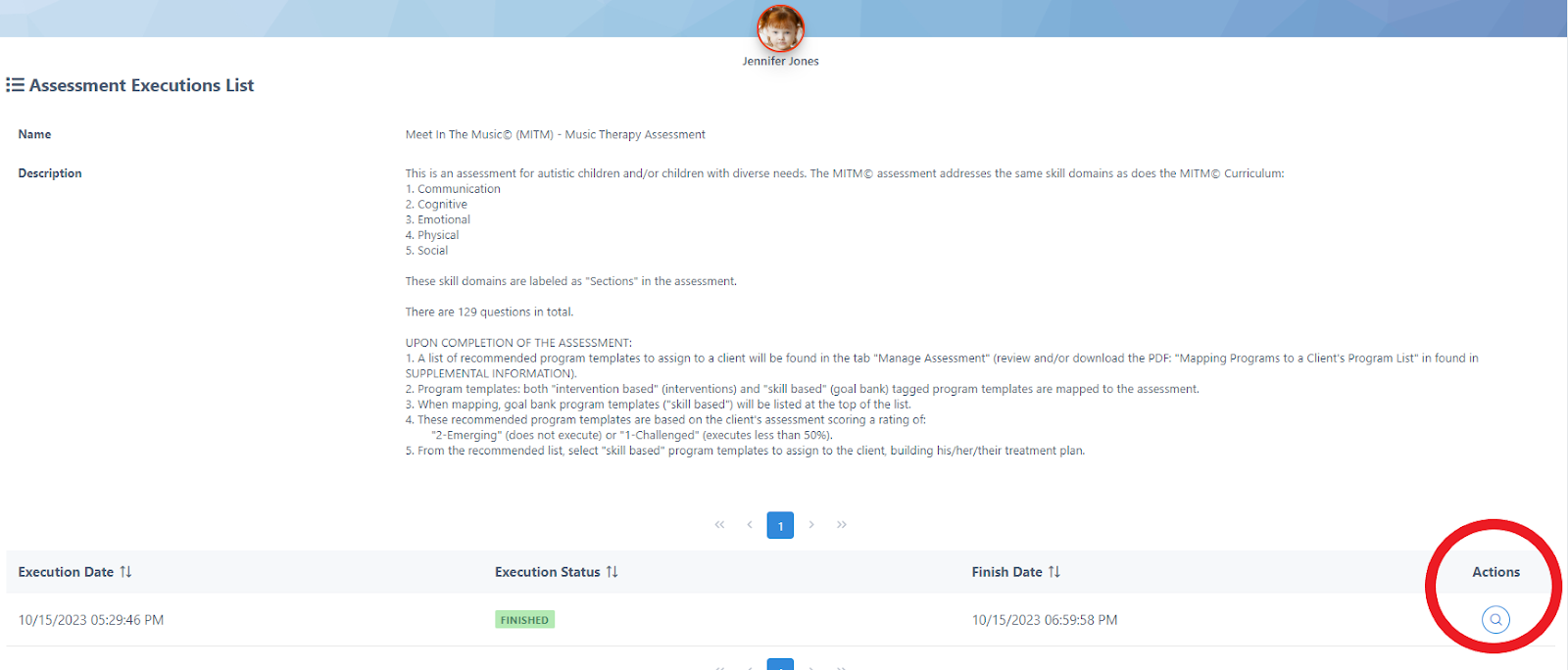
- Click the Actions button:
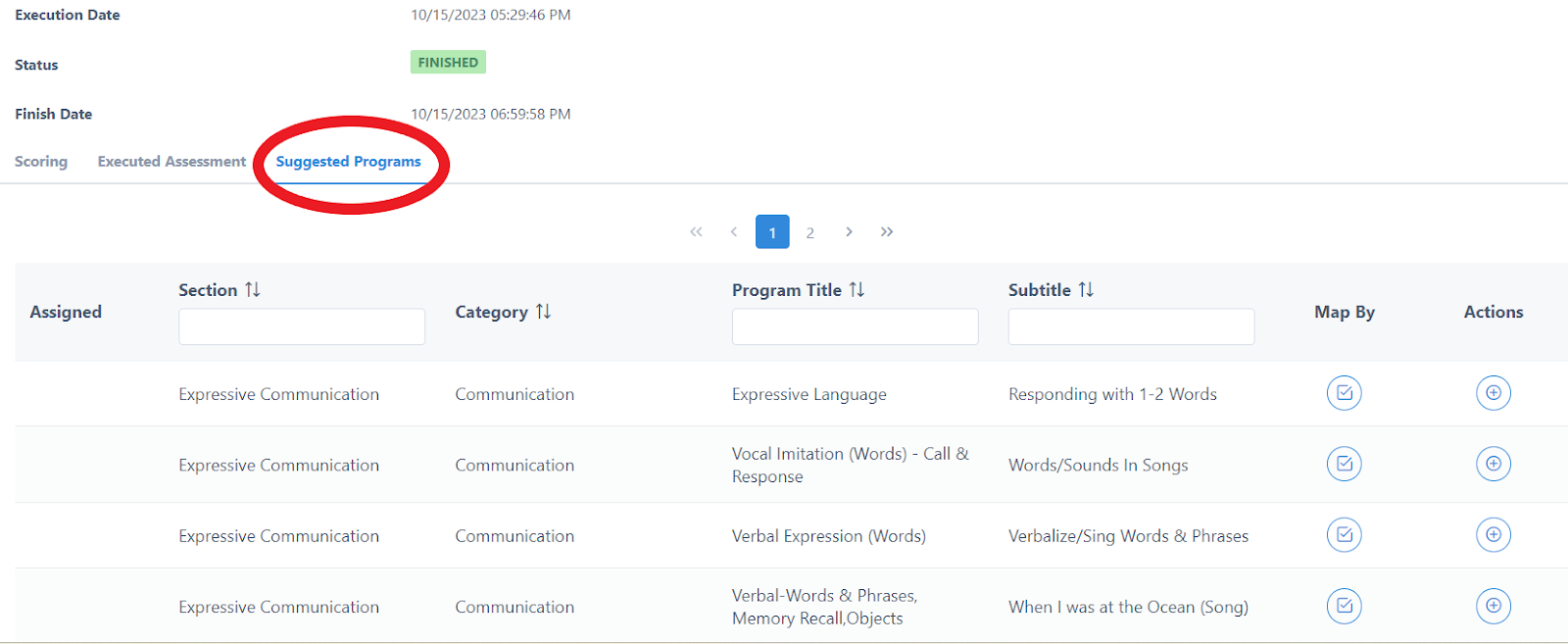
- Scroll down and click the Suggested Programs tab. Here you will see a list of suggested goals (programs) to assign a client.
- UnitusTI will suggest two types of programs from MITM©:
- Goal bank program templates- what gets assigned to a client’s goal list (Program List). They are always listed first. There may be many options/variations recommended to choose from.
- Intervention program templates- for session planning, activities that target the goal. Intervention program templates are demonstrated when there are bracketed words in the Subtitle column (ie. When I was at the Ocean (song)).
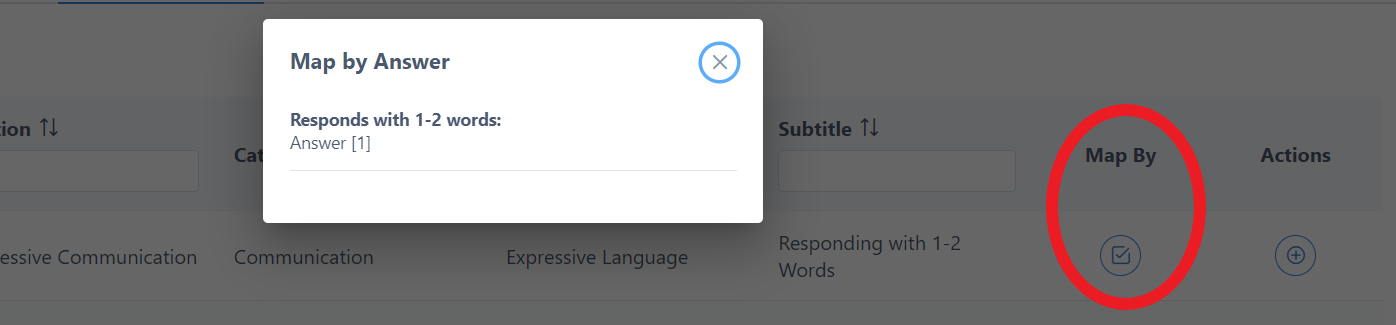
8.The Map By column displays the question and the answer chosen:
9. The Actions column starts the process of selecting that goal to a client’s program list:
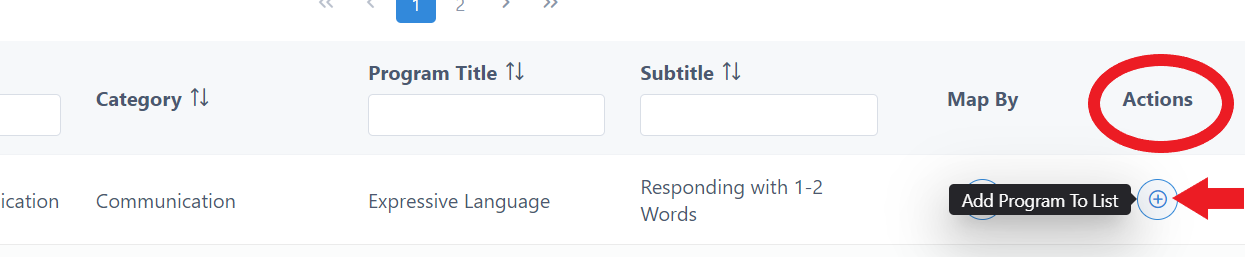
10. If this is the first goal added to a new client’s gal list, it will ask you to create a new program list .
* To continue on with this process, please skip ahead to Page 40 : Creating a Program List (Music Therapy Treatment/Goal List)
F. Tracking Assessment Progress on the Assessment Administrative Dashboard
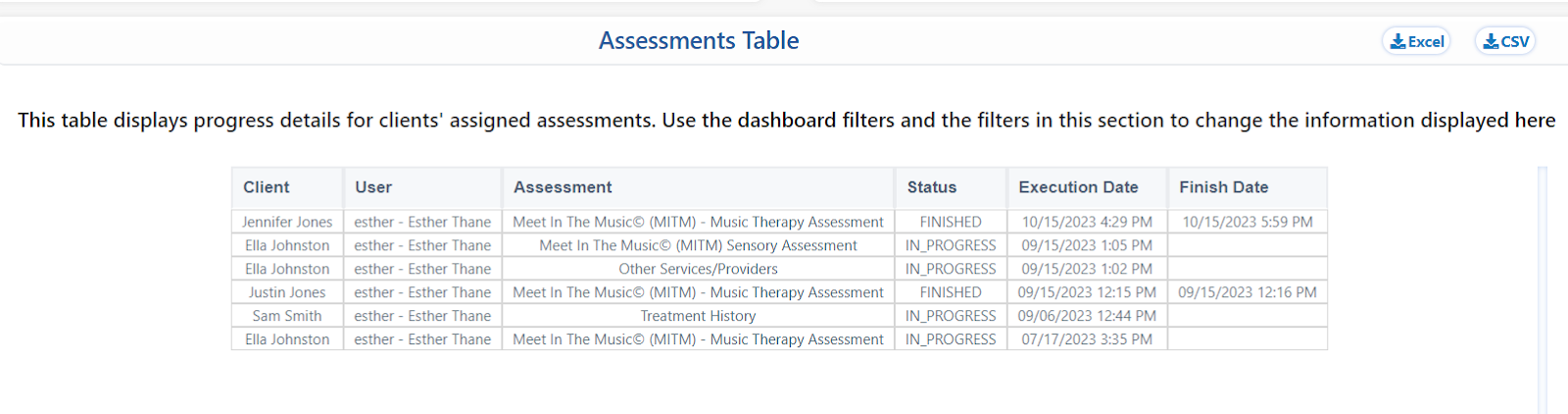
This dashboard helps you monitor where you are at with assessments on all of your clients, and your staff with their clients. It demonstrates who has completed assessments, who is still in progress, who the user was, execution dates and finished dates.
- Go to Dashboard on the main menu
- Go to Assessment Administrative Dashboard :
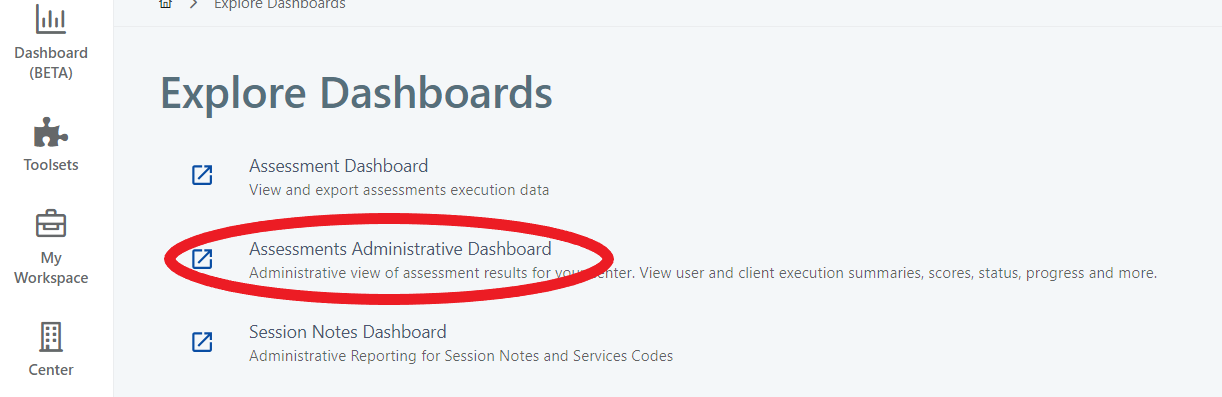
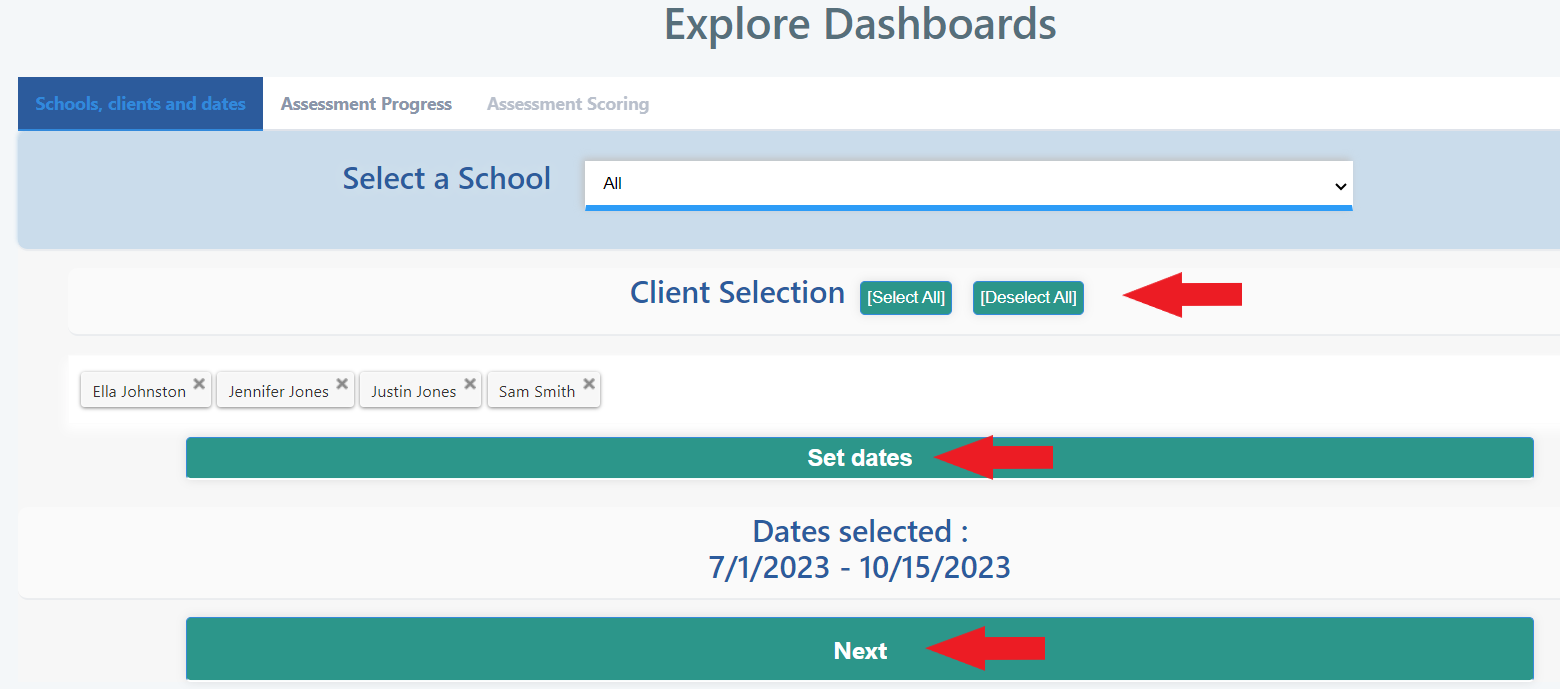
- Select the clients ( Client Selection)
- Select the date range ( Set Dates)
- Click Next
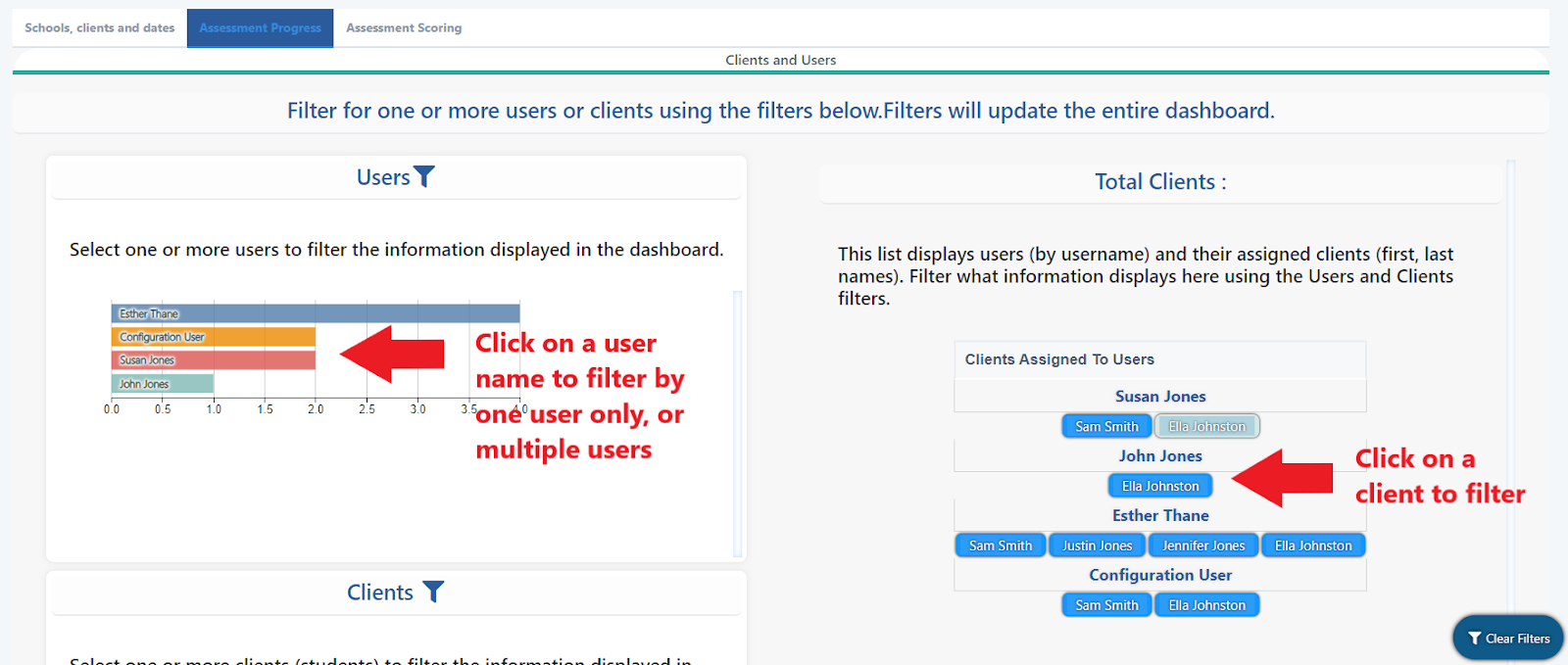
- Filter by Users and clients:
- Filter by type of assessment:
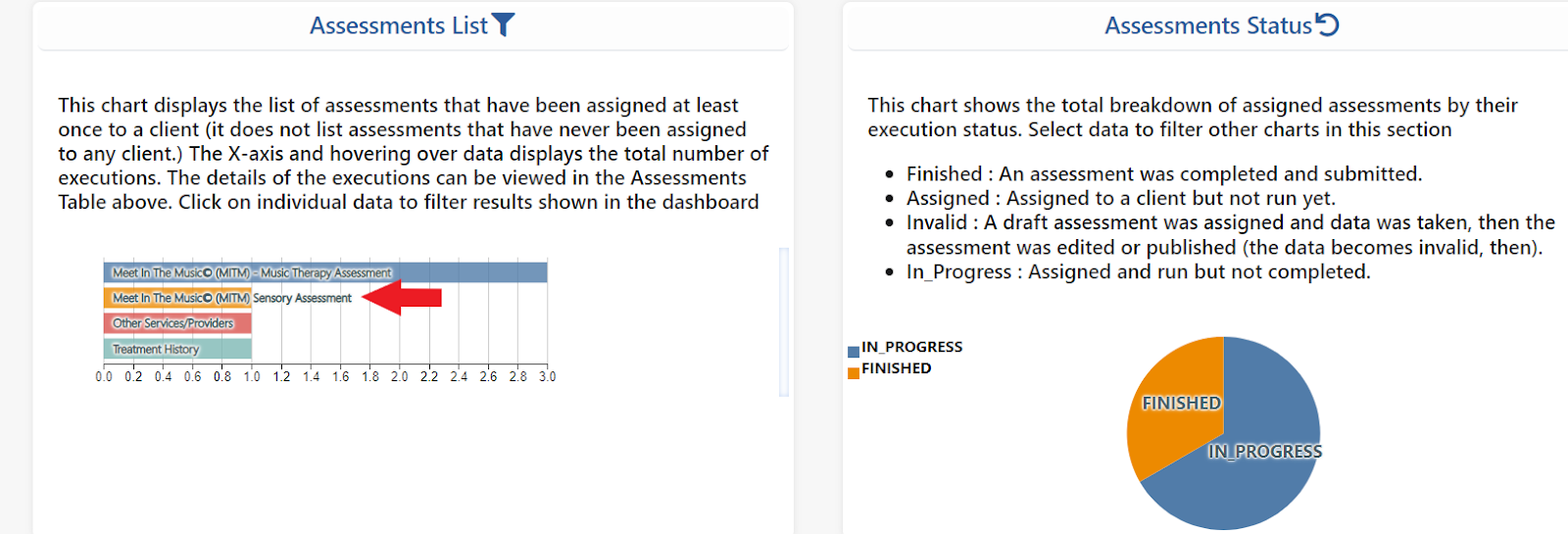
- See the execution date, finished date, user
- Download to an excel/CSV:
The MITM© Program
What Is the MITM Program
Meet In The Music © content is divided into two segments: music therapy interventions & songs (to help you plan your session content), and a music therapy goal bank of goals and objectives (to be used for documentation). Both are categorized using the following skill domains:
Categories
- Cognitive
- Communication
- Emotional
- Physical
- Social
- Therapeutic Music Instruction
- Training Videos
You can review the categories in the Categories areas of UnitusTI (see screenshot below) or use them to quickly search for goals and activities.
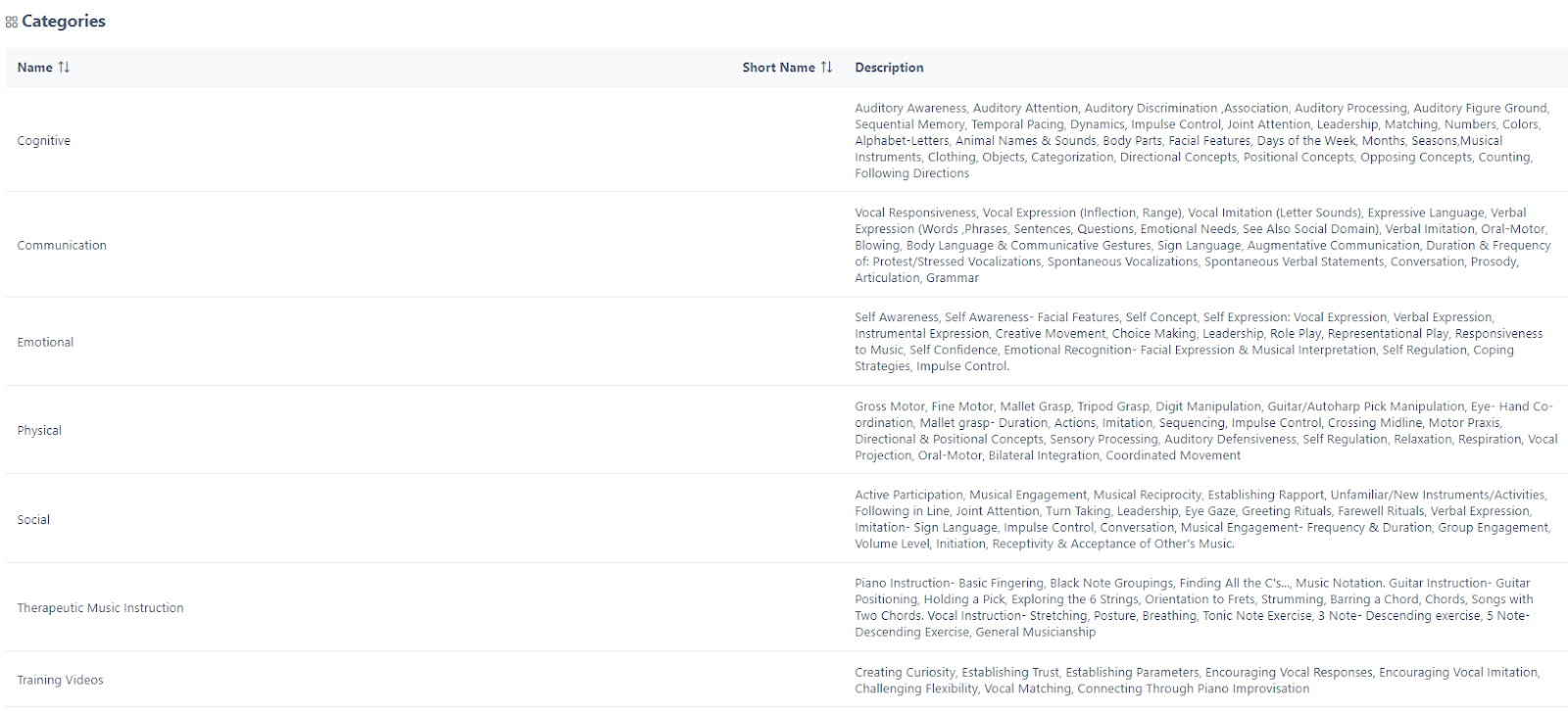
Each skill domain includes templates that are included in the goal bank and the interventions & songs sections of MITM © . The Description column gives you more detail on the sub-skill domains that fall under each category. These subcategories are also used as the Program Titles for goals and interventions that you’ll find in the Program Templates area of UnitusTI. For example, under the COGNITIVE skill domain, there are a variety of programs, both goal bank programs, and intervention program templates that address Temporal Pacing, the Alphabet, Colors etc.
The THERAPEUTIC MUSIC INSTRUCTION skill domain contains beginning introduction programs for the voice, piano and guitar. Knowing music therapists use a variety of method books when teaching, this category includes just the beginning programs for introducing the instrument to a client, such as how to hold the guitar, learning the frets, how to find all the “C’s” on the piano, or proper stretching before engaging in vocal practice.
The TRAINING VIDEOS category offers a variety of videos modeling strategies with a client such as how to challenge flexibility. They can be a useful resource when training new staff who otherwise have not had exposure or experience with working with the autistic or diverse needs community.
Interventions & Goals
1. Intervention Based Programs (songs & interventions)
Intervention based programs are a collection of session interventions and songs that provide you with a rich resource of activities to implement into your music therapy sessions. For example, as music therapists, we can often stagnate- doing the same interventions in our sessions over and over again (FYI 6 original hello and 6 goodbye songs are included). We often crave fresh ideas to introduce to our clients. This is true for the seasoned music therapist. This curriculum is also a great resource for the new music therapist, or one that has little experience working with autistic or diverse needs children. There are over 150+ interventions and songs included within MITM © .
To search for interventions and songs in MITM ©:
1) click on Programs in the main menu
2) click Program Templates
3) type in the words: “intervention based” in the Program Tag field:
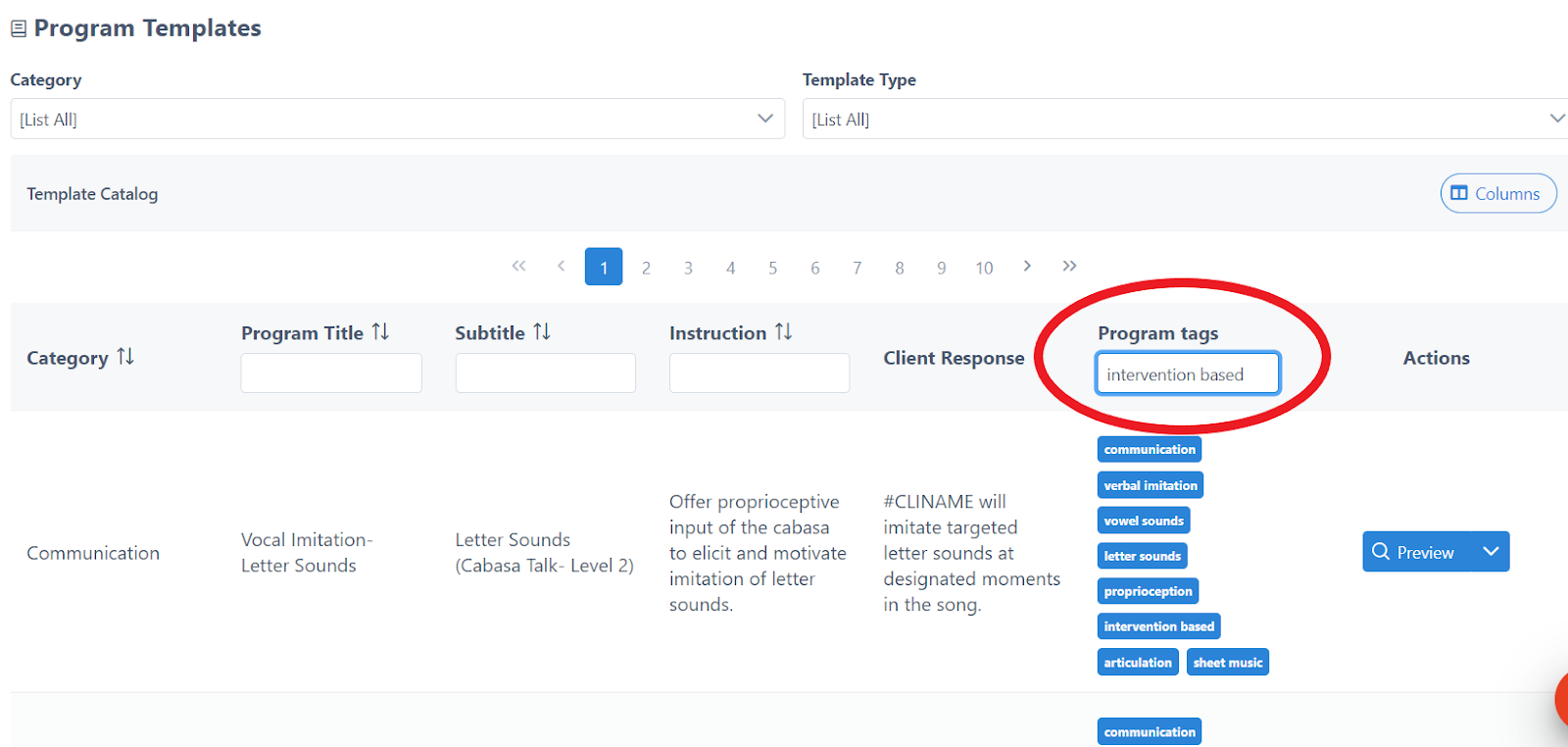
You can also filter by Category . For example, if you’d like to see the list of interventions that target physical skills,
1) select “ Physical” in the Category field at the top
2) type in: “ intervention based” in the Program tags field:
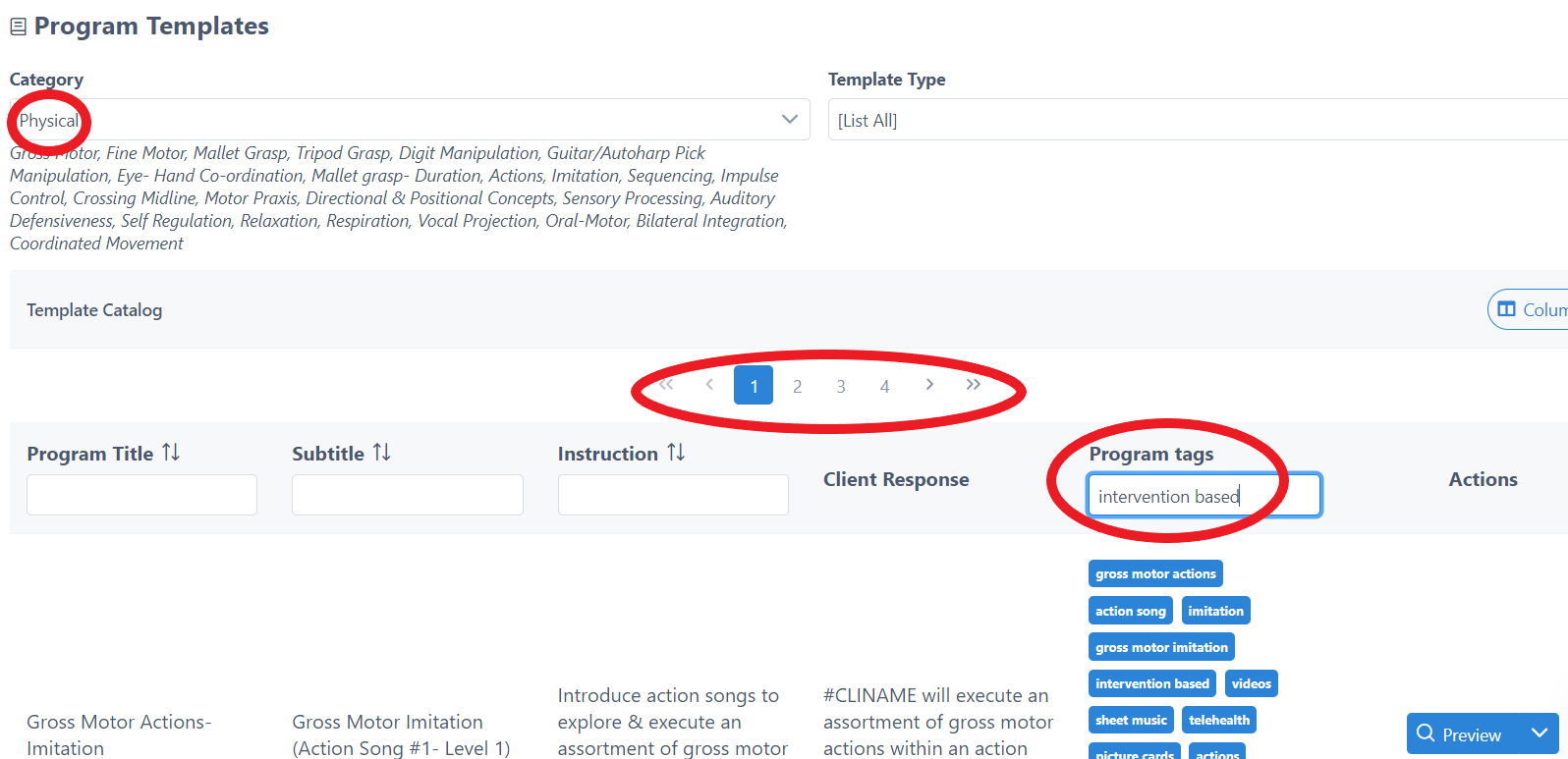
In the above example image, you can see there are 4 pages (10 per page), approximately 34 interventions that target the physical skill domain (illustrated by the numbers bar in the middle of the screen ‘1234’).
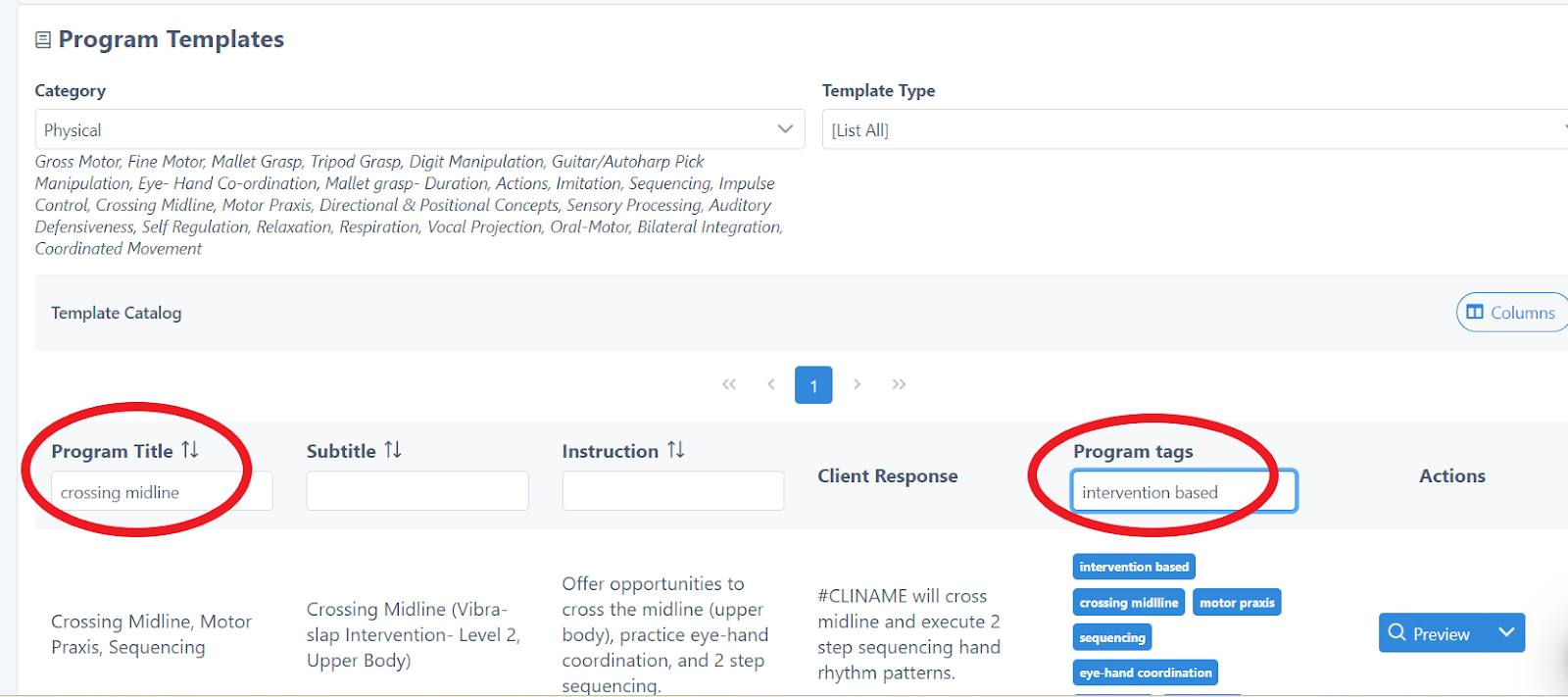
You can further refine your search by: typing in a sub skill domain call up word in the Program Title field, such as Crossing Midline. This will filter by & give you a list for all the interventions in MITM© that target Crossing Midline:
2. Skill Based Program Templates (goal bank)
Skill based programs are a collection of preloaded music therapy goals and objectives you can assign to your client, and take evidence based, quantitative data on. These goal bank programs can all be cloned to suit your verbiage, or used as is, in their original form. There are over 150+ music therapy goals and thousands of objectives included within MITM © .
To search for goals in MITM © :
1) click on Programs in the far left drop down menu
2) click Program Templates
3) type in the words: “skill based” in the Program Tag field:
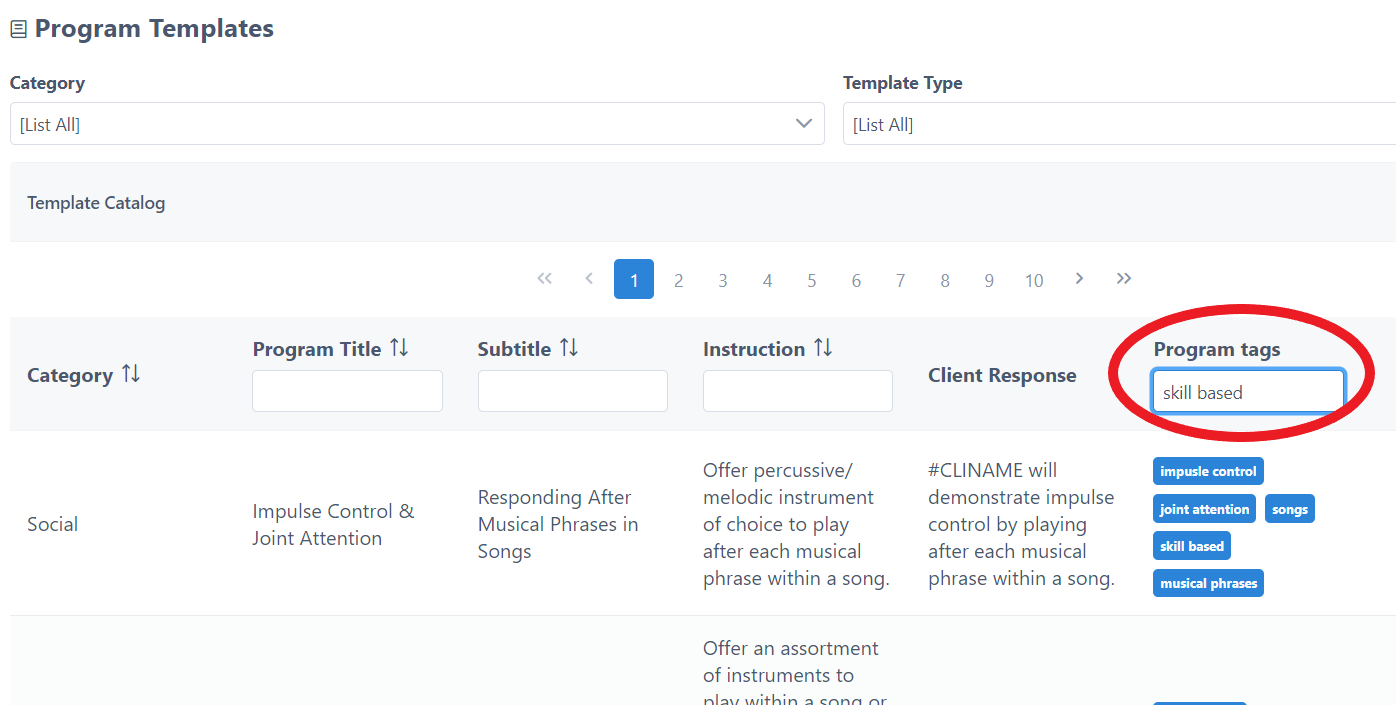
(Follow the same procedure as in the Intervention based content above, to search for specific category skill domains and sub skill domains.)
How To Use The MITM Goals & Interventions
- Planning your session: Search for interventions and songs to implement into your music therapy sessions. The instructions and extra resources are included in the program template for you to use as you wish.
- Creating a Treatment Plan: Searching for goals that you can use to take qualitative data and document (these are intended to be assigned directly to clients for this purpose in Manage Programs - see more on assigning programs in the next section )
Searching for specific programs
Goals and interventions can all be found in the Program Templates area of UnitusTI. There are many fields to help you search and filter for specific goals or interventions, such as:
- Category
- Program Title
- Program tags
- Subtitle
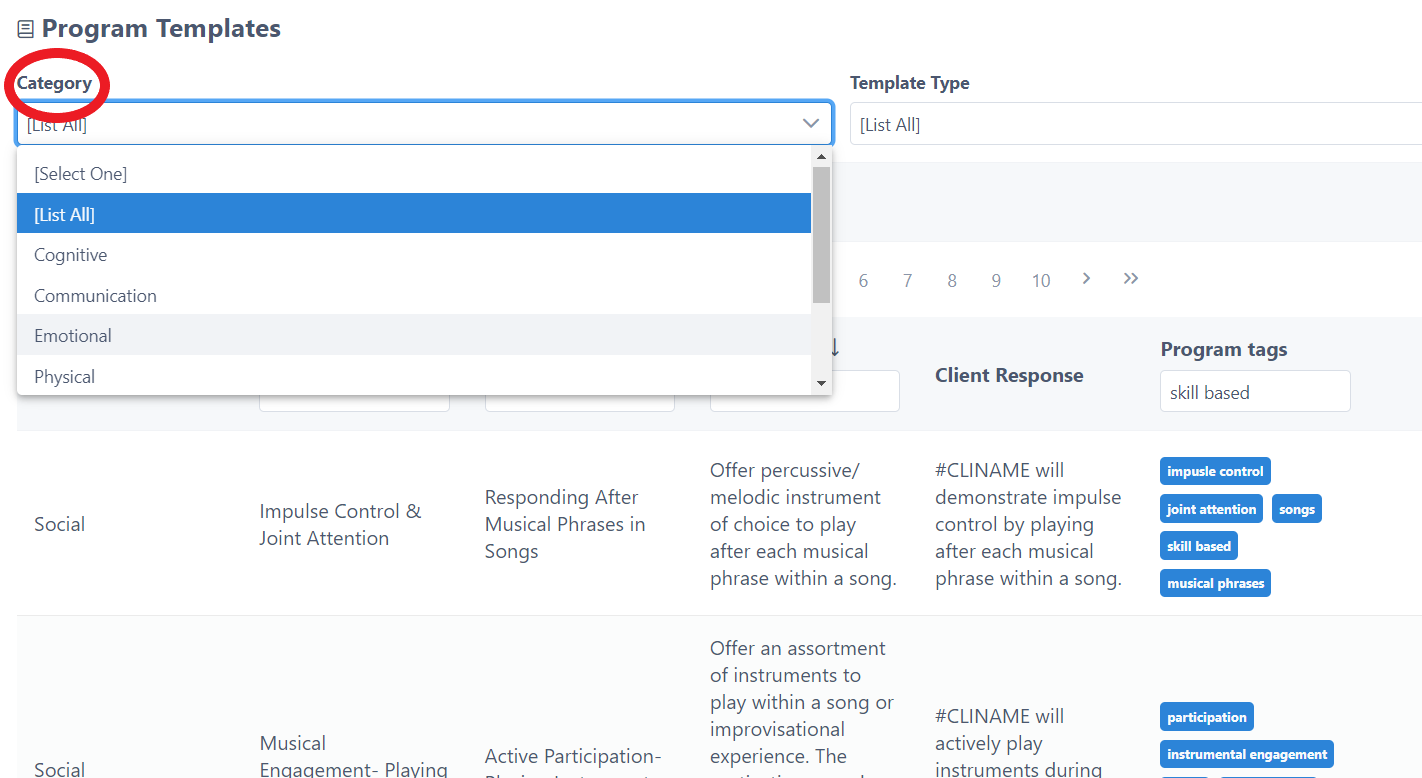
A. Search By Category
Select the Category (skill domain) you’d like to look up, from the drop down menu (and then enter in intervention based or skill based, depending on whether you are searching for interventions or goals):
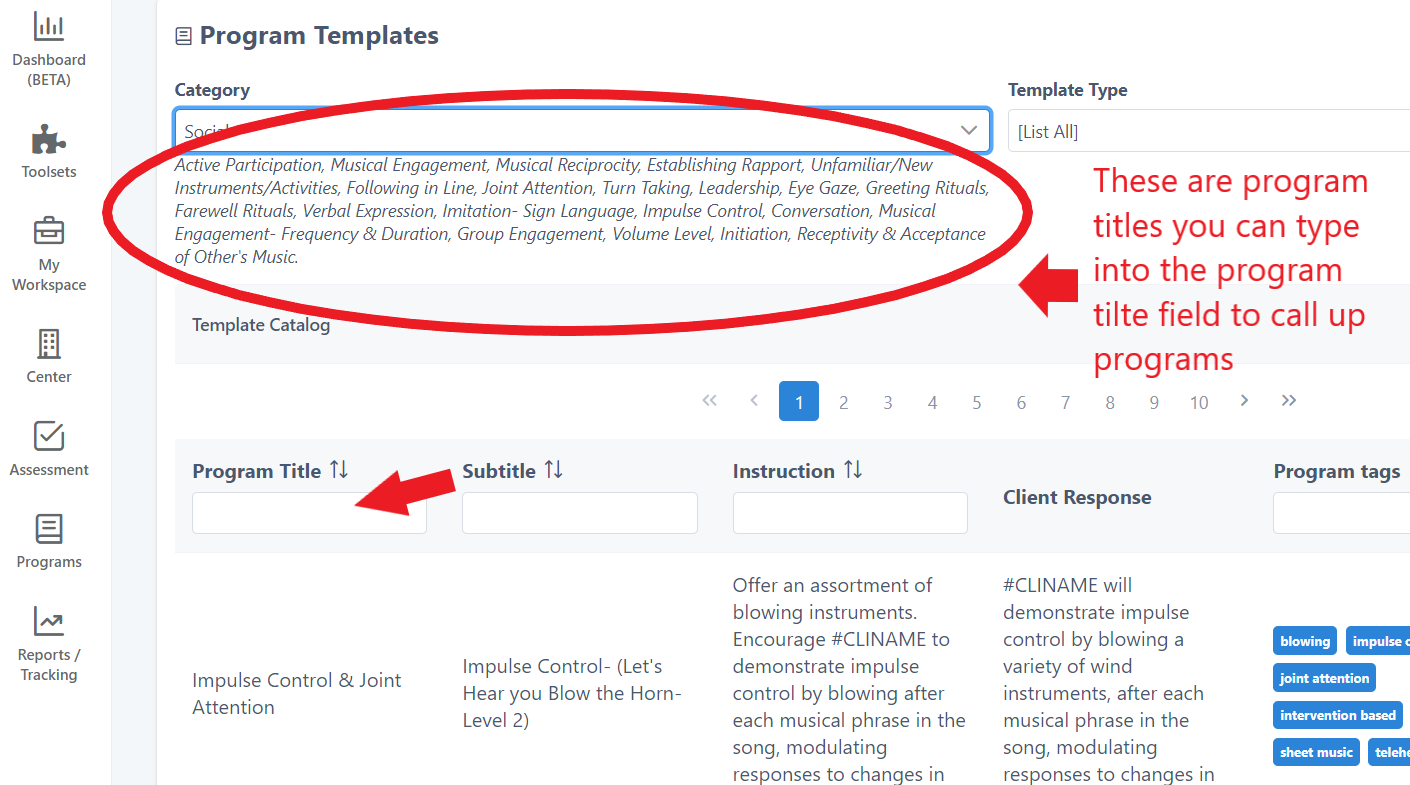
B. Search By Program Title
* Remember, program titles are the list of words under Categories (& in the description column of the Categories area):
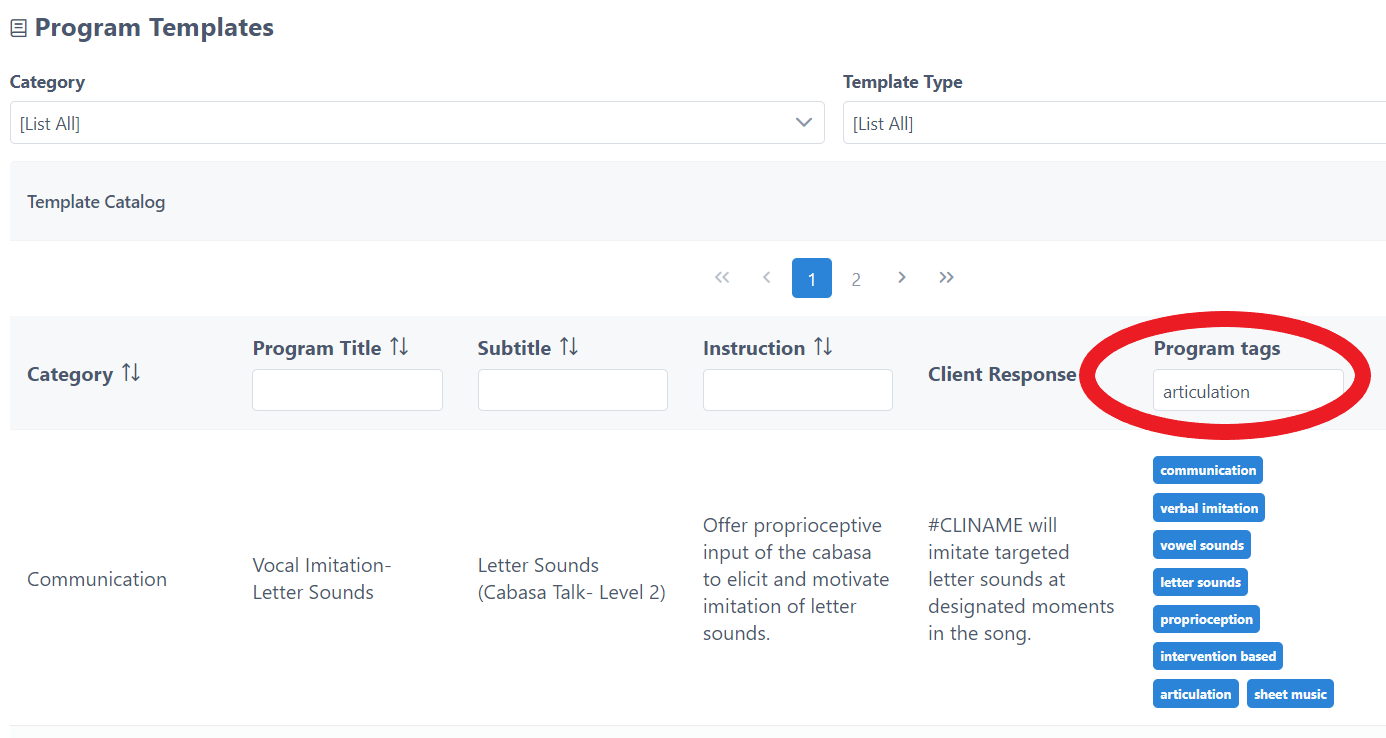
C. Search By Program tags
Think of Program tags like a Google search. For example, if you are looking for goals/ interventions that are about “self regulation”, “colors”, or “articulation”, type those words into the Program tags field:
Here are a list of some common Program tags , (though not limited to):
- impulse control
- imitation
- letter sounds
- words
- memory recall
- alphabet
- colors
- songs
- crossing midline
- sequencing
- animals
- actions
- relaxation
- respiration
- oral motor
- body parts
- joint attention
- counting
- numbers
- questions
- choice making
- sign language
- blowing
- leadership
- coping strategies
- self concept
- self regulation
- gross motor
- fine motor
- motor praxis
- crossing midline
- eye-hand coordination
- greeting rituals
- farewell rituals
- frequency
- duration
- turn taking
Other common search words in the Program tags field, for ‘intervention based’ Program templates are:
- sheet music
- picture cards
- audio files
- telehealth
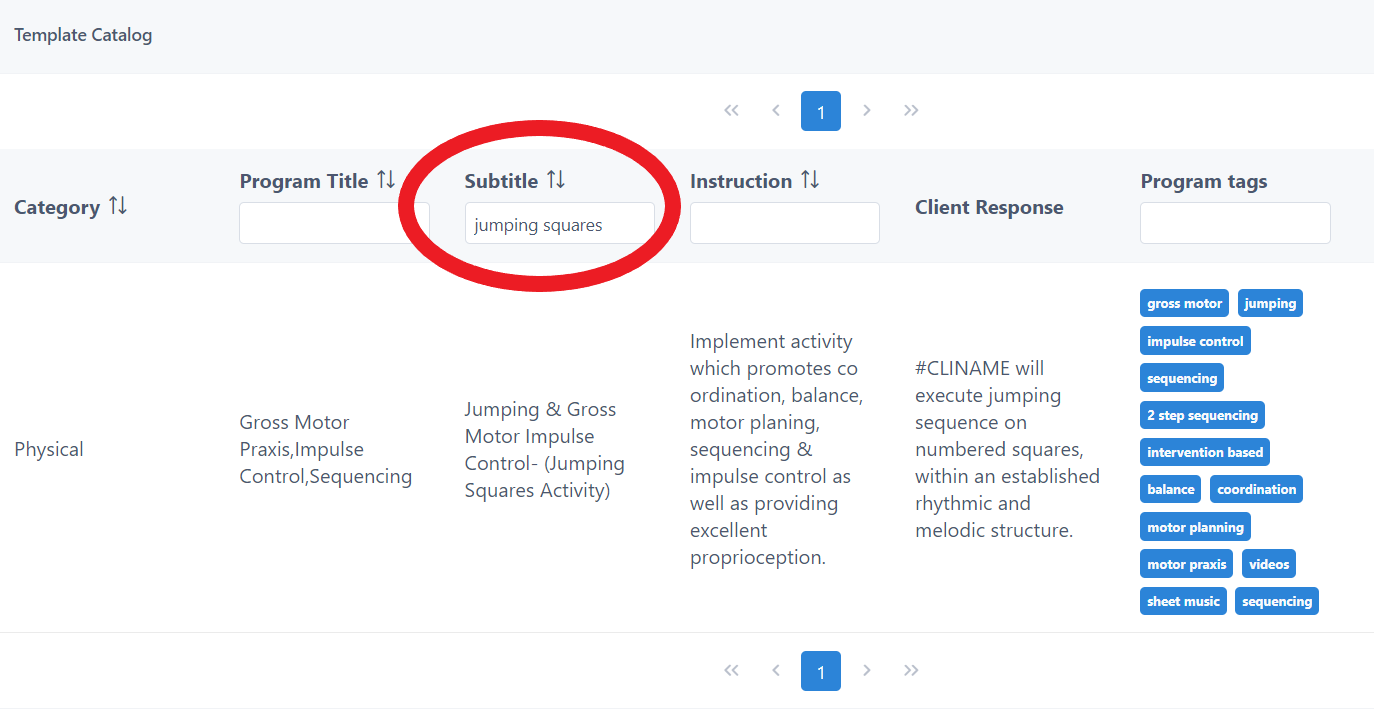
D. Search By Subtitle:
Subtitle fields include the name of interventions or more defined goals that fall under a skill domain:
E. Where to find Sheet Music, Audio Files, Picture Cards
Intervention based program templates that include sheet music, picture cards, and/or audio files, are found in the program templates’ Supplemental Information tab. Sheet music and picture cards can be downloaded and printed off:
Viewing Videos in Program Templates
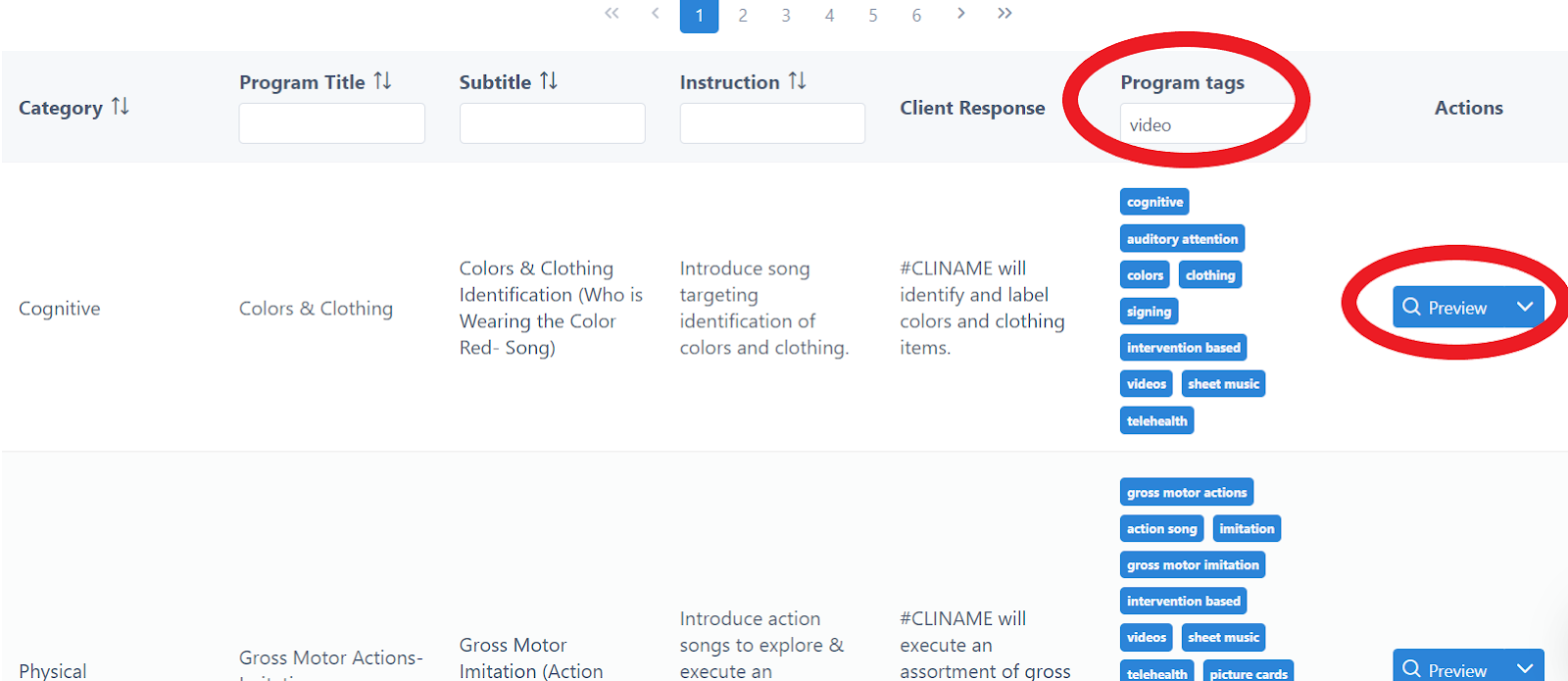
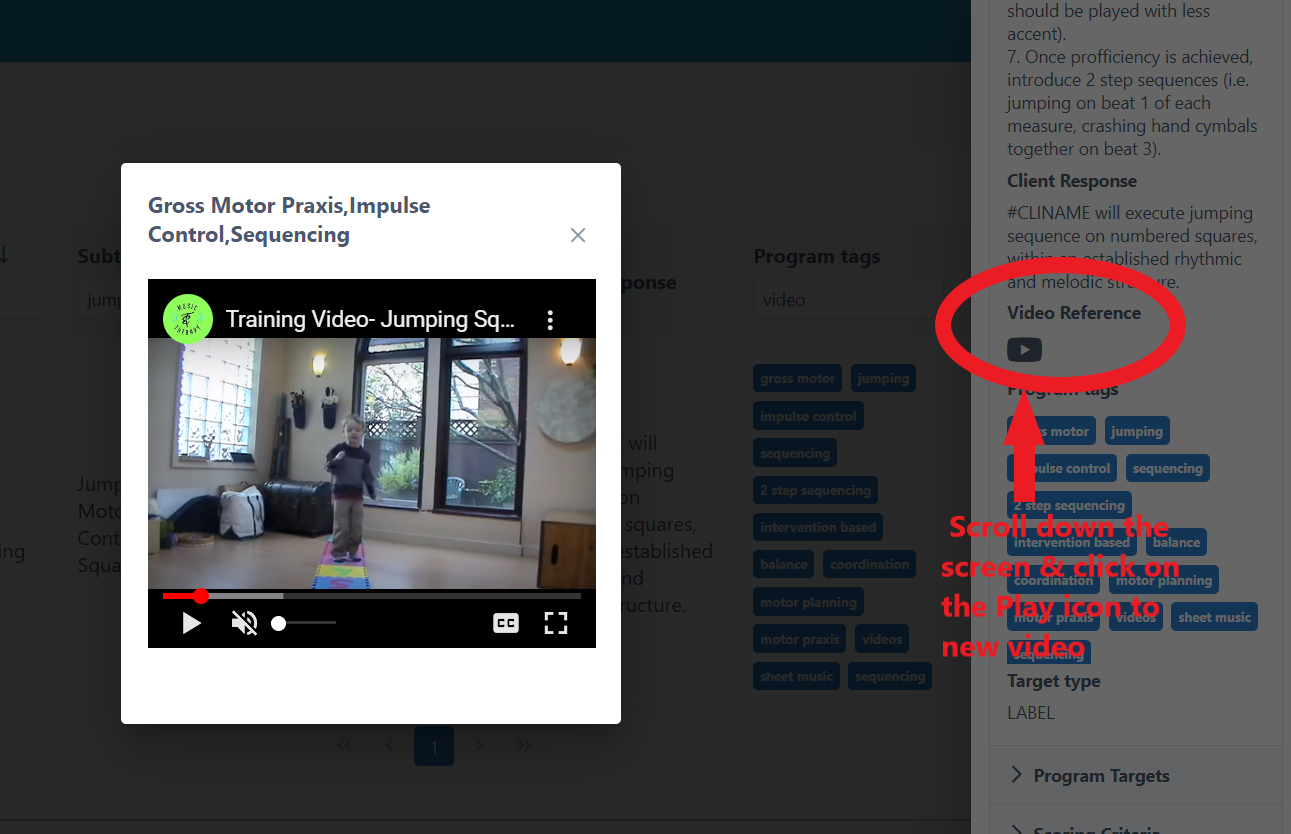
Videos can only be viewed on the far right column by clicking the Preview button . This calls up a “newspaper column view of the program template. It is here that you can click on the “play” button to open up the video. Videos CANNOT be viewed when viewing program templates in the Update Program Template view:
Creating Custom Program Templates
UnitusTI includes the ability to create your own program templates. You can do this by creating them from scratch or cloning the MITM templates to tweak them for your needs (see next section on cloning). Below are the steps to create your own custom templates.
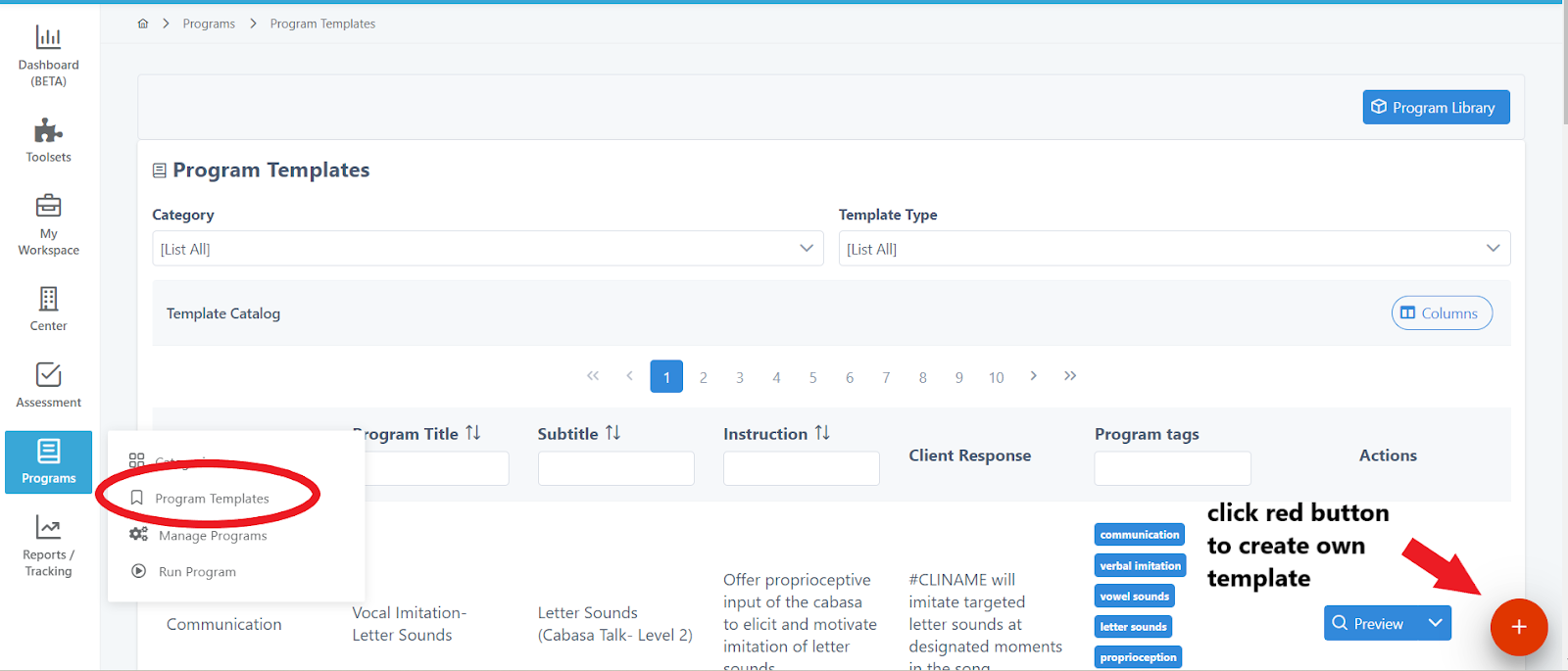
- Go to Programs in the main menu, and click the red button on the bottom right. This will create a new program template for you. NOTE: the red button is your ‘call to action’ button on UnitusTI and is a consistent workflow, for creating something new (i.e. program templates, clients, users, program lists, etc.).
- Presented are the minimum required fields to save a new program template:
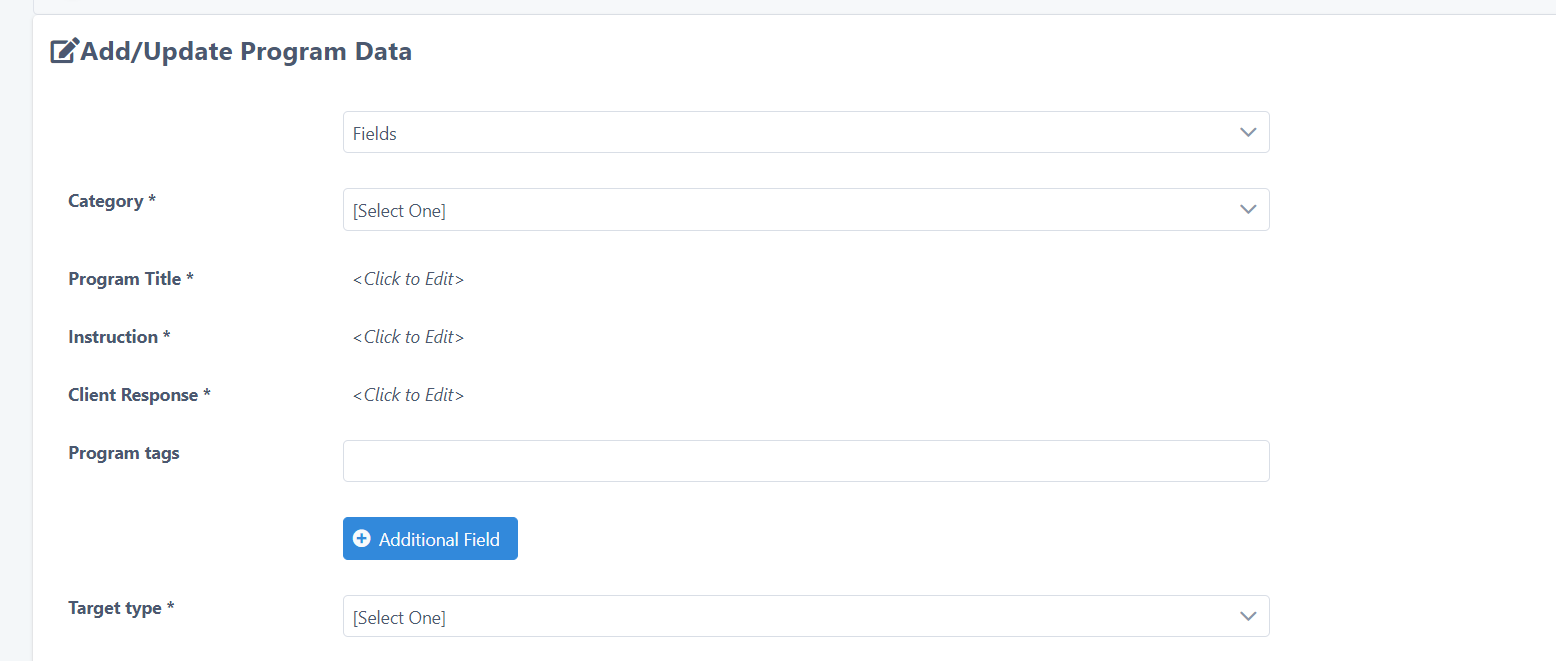
* please view videos in our video tutorials library for explanations of what each field does and how to manipulate
- You have the option of adding in more fields using the
Fields
area:
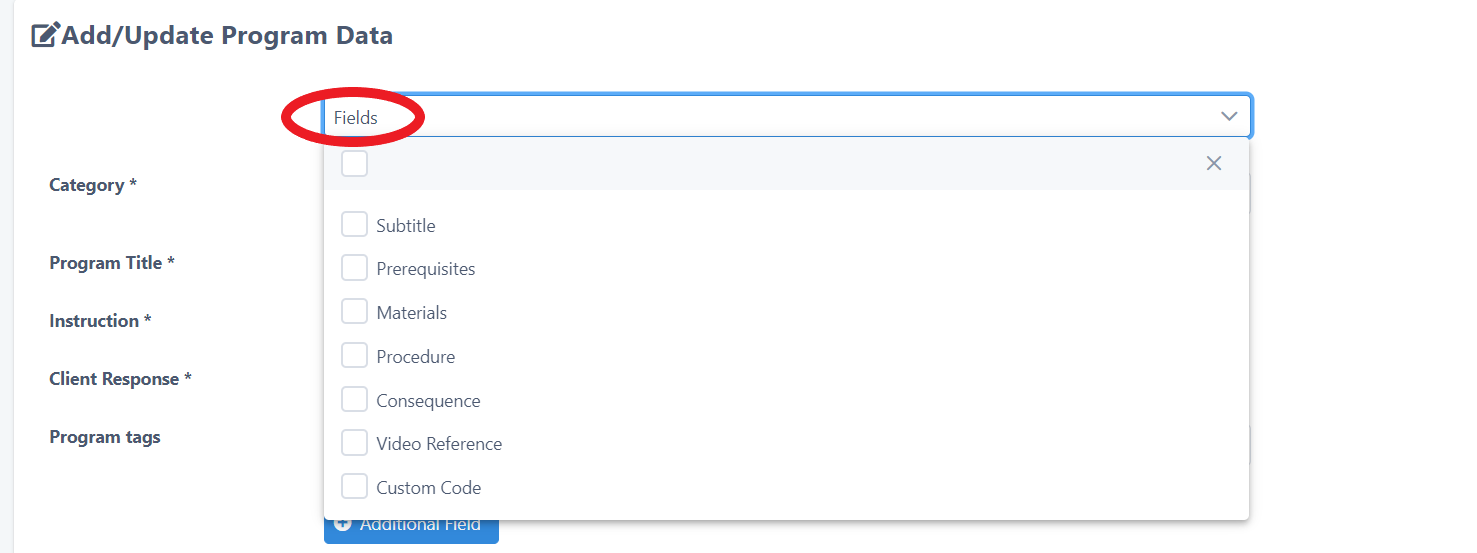
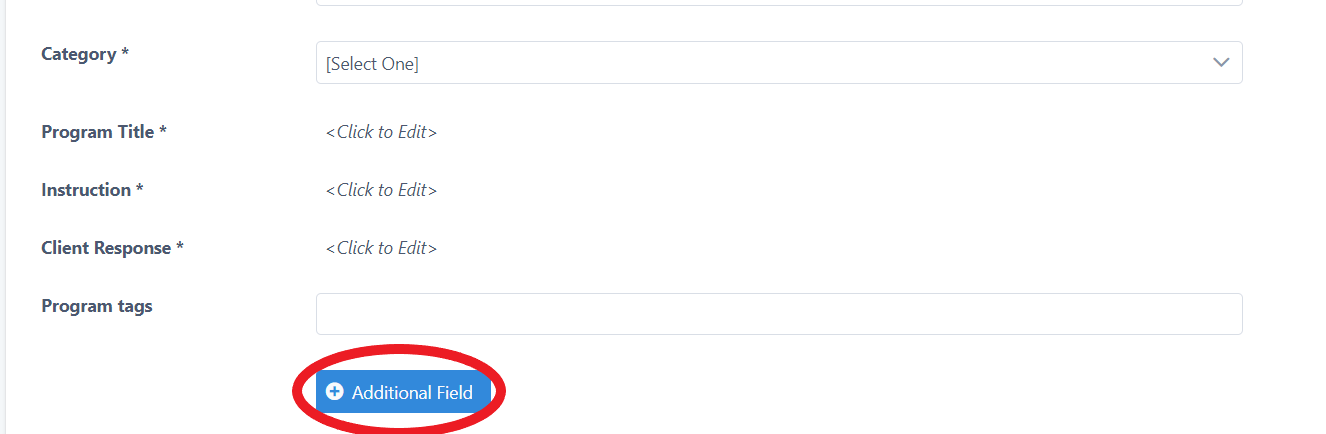
and/or the Additional fields button to create your own customized fields:
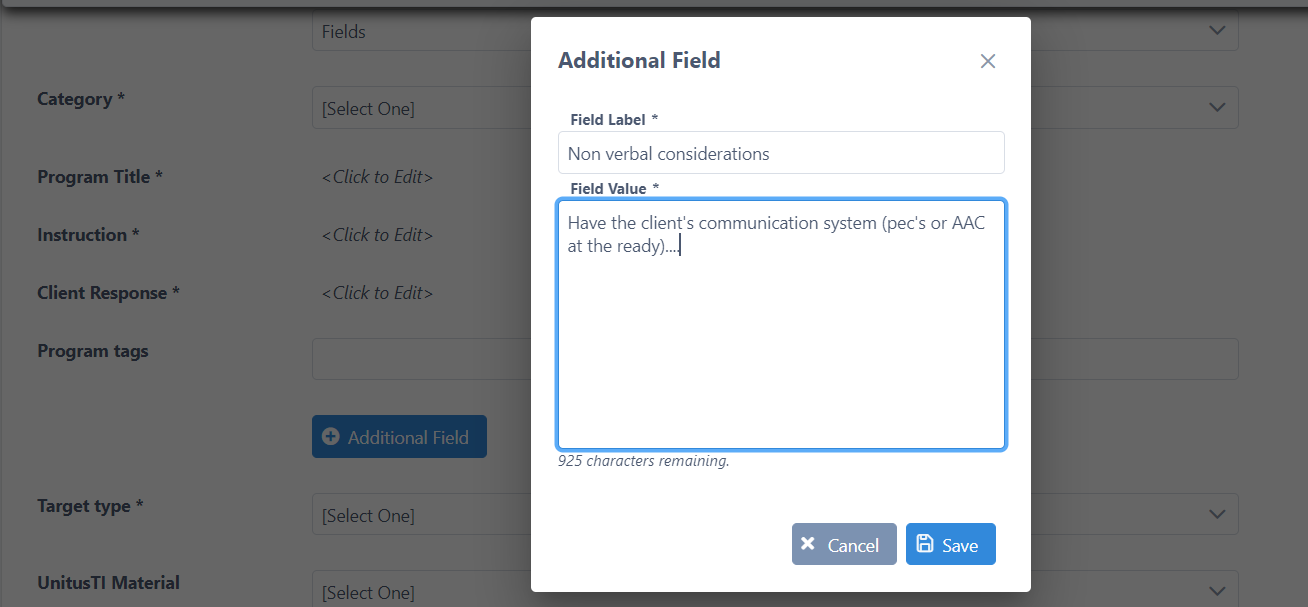
Enter in the Field Name, and Field Value accordingly. Click Save:
- Click Save after all fields have been filled in.
Cloning an MITM© program
You may want to slightly edit a pre-existing MITM© program template, change the wording of the goal (client response), add in different targets or procedures, or make other changes. This is an easy process to do. Instead of creating a program template from scratch, it is recommended to first search up pre existing program templates. Try and find a template as close to what you want as possible and edit that. This will save you valuable time since the fields are already pre filled, and may just require a bit of tweaking. For example, the rating scale criteria are already filled in and brought over from pre existing MITM© templates.
- Find the template that comes closest to the goal you are searching for.
- Click the down arrow button to the right of the Preview button on the far right:

- Click the Clone button at the top right:
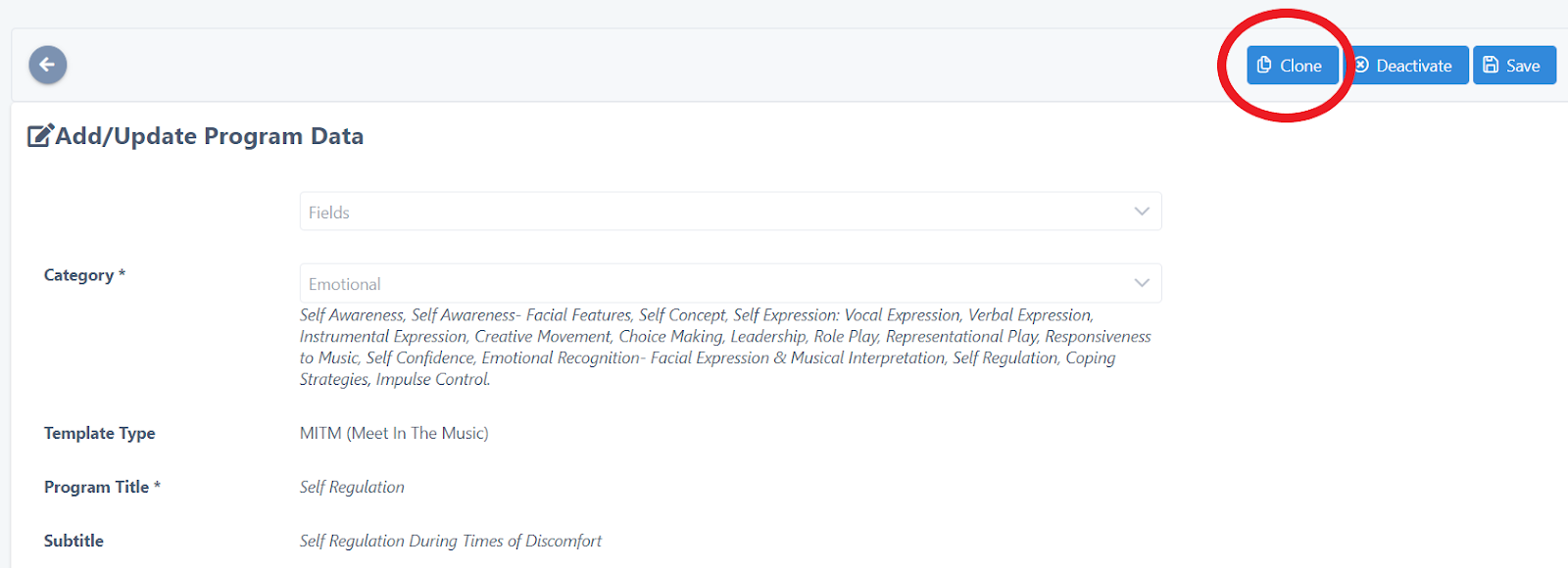
This will open up all fields for you to edit.
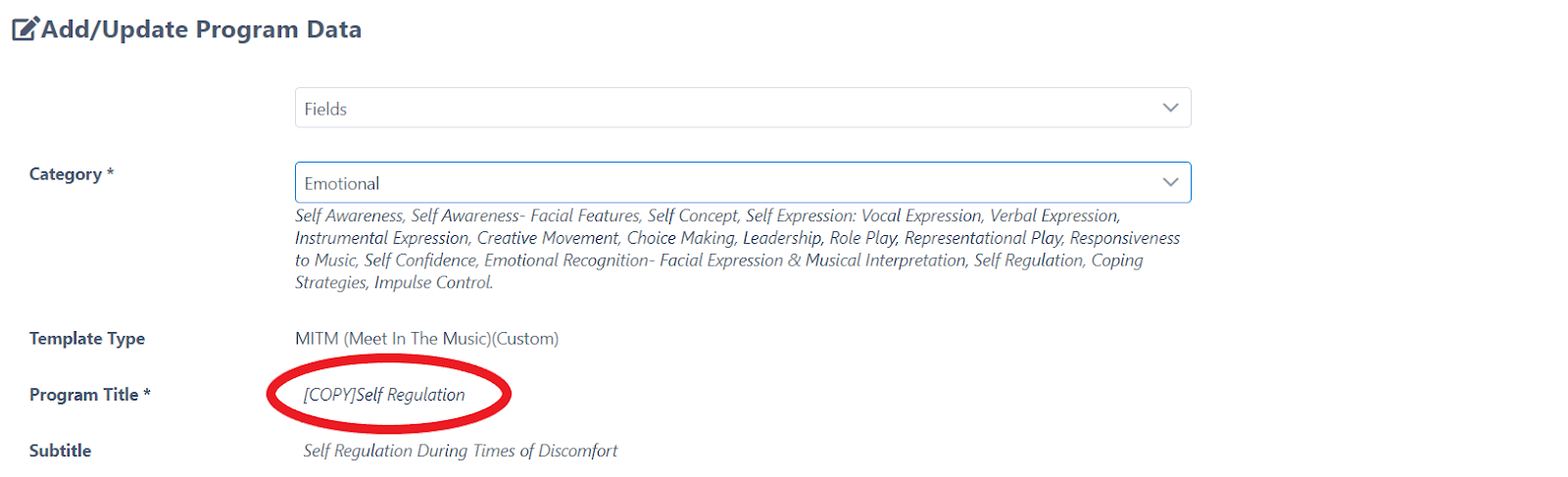
4. Delete the {COPY} in the Program Title. This is how UnitusTI differentiates the original template from your cloned version:
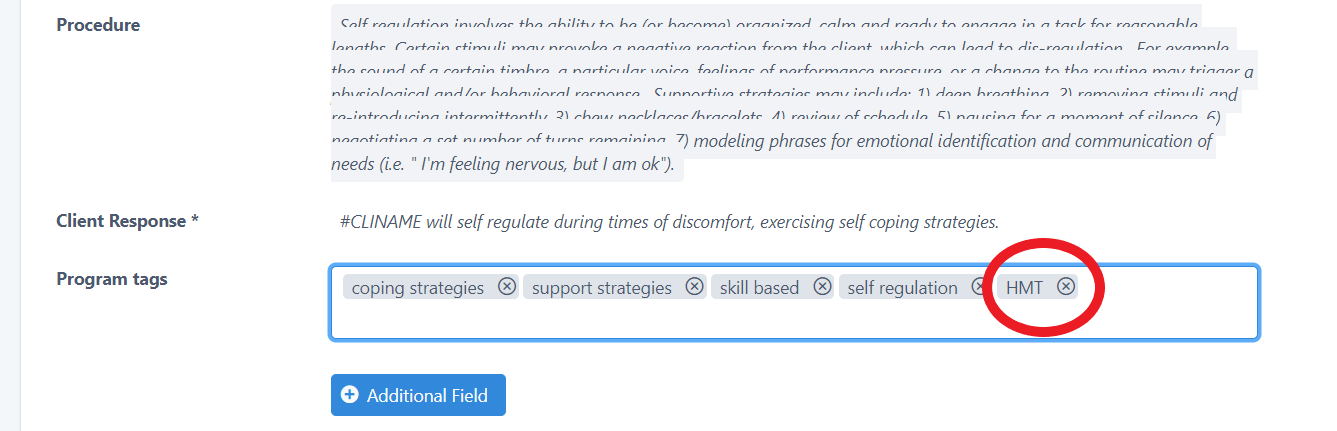
5. Add a Program Tag (perhaps the initials of your company name), so you can call up and filter for that program template easily. When you clone numerous MITM© templates, adding your company program tag, it will filter by all of your cloned templates, apart from the original MITM© templates. So for example, add “HMT” for “Happy Music Therapy LLC.” Click “enter” after each new program tag you add:
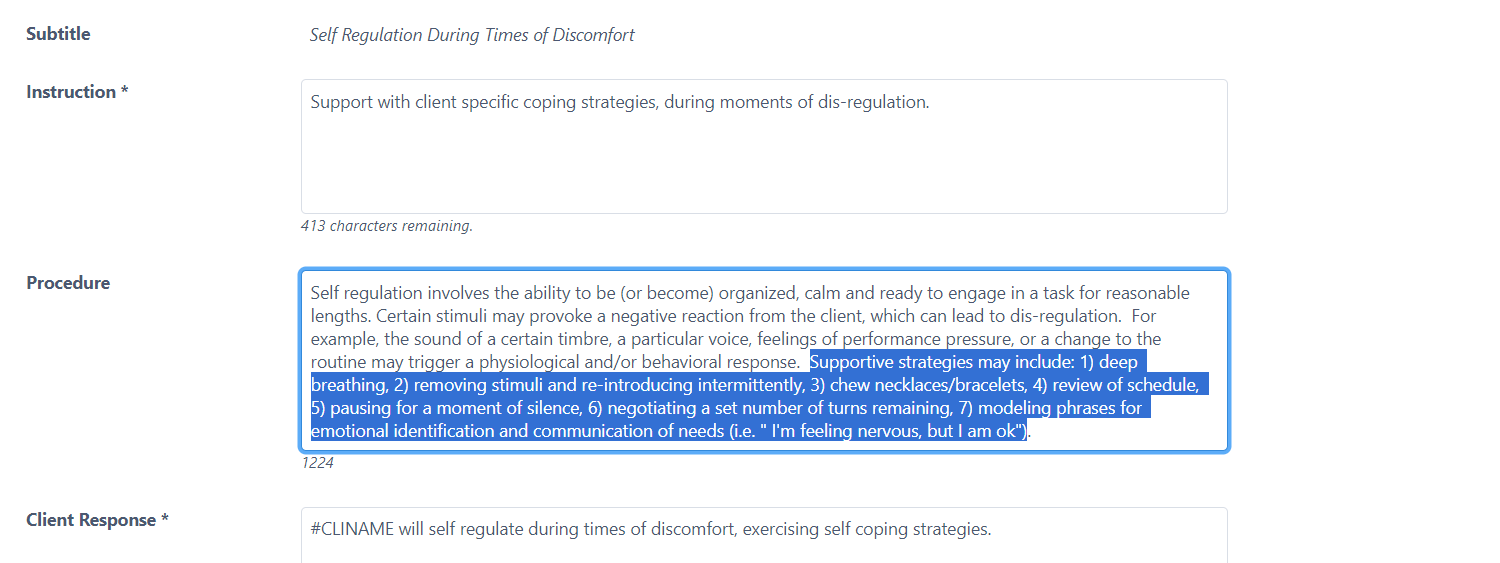
6. Now you can edit the content in any of the fields and even add new fields. Simply delet or edit the content already there:
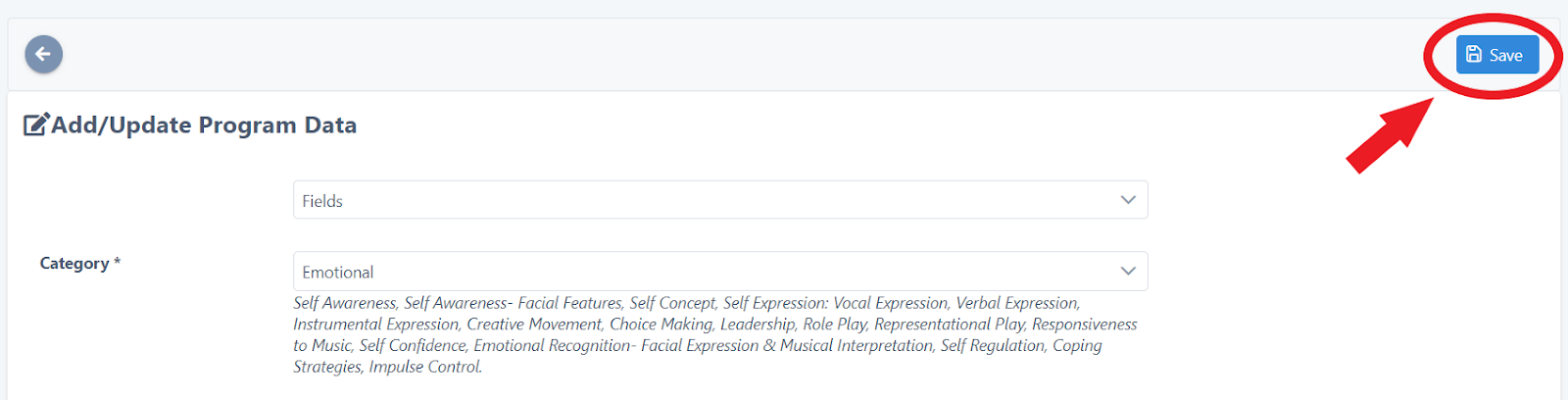
7. Always remember to click the Save button at the top right:
Assigning Programs to a Client
(Music Therapy Treatment/Goal List)
Creating a Program List
Assigning programs (i.e. goals) to clients is done by creating a program list (or multiple lists), and this can be done in two ways:
OPTION #1 After completing the MITM© assessment on a client, UnitusTI will give you a list of suggested programs that you might want to assign. You can create a treatment list (program list) right from assessment.
OPTION #2 For current clients that do not require an assessment to be completed on them (perhaps you did this already prior to using UnitusT)I, and you already have a treatment list of goals- you just need to replicate it now on UnitusTI.
Note: for #1, please refer to the Assessment section of the user guide (pg. )
For #2, read below instructions:
TIP: It is recommended that you have a notepad beside you when going through this process, to write down and list the program title & subtitle names you have searched for and chosen, to add to your client’s treatment goal list.
STEP 1
Before you create your list, you will want to choose your goals for the client (skill based program templates). Click on Programs (main menu) , then Program Templates , and search and select the programs (goals/ skill based programs) you want to assign to your client. Write down these Program Titles and Subtitles on your notepad.
STEP 2
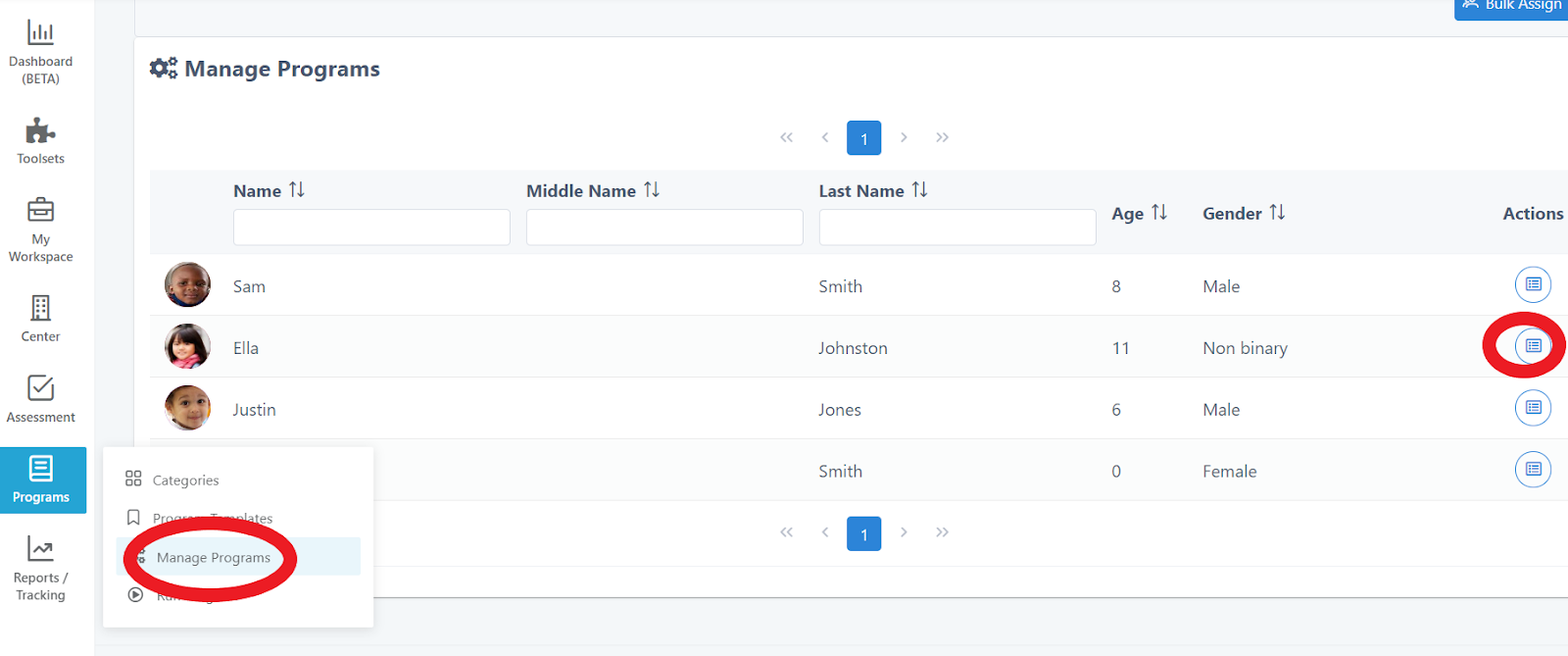
Go to Programs, then Manage Programs , and click the Actions button for the client you want to create a goal list for:
STEP 3
Click the Red button , then the grey “+” button above to create a new program list :
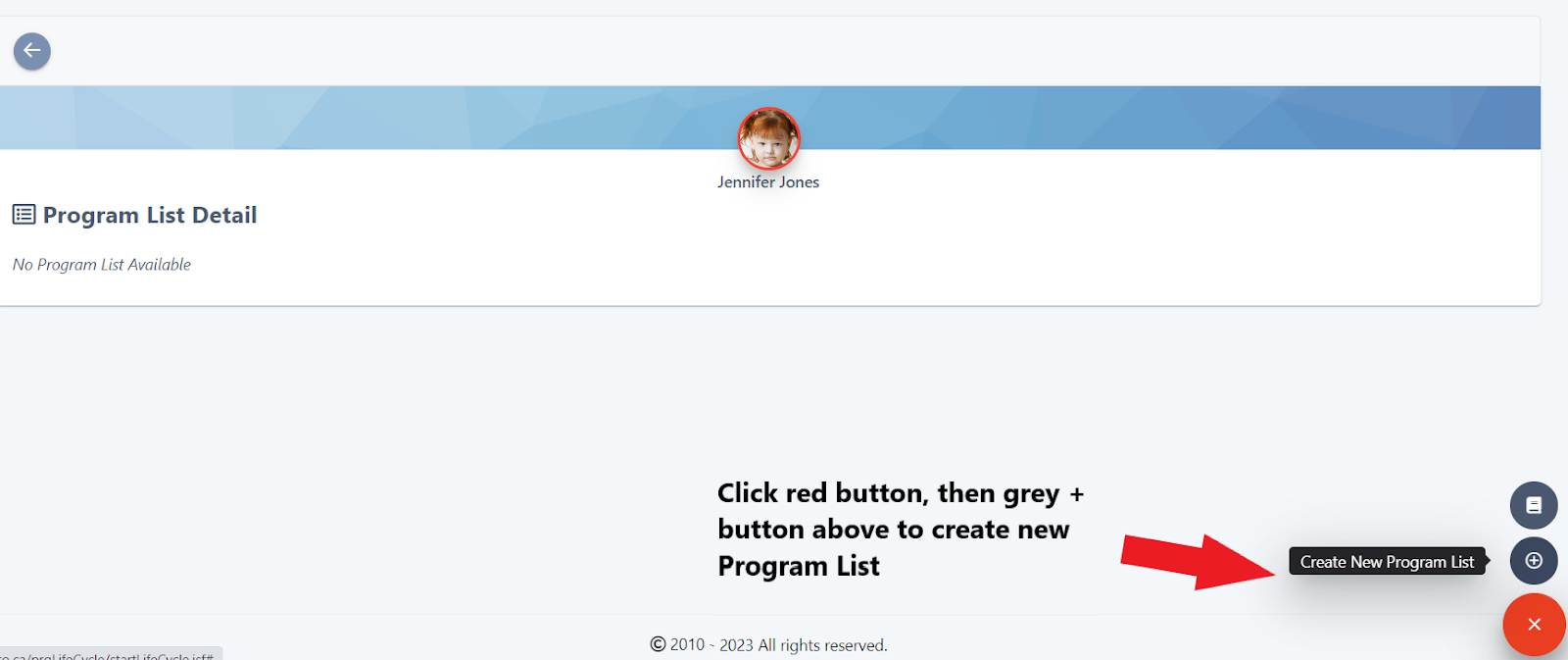
STEP 4
Type in the Program Title, Subtitle , and “skill based” in the Program tags field. Then click on the far right “+” button:
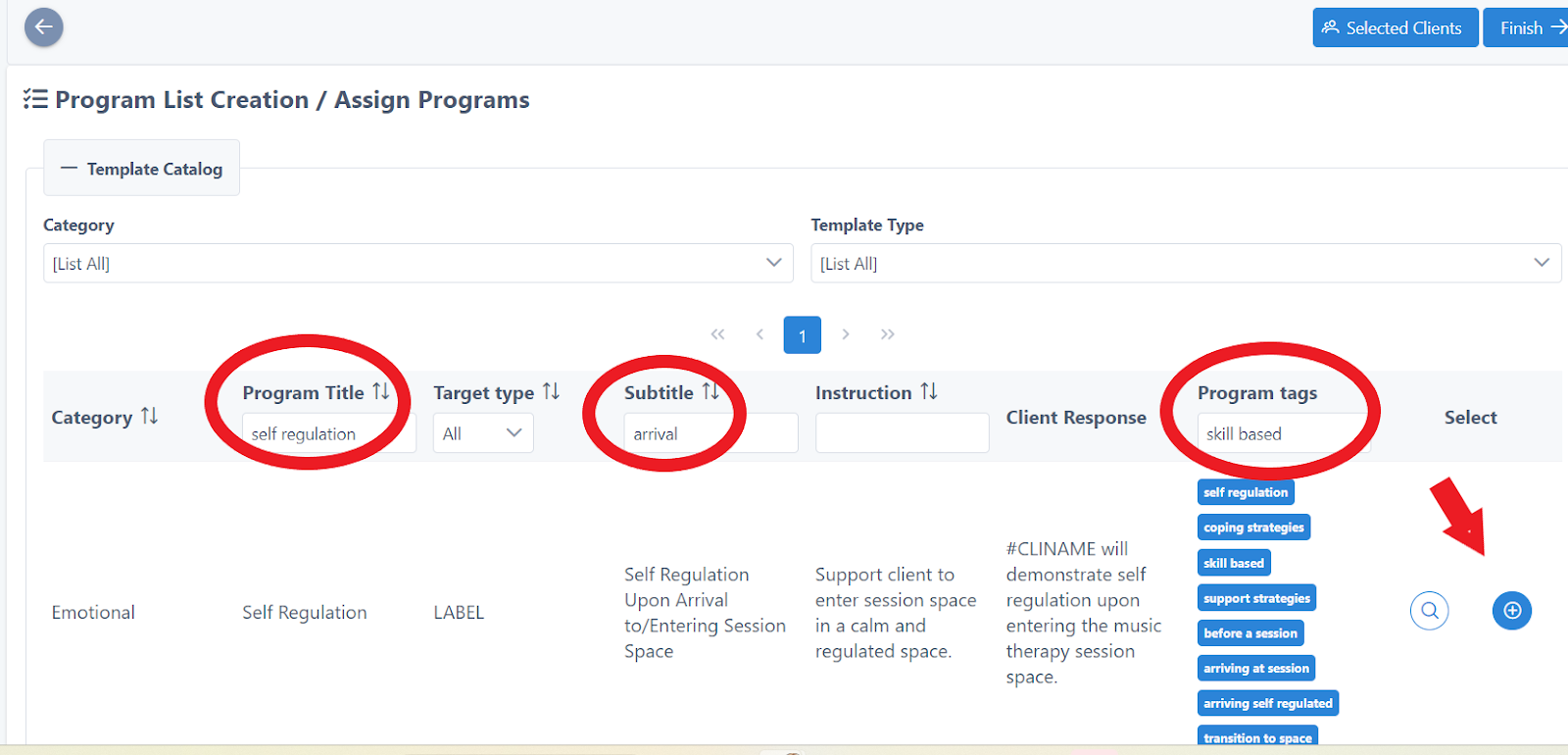
STEP 5
Read the Program Details to ensure this is the correct program/ goal to assign to the client. Click Next :
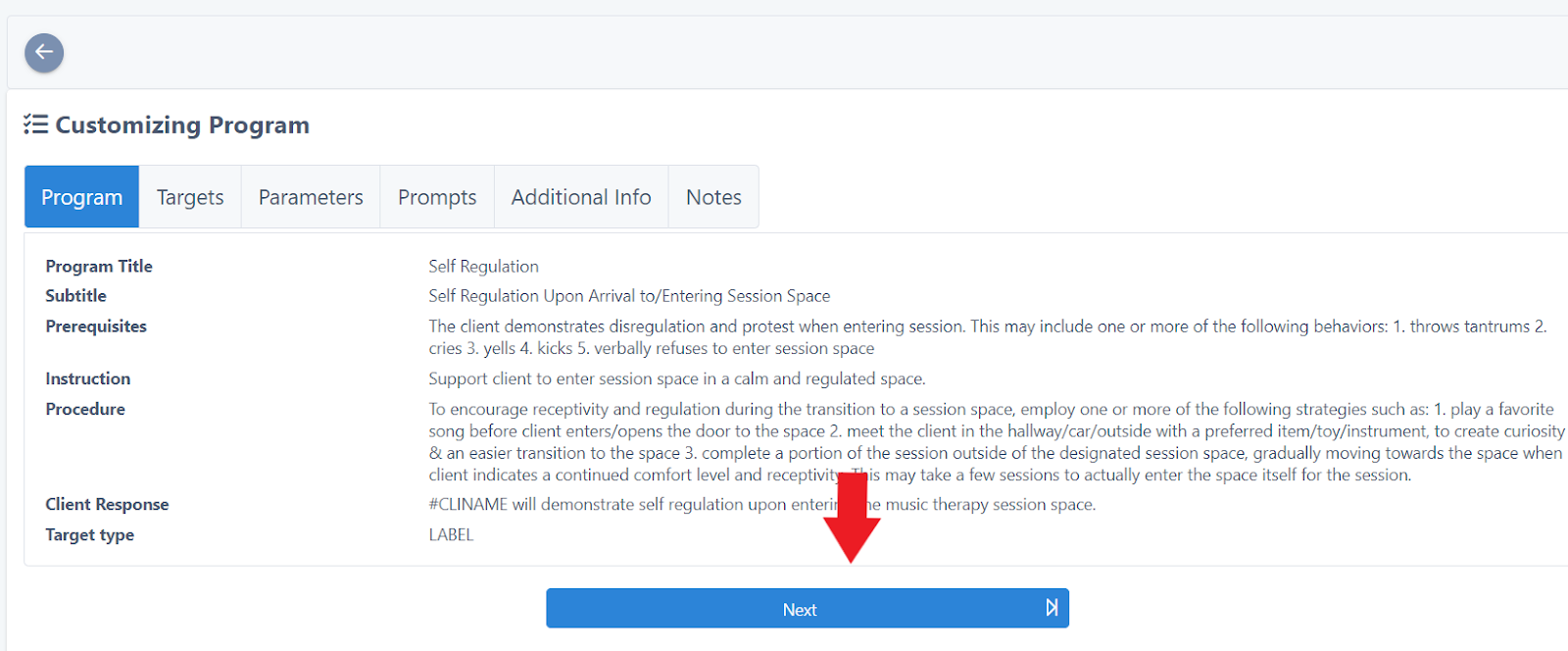
STEP 6
Checkmark the targets you want to assign. Use the middle arrows bar to move them over from the Targets Available box into the Targets Selected box, then click Next :
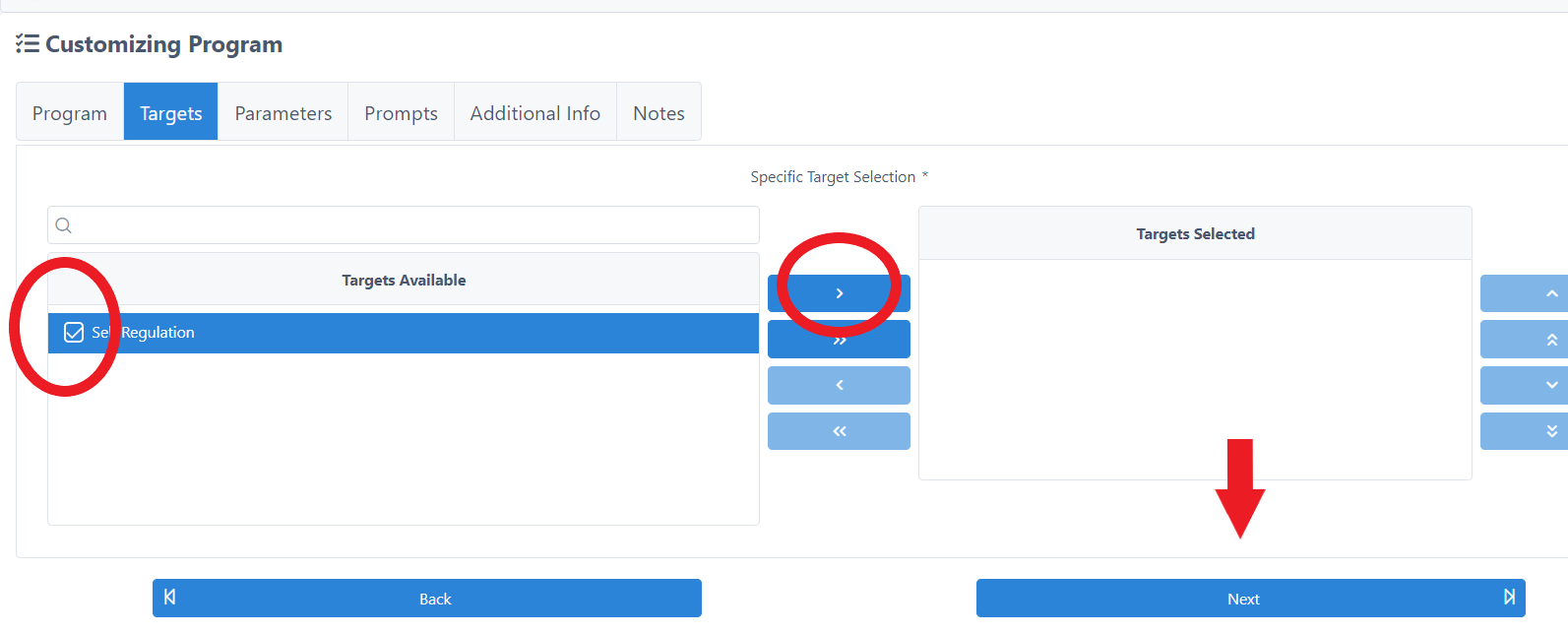
STEP 7
Select Rating Scale from the drop down menu (* for discrete trial, frequency, duration or other data collection types, please watch training videos in our video tutorials ):
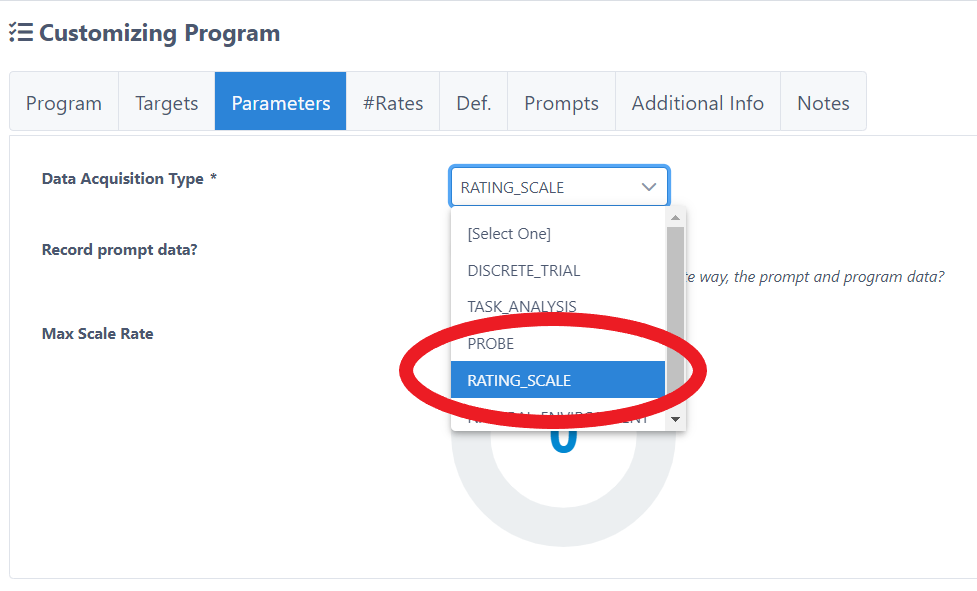
STEP 8
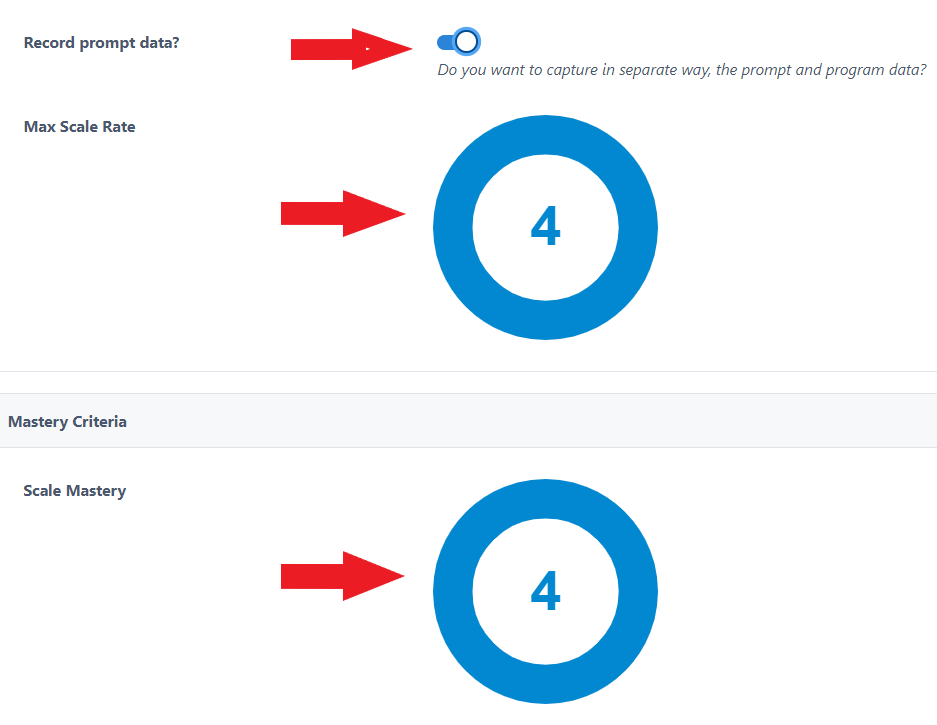
A) If you’d like to record prompt data toggle over the Record prompt data button to the “on” position:
B) Click around the dials to set the Maximum Scale Rate and the Scale Mastery at “4”.
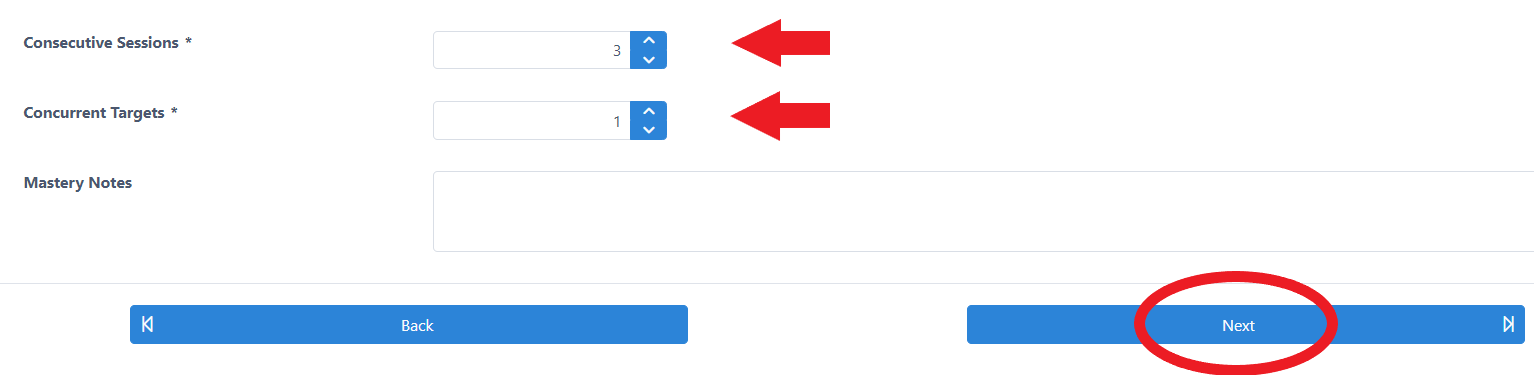
C) Enter in the number of Consecutive Sessions for mastery to occur before you consider it mastered (typically this is 3-5). *It can, however, be any number of consecutive sessions you’d like to see this skill mastered. For example, you may have programs in your practice or center that run a specific number of weeks (ie.16 weeks), and you may want to track data on this skill for the entire 16 weeks, whether or not mastery occurs earlier on. Thus, you would type in the number “16”.
D) Enter in the number of Consecutive Targets you want to work on at a time. In this particular example there is only one target, but you may select a program goal that has multiple developmentally progressional targets (objectives), such as 1 word, 2 words, phrases, verses. You can assign ALL targets to the client, but set the Consecutive Targets at “1”. This way, as the client masters “1 Word”, UnitusTI will automatically release “2 Words” as the next target you are documenting on.
E) Click Next:
STEP 9
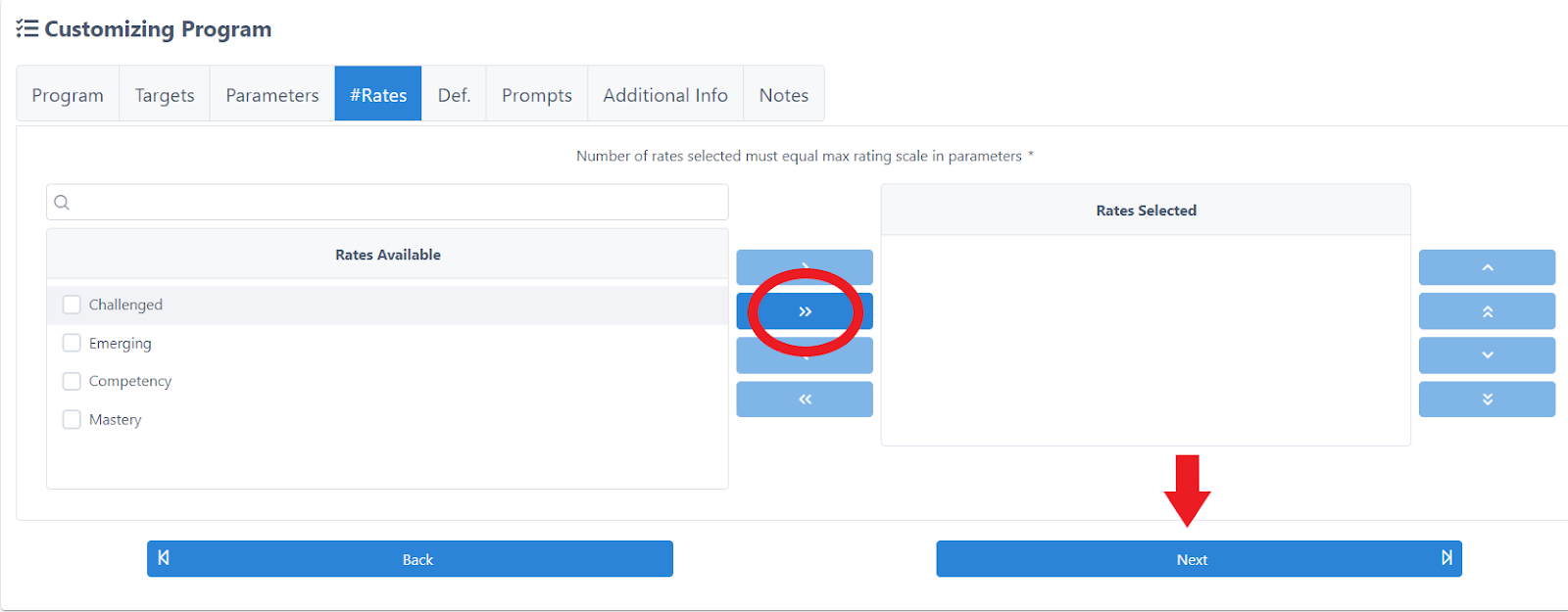
Move the rates over from the Rates Available box to the Rates Selected box, using the double arrows button, then click Next :
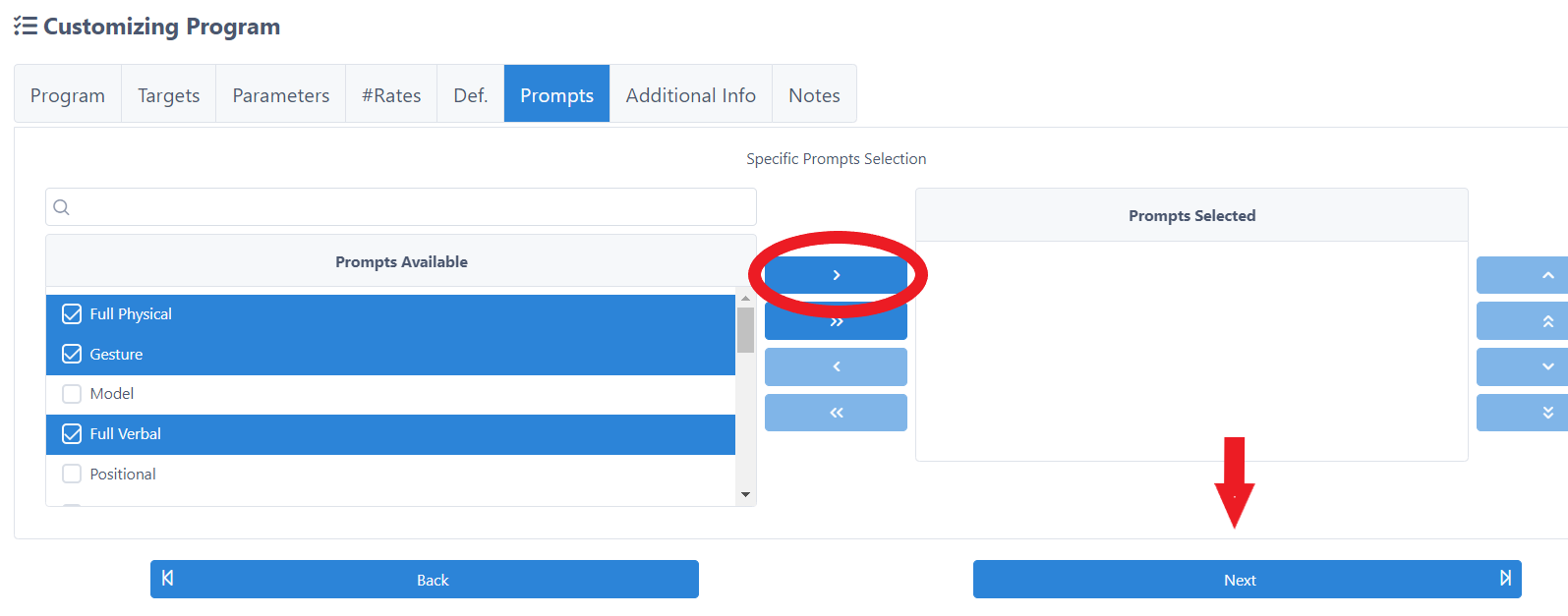
STEP 10
Select prompts from the Prompts Available list, checkmark them, and move them to the Prompts Selected box using the middle arrows:
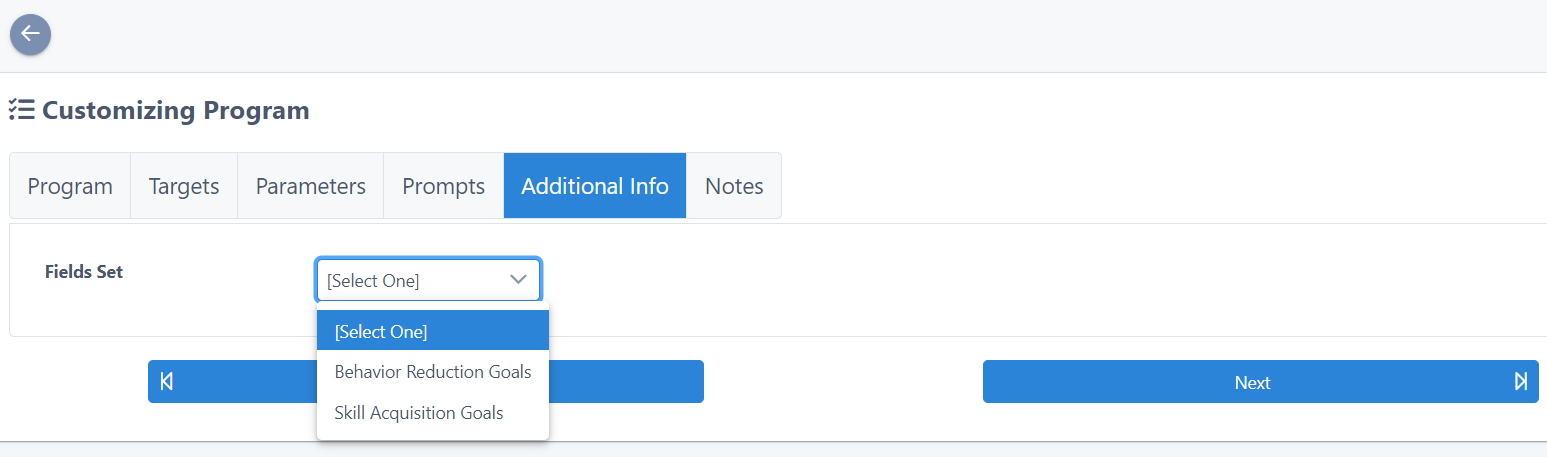
STEP 11
The Additional Info area is an optional behavioral based information area, and used in instances when you want to expand on behavior reduction goals or skill acquisition goals:
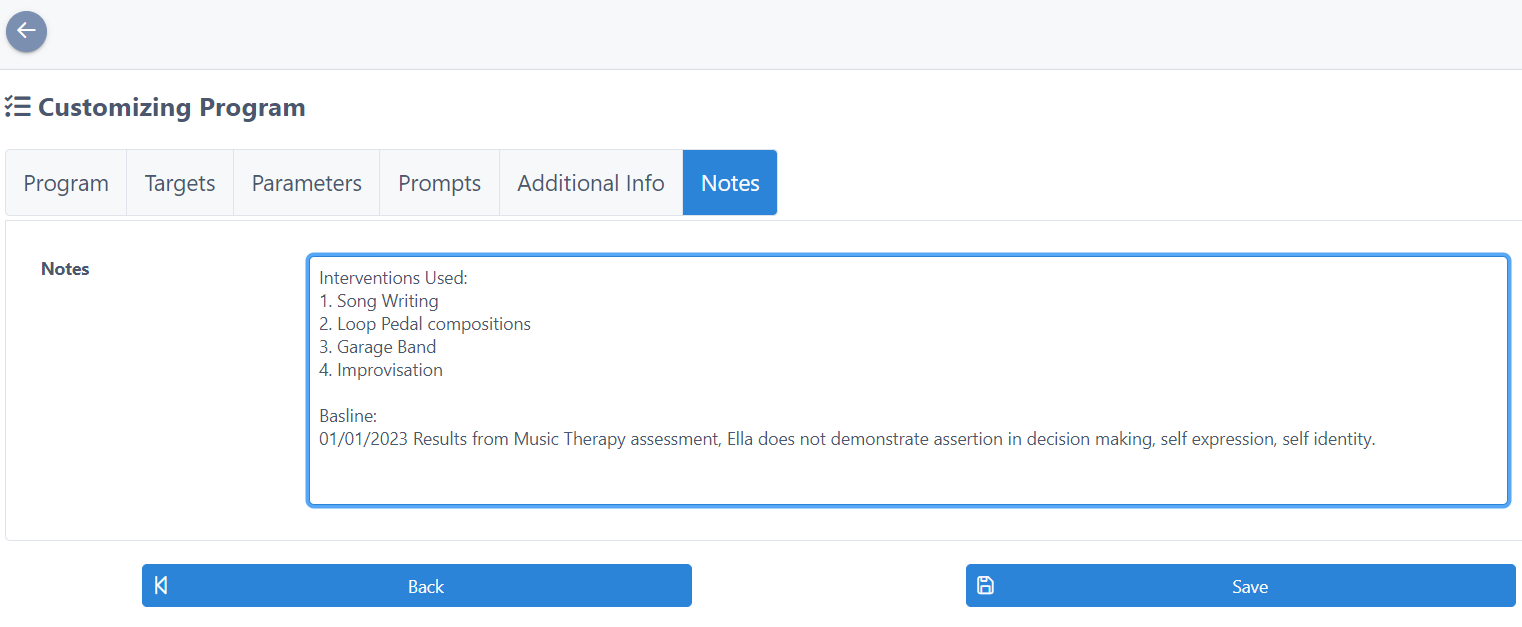
STEP 12
The Notes area can be used for whatever notes you’d like to include on the client. You can also leave this area blank, if you choose. Example of Use Case: you may want to use this area to write out the general interventions used to target this goal, or to provide the baseline on this goal. FYI When it comes to generating reports, you can choose to include or exclude the Notes section in your report:
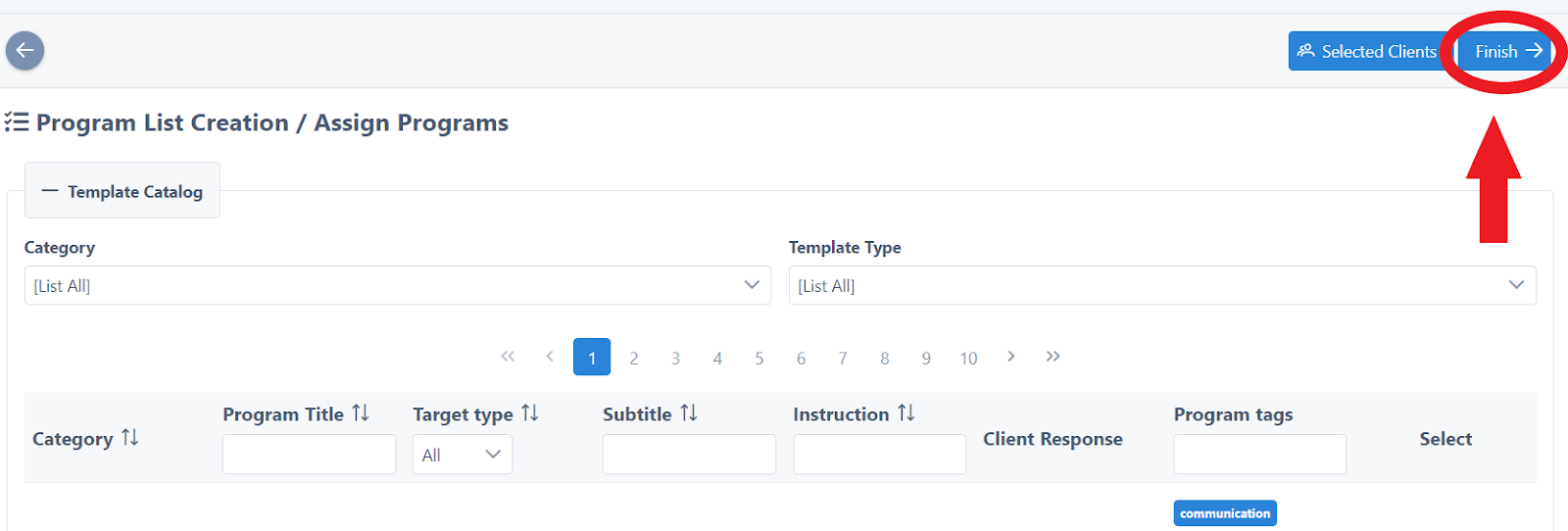
STEP 13
A) Since this is the first program/ goal you are adding to a client’s program list, you will need to complete the list set up. First, click the Finish button:
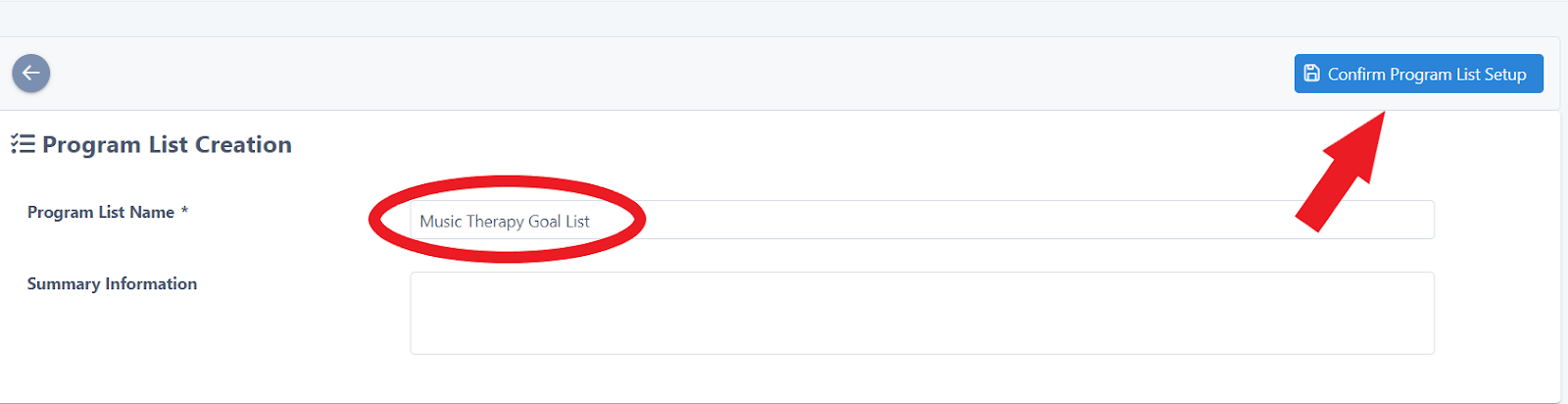
B) Decide on a consistent name protocol for your program lists, across all clients. For example, you may want to name the list “Treatment Plan 2021”, or incorporate the name of your practice into the list name: “Song and Dance Music Therapy Winter 2022”, or simply “Music Therapy Goal List”. Summary Information field is optional. Click the Confirm Program LIst Setup button:
STEP 14
Now you are ready to add another program to the client’s list. Click the Actions button, and then Add Program to List and repeat the process . Typically one adds anywhere from 3-5 goals per client
Documenting
STEP 1
After you complete a session:
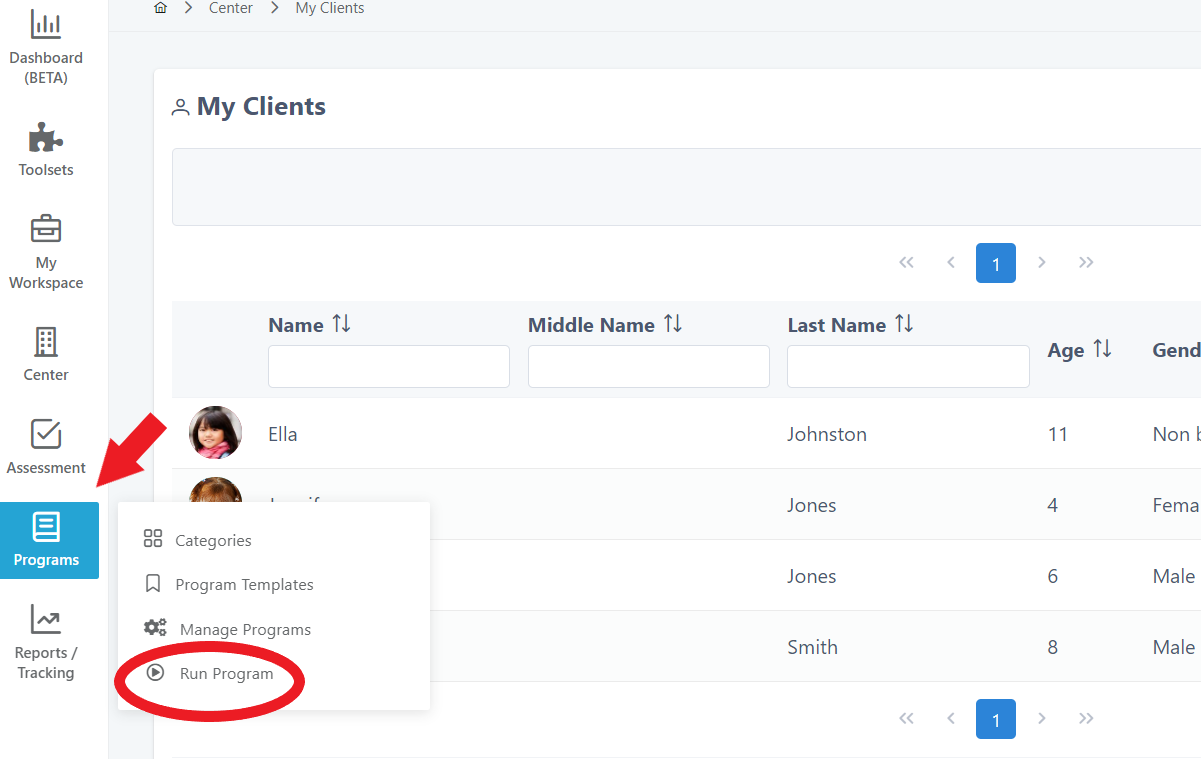
- Click Programs on the far left menu
- Click Run Program
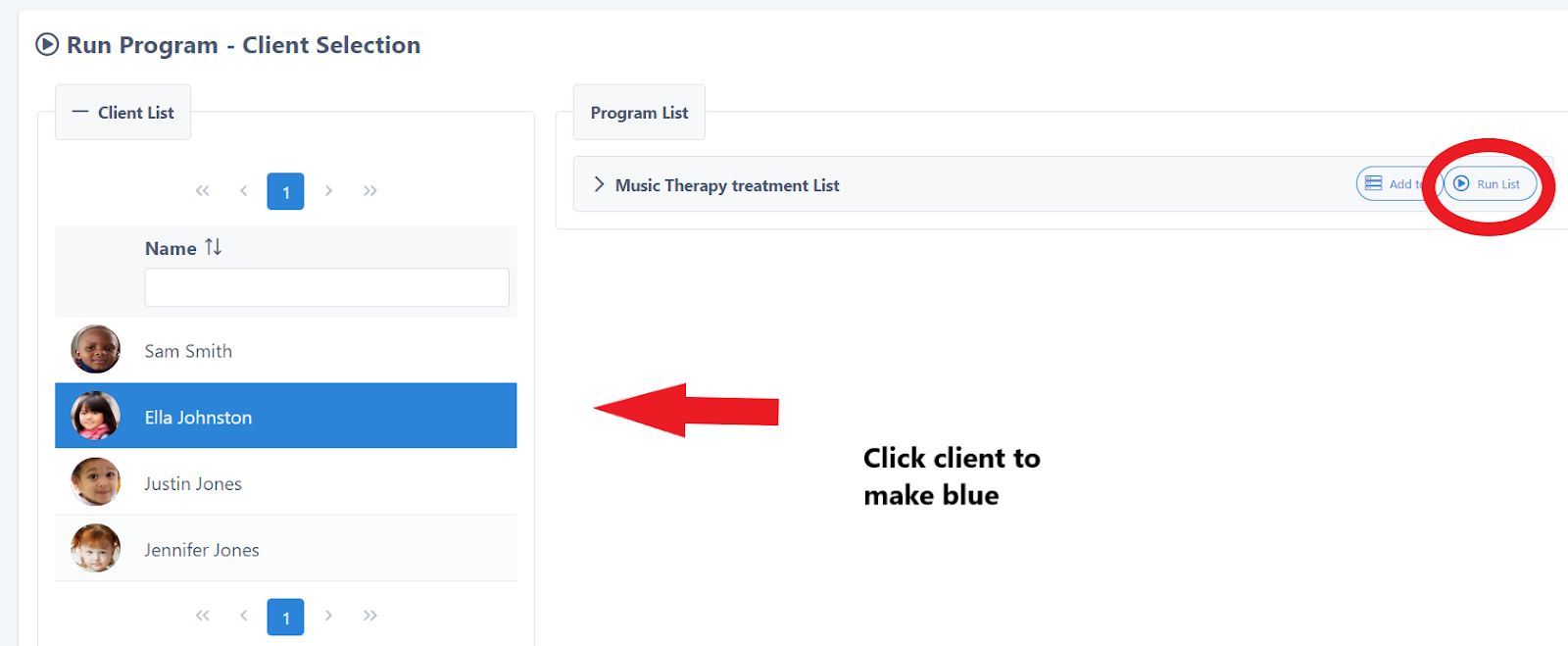
- Click on the client to make the row blue
- Click Run List
STEP 2
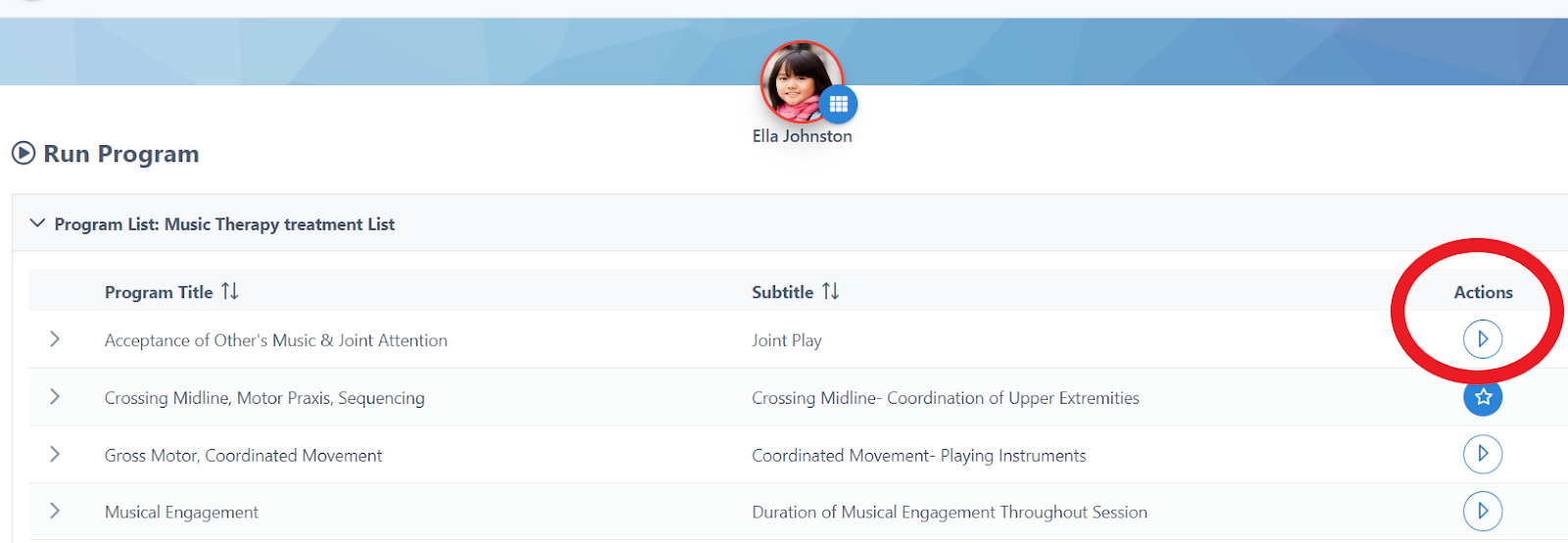
Click the arrow button in the Actions column of the goal:
STEP 3
If need be, review the Detail , Parameters , Targets , Scoring Criteria by clicking on each tab, then click Run This Program :
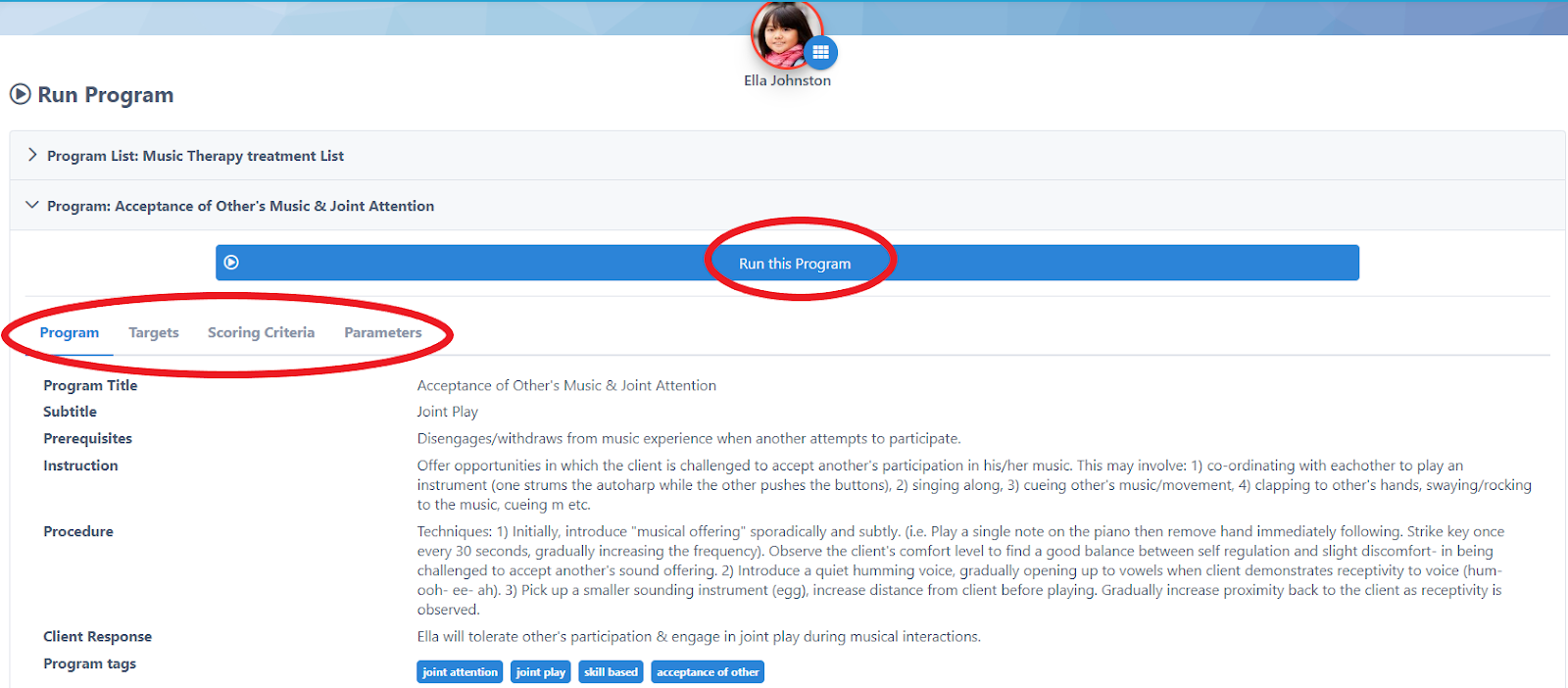
STEP 4
Click the number of stars that correlate to the Rating Scale Scoring Criteria:
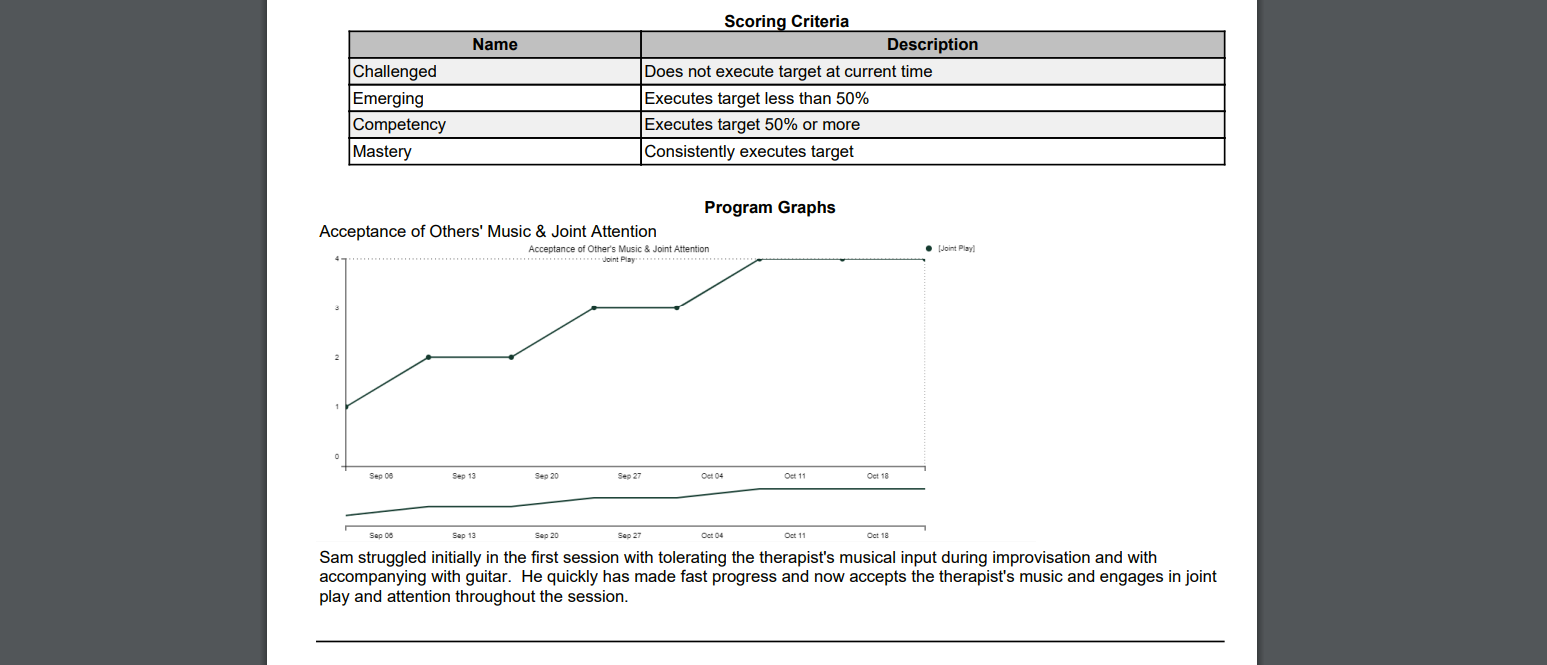
1- Challenged (does not execute target at current time)
2- Emerging (executes target less than 50%)
3- Competency (executes target 50% or more)
4- Mastery (consistently executes target)
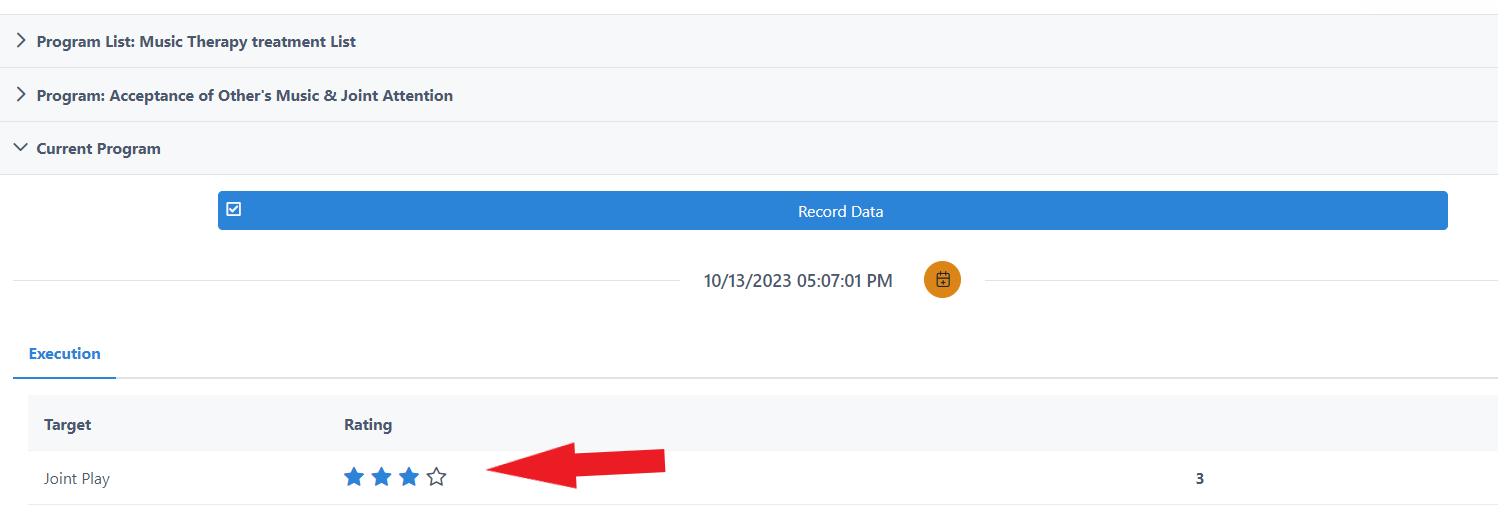
(ie. in the above image, this client demonstrated joint play 50% or more of the session (3- Competency).
STEP 5
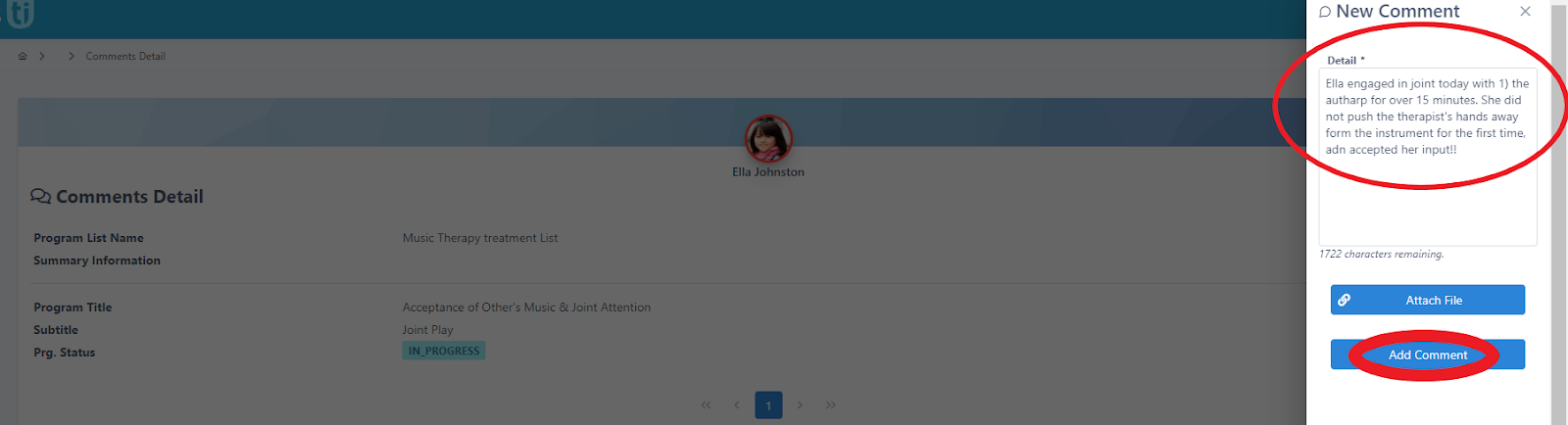
If you’d like to round out your quantitative data with qualitative statements, you can add a comment (*when generating a report, you can choose to include or exclude comments). Click Comments at the top:
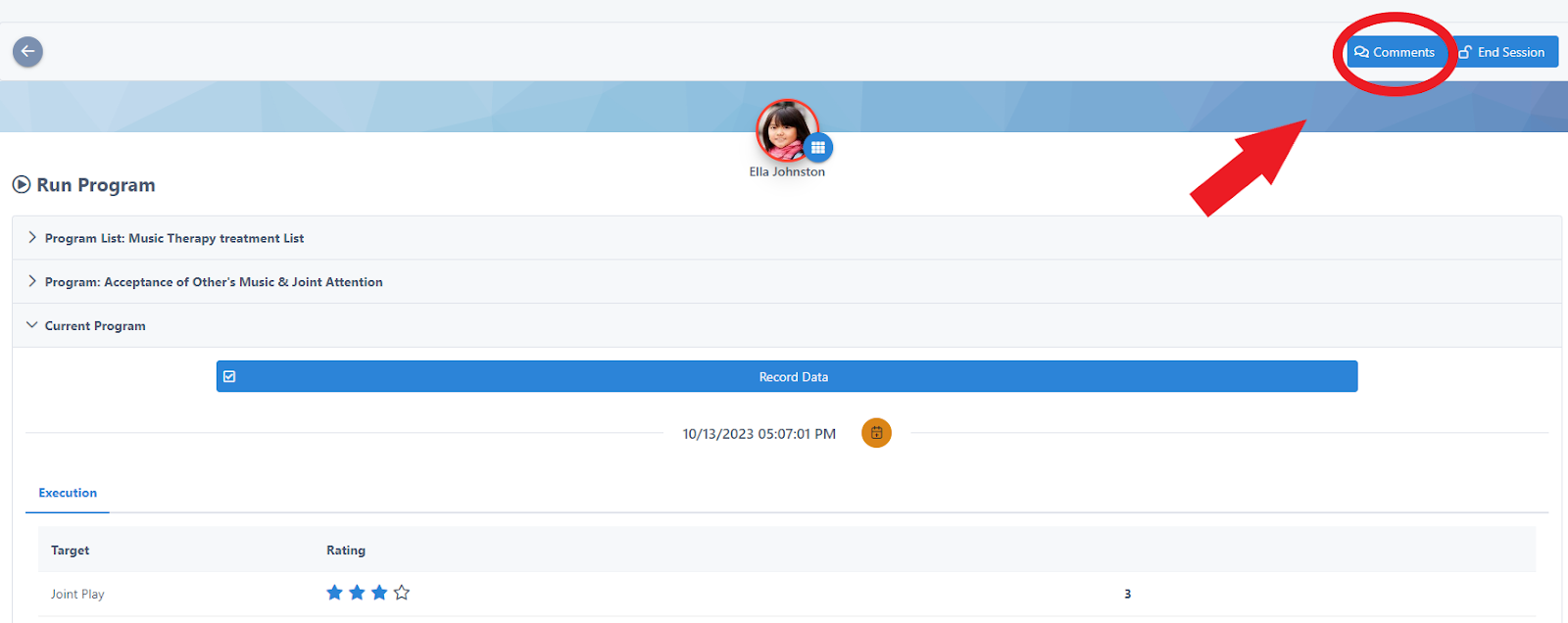
Click the Red Button:
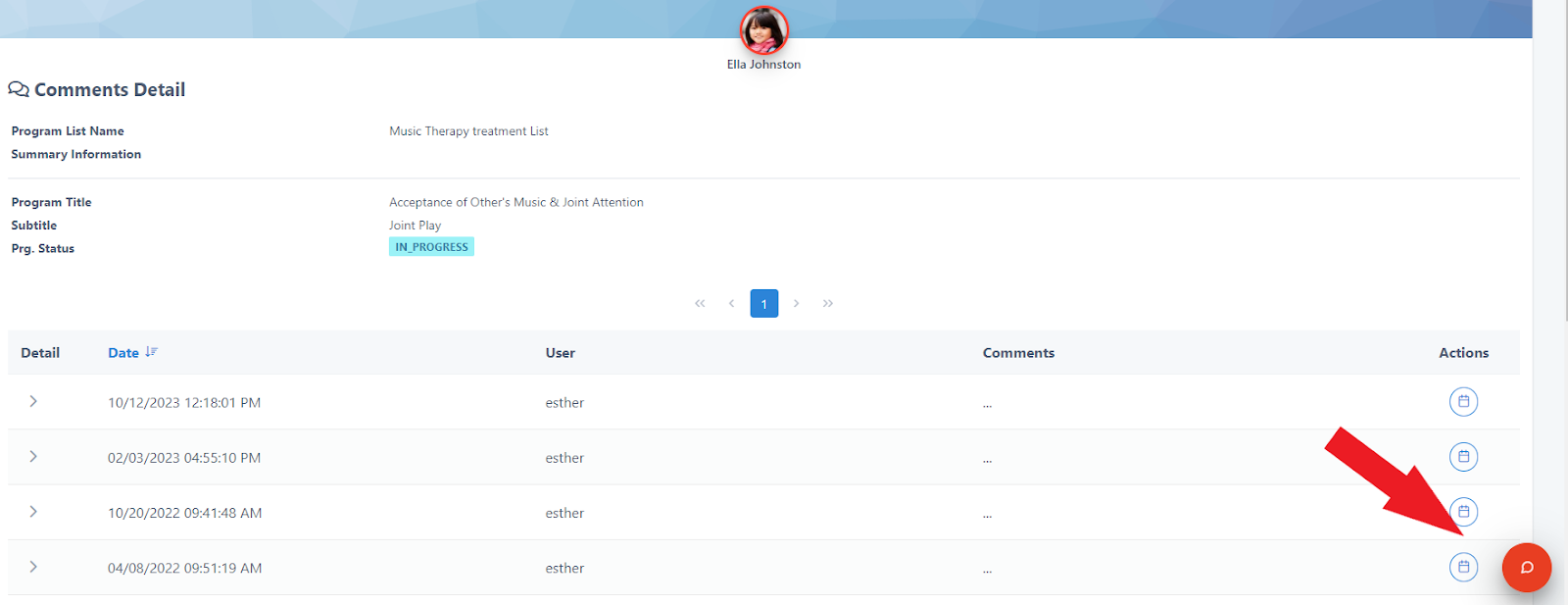
Write narrative comments in the box, then click Add Comment:
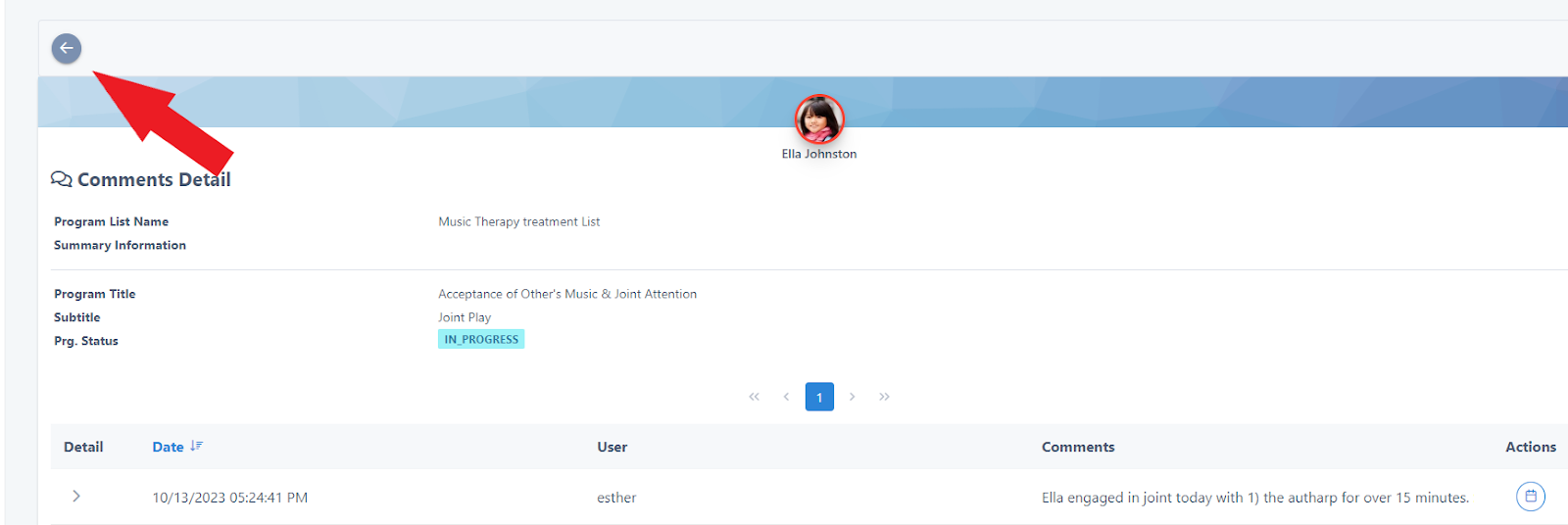
Click the Back button at the top left:
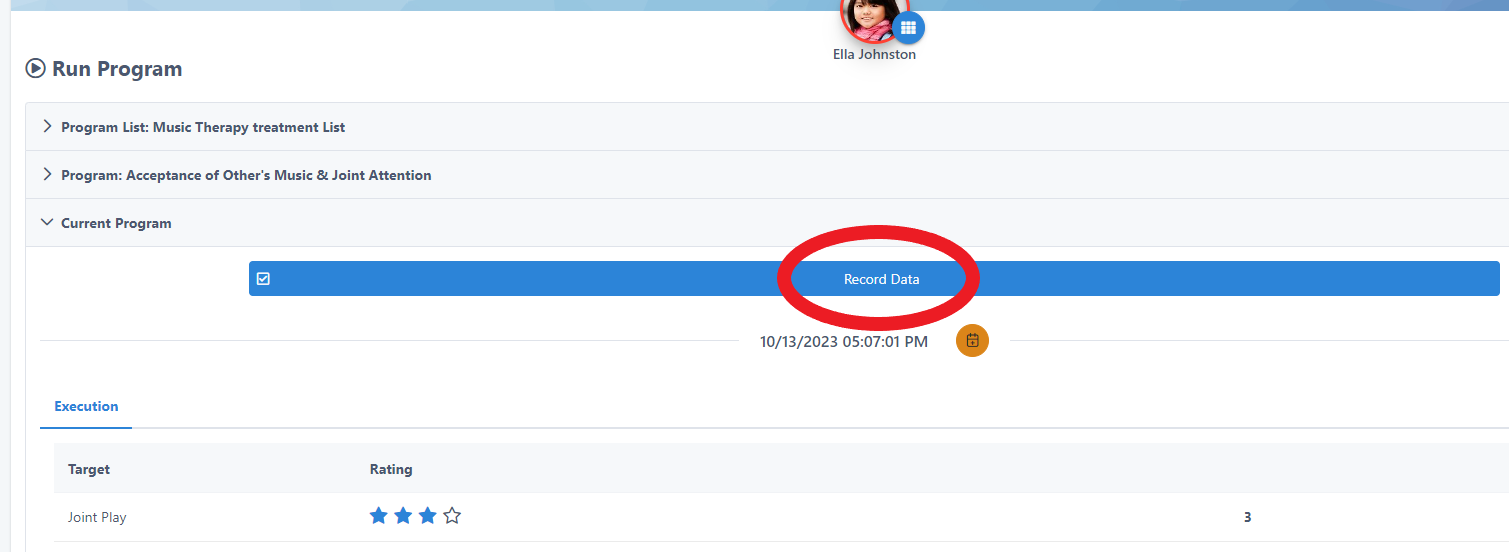
Click Record Data , and then repeat this process with the other goals on the list:
Generating Reports
STEP 1
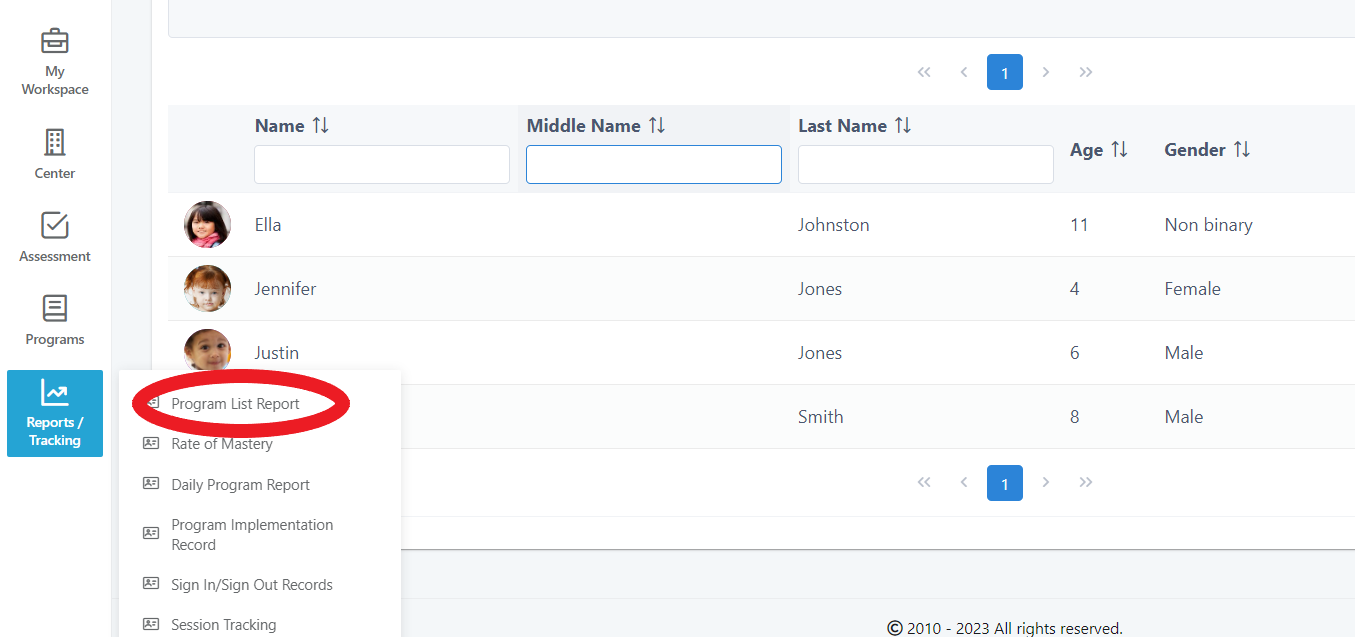
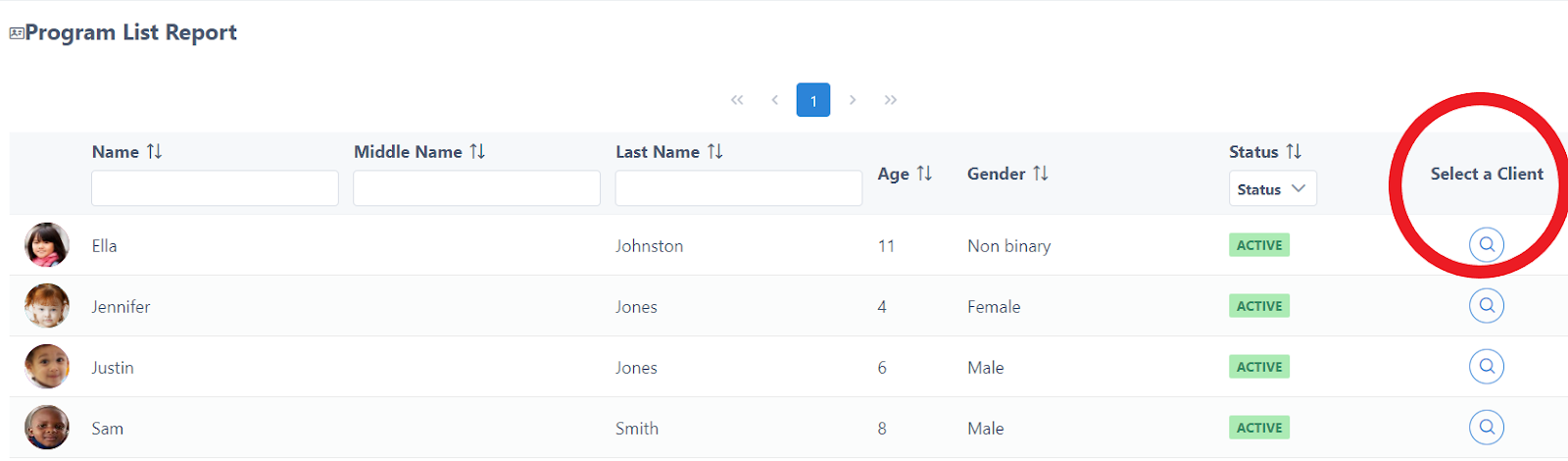
Click Reports on the far left menu, click Program List Report , then click the Select a Client button of the client:
STEP 2
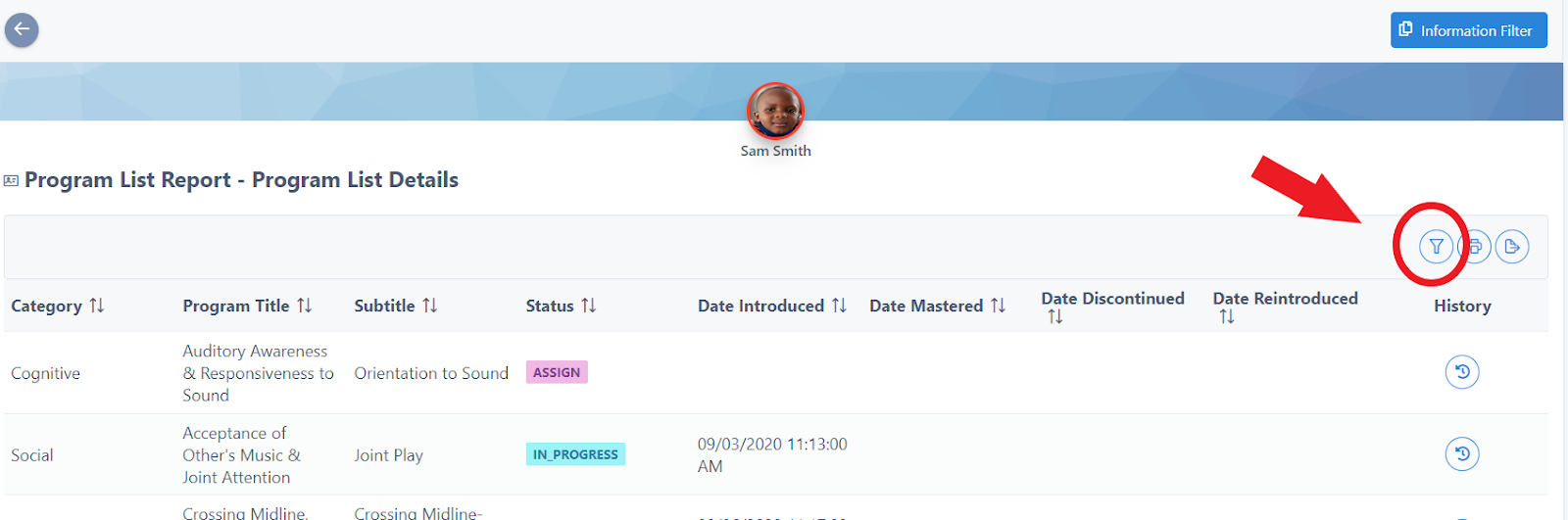
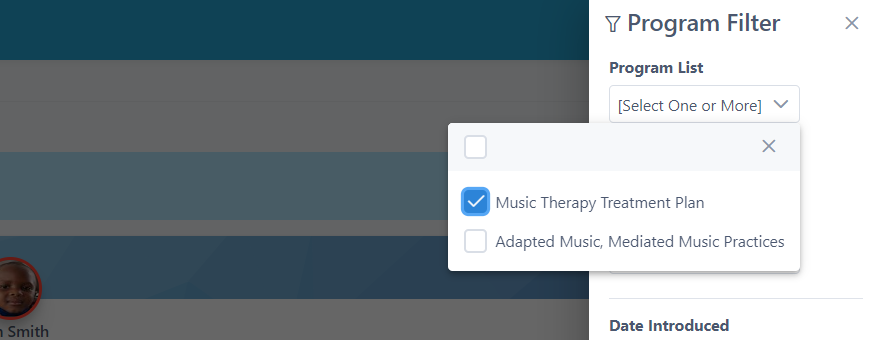
Use the Filter button to select which program list you want to generate a report on (if you have more than one. For example, you may have created a different goal plan for each year of service). If this is a client you have been servicing for a while, and you’d like to generate a clinical report on only the most current 3 or 6 months, you can select a date range:
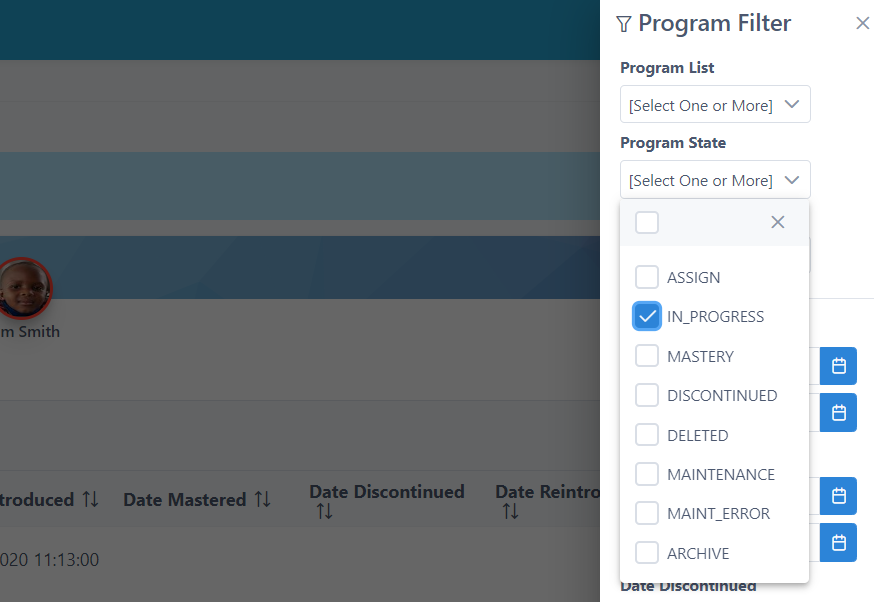
You can also select the state of the programs to call up:
STEP 3
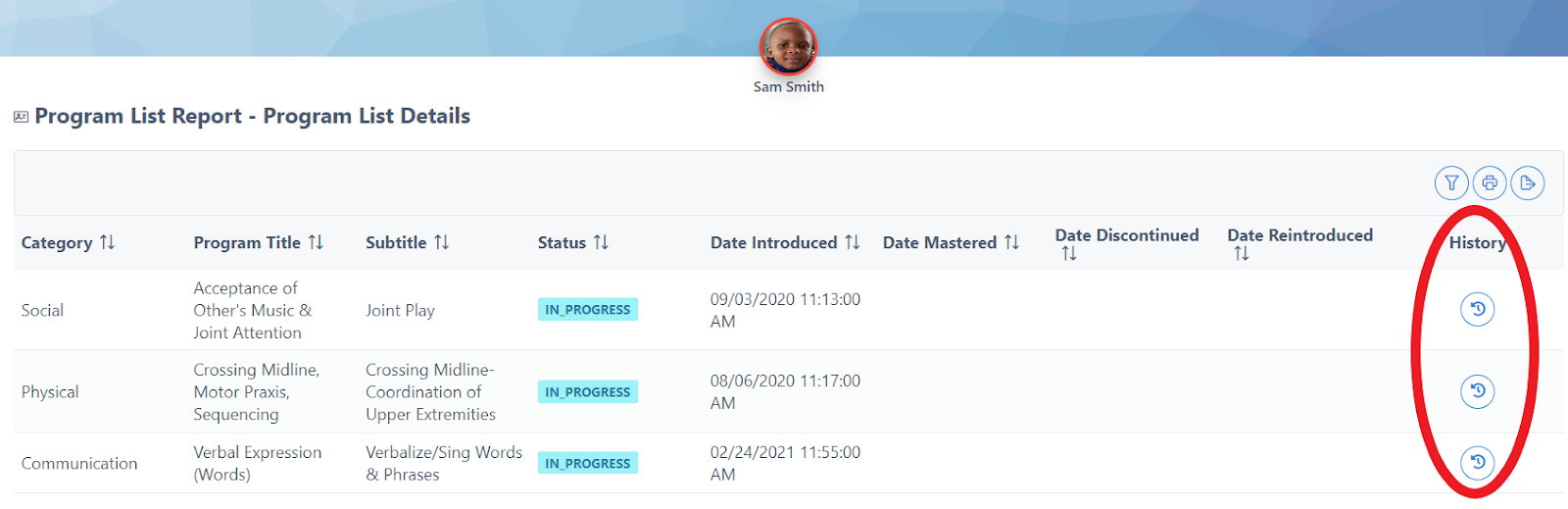
Now it is time to generate your graphs for each of the goals you have been working on with that client. For each goal, click the History button:
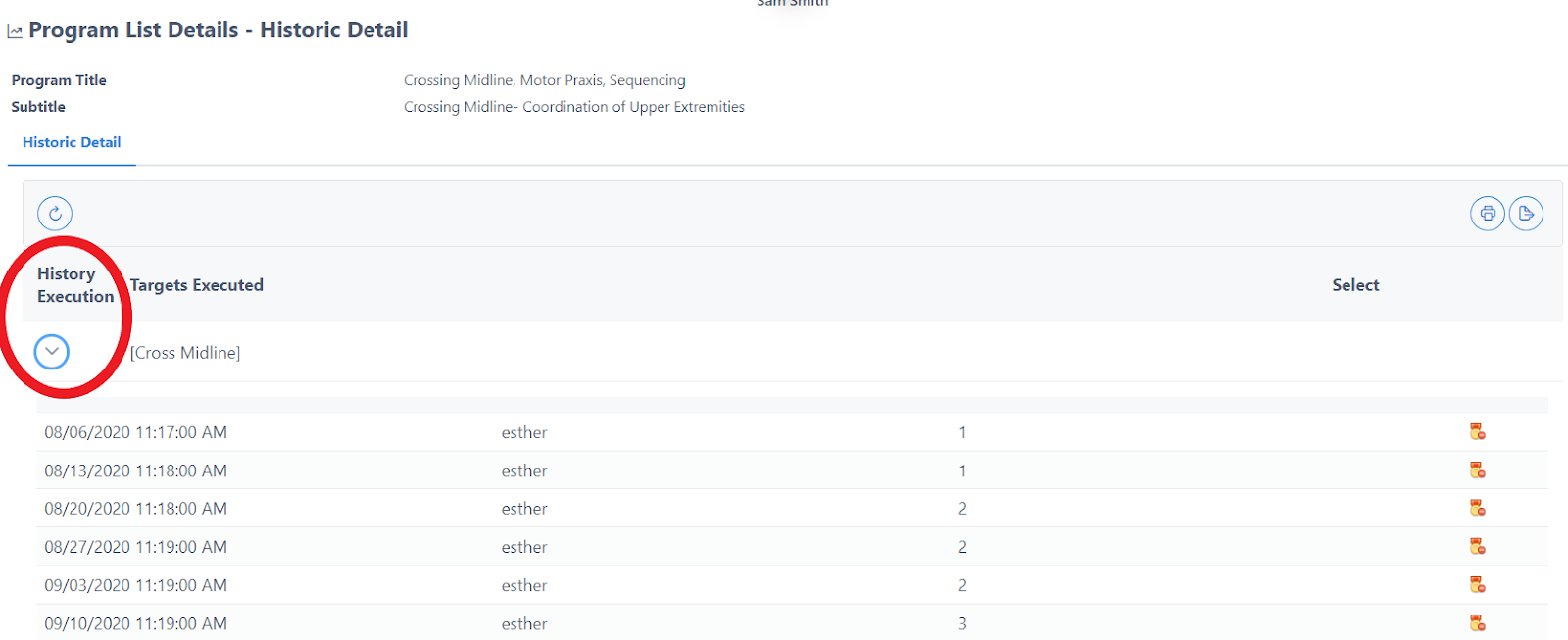
Click the arrow underneath the History Execution button to expand and see all the raw data points you have entered for each session:
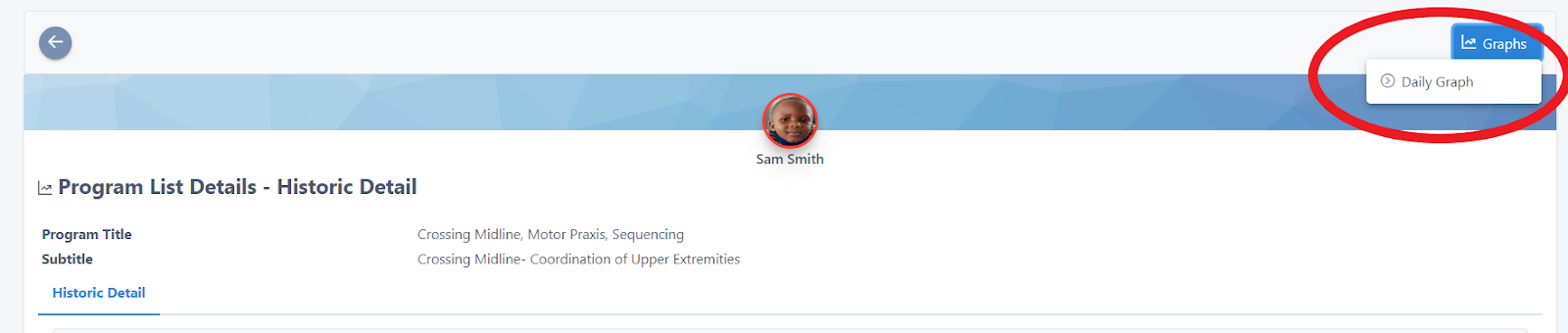
To generate the graph, click the Graph button at the top right, and then Daily Graph :
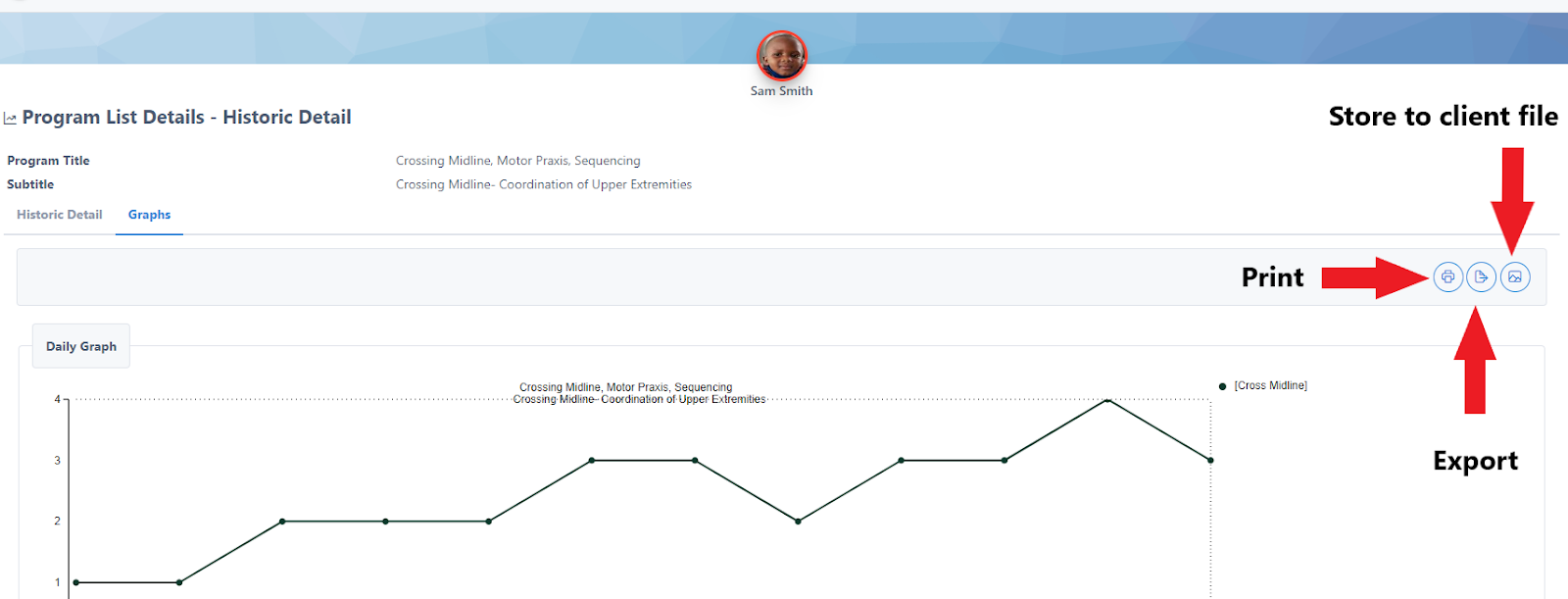
With the 3 grey buttons, you have 3 functions you can execute with this graph:
A) Store to client records
B) Export (to add to your own clinical report template)
C) Print
STEP 4
To include a graph in the UnitusTI generated Program List Report , click the third grey button “ Store to Client Records ”. This is where you will add an interpretation of the graph/ summary of the client’s progress on this particular goal. Leave the File Name as is, type in the goal name into the Graph Title field, and add your summary in the Graph Description field. Click the green Save button:
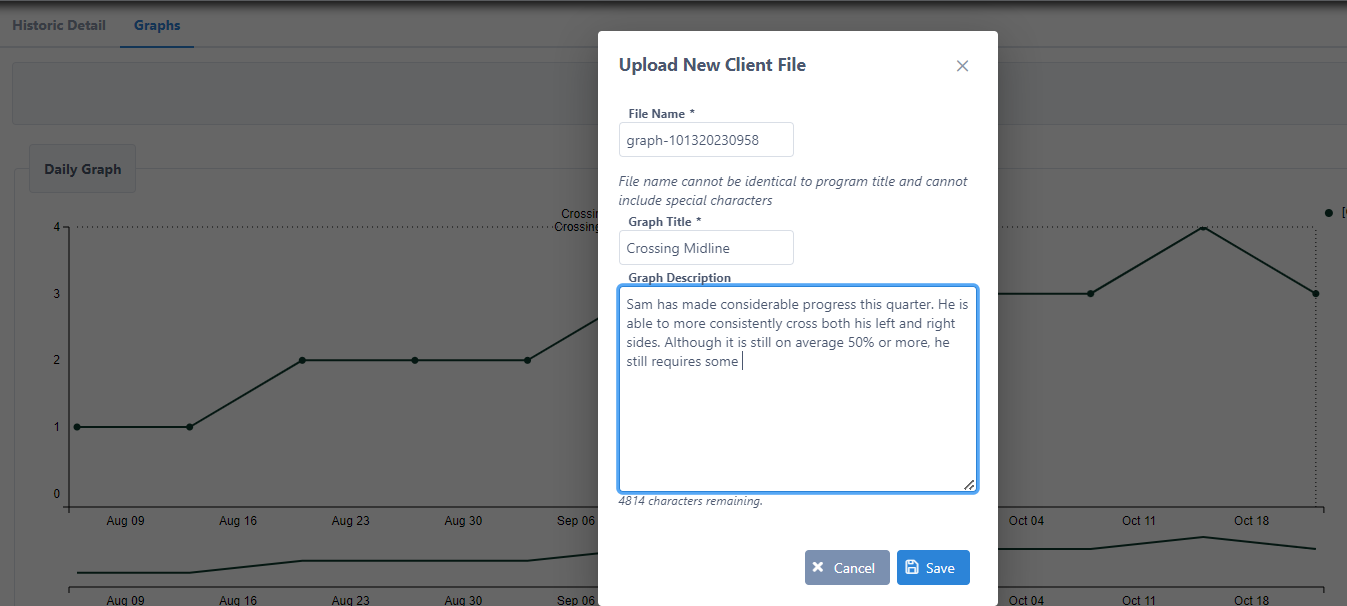
Repeat this process for each goal.
STEP 5
After you have written a summary under each goal and uploaded to the client file, it is time to generate the full clinical report (program list report).
Click on Information Filter:
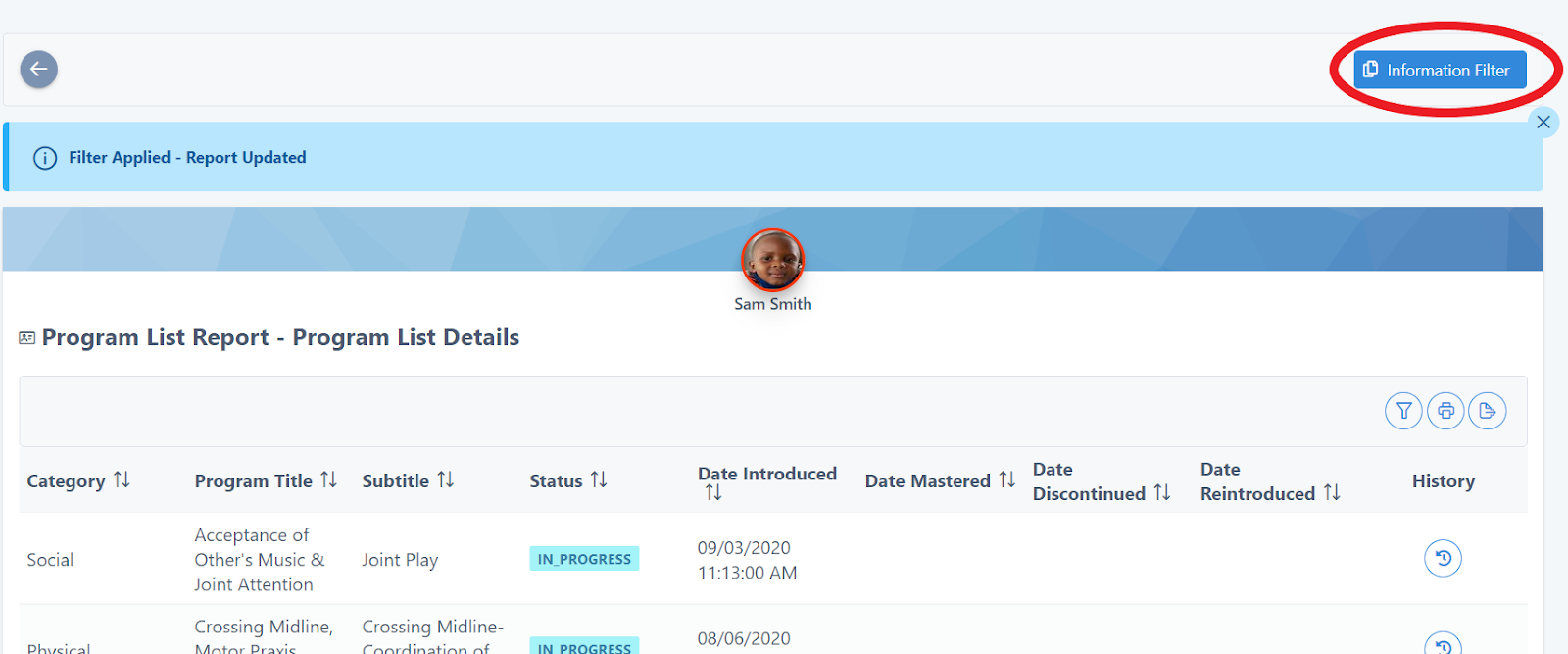
Click on the filter button & select the fields you want to include in the clinical report (program list report):
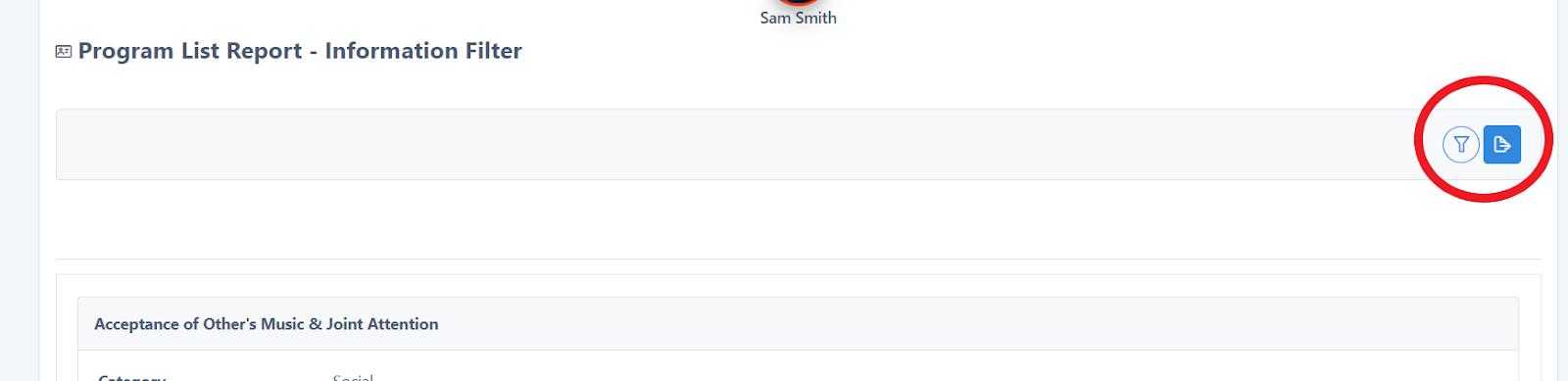
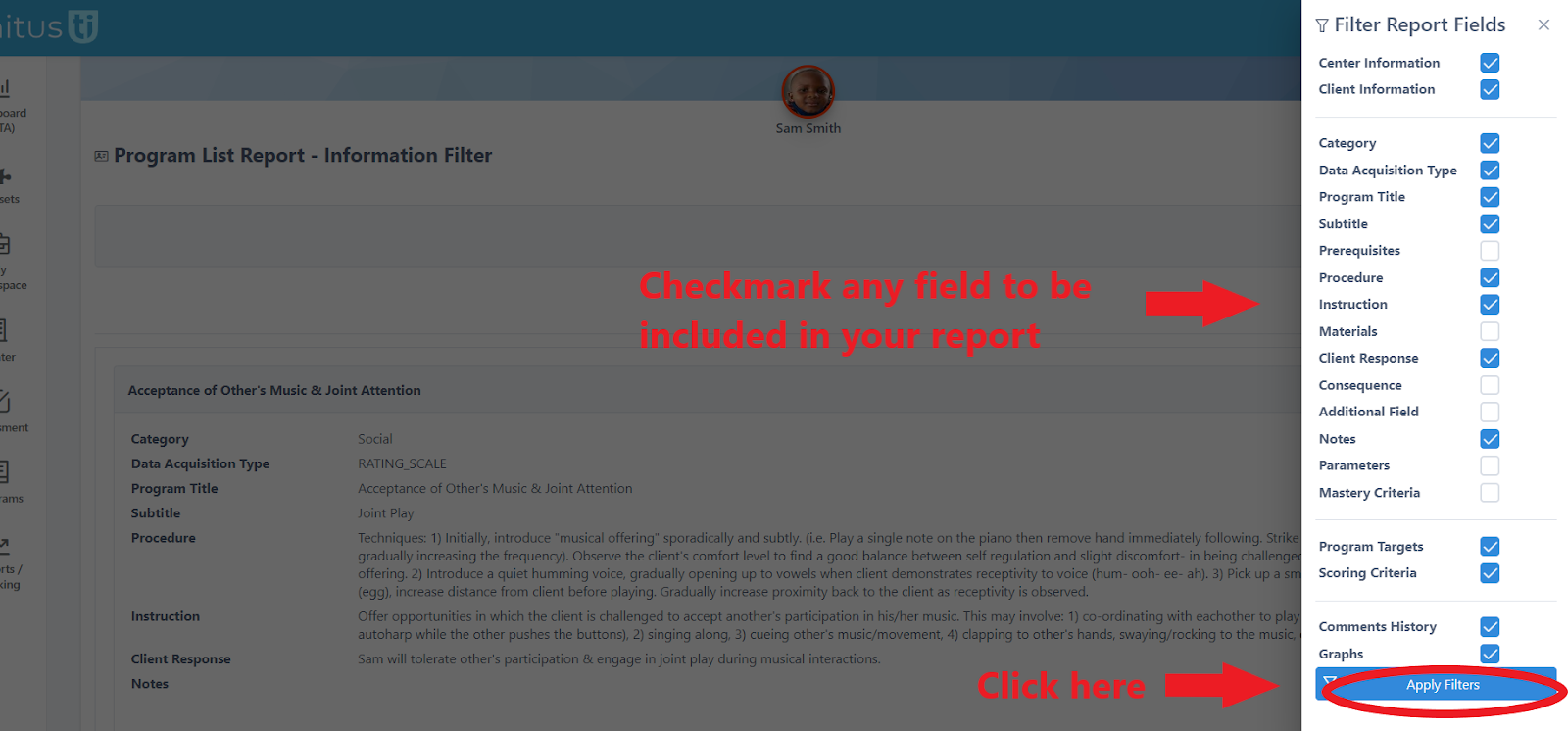
STEP 6
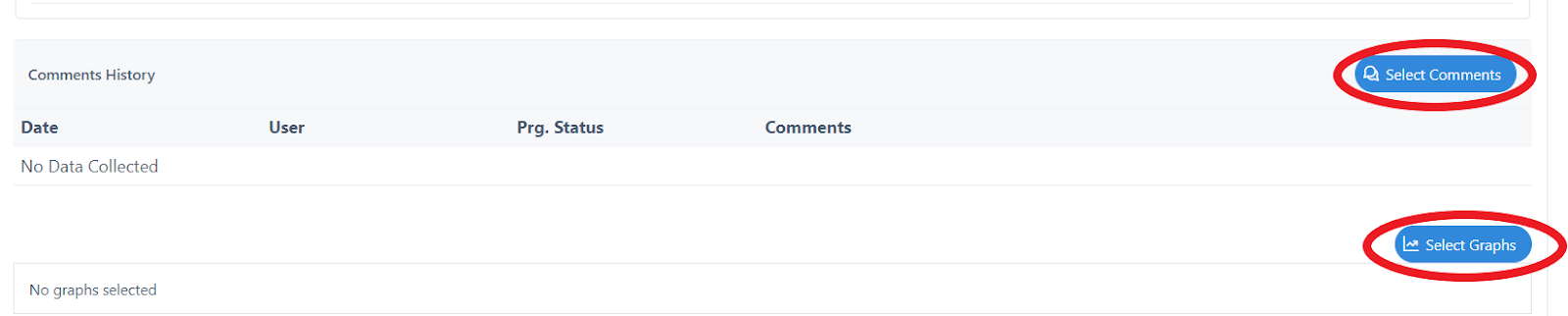
Now it’s time to add all the graphs with your summaries, and COMMENTS (if you checkmarked it) into your report. Click the Select Graph & Select Comments buttons for each of your goals:
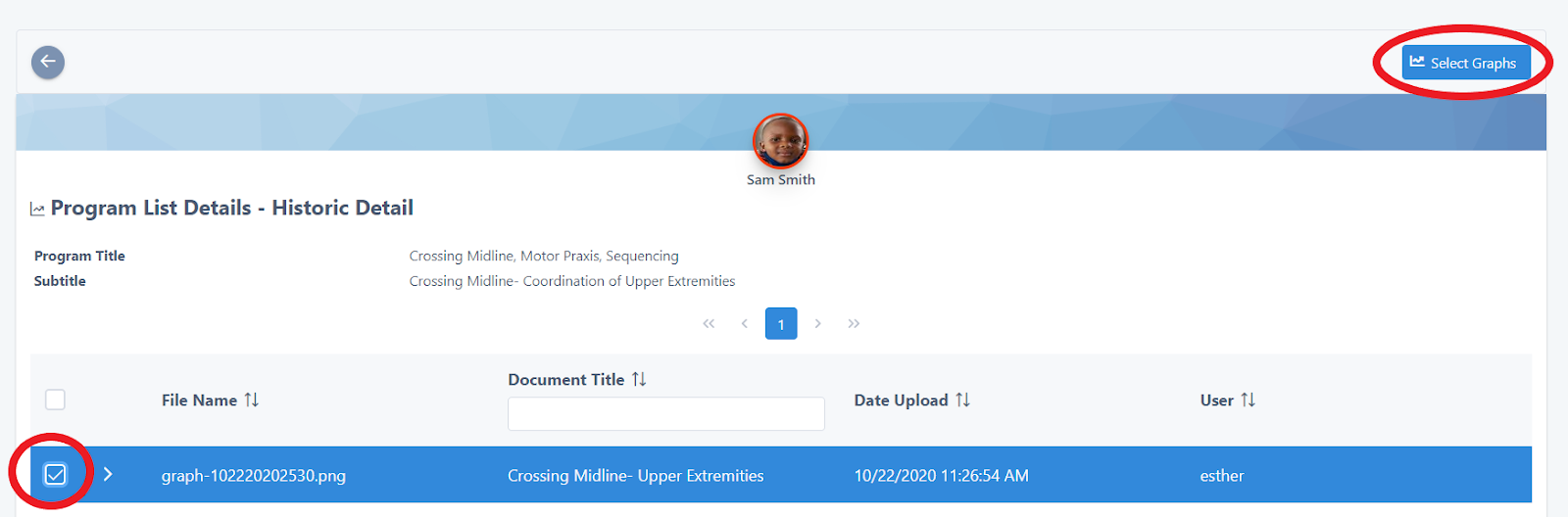
First check mark the graph, then click the Select Graphs button:
STEP 7
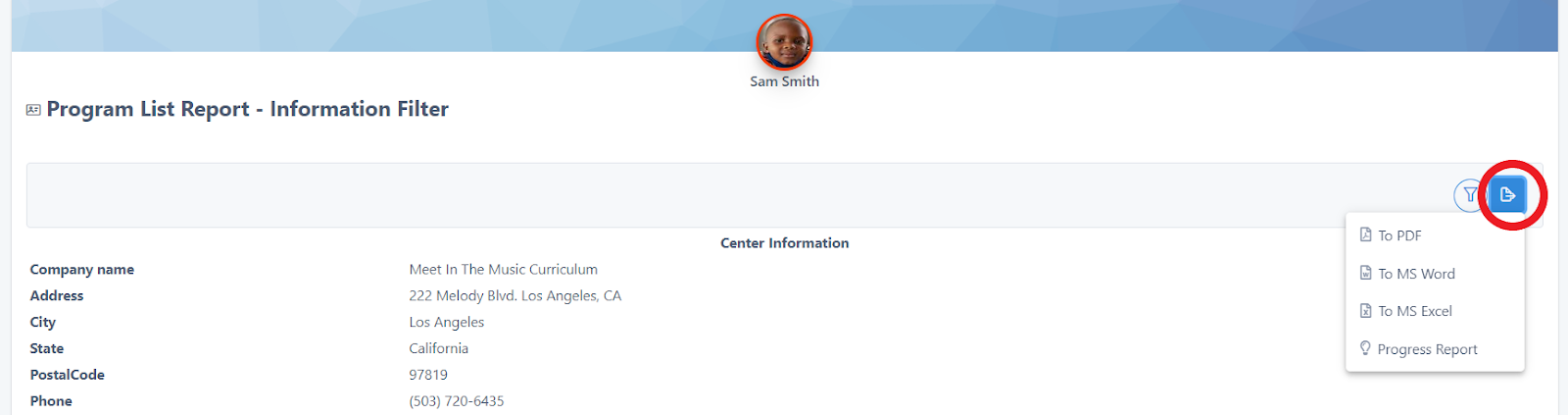
The final step is exporting your report! Click the blue Export button and select the type of report you want to download:
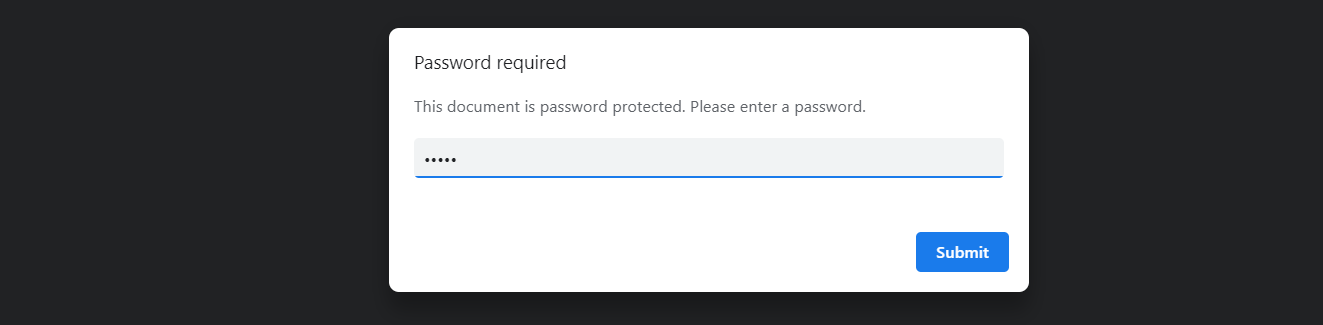
If you download into a pdf, it will ask you for a password. Note: the password is your UnitusTI #ID (5 digit number you use to login). This will always remain the same. When you send someone the report via email, as an attachment, it will ask them for the password as well. This reassures parents, case managers, etc. that thee report will not fall into the wrong hands and be viewed:
Checking for updates/new programs to MITM © & adding them to your UnitusTI account
The content in MITM © continues to grow, whether brand new interventions and goals are being added, or revisions to existing programs are being done. With a few simple clicks, any new content can be automatically added to your UnitusTI account. It is recommended that the following procedure be completed every month for the most up to date version of MITM©. Anyone with Administrator, or Curriculum Manager access can complete this task.
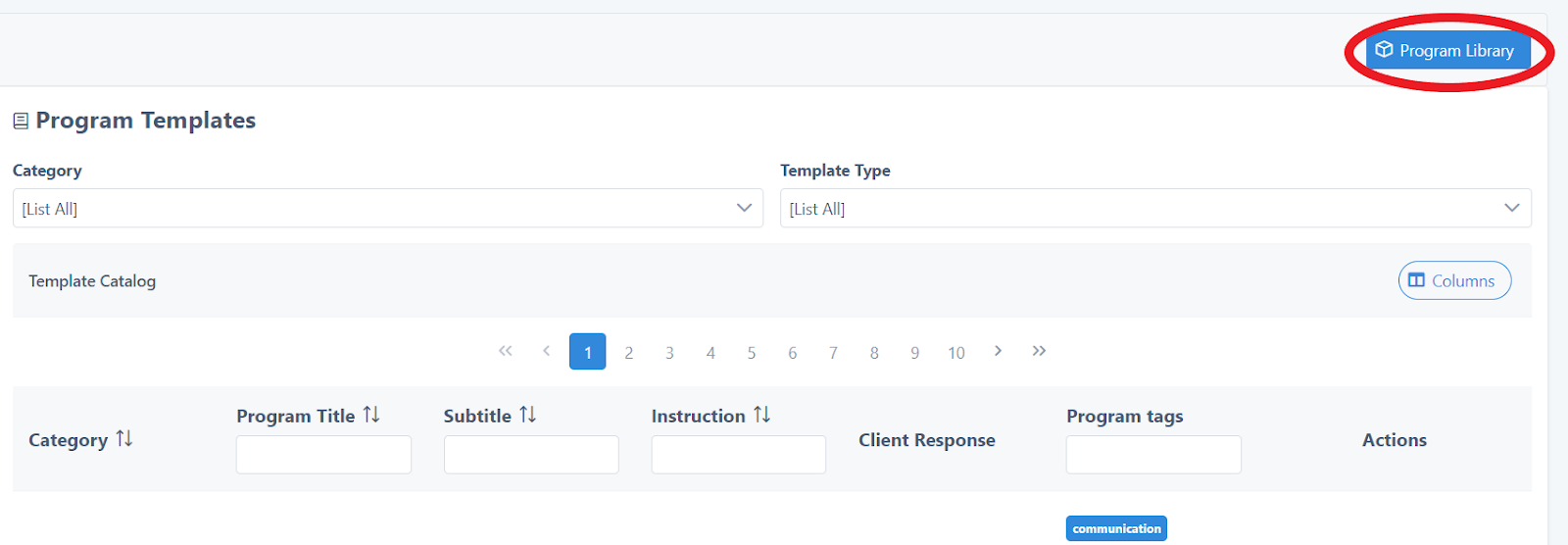
- Click Programs on the main menu
- Click Program Templates
- Click Program Library :
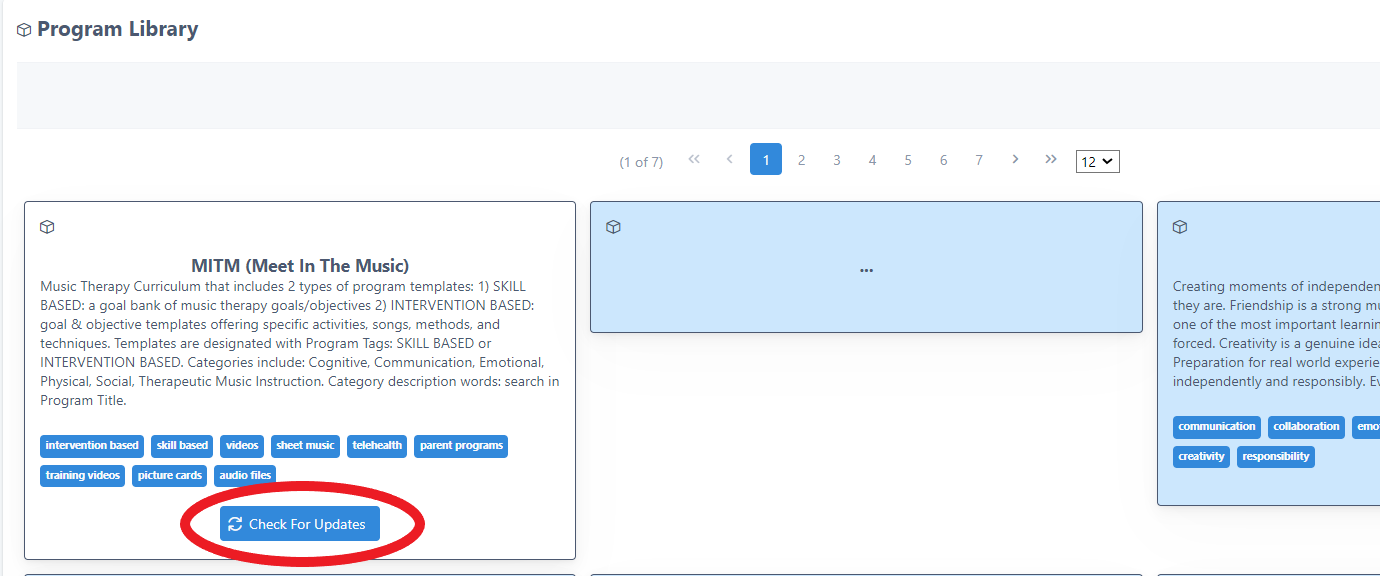
4) Click Check For Updates under the MITM © (Meet In The Music) package:
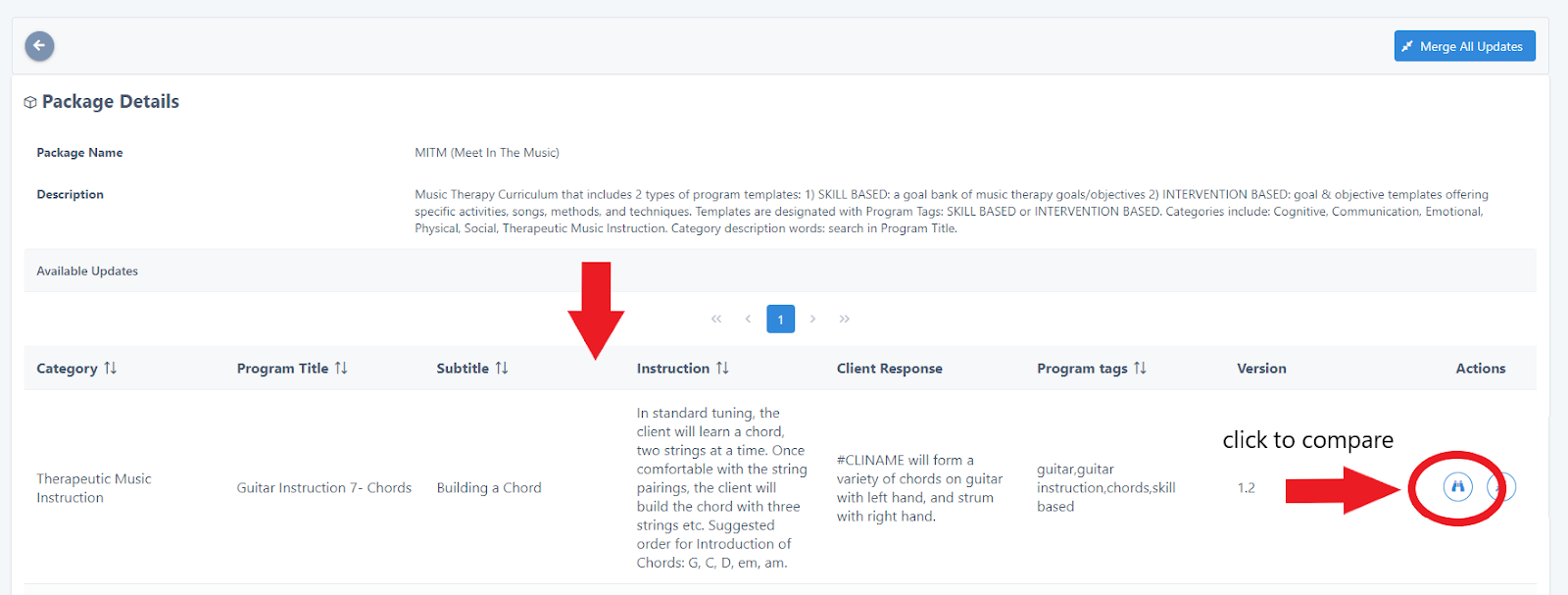
If any updates or new programs have been added, they will appear in rows :
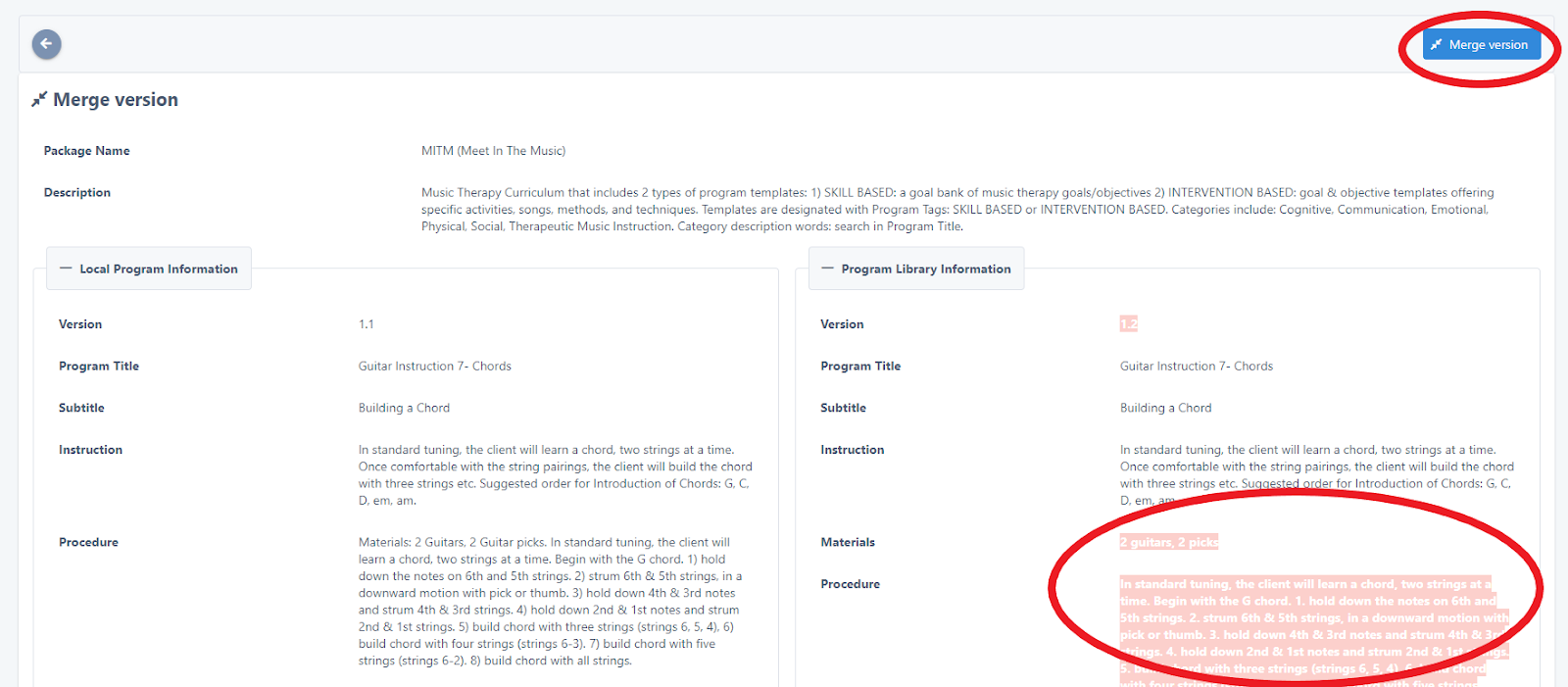
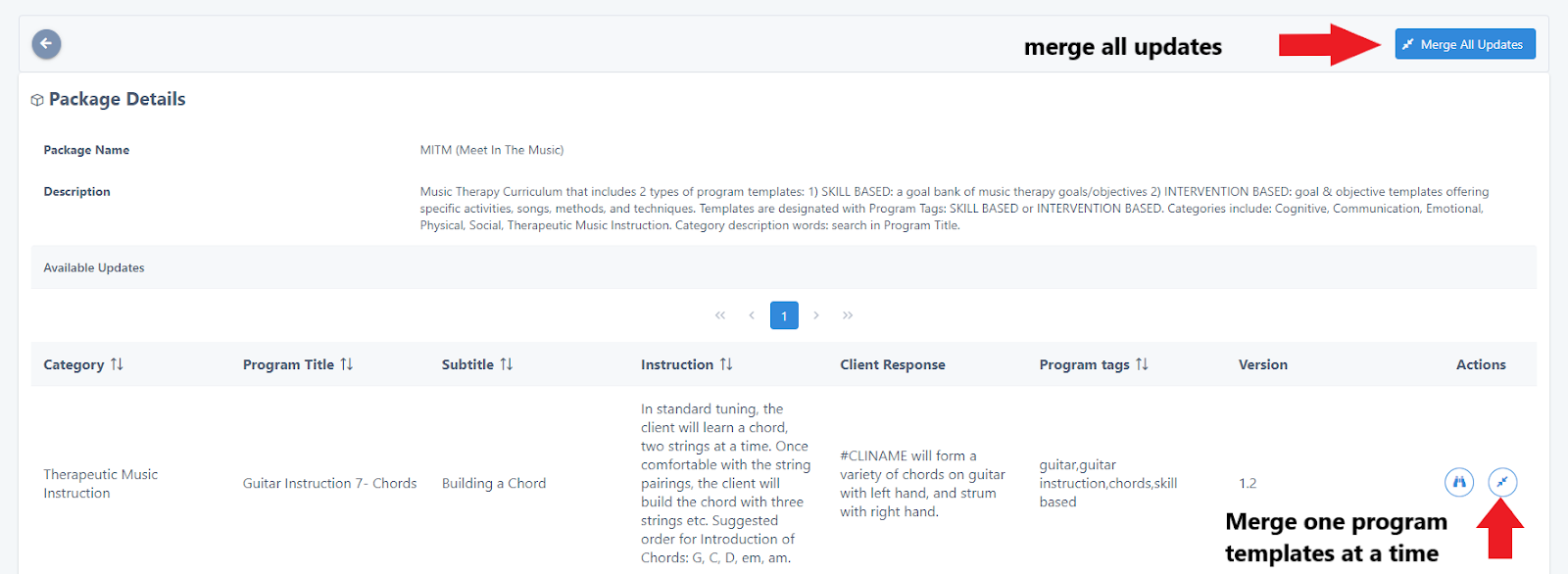
In the Actions column, you will see if it is a previously created program, that has now simply been edited. To compare the original version and the edited version, click on the binoculars icon. You can choose to update all of the program templates by clicking the Merge All Updates button, or update one program template at a time:
Notes on Copyright
All content in Meet In The Music © is copyrighted. Limitations on usage and reproducibility include the lack of ability to edit original program templates. You can, however, clone Meet In The Music © program templates. This results in the original version being maintained in your UnitusTI account, as well as your cloned version.
It is recommended that you add a program tag (the name of your practice or organization), for your cloned program templates. This will assist you in filtering for your cloned programs on your UnitusTI account. Program templates from Meet In The Music © , including any cloned program templates, are unable to be used outside of the UnitusTI system and are only made available while your subscription to UnitusTI is active .
Copyright UnitusTI / Meet In The Music © (MITM)
Page of