What’s Included in ASCEND
Program Templates
The ASCEND program includes the following program template packages:
- ASCEND - Over 200 program goals designed for use with clients with autism
Preview program goals in the
Program > Program Templates
section of your account, and explore the skill categories they cover in the
Program > Categories
area. Both these areas can be found under Programs in the main menu.
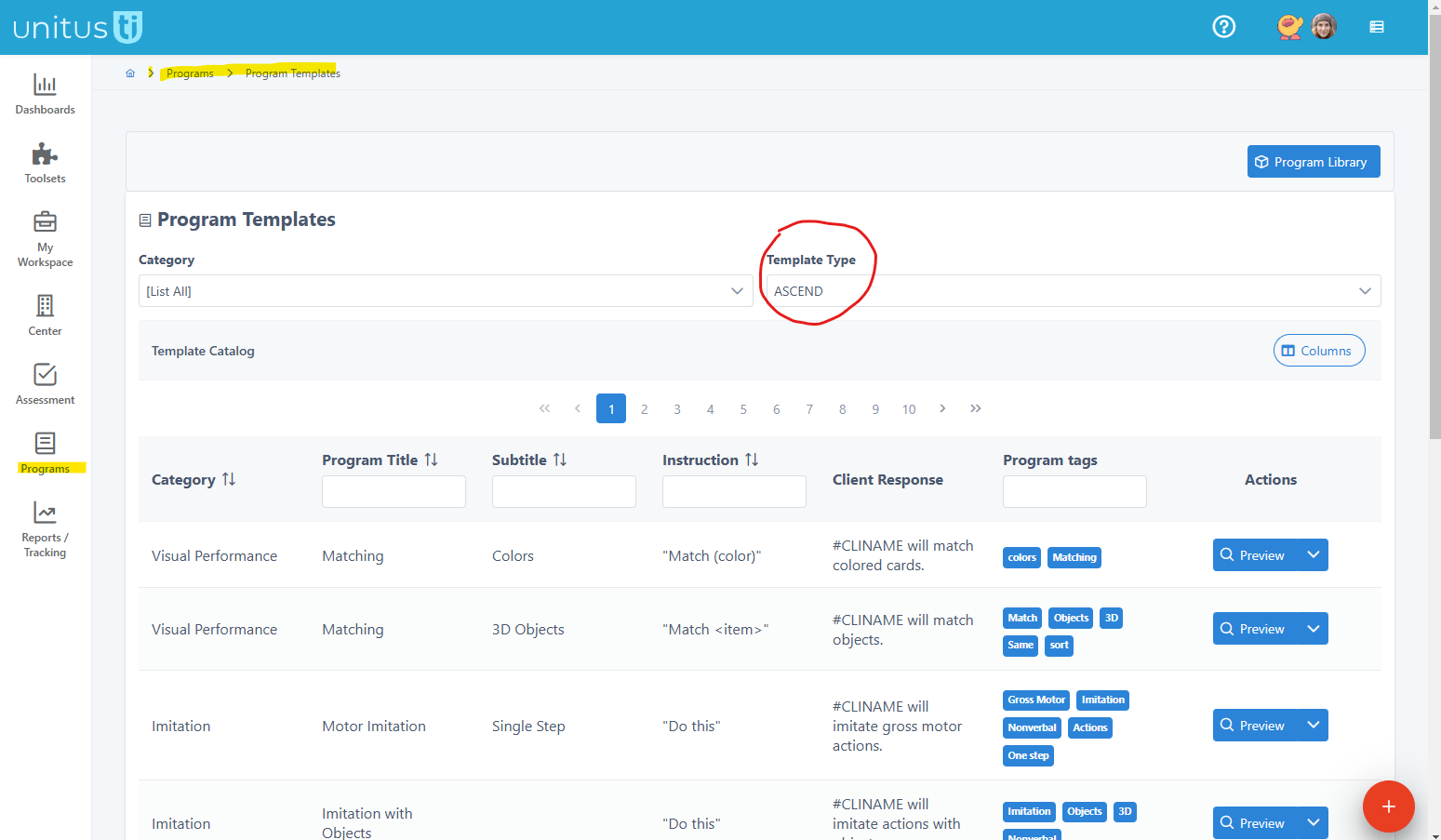
The ASCEND© program is designed for use by, or under the guidance of, a behavior analyst specializing in skill development for children with autism. Although the included program templates are generally effective for teaching these skills, it is the user’s responsibility to customize the programs as needed to ensure they are clinically appropriate and safe for each client.
ASCEND Quick Start Guide
For a comprehensive walkthrough of the program, we recommend viewing the ASCEND tutorial video , which walks through every step of using the program, including detailed steps to using a variety of data collection methods - it’s packed with strategies and tips from the program author. Below, you’ll also find quick steps to assign and run the program.
Log into your UnitusTI account
Step 1: Assign Program Goals
After creating client profiles, assign program goals to them in Programs > Manage Programs
- Navigate to the main menu and select Programs, then Manage Programs
- Select a client from the list (note: to see a client here, you must be assigned to them)
- Create a new program list (using the red button) or add programs to a previously created list (from the actions menu).
- Search for specific goals using categories, titles, or tags.
- Select a program to assign and you will be guided to choose your targets, data collection type, mastery criteria, and other parameters to fit your needs.
Tip: Create program lists to organize related groups of programs or to manage isolated program lists for different user groups.
You can easily modify program configuration at any time in Manage Programs.
Step 2: Run Programs and Record Data
After assigning programs, users may run the program by navigating to
Programs > Run Program
in the main menu.
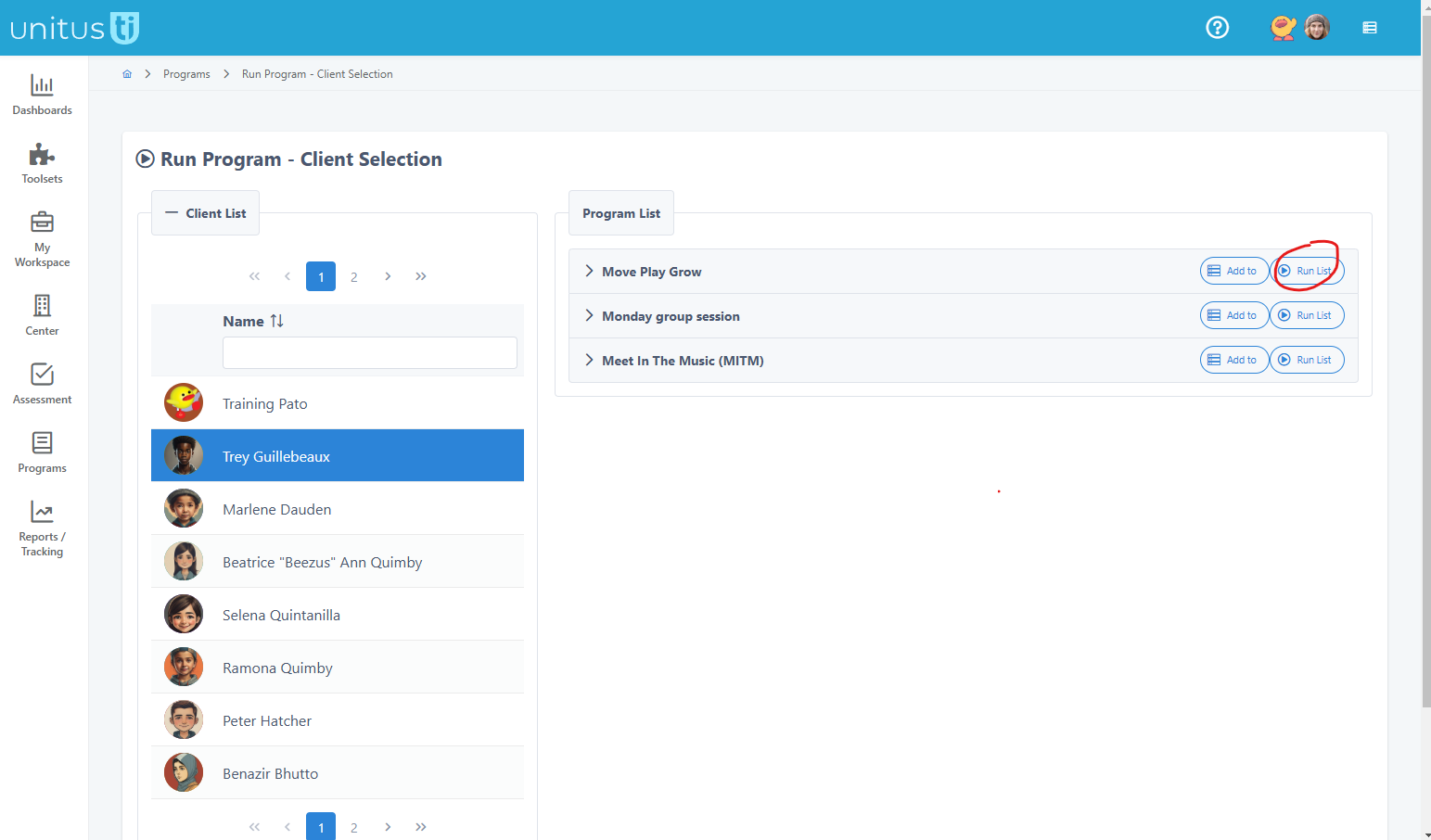
- Choose a Client to see a set of pre-assigned programs. Click each to see a preview if desired, then select “Run List” to open the Run Program page.
- On the Run Program screen, select the Actions button for the program you wish to begin, which will open the program details. Read the instructions before beginning then select the Run This Program button, which will collapse the details section and open a data recording sheet below. This area is used to record progress for each target. Toggle back to the program instructions at any time by expanding the collapsed section above the data collection sheet.
- When progress for all targets has been entered in the data sheet and you are ready to submit it, click the Record Data button. This will permanently save the data and record it to the client’s record.
Step 3: Review, Graph and Report
UnitusTI offers a range of program data reporting features in the Reports/Tracking menu. A great place to start is the Program List Report , which lets you view raw data (including unrecorded progress), generate graphs, save them to client records, and export or report findings. You can also create comprehensive reports using the Information Filter feature. Export reports to preserve copies or share as appropriate.
Tip: some .pdf reports may ask for a password when opening. This is the 5 digit UnitusTI ID number (your account number)