This guide will get you started using the Sisu Skills © program in the UnitusTI cloud system.
Table of Contents
Message from the Program Author 2
What’s Included in Sisu Skills© 3
Quick Steps to Implement Sisu Skills 5
Quick Implementation Steps for Administrators 5
Quick Implementation Steps For Caregivers 7
Administrator Implementation Guide: Step-by-Step Instructions 8
Step 1: Create learner and caregiver profiles 8
Step 2: Assign the Assessments 9
Step 3: Instruct the Caregiver to Execute the Assessment 10
Step 4: Review Assessment Results 11
Assigning Programs from Assessment Results: 12
Assigning Programs from the Program Library: 13
Step 6: Implement the Caregiver Training with the Caregiver 13
Step 7: Instruct the Caregiver to Implement Learner Programs 14
Step 8: Review, Graph and Report Program Data for Caregivers or Learners 14
Caregiver Implementation Guide: Step-by-Step Instructions 17
1. Complete the Assessments 17
2. Run Programs and Record Data 17
Optional Account Setup for the Caregiver 19
Add Labels to the Menu Icons 19
Change the Platform Language 20
Further Configuration Options for the Administrator 21
Checking for Program Updates 21
Customizing Program Templates For All Clients 22

Message from the Program Author
Sara Morris, M.A., BCBA, LBA
Welcome to Sisu Skills © . I believe it will be instrumental in identifying goals for learners and their caregivers, teachers, and support staff.
"Sisu" is a Finnish word that conveys determination and resilience—qualities essential to a caregiver’s role in supporting their learner’s growth. This curriculum empowers caregivers by giving them the tools to actively engage in their learner’s development, with guidance from a behavior analyst. Caregivers learn to apply strategies from Applied Behavior Analysis (ABA) to support and positively reinforce skills in self-help, communication, play, social connection, and more, honoring each learner’s unique strengths and needs.
My goal is to help caregivers become more independent in utilizing the techniques of ABA. These caregivers, after all, have so much unique insight to bring to the treatment process, which can be enhanced further with ABA knowledge and skill. Thank you so much for making Sisu Skills © a part of your treatment plan for your learner.
Glossary of Key Terms
- Caregiver : Individual responsible for the well-being and support of a person with autism, including parents, caregivers, teachers, and support staff. (Note: the “Sisu Skills© Caregiver” programs and assessment are intended for assessing and teaching caregivers.)
- Learner : The individual with autism receiving support through the curriculum. (Note: the Sisu Skills© program template package and the Sisu Skills© Learner Assessment are intended for assessing and teaching people with autism.)
- User : A person with access to log in to the UnitusTI platform. Users are assigned to “clients” to manage and access Sisu Skills content designated for those clients.
- Client : An individual who cannot log in to the platform but has services, such as content from the Sisu Skills program, assigned to them. Note: All Learners (see above definition) will be “Clients”. Caregivers may be designated as both a “client” and a “user” within the platform to access specific “Caregiver” components.
What Sisu Skills © Does
Sisu Skills was created to accomplish two things (under the guidance of a BCBA):
- Help BCBAs teach Caregivers about ABA with the Sisu Skills Caregiver Assessment + Sisu Skills Caregiver program package
- Enable Caregivers to teach skills to the person with autism they care for (the Learners ) at home or in the community under the guidance of a BCBA, with the Sisu Skills Learner Assessment + Sisu Skills program package
What’s Included in Sisu Skills ©
The Sisu Skills program consists of two main teaching pathways, one for the Learner and one for the Caregiver. Each pathway includes an assessment and a program template package. This guide provides instructions for both Learner and Caregiver components, even if you choose to implement only one. Here’s a breakdown of what’s included in each:
For “Learners”
-
The Sisu Skills© Learner Assessment will assess the skill levels of the person with autism under your care. It should be administered by the caregiver who knows the learner the best, to automatically identify goals for the learner with autism from the Sisu Skills© curriculum, which includes pre-written programs to teach social skills, communication, play skills, and more.
-
The Sisu Skills© program package These program goals (programs) are designed for use with clients with autism and are structured to be implemented by caregivers.
For “Caregivers”
-
Sisu Skills© Caregiver Assessment evaluates the caregiver and identifies pre-written programs for caregiver training from the Sisu Skills© Caregiver Training curriculum, to include collecting ABC data, identifying functions of behavior, using prompts, delivering instructions, collecting data, and more.
-
Sisu Skills© Caregiver Training program package: A behavior analyst may use the Caregiver Training curriculum to teach caregivers how to effectively implement the Sisu Skills© programs with their learner, empowering them to run the programs independently.
Tip: Preview the assessments in the Assessment List (found under Assessment in the main menu). Preview the program templates in the Program Library (found in Programs > Program Templates in the main menu).
Skill Categories
To see a full list of the skill categories included in Sisu Skills, go to the Categories area found under
Assessments or Programs in the main menu:
- Main menu > Assessment > Categories
- Main menu > Programs > Categories
Quick Steps to Implement Sisu Skills
Here's a quick overview to get you started with Sisu Skills. For a more in-depth guide, please refer to the full user manual. Remember, you can customize this process (and the Sisu Skills program templates) to fit your organization's specific needs.
Quick Implementation Steps for Administrators
This suggested path can help optimize the Sisu Skills program’s use, but feel free to customize it to fit your goals for teaching caregivers and learners at the desired pace. Tailor the sequence and timing of these steps according to your implementation plan.
- Create Client Profiles
- Set up client profiles for both learners and caregivers in Center > My Clients
- Create Caregiver Logins
- Generate user logins for each caregiver in Center > User List
- Assign Assessments
- Assign the Learner Assessment and Caregiver Assessment to the Caregivers’ client profiles. Customize the assignment process and timing as needed. (If you prefer to skip assessments, proceed directly to program assignment.)
- Guide Caregivers on Assessments
- Instruct caregivers to log in and complete the assessments.
- Review Assessment Results
- Access Manage Assessments or the Assessment Dashboard to review caregivers’ assessment results.
- Assign Programs
- Assign Sisu Skills Program Templates to learners. You can do this through Manage Assessments if using suggested programs or by directly creating/adding them to a program list in Manage Programs .
- Assign Sisu Skills Caregiver Program Templates to caregivers in the same way.
- Arrange Training Sessions
- Set up sessions with caregivers to teach them ABA skills using the Sisu Skills Caregiver programs. During each session, log into UnitusTI, navigate to Programs > Run Programs , and execute the lessons with the caregiver. You can do this simultaneously with step 8 or at whatever pace works best.
- Guide Caregivers in Learner Program Implementation
- Instruct caregivers to implement the learner programs at home at the pace you wish. Providing the "Quick Steps for Caregivers" list can help them stay on track.
- Monitor Program Progress
- Review program progress in Manage Programs or through the Program List Report found under Reports/Tracking .
- Share Progress
- Use the Information Filter (found in the Program List Report ) and the Daily Program Report (found in Reports/Tracking ) to create progress reports you can export and share with caregivers, as you wish. (Note that depending on the security role(s) you’ve assigned to other users, including caregivers, they may have access to these areas themselves. Be sure to assign security roles that allow access to just the areas of UnitusTI they need.)
Quick Implementation Steps For Caregivers
-
Log In
Log in to UnitusTI using the credentials provided by your Administrator. - Complete the Learner Assessment
- Go to Assessment > Run Assessment in the main menu.
- Select your child’s profile from the list to start the Sisu Skills Learner Assessment . Follow the action buttons on each page, answer the questions, and if needed, you can leave and return later (your progress will be saved). When you’re ready, select Finish on the last page to submit.
- Complete the Caregiver Assessment
- Next, select yourself from the client list to complete the Sisu Skills Caregiver Assessment , following the same steps as above.
- Notify Upon Completion
- Once both assessments are completed, inform the person who assigned this task. They will arrange sessions to guide you in the Sisu Skills Caregiver program.
- Access and Run the Sisu Skills Program (when prompted by Administrator)
- Navigate to Programs > Run Program in the main menu.
- Select your learner and click the Run List button.
- Choose a program from the list or follow specific instructions from the person who assigned you this task.
- After selecting the play button for a program (or Continue if resuming), review the instructions and resources.
- Record Progress
- Once you’re ready, select Run this Program to begin recording progress for your learner. In the Current Program section, use the Record Data button to save this progress permanently (recorded data cannot be edited). If you leave without recording, a draft will be saved for later.
- Final Steps
- When you’re finished, inform the person who assigned you the task, or follow any additional instructions they provided.
Administrator Implementation Guide: Step-by-Step Instructions
Log into UnitusTI
Log into UnitusTI with your administrator level user access (provided as part of your signup or provided to you by the account owner or another administrator in your organization).
Step 1: Create learner and caregiver profiles
In this section, you’ll learn how to create user and client profiles in UnitusTI. Read the definitions below, then follow the steps to create these profiles.
- A User is a person with access to log in to the UnitusTI platform. Users are assigned to “clients” to manage and access Sisu Skills content designated for those clients. (Your Caregivers will be “users” so that they can log in to execute assessments and programs.)
- A Client is an individual who cannot log in to the platform but has services, such as content from the Sisu Skills program, assigned to them. Data captured is recorded under “client” profiles. (Your Learners and Caregivers will be “clients” so that users can execute programs and assessments for them and record the data to their profiles.)
No need to stress about the terminology! Simply follow the steps below, and you’ll be set to seamlessly use the Sisu Skills program to support both learners and caregivers.
- Create Client profiles:
- Navigate to Center > My Clients in the main menu
- Create client profiles for the learners with autism
- Now create client profiles for each caregiver who will be completing the Sisu Skills Caregiver Assessment. (While caregivers are not typically considered your “clients”, they need a client profile in order to complete the Caregiver assessment.)
- Note: client profiles do not grant login access
- Create User profiles to give login access to Caregivers:
- Navigate to Center > User List in the main menu to create user accounts for caregivers to log in (e.g. parents, caregivers, teachers, therapists, etc.).
- Select the red button in the bottom right corner of the screen
- Fill in the form. For required (and recommended) fields where additional guidance may be helpful, refer to the tips provided below.
- User ID: This will serve as the username at login. You can use letters (not case-sensitive), numbers, and certain special characters to create a unique ID that is not already in use within UnitusTI. Note: User IDs cannot be changed or reused after saving.
- Email : the email address is used by UnitusTI when a user uses the Forgot Password option in the login screen. A reset password email will be sent to this email address, so be sure to keep it updated as needed. (Tip: as an administrator, you are enabled to assist users with their passwords from the User List, too)
- Security Role: Assign a security role to define the level of system access for each user. To assign a role, simply select one or more from the left column and move them to the right column. For guidance, refer to the Security Roles guide to identify the most appropriate role(s), especially outside your organization. Tip: the "Parent" role was created in response to requests from many UnitusTI users for an option tailored to individuals outside the organization, however, other roles may better fit specific access requirements. Be sure to review all available options in the guide to select the role that best suits your account needs. Multiple roles can be assigned to a single user if necessary.
- Select the Store Account Data button in the top right corner to save the user and enable other settings.
- Go to the Clients Assigned tab at the bottom of the page. Click the red button to assign the user to their Client profile and to the Client profile of their learner with autism.
- Note: You can also assign clients in the Team Members tab within the Client profile or from the User List by selecting the Action button next to the user and choosing Assign Clients .
- Important: Assigning users to specific clients not only grants them access to the services assigned to those clients (e.g., running programs or completing assessments), but it also ensures they cannot view data for clients they are not authorized to access.
- Provide users with their login credentials when you are ready to grant them access to UnitusTI. Users won’t have access until you provide them with their login credentials, so feel free to set them up now and let them in when you’re ready.
Step 2: Assign the Assessments
The Sisu Skills© program begins by assessing Learners and Caregivers. Both Sisu Skills assessments should be completed by the caregiver who knows the learner well and will be using the caregiver program with the learner and the assessment results will identify suggested teaching goals for both the caregiver and the learner.
Follow the steps below to assign both assessments to the caregiver:
-
Navigate to
Assessment > Manage Assessments
in the main menu.
-
Select a Client using the Actions button
- Assign the assessments from the Assign Assessment tab .
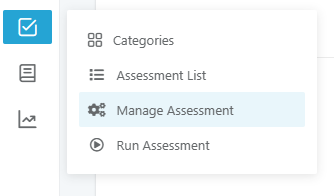

- Assign the Sisu Skills© Caregiver Assessment to the parent or therapist for whom you created a “client” profile during the setup step. This ensures that the responses are attributed to the caregiver, allowing you to assess their skill level and identify areas for teaching ABA skills.
- Assign the Sisu Skills© Learner Assessment to the client with autism. This ensures that responses are attributed to their profile, helping you identify the areas where the caregiver can provide support and that the caregiver assigned to this client will be able to complete the assessment on the learner’s behalf.
Step 3: Instruct the Caregiver to Execute the Assessment
When you are ready, let the Caregiver know that they may execute the assessment(s) you have assigned.
Refer to the "Caregiver Implementation” > “Complete the Assessments" section in this guide for detailed instructions on how caregivers can complete the assigned assessments and inform you that they have been submitted. (Tip: you may also wish to provide a copy of the Caregiver Implementation steps to the caregiver.)
Step 4: Review Assessment Results
When the Caregiver has completed an assessment, you may review the results in three areas in UnitusTI. To facilitate program assignment, follow the steps for the first option below (Manage Assessments). You may also use the dashboard results areas for viewing multiple client results and engagement insights.
- Manage Assessments : Visit this area to see assessment results for individual clients and a list of suggested programs to assign.
- Navigate to Assessment > Manage Assessment in the main menu.
- Select your client
- Select the history button for an assessment in their list. The history page shows a list of executions and selecting the Actions button provides a list of responses and suggested programs that can be assigned to them. Tip: If you’d like to see which assessment answer prompted the suggested program, select the “Map By” button for details.
- More options:
- Use the Filters to view specific information
- Select the three dots icon ( ... ) to export the results to your device or expand/collapse the section details
- Assessment Dashboard : View and print assessment results for one or more clients. (Note: the dashboard does not include suggested programs.)
- Navigate to Dashboard in the main menu, then select the Assessment Dashboard from the list.
- Choose your clients and (optional) scroll down to select dates (all execution dates will be listed by default).
- Below the dates, select the Load Assessment button (do this anytime you change the clients or dates above), and scroll down to the Assessment Lists dropdown.
- Select the assessment from the dropdown you wish to review and a list of responses will be displayed below it.
- Select the three dots icon ( ... ) to export the results to your device or expand/collapse the section details, if desired
- Assessments Administrative Dashboard: This dashboard lets admins review engagement statistics for clients and users.
- Navigate to Dashboard in the main menu, then select the Assessments Administrative Dashboard from the list.
- Use the tabs at the top of the screen to select clients and dates, then view assessment progress and assessment scoring.
- Select the excel or csv buttons for data you wish to export. Use the various filters on each tab to refine the information you want to see.
Step 5: Assign Programs
The Sisu Skills program includes two template packages:
- Sisu Skills© Caregiver Training package: This program package includes program goals designed for use by behavior analysts to train caregivers on effectively implementing the Sisu Skills© programs with their learner, empowering them to manage the programs independently.
- Sisu Skills© package: This package contains program goals designed for clients with autism, structured for caregivers to implement with learners.
This guide will take you through assigning and running these programs. Note that you have flexibility in how you proceed: you might choose to assign all relevant caregiver training programs initially, or begin with a few and add more as needed. Similarly, you can decide when to assign the Learner programs—whether right away or after caregiver training. Caregiver training can also run concurrently with Learner program implementation, depending on your preference and needs.
Assign program goals to clients using one (or both) of the following methods:
-
Assigning Programs from Assessment Results:
- Navigate to Assessment > Manage Assessment in the main menu.
- Select your client and then select the assessment history button.
- On the history page, select the Actions button to go to the Scoring Page, then select the Suggested Programs tab. (Tip: You can see which answer prompted the suggested program, select the “Map By” button for details.)
- Selecting one of these programs opens the assigning wizard, where you can view recommended settings or use your own guidelines to set the parameters for the program. Parameters include choosing targets and a data collection type, setting mastery parameters, etc.
- You’ll be prompted to choose an existing Program List or create a new one. If this is your first time, create a new list. You may wish to name it Sisu Skills Learner Programs or Sisu Skills Caregiver Programs, or any other name you wish. (Note that a client can have multiple program lists to help organize treatment plans.)
- Complete assigning the program and repeat these steps for other suggested programs, as needed. You may return to this area and repeat these steps at any time.
-
Assigning Programs from the Program Library:
- To assign programs without going through the assessment’s suggested programs, follow these steps. Note that not all programs in the Sisu Skills curriculum may be suggested by assessment questions, so use the Manage Programs area to identify other programs you may wish to implement.
- Go to Programs > Manage Programs in the main menu.
- From the Template Type selector at the top of the page, select the appropriate package for the client:
- Select the “Sisu Skills” program package from the list if you are assigning programs to Learners
- Select the “Sisu Skills Caregiver” program package if you are assigning programs to work on directly with the caregivers and teach them ABA skills.
- Search for specific goals using categories, titles, or tags.
- Select a program to assign and you will be guided to choose your targets, data collection type, mastery criteria, and other parameters to fit your needs.
Note: You can easily modify the configuration for all assigned programs afterwards, in Manage Programs.
Step 6: Implement the Caregiver Training with the Caregiver
After assigning caregiver training programs, you may arrange sessions to implement them with your caregivers. During your training sessions, log into UnitusTI and follow the steps to execute programs and record progress. You can set the pace of training to fit your implementation goals.
- Navigate to Programs > Run Program in the main menu
- Choose the Client profile for the Caregiver and the list of pre-assigned programs will appear on the right side of the screen
- Select the “Run List” button to open the program execution screen
- On the Run Program screen, select the Actions button for the program you wish to begin, which will open the program details.
- Read the instructions before beginning then select the Run This Program button, which will collapse the details section and open a data recording sheet below. This area is used to record progress for each target. Tip: Toggle back to the program instructions at any time by expanding the collapsed section above the data collection sheet.
- When progress for all targets has been entered in the data sheet and you are ready to submit it, click the Record Data button. This will permanently save the data and record it to the client’s record.
Step 7: Instruct the Caregiver to Implement Learner Programs
When you are ready, let the Caregiver know that they may execute the Learner teaching programs that you have assigned.
Refer to the "Caregiver Implementation” > “Run Programs and Record Data" section for detailed instructions on how caregivers can execute programs. (Tip: you may also wish to provide a copy of the Caregiver Implementation steps to the caregiver.)
Step 8: Review, Graph and Report Program Data for Caregivers or Learners
UnitusTI offers a range of program data reporting features in the Reports/Tracking menu. Users can view and export reports and graphs, depending on their security role, as soon as a program execution is begun.
You can review program data in real-time as you (or a caregiver) progress through a session. Interim data is visible immediately after target progress is selected, even before final recording. To view comprehensive reports and graphs, navigate to the Reports/Tracking menu.
A great place to start is the Program List Report , which lets you view raw data (including unrecorded progress), generate graphs, save them to client records, and export or report findings. You can also create comprehensive reports using the Information Filter feature.
To view progress on the learner’s or caregiver’s programs:
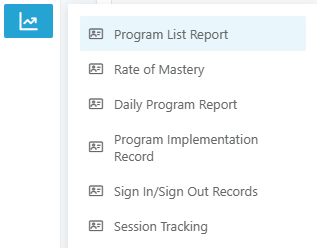
- Click “ Reports / Tracking ,” then “ Program List Report ” from the main menu
-
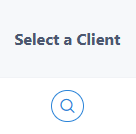
Find the learner and click the button under the “Select a Client” column.
-
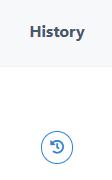
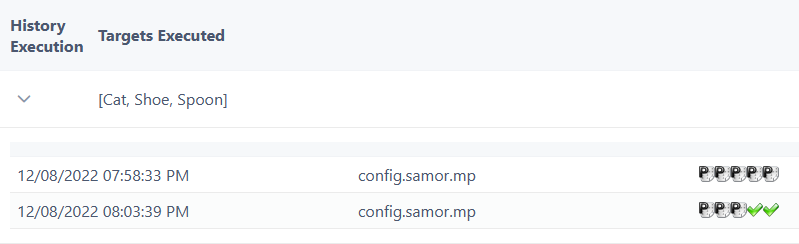
Find the program you want to see, and click the button under the “History” column.
- Click the downward caret “⍌” icon next to see raw data for each target.
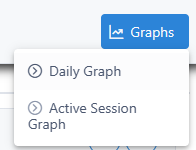
- Click the “Graphs” button and then “Daily Graph” to see the graphs for the program.
Caregiver Implementation Guide: Step-by-Step Instructions
1. Complete the Assessments
The caregiver who is familiar with the learner and will be using the skill programs should complete the assessments. The BCBA will assign assessments to caregivers, who can then follow these steps to complete them:
- Go to Assessment > Run Assessment in the main menu
- In the Run Assessment screen, select your assigned client and go to the list of assigned assessments.
- Select the Actions button
- When the assessment begins, review the information on the screen, then click the “I Agree, Proceed” button in the top right corner. Complete the questions and use the navigation buttons in the top right corner of each page to see a list of sections or continue to the next page. (Tip: answers are automatically saved, so you can leave and return any time to continue or revise your responses, as needed.)
- When all questions have been completed, click the Finish button on the final page.
- Inform the person who assigned this task to you that it has been completed
2. Run Programs and Record Data
After the BCBA assigns the programs, Caregivers may log into their UnitusTI account and execute them using these steps:
- Navigate to Programs > Run Program in the main menu
- Choose a Client to see a set of pre-assigned programs.
- Click each to see a preview if desired, then select “Run List” to open the Run Program page.
- On the Run Program screen, select the Actions button for the program you wish to begin, which will open the program details.
- Read the instructions before beginning then select the Run This Program button, which will collapse the details section and open a data recording sheet below. This area is used to record progress for each target. Tip: Toggle back to the program instructions at any time by expanding the collapsed section above the data collection sheet.
- When progress for all targets has been entered in the data sheet and you are ready to submit it, click the Record Data button. This will permanently save the data and record it to the client’s record.
3. View Reports and Review
To view progress on the learner’s or caregiver’s programs:
- Click “ Reports / Tracking ,” then “ Program List Report ” from the main menu
-
Find the learner and click the button under the “Select a Client” column.
-
Find the program you want to see, and click the button under the “History” column.
- Click the downward caret “⍌” icon next to see raw data for each target.
- Click the “Graphs” button and then “Daily Graph” to see the graphs for the program.
Optional Account Setup for the Caregiver

Add Labels to the Menu Icons
By default, menu icons do not display visible labels. However, you can view the label by hovering your mouse cursor over an icon. If you prefer to have visible labels, follow the steps below to enable them.
-
Access Account Settings:
- Click on the user icon located in the top blue bar.
- Select "My Account" from the dropdown menu.
- Click on the "Account Settings" tab.
- Locate the "Menu Mode" dropdown list.
- Select "Icons With Labels" from the options.
Once you've selected "Icons With Labels," the menu icons will display text labels, making navigation easier.
Change the Platform Language
-
Access Account Settings:
- Click on the user icon located in the top blue bar.
- Select "My Account" from the dropdown menu.
- Click on the "Account Settings" tab.
-
Select Language:
- Locate the "Language" selector.
- Choose your preferred language (currently, Spanish or English) from the dropdown list.
Once you've selected your language, the UnitusTI interface will switch to the chosen language.
Please note that changing the language only affects the user interface. Content authored in a specific language, such as English, will remain in that language.
Further Configuration Options for the Administrator
Checking for Program Updates
One exciting feature of UnitusTI is that the program library can be updated as needed by the curriculum author. Be sure to periodically check for updates to the Sisu Skills© and Sisu Skills© Caregiver Training program packages.
Here’s how to do this:
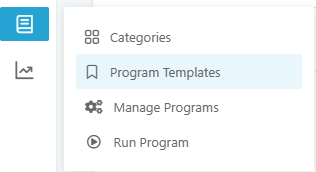
- Click “Programs” and then “Program Templates” on the left side of the page.
-
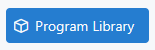
On the Programs page select the “Program Library” button in the top right corner.
- Find the curriculum you wish to update and select the “Check for Updates” button to go to the Package Details page
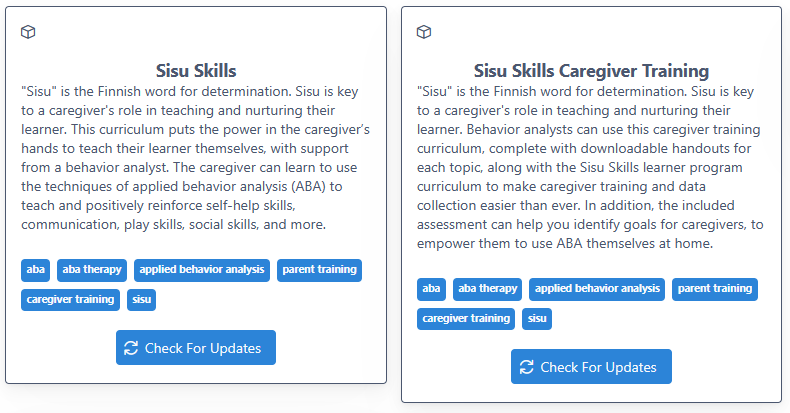
- If updates are available, they will be listed on the Package Details page, you can choose to merge them into your account. Click the "Merge all Updates" button in the top right corner to merge all updates at once, or preview individual updates and select only the ones you want to merge.
Customizing Program Templates For All Clients
UnitusTI allows you to customize program templates to fit your specific needs. You can clone any template from the Sisu Skills curriculum and modify it.
What are Program Templates? Program templates are pre-built structures that include teaching instructions, measurable goals, and other relevant information. To customize a template, clone it to create a copy. Once cloned, you can modify the template to fit your specific needs and then assign it to any client. When assigning a template to a client, you can further personalize it by setting mastery parameters, selecting specific targets, configuring sessions, and more. (This personalization is specific to the client assignment and does not affect the template.)
Important Note: While you can customize templates, cloned templates cannot be linked to assessments. This means they won't appear in the suggested programs list generated by assessment results. However, you can still use the suggested programs as a starting point and manually assign the cloned template to a client using the "Assigning Programs from the Program Library" instructions.
Additionally, cloned templates from the Sisu Skills packages are part of your subscription and will be removed when your subscription ends.
Clone templates to edit and customize them:
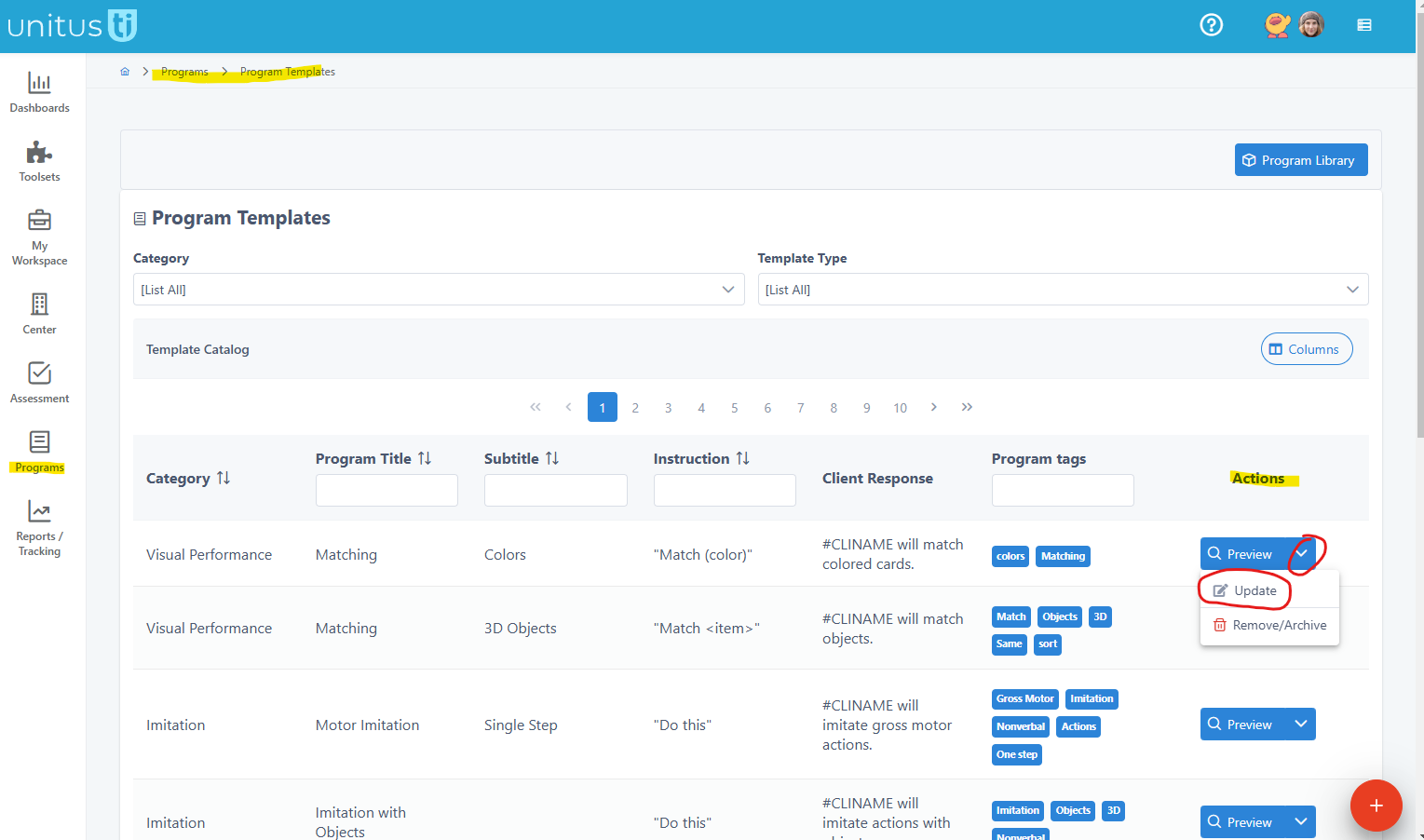
- Navigate to Program > Program Templates
- Select a template
-
Select the arrow icon in the Actions column and choose “Update”
-
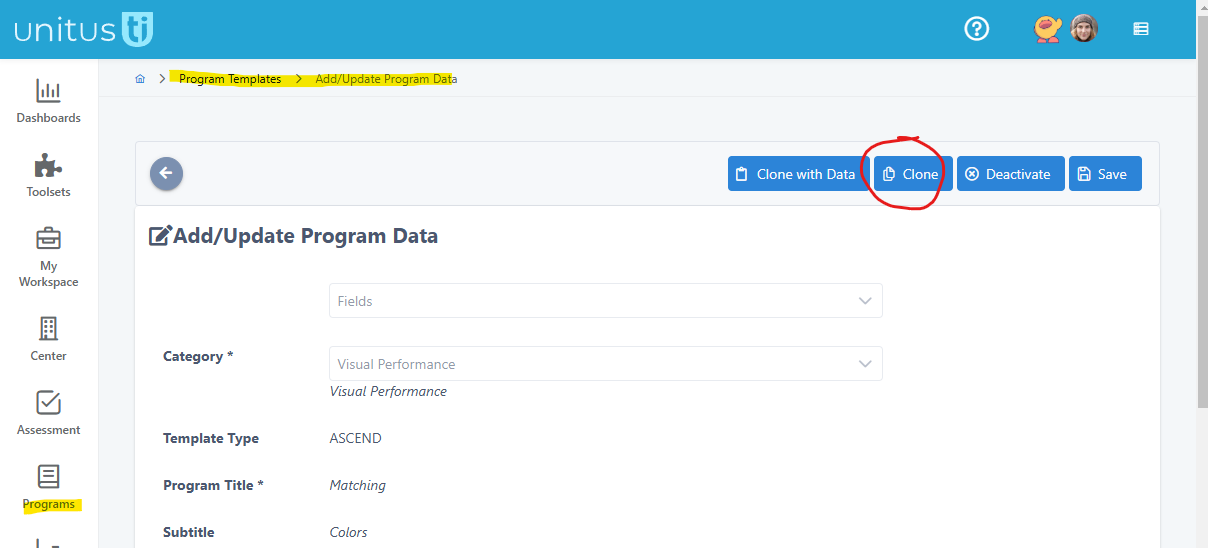
In the Add/Update Program Data screen, choose the “Clone” button in the top right corner
- A copy of the template will be created and you may change the information as you wish. Follow the instructions in this guide to Assign Programs to begin using this program template with your clients.
Additional information:
- The original program template remains available unless you choose to archive it.
- The cloned template is included as part of your Sisu Skills subscription and will be removed if the subscription is canceled.
Hold Harmless Statement
Sisu Skills © and Sisu Skills © Caregiver Training are intended for use by and/or under the direction of a behavior analyst who specializes in teaching skills to children with autism. While the program templates included are designed to be generally useful in teaching these skills, it is up to the user to ensure that the programs are customized as needed to be clinically appropriate and safe for the client. “The user” or “users” shall be defined in this document as behavior analysts, teachers, behavior technicians, parents, caregivers, paraprofessionals, and anyone else who implements or oversees the implementation of Sisu Skills © and Sisu Skills © Caregiver Training (also referred to in this document as “the program,” “the programs,” “the curriculum,” “the curricula,” or “ Sisu Skills © ”).
The user agrees to hold the program author (Sara Morris), publisher, and any associated parties harmless in the event of any claims, damages, or liabilities arising from the use, application, or interpretation of the program, including but not limited to situations where the program templates included in the curriculum are not appropriately customized to be clinically appropriate and safe for the individual client, or where the user implements the program without sufficient training in the required clinical skills.
The user acknowledges that it is their responsibility to evaluate and determine the suitability, effectiveness, and appropriateness of the strategies, techniques, and interventions outlined in the user for their specific clients or learners; exercise judgment; practice within their scope of competence; and make necessary modifications or adaptations to the program templates to ensure the safety and clinical appropriateness of the interventions.
The user agrees to indemnify and defend the author, publisher, and associated parties against any legal actions, expenses, and liabilities arising out of their use, implementation, or reliance on the program, including any adverse outcomes, injuries, or damages experienced by the client or any third party.
By using the program, the user acknowledges that they have read, understood, and accepted the terms of this Hold Harmless Statement and assume full responsibility for the consequences of their actions in implementing the strategies and interventions in this program.
Notes on Copyright
The subscription content, authored by Sara Morris, is protected by copyright and constitutes her intellectual property. Qualified ABA practitioners are permitted to print individual copies of downloadable materials from the Sisu Skills© and Sisu Skills© Caregiver Training programs solely for clinical and training purposes. Any other reproduction or distribution of subscription content is strictly prohibited without explicit written permission from the author. Subscription content may not be modified or altered, and access to it is removed from the account upon subscription cancellation. This removal does not affect previously collected data but discontinues access to the content for future use.
Sisu Skills © User Guide Page of
Sisu Skills © Copyright Sara Morris, all rights reserved. UnitusTI Copyright Mundo Pato Inc. , all rights reserved.