1. Unassign
Unassigning yourself from a client will remove them from your My Clients view, but not from your account. This action affects only the user(s) being unassigned.
- The client can still be assigned to other users and reassigned to yourself at any time
- The client will still be visible to other users currently assigned to them, who can access their program lists and run programs to collect data
- The client's program lists and program states will not change, but you will no longer be able to view them
- You will not be able to use Internal Messaging with users assigned to the client (unless you have a security role of Administrator)
- If unassigned clients are still in an "Active" status, they will be counted in your billing cycle
How To:
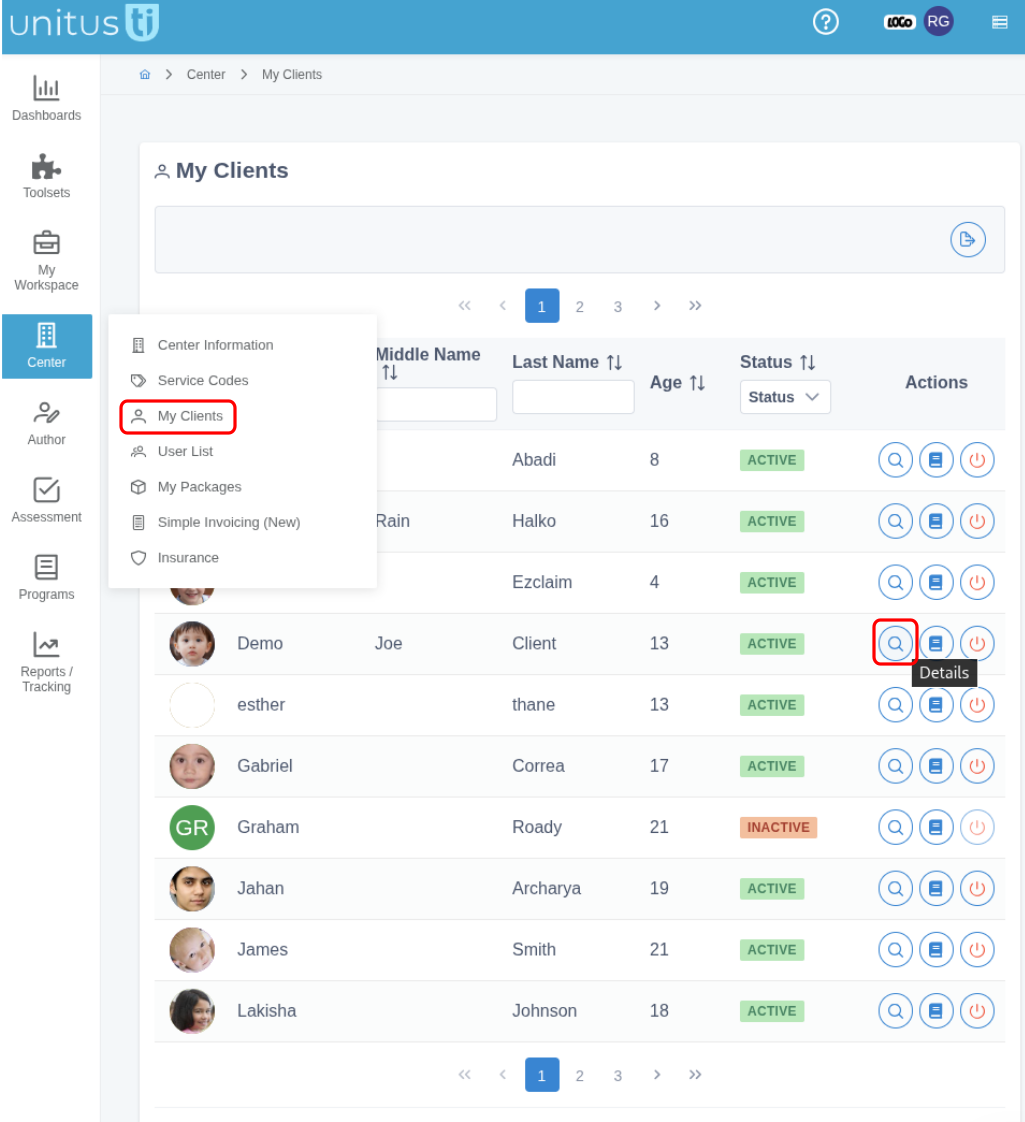
- Navigate to My Clients in the main menu
-
Locate the client and select the "Details" icon (see screenshot):
-
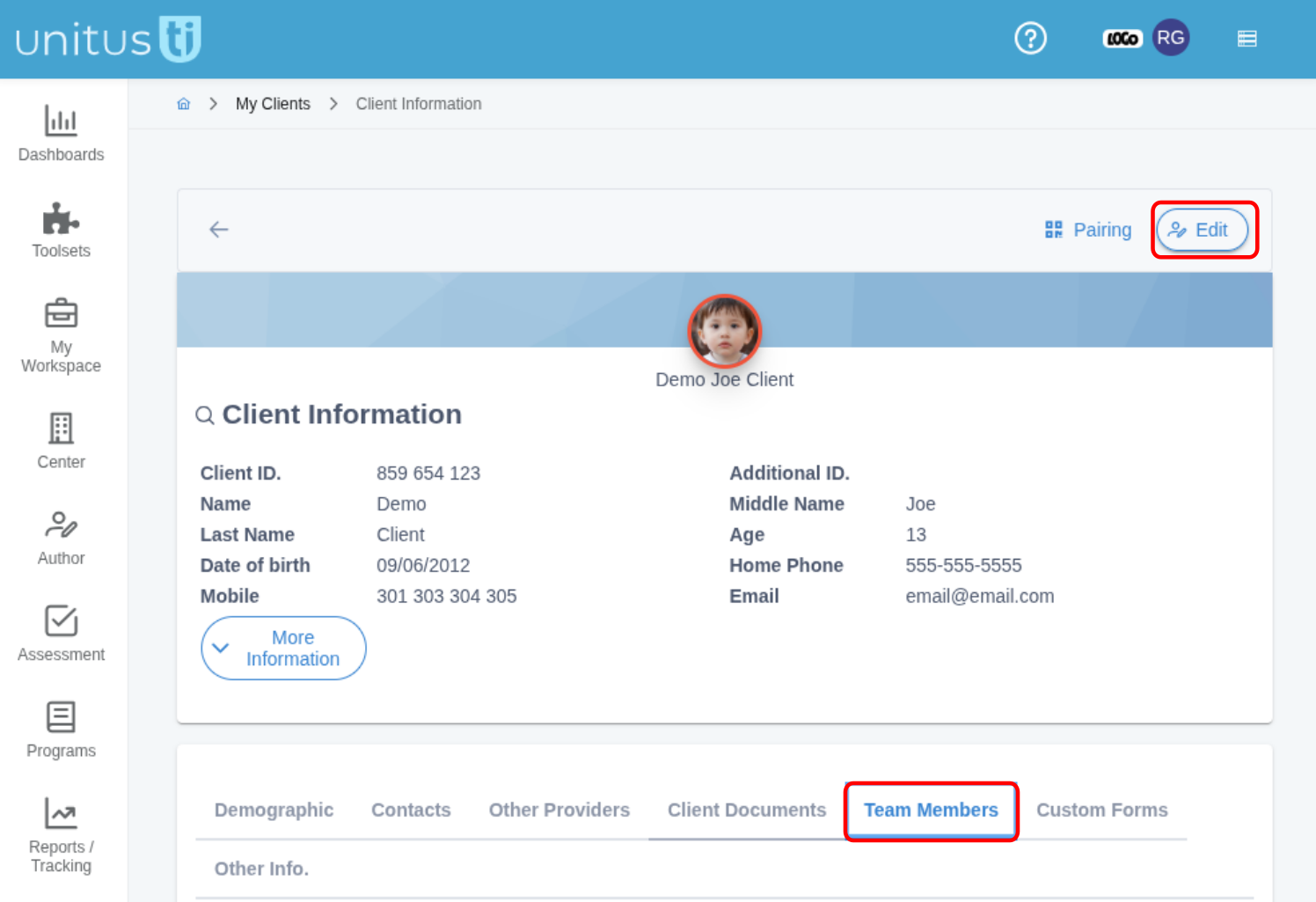
On the Client Information page, click on the “Edit” Option.
-
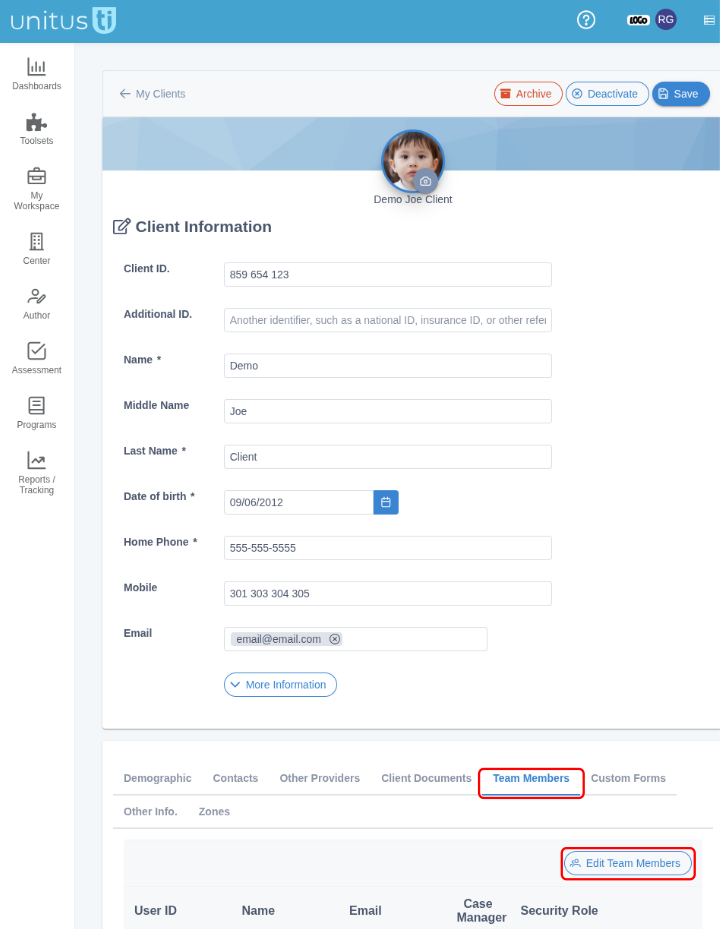
Scroll down to the "Team Members" tab and select "Edit Team Members":
-
Un-check the box in the left hand column, then select "Store Selection" in the top right corner (see screenshot):
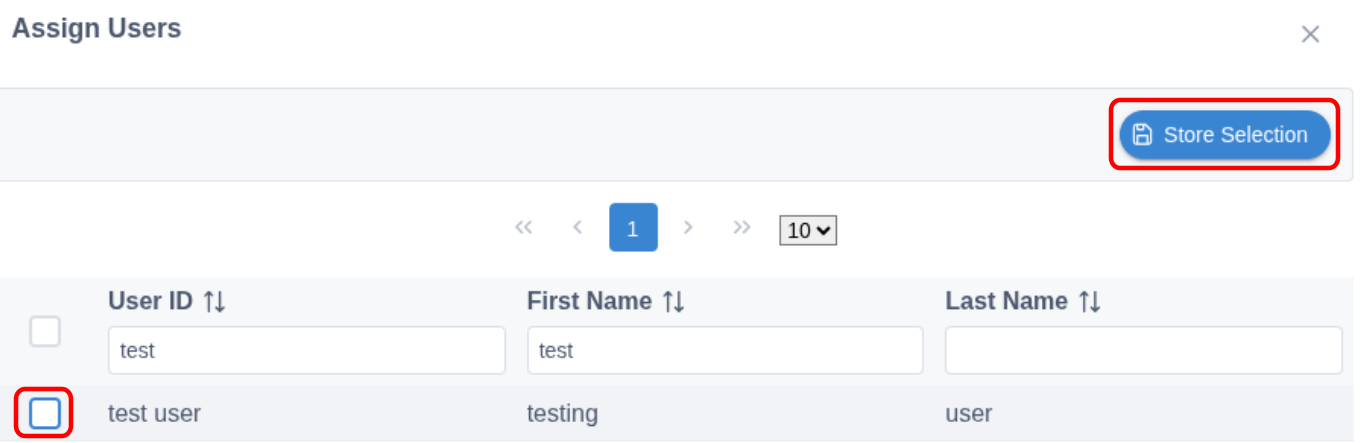
- All done! You will no longer be able to see the client in your My Clients list.
Security roles with this permission: Administrator, Teacher, High Level, Medium Level
2. Deactivate
Inactive clients are temporarily "parked" and their program lists cannot be run, nor can new programs or users be assigned to them. This status is recommended for clients who are taking an extended vacation or who will not be receiving services for an extended period of time. Inactive clients can be reactivated at any time. This action affects all users.
- A deactivated/inactive client can be reactivated at any time from their Client Information page (assigned users can access this page by selecting the client from the My Clients list)
- Inactive clients can still be assigned or unassigned to users
- Inactive clients retain their program lists and program data, but
- You are not billed for inactive clients (note that this does not affect minimum billing levels, contact admin@mundopato.com for any billing questions)
Security roles with this permission: Administrator, Teacher, High Level, Medium Level
3. Archive
Archiving a client will seal his or her records, data and reports and remove them completely from your UnitusTI account.
Note that you must read and accept an acknowledgement before you can complete this action to ensure that you understand this action affects all users and is will disable operational use (see screenshot):
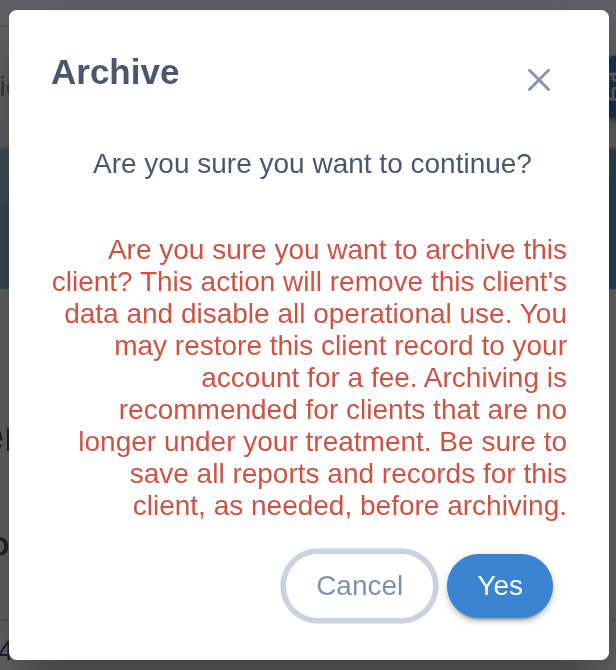
Be sure to export/print any relevant reports or graphs for the client prior to archiving. Once archived, the client's information cannot be accessed at all and new reports cannot be generated.
- Archived clients are completely removed from your account and no other user will have access to them.
- You are not billed for archived clients (note that this does not affect minimum billing levels, contact admin@mundopato.com for any billing questions).
- This is a permanent action and cannot be undone by anyone in your center. These records are not deleted, however; they can be reactivated by our tech team for a fee.
Security roles with this permission: Administrator, High Level.