To add a user to your UnitusTI account:
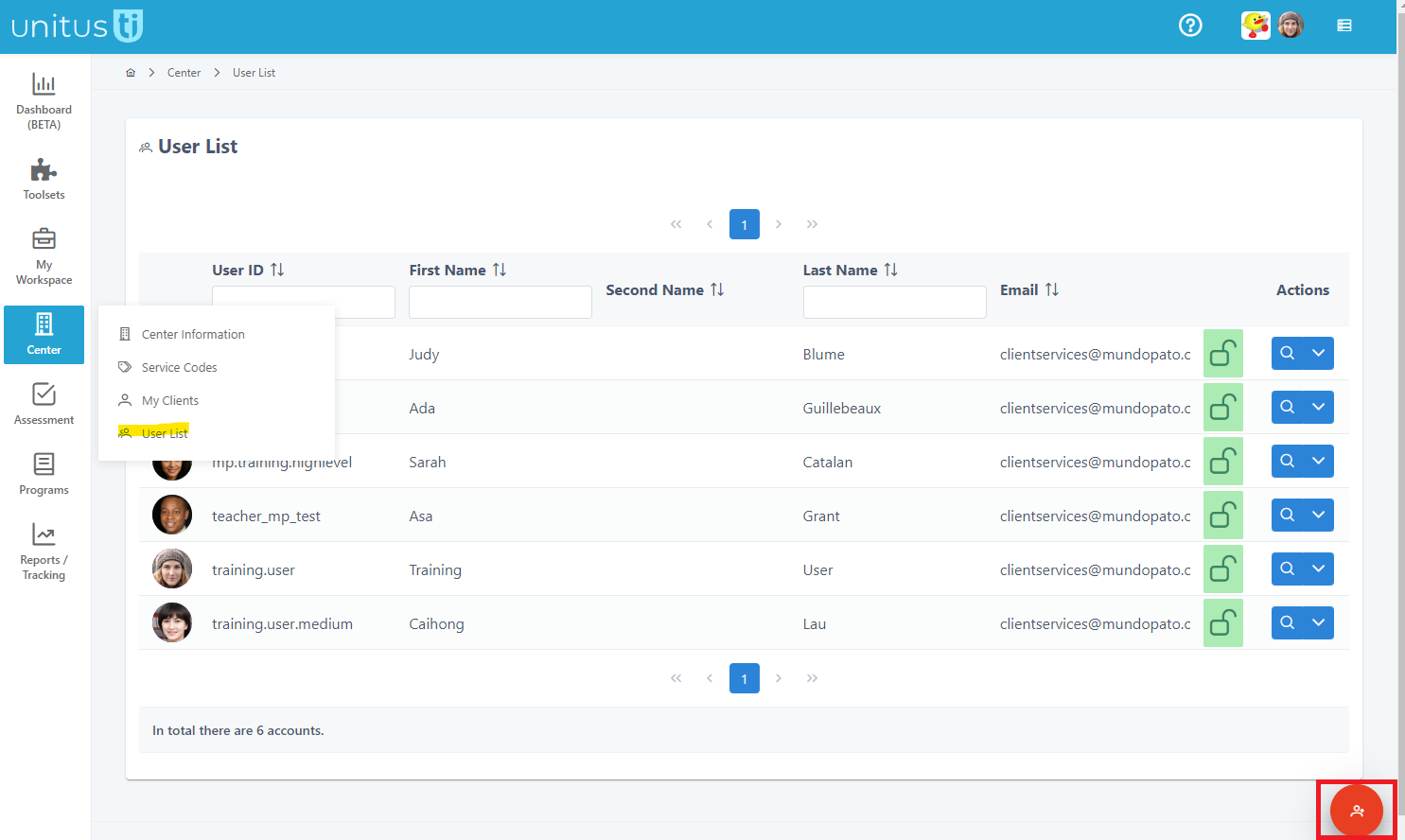
- Select “Center” in the main menu and then select “User List”
- The User List screen will display all users currently in your account.
- Select the red button in the bottom right corner of the screen to add a new user
-
In the Add New Account screen, enter the user information and choose a User ID that will be their username when logging in
(see important tips below regarding the User ID)
- Fields marked with an asterisk are required, and include:
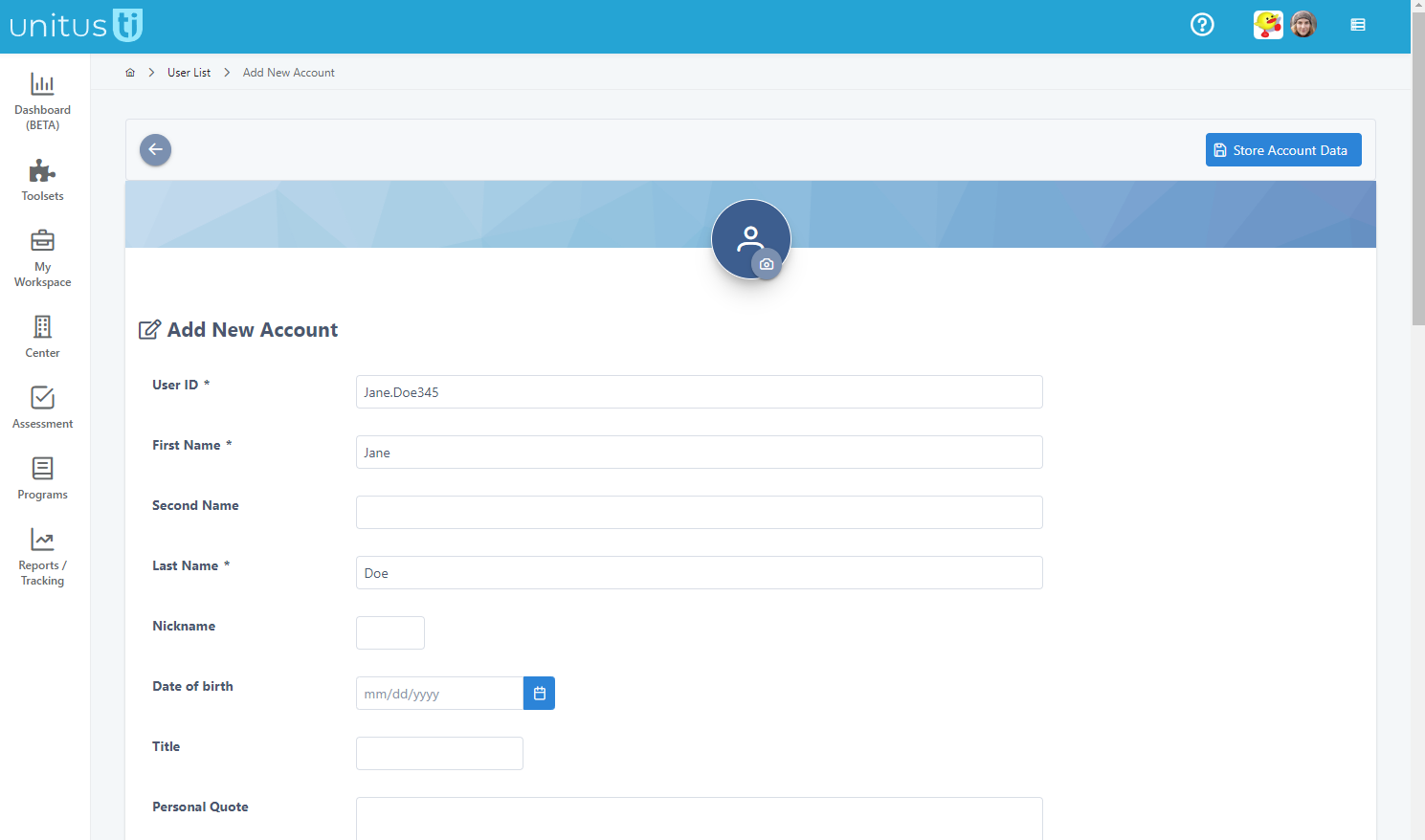
- User ID: this is the username the user will log in with (see important information below about how user IDs work)
- First name
- Last name
- Email : the email address is only used when the system sends a reset password email (triggered by using Forgot Password on the login screen)
- P assword: (see below for information about choosing a password).
- Security role: You must assign at least one security role to the user. You can also assign multiple roles as needed. Click the Security Roles button to open a dialog where you can browse and select roles. Please refer to this article for more information .
- When you are done, click the Store Account Data button at the top right corner of the screen.
- After creating a user profile, your new user will not be notified automatically. When you are ready for them to access the system, provide them with the following information:
- the URL to log in
- the UnitusTI ID number (the 5 digit account number; all users will enter the same number at login)
- the User ID (username)
- the password (or have them use the Forgot Password link on the login screen)
Important to know:
- User IDs (Usernames) are not unique to each account, they are pulled from a global repository. If you receive an error message that the name you chose is in use, it may be that another account has already used it.
- You can use special characters and even numbers in a User ID.
- User IDs (Usernames) cannot be restored if you remove the user from your account later on. If a user needs access after their user profile is removed, simply create a new profile for them.
- User IDs (Usernames) cannot be changed once you save them (once you save, you will notice that the field becomes locked)
- All user accounts are active by default but may be removed by an administrator when access is no longer desirable. A user account that is removed only removes the ability for the user to log in, it does not remove their client activity or data records, which are linked to the client.