Audit Module
The Audit Module is a feature that enriches the level of control over the Session Notes. It allows users enabled with the Reviewer or Auditor security roles, to read, annotate, update, reject and approve Session Notes. (Note that the Reviewer or Auditor roles must be enabled to access this feature, even if the user is an Administrator level.)
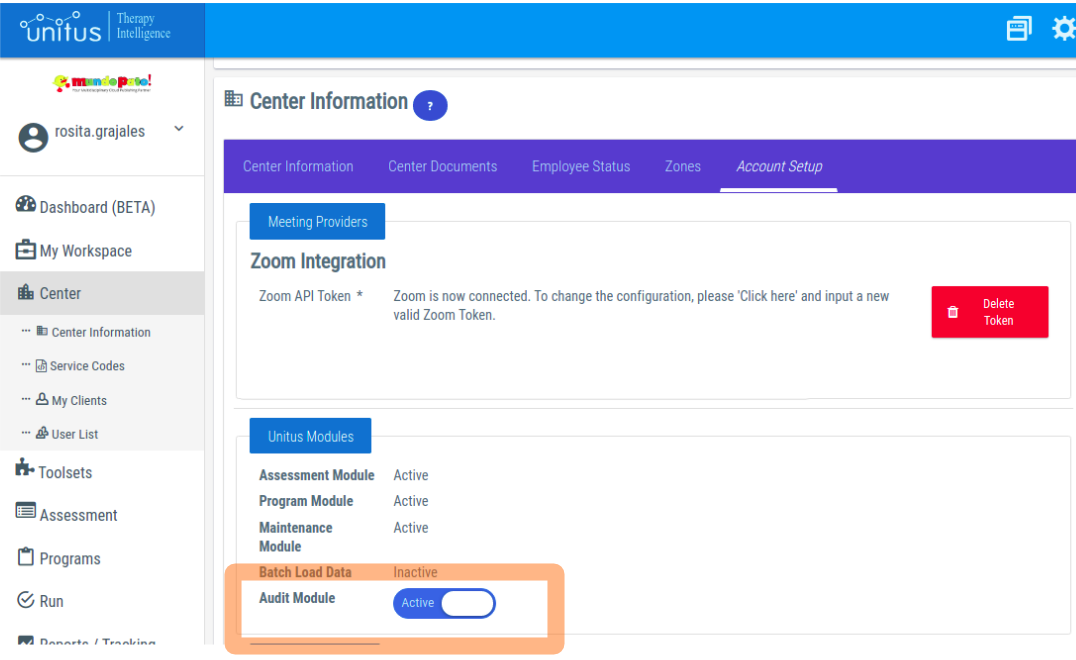
The Audit Module is an optional feature that administrators can turn on or off in the “Account Setup” tab of the “Center Information” screen. (see screenshot below)
Required Security Roles for Auditing and Reviewing Session Notes
Activating the Audit Module for the first time will add two new security roles to your account: Reviewer and Auditor. Assign one or both of these roles to the appropriate users to allow them to use the auditing features of session notes.
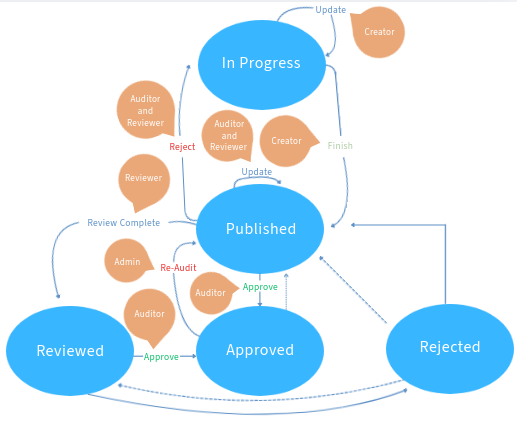
- Reviewer role: The Reviewer user can view notes. For published Session Notes, they can either update them, reject them or mark them as reviewed.
- Auditor role: The Auditor user can view, update and remove notes. For published and reviewed Session Notes, they can update them, reject them to an “in progress” status, or approve them.
When the Auditor Module is active, new elements are available on different screens of UnitusTI.
- In the list of session notes per client, a new “audit” column will appear. The column will have action buttons that depend on each session note state the user role (either Reviewer or Auditor). (see screenshot below)
Reviewer Role
When the Auditor Module is active, new elements are available on different screens of UnitusTI.
The features that the Reviewer will see are the following:
- To access: Go to the session notes of a client. Users can access the session notes on the Client list screen, the Manage Programs or Run Program areas
Feature: A new “audit” column will appear. The column will have action buttons that allow reviewing the session note.
Important : The button is visible if the user has the security role “Reviewer” and the Session Note state is “Published”.
Screenshot:
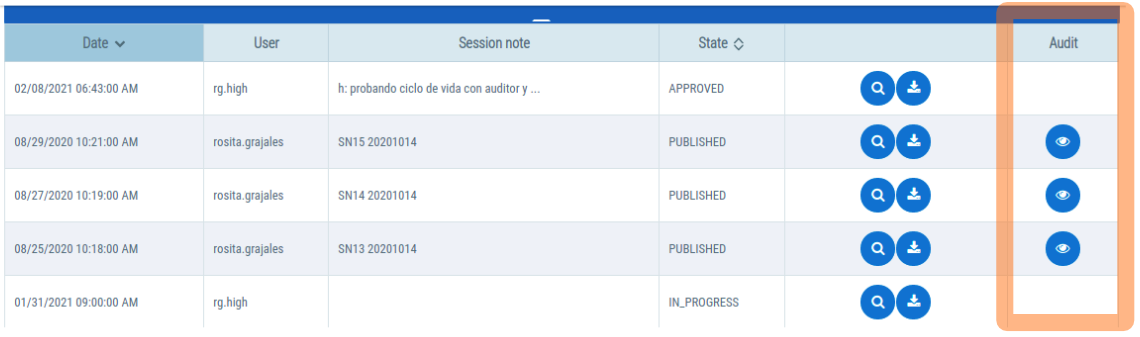
- To access: Select the icon with the eye in the Session Notes Details list. Important : The user has to have the Reviewer role assigned, and the note has to be in a published state.
Feature: The Reviewer can add and delete service codes, update the note, reject the note or mark it as reviewed by selecting the “Review Complete” button. Important: The reviewer has the ability to edit most of the fields of a published session note, with the exception of the author, the attachments, the signature fields and the joined user session note.
Screenshot:
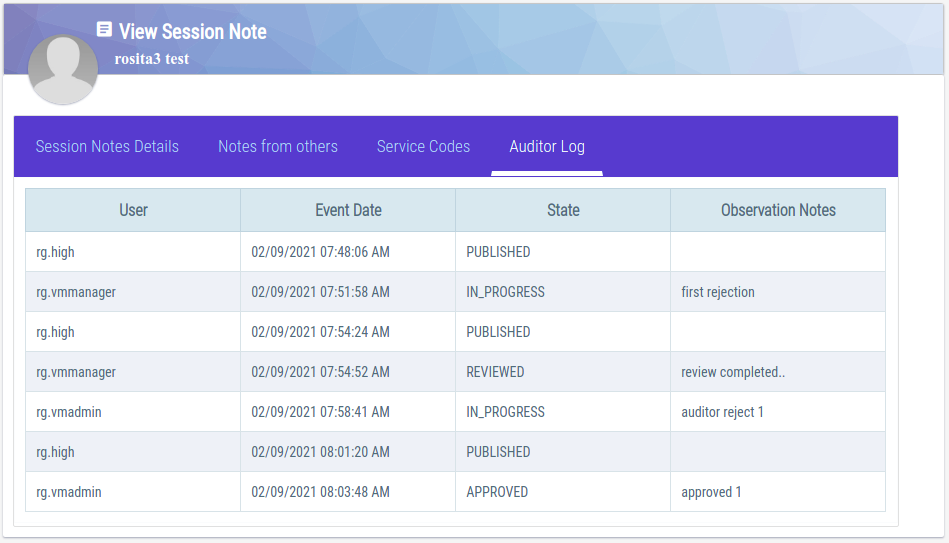
- To access: Select the icon with the eye in the Session Notes Details list.
Feature: Under the tab "Auditor Log", there is a detailed record of the different users' session note interventions, the changing state, and observation notes.
Screenshot:
- To Access: Session Notes Dashboard, in the Session notes tab.
Feature: The Session Notes Summary includes buttons to edit, approve and reject individual notes
Screenshot:
- To Access: Session Notes Dashboard, in the Session notes tab.
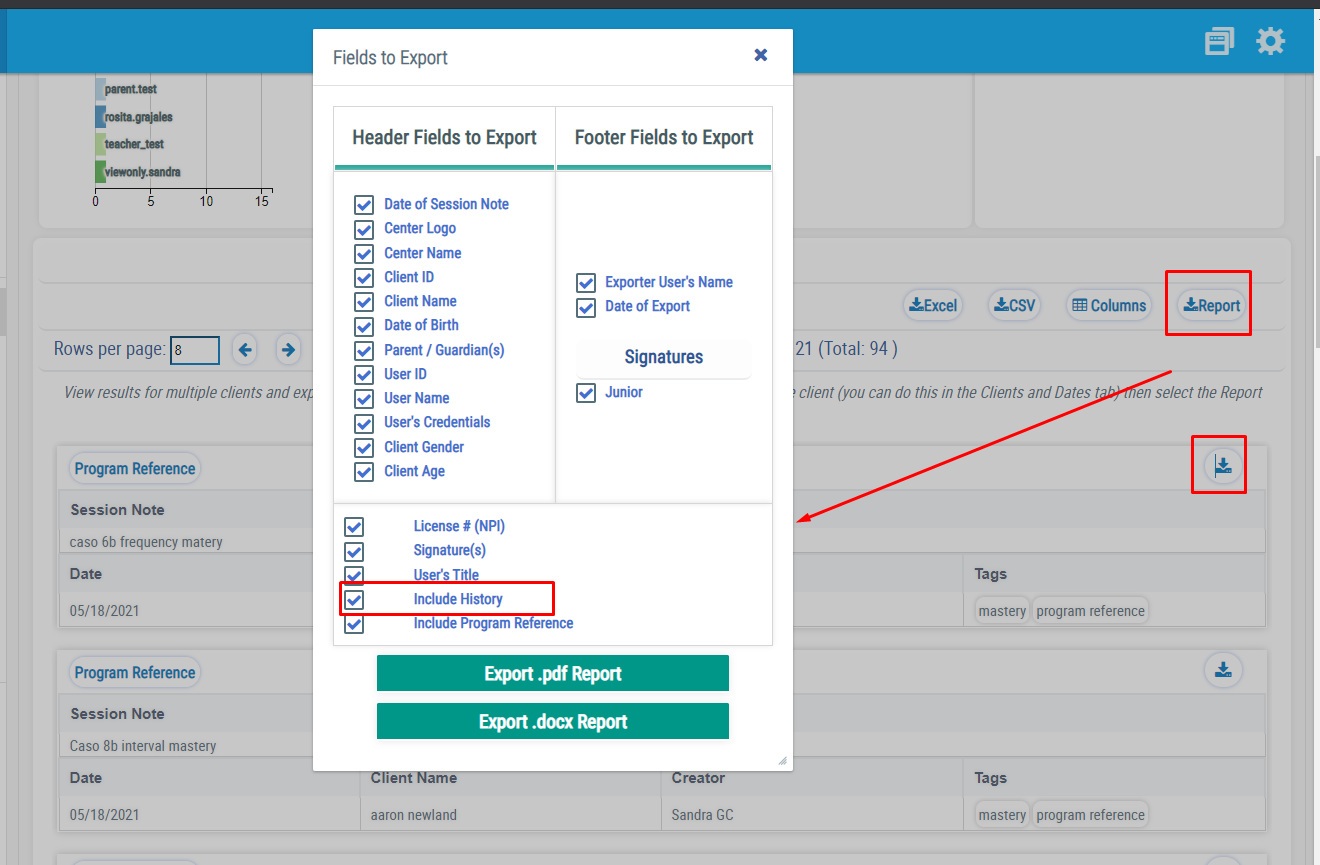
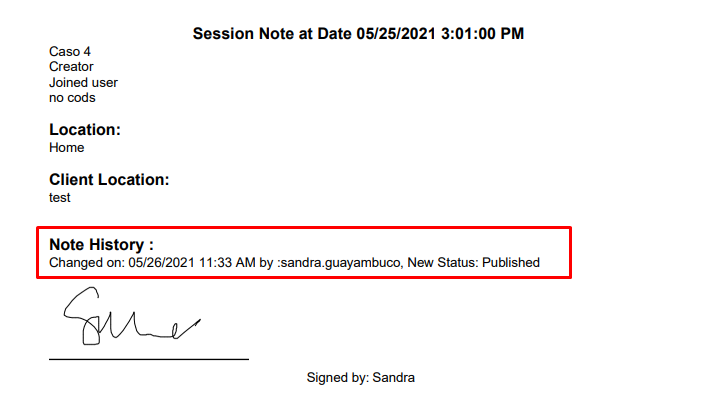
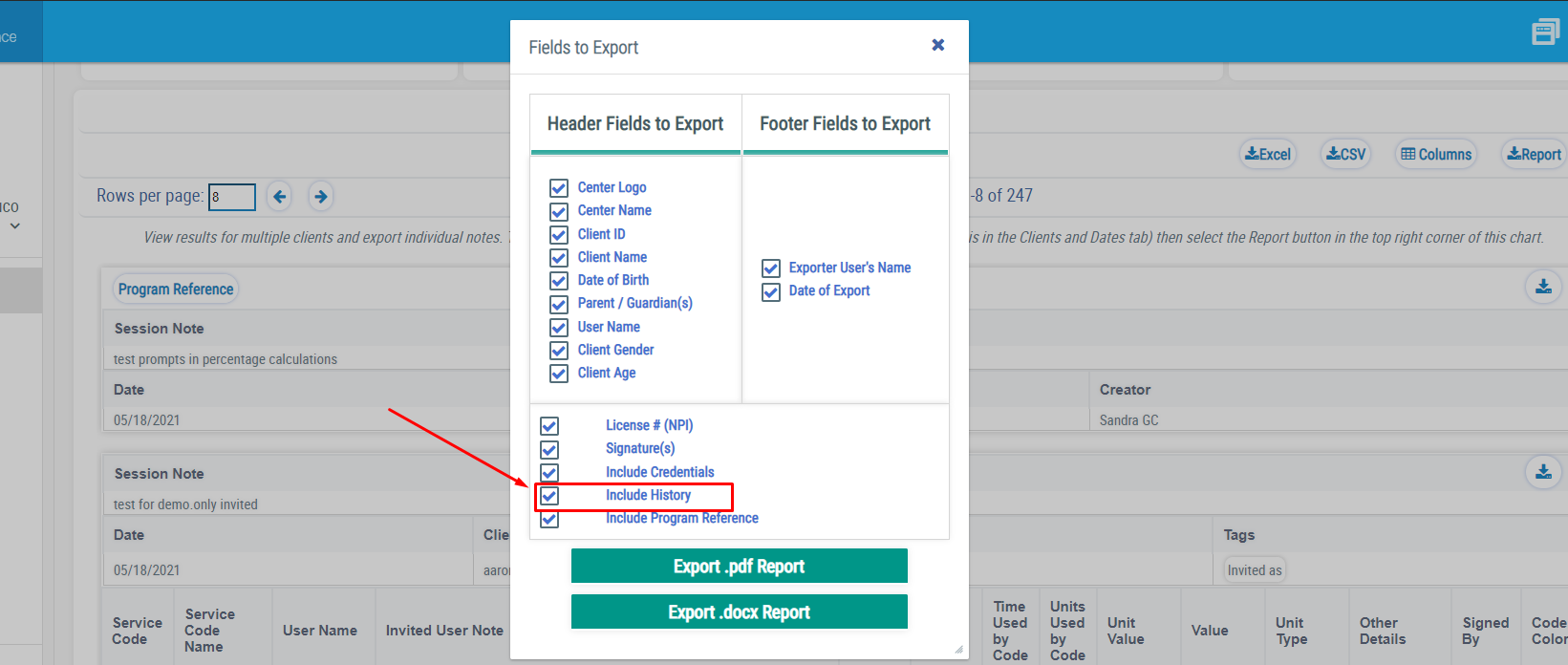
Feature: The pdf and docx reports can Include the session notes history. It includes the date and time, the user and the description of all status changes.
Screenshot:
Auditor Role
When the Auditor Module is active, new elements are available on different screens of UnitusTI.
The features that the reviewer user haver are the following:
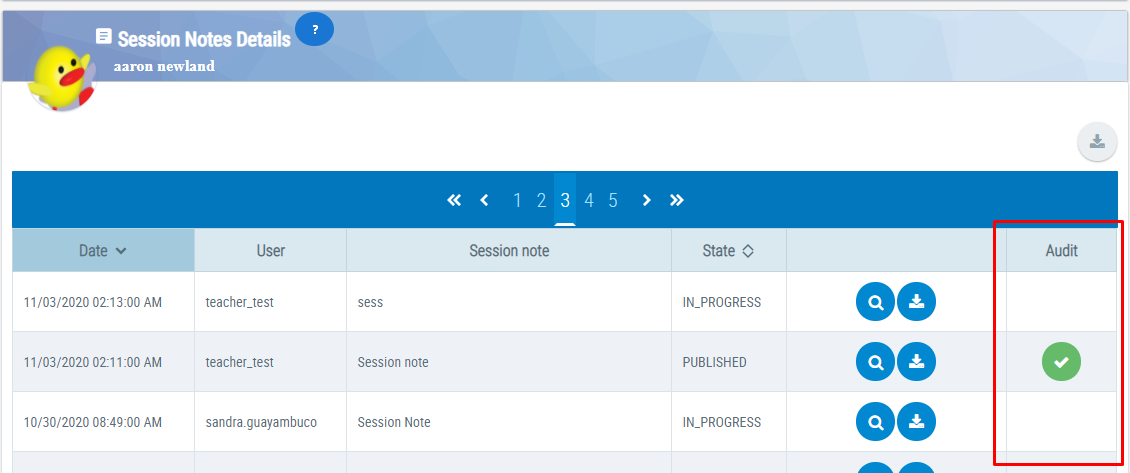
- To access: Go to the session notes of a client. Users can access the session notes on the Client list screen, the Manage Programs or Run Program areas
Feature: A new “audit” column will appear. The column will have action buttons that allow reviewing the session note.
Important : The button is visible if the user has the role “Reviewer” and the Session Note state is “Published”.
Screenshot:
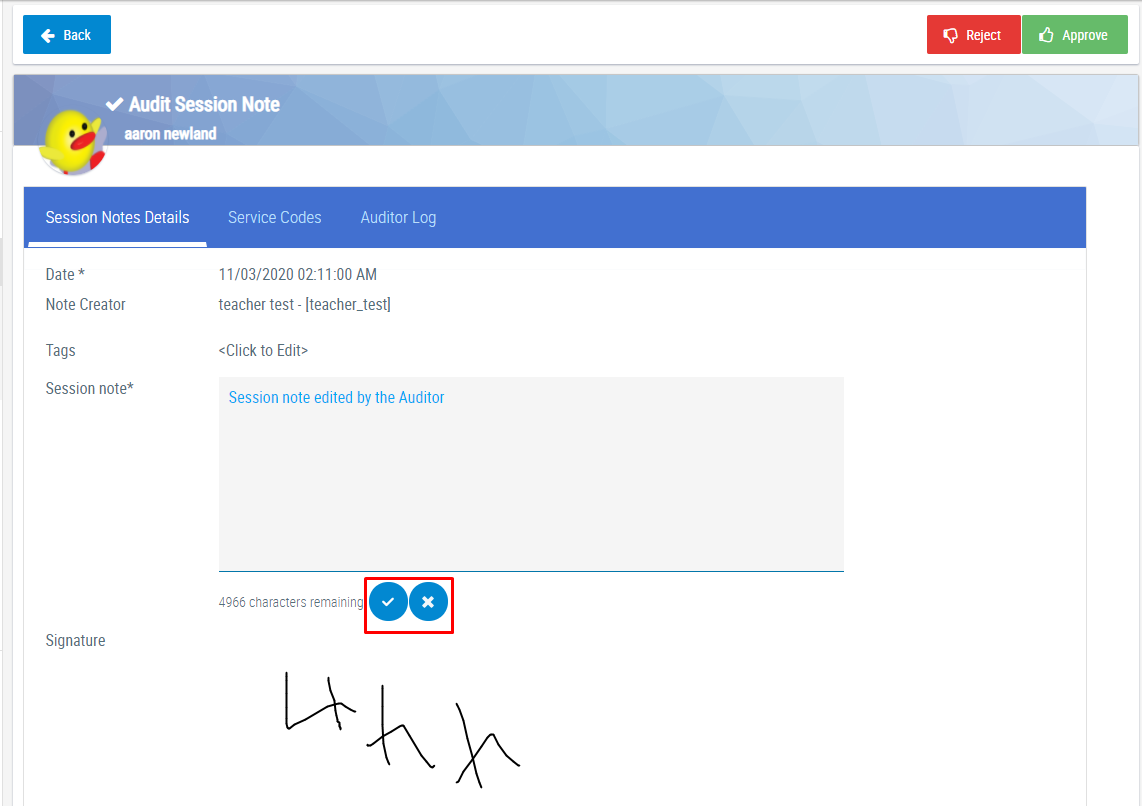
- To access: Select the icon with the check mark in the Session Notes Details list. Important : The user has to have the auditor role assigned, and the note has to be in a published state.
Feature: The Auditor can add and delete Service Codes, update, Reject or approve the Note by selecting the “Approve” button. Important: The auditor has the ability to edit most of the fields of a Published Session Note, with the exception of the author, the attachments, the signature fields and the joined user session note
Screenshot:
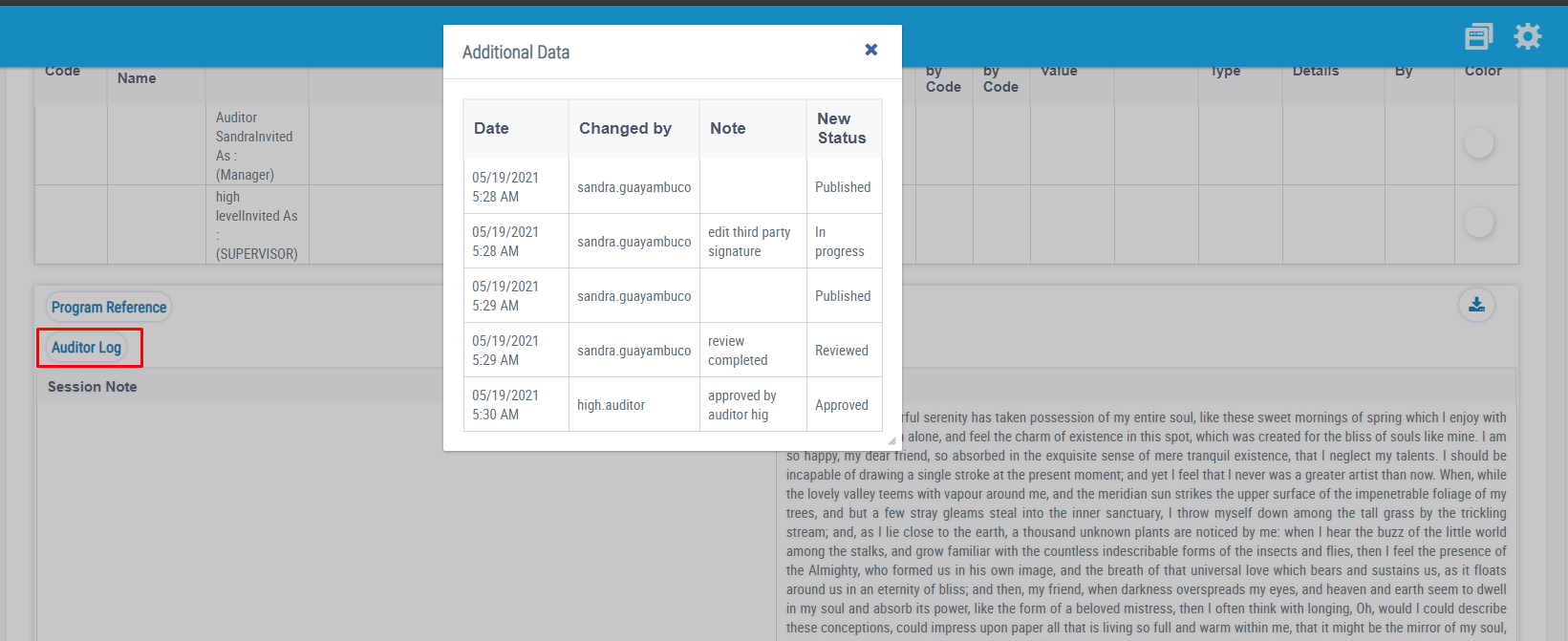
- To access: Select the icon with the eye in the Session Notes Details list.
Feature : Under the tab "Auditor Log", there is a detailed record of the different users' session note interventions, the changing state, and observation notes.
Screenshot:
- To Access: Session Notes Dashboard, in the Session notes tab.
Feature: The Session Notes Summary includes buttons to edit, Review and Reject individual notes
Screenshot:
- To Access: Session Notes Dashboard, in the Session notes tab.
Feature: The Session Notes Summary includes a button to review the history of auditors activity
Screenshot:
- To Access: Session Notes Dashboard, in the Session notes tab.
Feature: The Session Notes Summary includes a button to download a report of a single session note or the summary of a session notes. The Fields to Export form allows users to select including the History in the PDF or WORD Report
Screenshot:
Session Note Actions by Role
When a User creates a new Session Note, it starts as IN_PROGRESS. The table below summarizes the actions that the session note author, the reviewer, and the auditor can perform on a Session Note based on the status of the Session Notes and the User’s Role:
|
Session Note’s Author |
Reviewer |
Auditor |
IN_PROGRESS |
Start Note. Update Note. Finish Note: PUBLISHED |
View Note. |
View Note. Remove Note. |
PUBLISHED |
View Note. |
Review Note. Reject Note: IN_PROGRESS (1) Review Completed: REVIEWED |
View Note. Remove Note. Audit Note. Reject Note: IN_PROGRESS (1) |
REVIEWED |
View Note. |
View Note. |
View Note. Remove Note. Audit Note. Reject Note: IN_PROGRESS (1) |
APPROVED |
View Note |
View Note. |
View Note. Remove Note. |
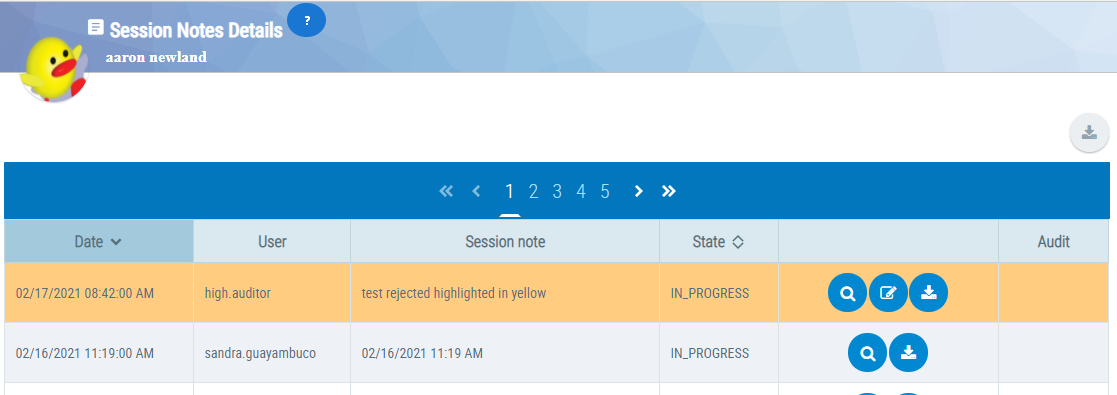
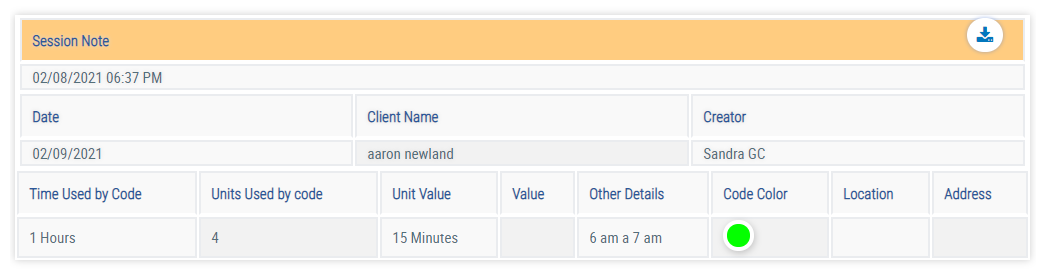
1: When a reviewer or an auditor role rejects a note, the note will appear as IN_PROGRESS again but highlighted in yellow.
In the Session Notes Details
In the Session Notes Dashboard
How to Undo Rejected Session Notes
Once an auditor or reviewer rejects a session note (SSN), an option to Undo Rejection will be displayed for that specific record.

Usage Conditions and Permissions
The functionality of this option is governed by the following system rules:
- Administrator Access: All administrators with access to the designated client have the permission to undo a rejection status at any time.
- Unmodified Session Notes: If the session note has not been edited or updated since the rejection, the option to undo the rejection remains available exclusively to the user who originally rejected it (and administrators). Note: A rejected SSN automatically opens editing access for the author.
- Modified Session Notes: If the author has already updated or edited the session note following the rejection, only administrators can perform the undo action.
- Audit Trail: Every "Undo-Rejection" action automatically generates a permanent log entry in the Auditor Log for compliance and traceability.
- Status Restoration: Once the rejection is undone, UnitusTI will automatically revert the session note to its immediate pre-rejection status (either PUBLISHED or REVIEWED).
Disabling the Audit Module
Deactivate the Audit Module by toggling the Audit Module switch to “Inactive” in the Account Setup tab in Center Information.
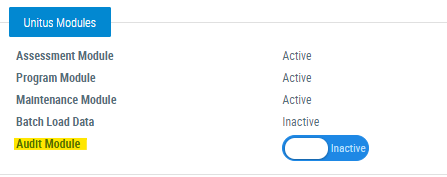
Users with the Reviewer or Auditor security roles will no longer have access to the auditing and reviewing features described above. This may be useful in cases where there are limited or specific time frames in which auditing is allowed.
Information about previous reviews and audits will remain in the session notes records. The roles will remain assigned users and can be removed from the user profiles and will no longer appear in the Roles Membership list.