The Manage Programs area of Unitus Therapy Intelligence lets you assign and customize program goals for your clients, create session notes or review data collected after running programs.
In working with your clients’ program goals in UnitusTI, this is the next step after creating programs in the Program Templates area, or the first step if you subscribed to ready-made templates from the UnitusTI Marketplace. This article will provide a short overview to orient you to everything you can do in the Manage Programs area. Help videos and articles are available to give you more detailed walkthroughs for all the functionality mentioned here.
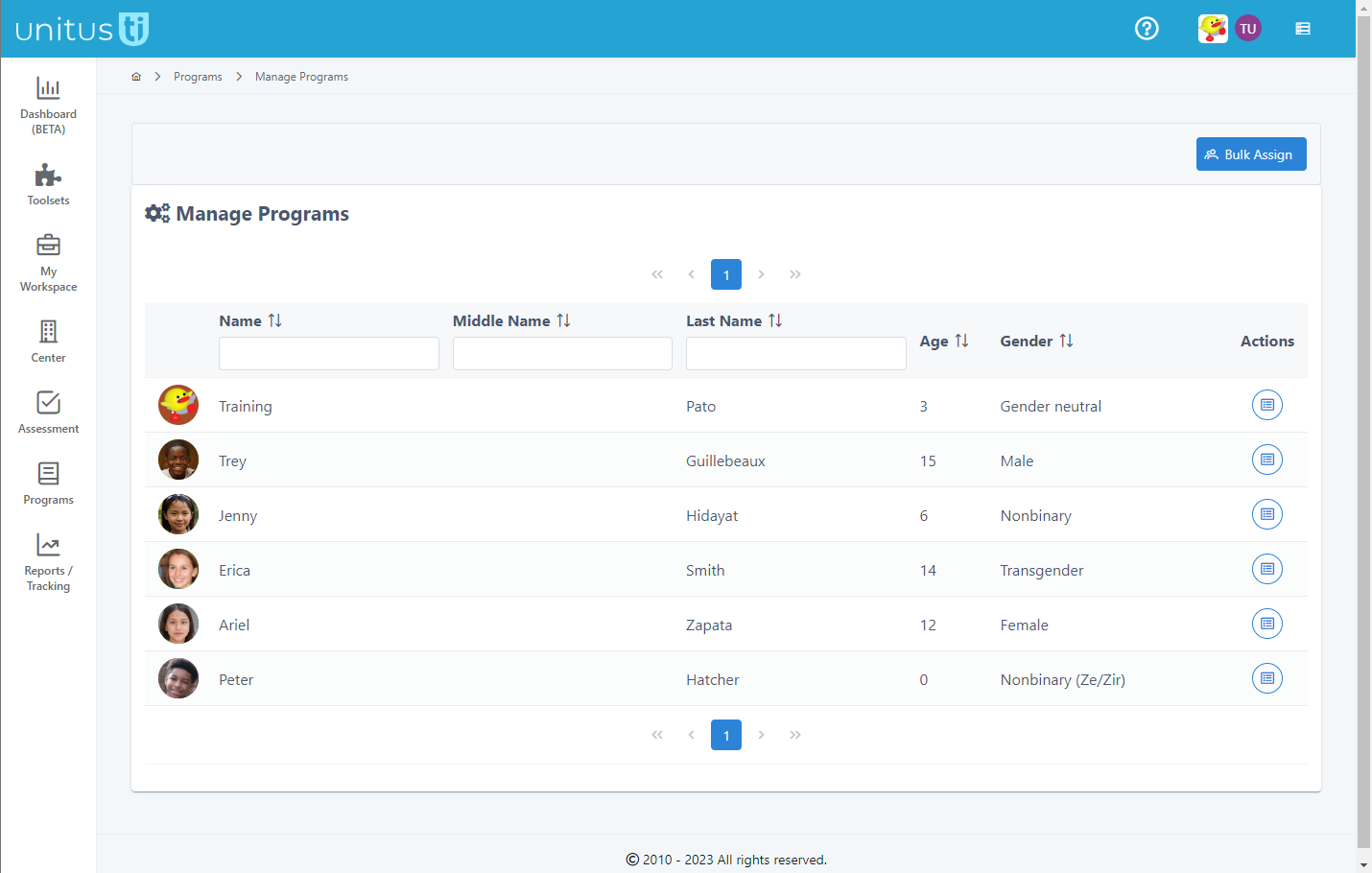
To get to the Manage Programs screen, go to Programs in the main menu, then Manage Programs. The Manage Programs screen displays a list of clients that you are assigned to. (Tip: If you don’t see a client here, check with your Administrator that you are assigned to them or if they need to be added to the system in My Clients.) If you have many pages of clients, you can use the search fields at the top of the columns to filter, the page numbers, or sort the columns in ascending or descending order using the arrows. Choose a client’s Action button to go to their manage programs page.
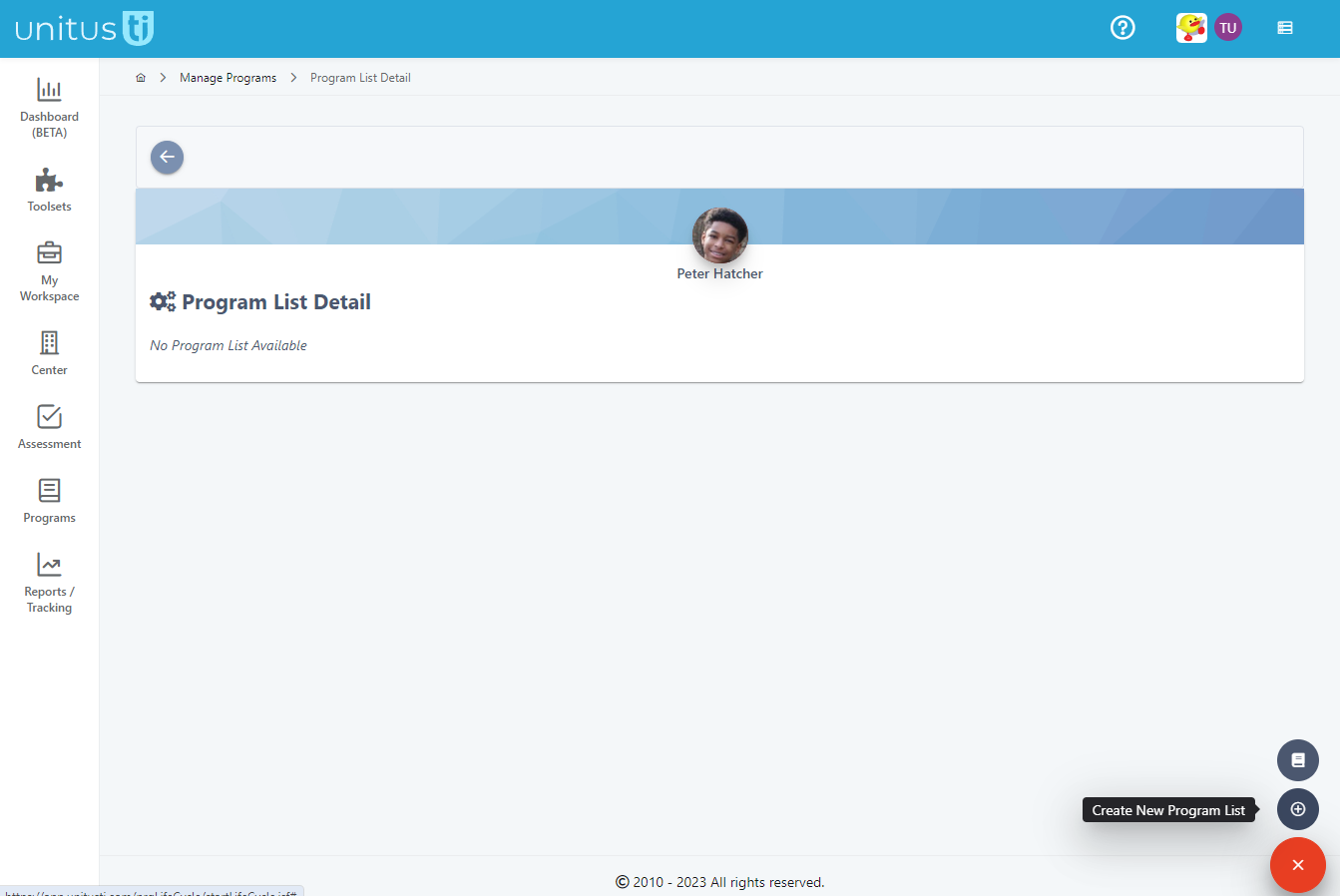
Programs are managed via program lists in this Program List Detail page. If you see the message that they have no program list available, the first step to assigning programs is to create a list. In the red button at the bottom, you will find the Create New Program List button, which looks like a plus sign. For a detailed walkthrough of creating program lists and assigning programs, please see the help video “Creating a Program List”. From this screen, you can also go to the Session Notes area for this client, where you can create and view session notes other users have created.
For clients who already have one or more program lists created, their Program List Detail page will display the lists.
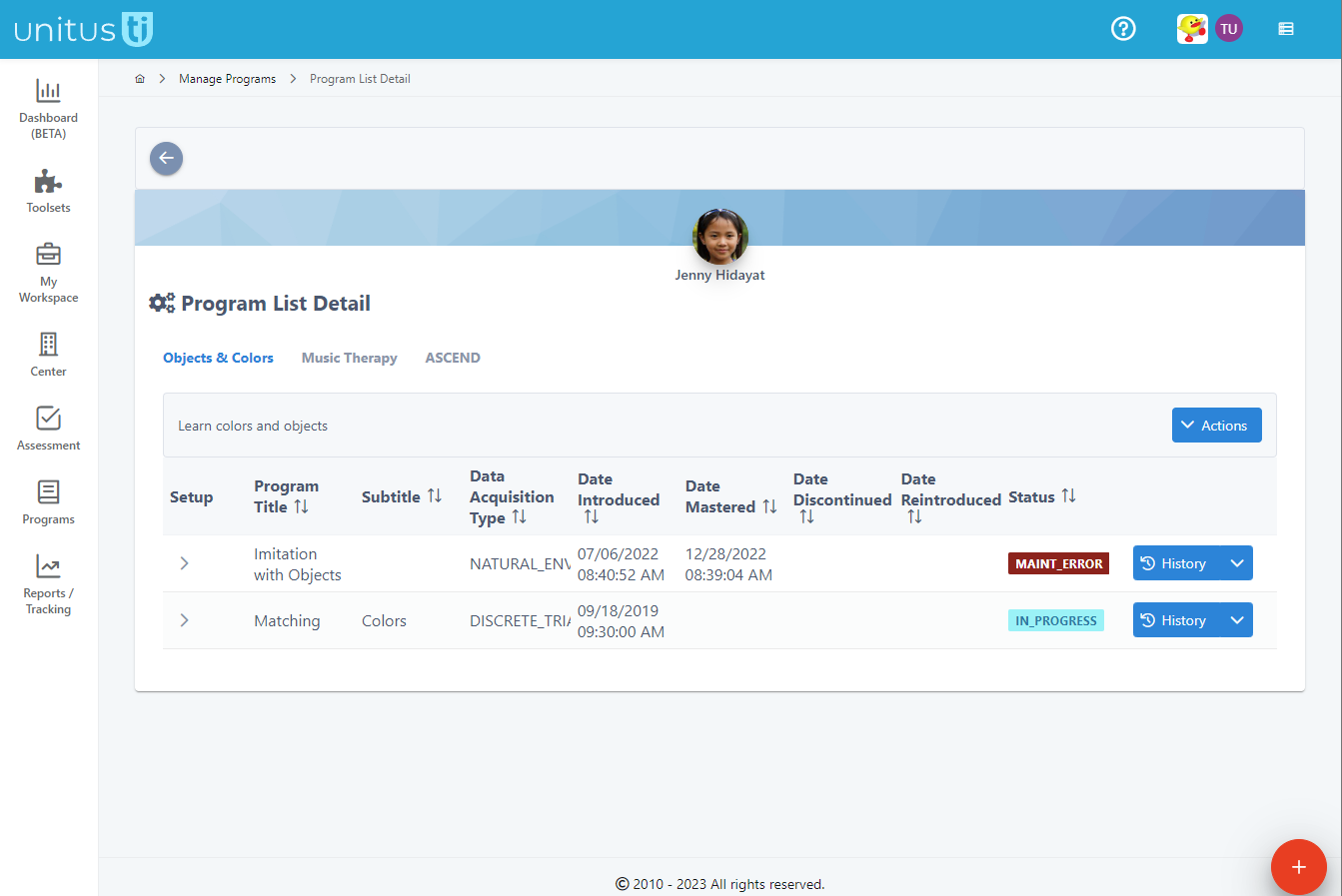
Programs are displayed in the rows on this page and the list name is at the top. In the example above, there are three program lists (Objects & Colors, Music Therapy and ASCEND). Other lists can be displayed by clicking their name. In the program list, you can see summary information about the program, including its title and subtitle, the data acquisition type chosen, the dates it was introduced, mastered, discontinued or reintroduced and its status.
Statues include:
- Assign means that the program was assigned but not yet run.
- In progress status means that the program has been run at least once and has not yet been mastered.
- Mastery status means the program has met the mastery criteria set in the configuration. Maintenance status means that the program was mastered and maintenance was enabled so that continued mastery of the program can be checked periodically.
- Discontinued means that the program was discontinued by a user, and can be reopened at any time to continue running the program.
- Maint_error means that the client has failed program maintenance parameters (note that this does not refer to target maintenance). (Tip: change the configuration to push a failed maintenance program back into acquisition)
The Actions area on the left side of the screen provides more management options for the programs or their lists. The Action selector button includes general actions for a list, such as changing certain details or adding programs to it. Be sure to select the list that you wish to take action on first, then select the Actions button. Options for changing a list include changing the program list name or the summary information that appears on the program list detail screen. You can also hide program lists from certain users by selecting the Restrict Access tab and checking the boxes next to the users who should not see this list both in this area and in Run Program. Find users by using the page arrows for multiple pages or typing a name in the search box. Restricting a list prevents a user from managing or running a program, but they can still see program history in reports and graphs.
Click Save to complete your changes.
More Actions are available for each program in the list. The History button next to a program takes you to the historic detail, which shows the target data taken during executions of the program. (This screen can also be accessed from the Program List Report in Reports/Tracking).
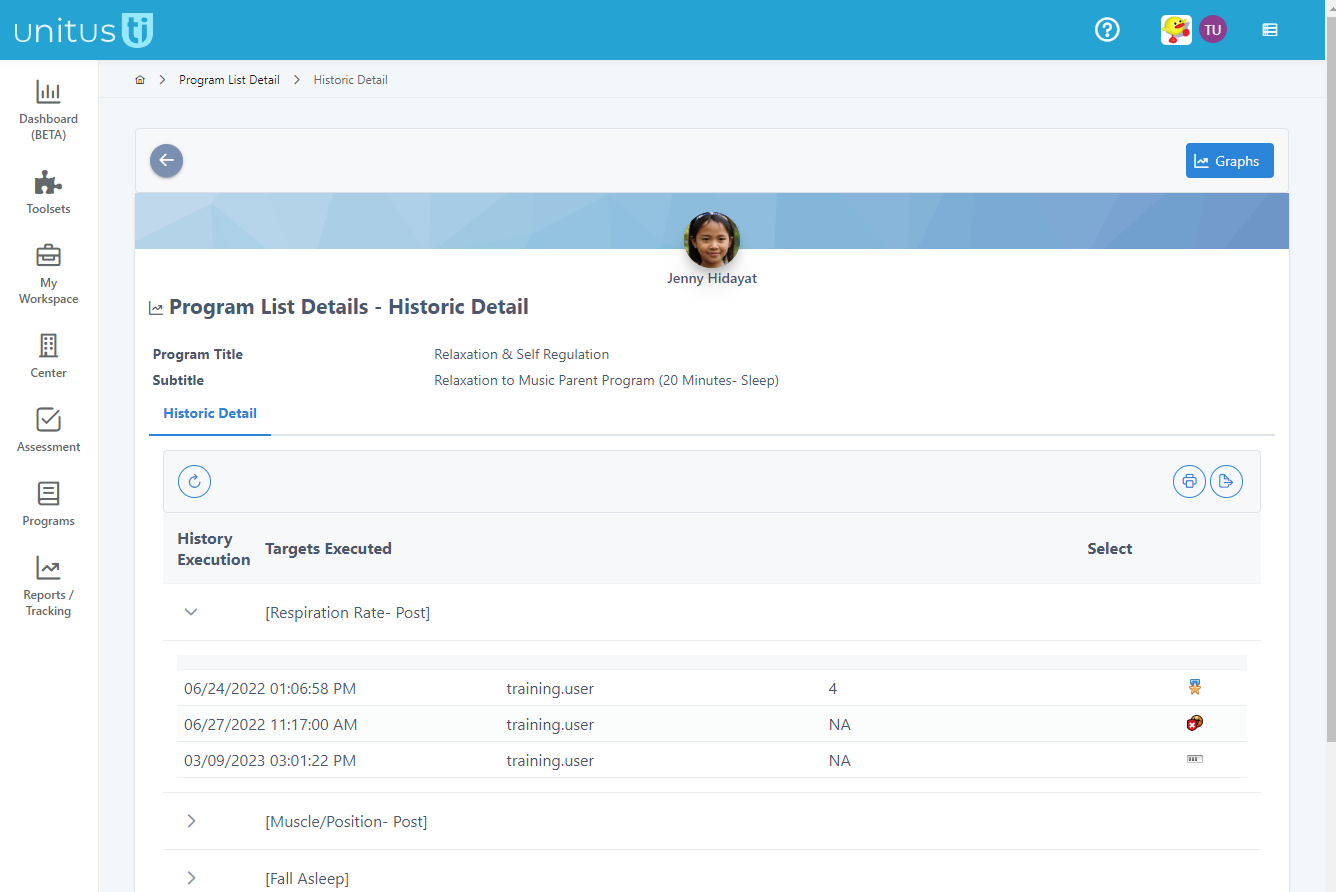
This raw data shows the date and time, the user who recorded the data and the result for a target, including whether or not it met mastery criteria, as indicated by this medal, incomplete or in progress. In Progress indicates that a program is open and has not yet been recorded. These buttons will let you print or export the raw data into a table report, and you can create graphs by selecting the Graphs button above. For a detailed tutorial on creating graphs, please see the related Graphs video.
The blue downward arrow lists other options depending on the status of the program. For the “Assign” program, you have the option to edit the configuration of the program (for example, the mastery parameters), make changes to your targets list in the Edit Targets list option, move a program to another list or access the program comments screen, where you can create comments and view history of previous comments added (Note that comments are created using the red button on this screen or when the system prompts for an observation note, or manually using the red button here or while running the program).
For other program states, there are additional actions.
For an “ In Progress” program, the “Mastery” option lets you manually master a program for a client; the Discontinue option will pause the program from being run.
For a “Discontinued program”, you can view (rather than edit) the target list or reopen the program to continue running it for your client in the Run Program area.
For a “Mastery” (mastered) program, you can view the list of targets, move it to another program list or view your comments detail.
And for the “Maintenance” program, you can manage the program maintenance settings, view the targets list, move this program to another list or view the comments detail.
Note that as with all areas of UnitusTI, your user security role setting defines what you can see and do in the system. Check with your Administrator if you have any questions about the permissions set in your user account.