Unitus Therapy Intelligence includes an internal, closed-loop messaging system called Internal Communication. The internal communication area is designed to allow secured communication between team members who share at least one client assignment.
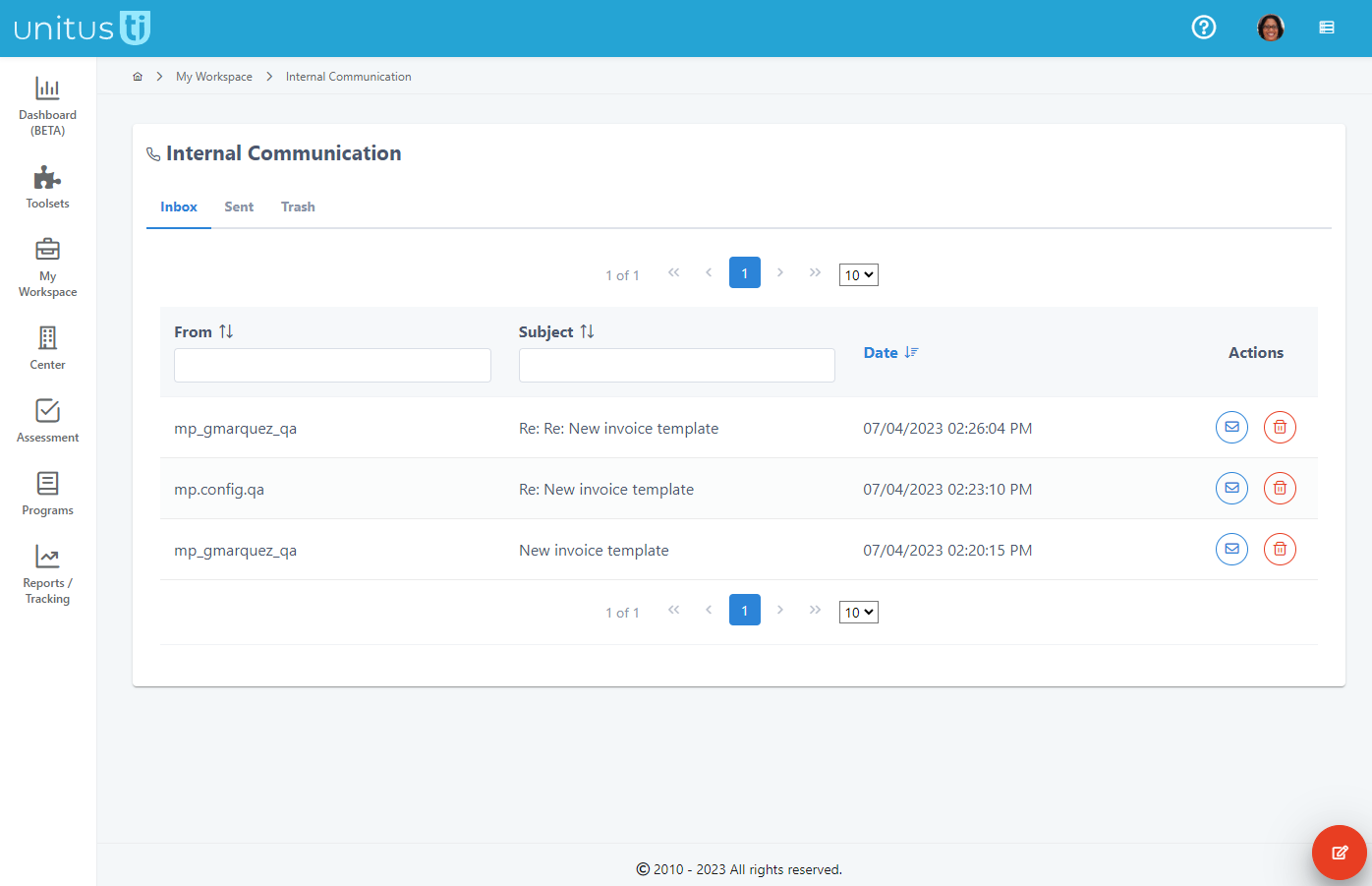
To access it, go to My Workspace and select Internal Communication. Here you will see all messages sent to you, messages you have sent to others, and messages moved to the trash. They are date and time stamped.
If you’d like to view the message in more detail, select the View Message button in the Actions column.

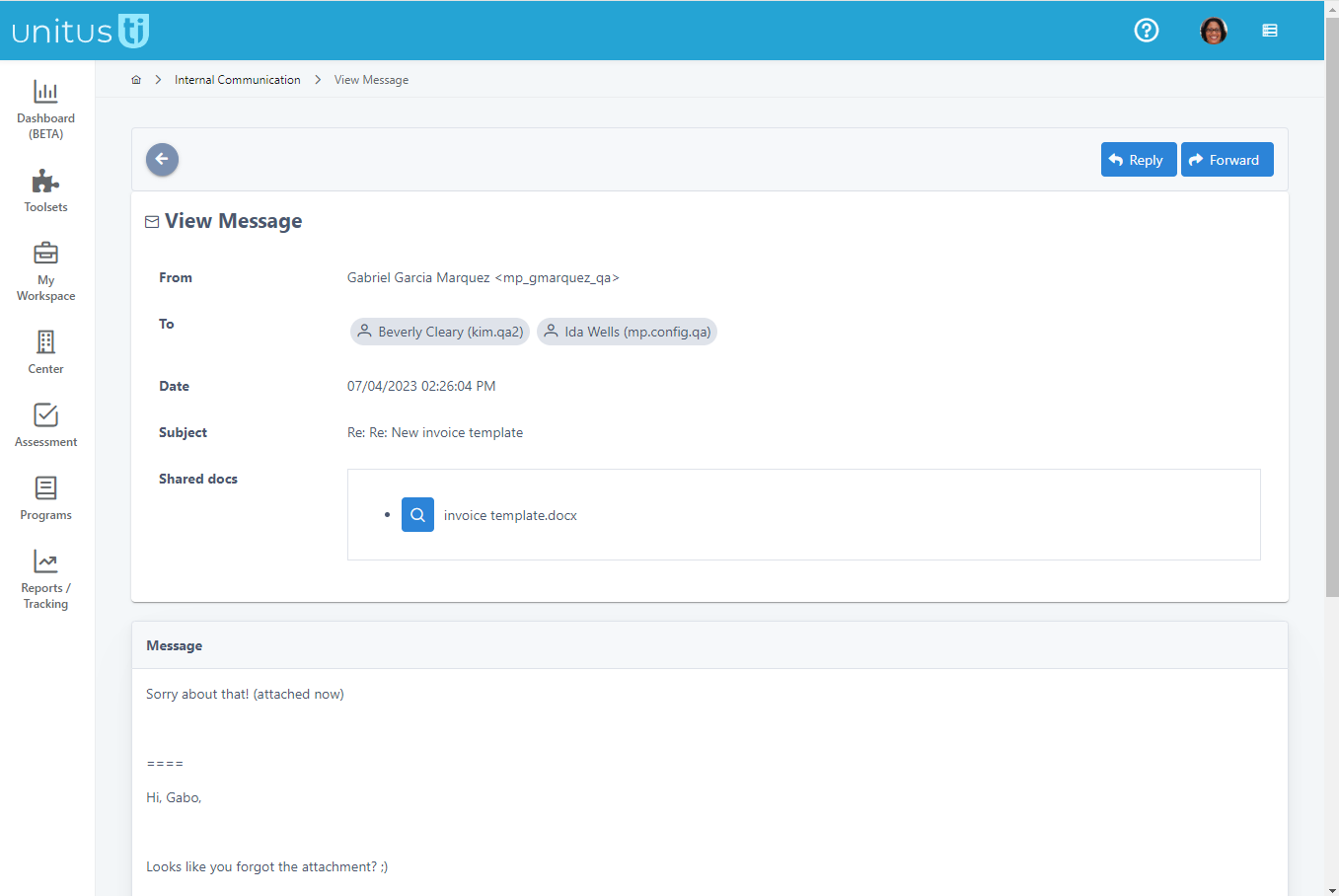
You will see who the message is from, who it was sent to, the date and time sent, the subject and any documents that were shared as attachments. You can reply to this message or forward it with the buttons at the top of the page, or click the gray arrow icon on the left side to go back to the main screen.
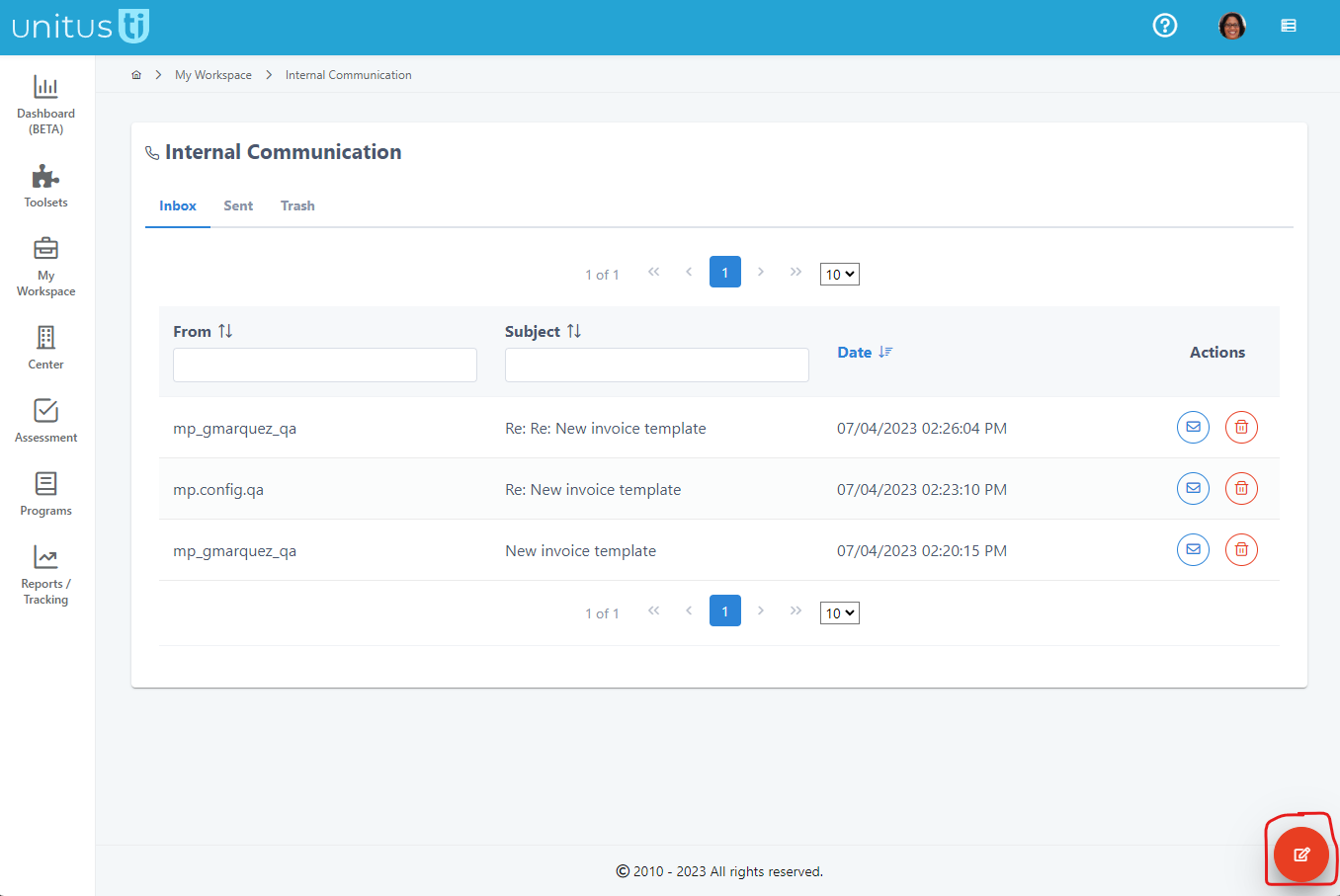
To compose a new message, select the red button at the bottom of the page. Click the “Select” button beside the “To” field to choose your message recipients. Check the boxes for whom the message should go to. Check the checkbox at the top of the column to include everyone on the page. Select other pages, if you have them, to choose more recipients. (You can even include yourself, if you wish to see the messages in your Inbox as well as the Sent tab.) Click the select button. If there are any documents that you would like to share from the My Documents folder, select them using this button. when you have chosen the file or files that you wish to include, click the Select button. (Note that documents can also be shared easily with users by adding them to areas they are granted access to, such as Center Documents, Client Documents or User Documents, so those areas are not included here.) Enter a subject and the body of the message, then click send when you’re ready, and the message will be sent; a copy can be seen in your “Sent” tab, here.
To delete a message, click the trash can in the “Actions” column and the message is moved to your Trash.