Set Up Your Organizational Zoom Account in UnitusTI
Part 1: Obtaining Center’s Zoom Credentials
Part 2: Providing Zoom credentials to UnitusTI
Part 1: Obtaining User’s Zoom Credentials
Part 2: Providing Zoom credentials to UnitusTI
Overview
UnitusTI’s calendar events can be connected to Zoom.us accounts. Once connected, you can create, modify and delete events in UnitusTI’s Calendar and your Zoom account will be updated automatically.
There are two ways to configure Zoom to work with Unitus: at the Center level or at the User level.
Center configuration : An administrator configures Zoom in the UnitusTI Center’s settings screen. The connectivity will be available for all the users of the organization.
User configuration : Any individual user can configure its own set of Zoom credentials in the User’s Settings screen.
Any way require to login into Zoom.us marketplace, create a “Server-to-server app” and copy the provided credentials into UnitusTI.
Restrictions
- It is mandatory that the email address in UnitusTI matches the email address in Zoom.
- In order to create shared events, the owner of the event should have a licensed zoom account. This features are not available for Zoom users with free accounts.
Set Up Your Organizational Zoom Account in UnitusTI
Center Configuration
User security role needed for this process: Administrator
Prerequisites: An existing Zoom account. If you are not already signed up with Zoom, please visit their website and create an account. (Be sure that the email address you sign up with matches the one in your User profile in UnitusTI. All users you manage in your Zoom account whom you also manage in UnitusTI will need the email address in both accounts to match in order to use Zoom in UnitusTI.)
To begin using your organizational (group) Zoom account in your UnitusTI account, you will need to gather some information from your Zoom account and link it to UnitusTI. This guide will walk you through the steps needed to integrate your existing Zoom account into your UnitusTI account. If you need help setting up an individual account that is not linked to other UnitusTI user Zoom accounts, please skip to the section.
Part 1: Obtaining Center’s Zoom Credentials
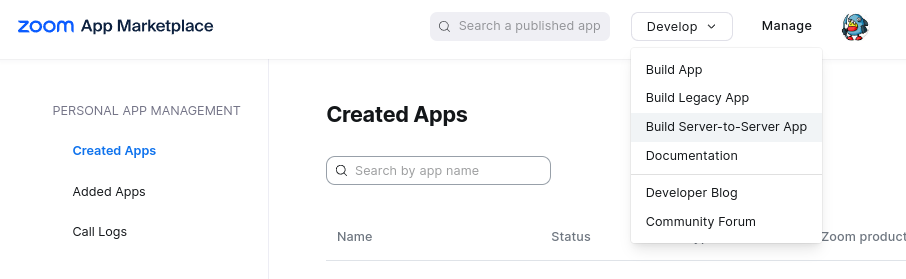
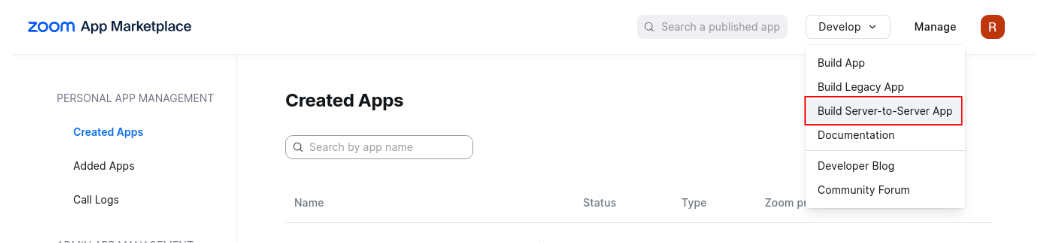
- Go to marketplace.zoom.us and sign in using your Zoom account, Select Develop from the menu options in the top, right of the screen and then select Build Server-to-Server App .
-
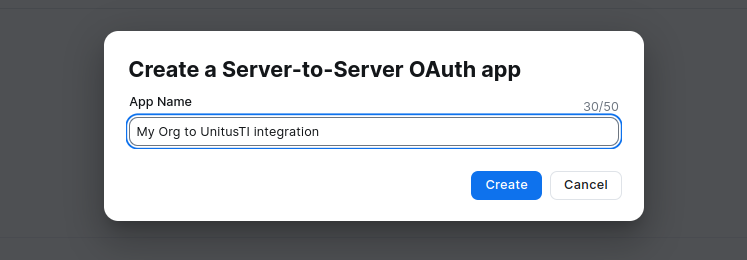
Provide a name for the app:
-
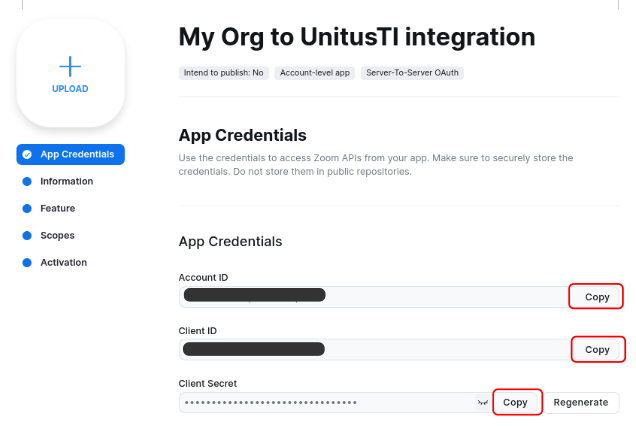
Copy the AccountID, Client ID and Client Secret. You will need later to put those values into UnitusTI, and click on “Continue”.
- In “Information” provide your organization’s name, your name and your email. Click “Continue”.
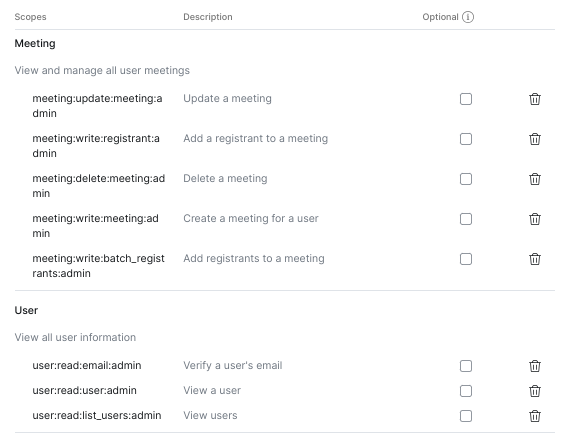
- Proceed to click “Continue” until you arrive at the Scopes screen. Add the following scopes from the Meeting and User categories:
- Update a meeting (meeting:update:meeting:admin)
- Delete a meeting (meeting:delete:meeting:admin)
- Create a meeting for a user (meeting:write:meeting:admin)
- Add a registrant to a meeting (meeting:write:registrant:admin)
- Add registrants to a meeting (meeting:write:meeting:admin)
- Verify a user’s email (user:read:email:admin)
- View a user (user:read:user:admin)
- View users (user:read:list_users:admin)
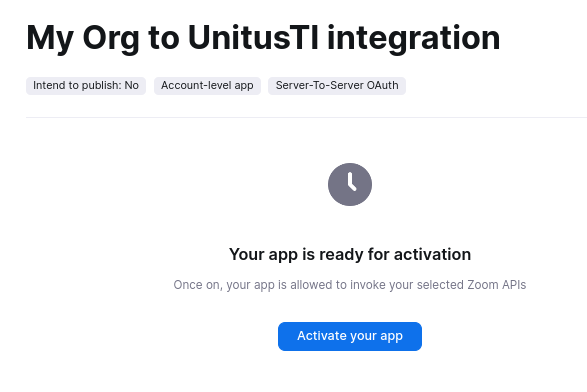
- At this point, your app should be ready for activation, click the “Activate your App” button:
Part 2: Providing Zoom credentials to UnitusTI
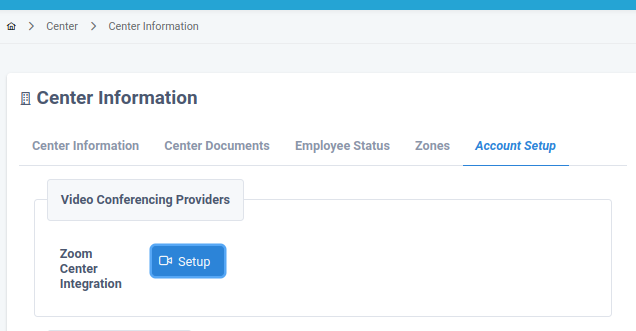
- Select Center from the main menu, then select Center Information
- In Center Information page, select the Account Setup tab, then click on the Setup button on the Video Conferencing Providers section:
-
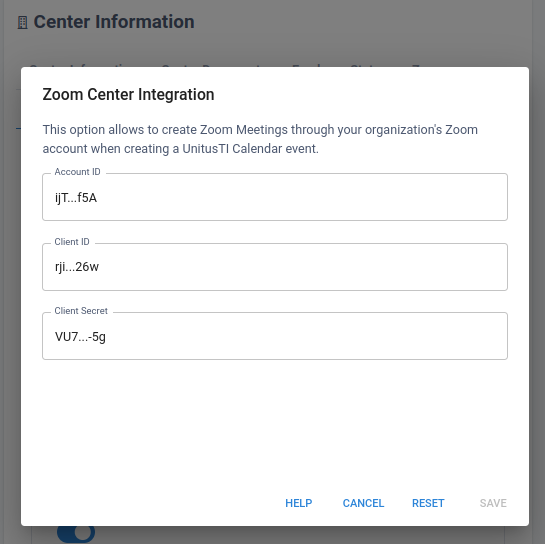
Paste the Account ID, Client ID and Client Secret in the UnitusTI’s Zoom Center Integration dialog. Once you save them, they will be displayed with the middle characters trimmed out:
- Finally, click the “Test” button to validate your credentials. If you obtain a success message, then the integration was successful.
User Configuration
Prerequisites: An existing Zoom account. If you are not already signed up with Zoom, please visit their website and create an account. (Be sure that the email address you sign up with matches the one in your User profile in UnitusTI. All users you manage in your Zoom account whom you also manage in UnitusTI will need the email address in both accounts to match in order to use Zoom in UnitusTI.)
To begin using Zoom in your UnitusTI account, you will need to gather some information from your Zoom account and link it to UnitusTI. This guide will walk you through the steps needed to integrate your existing Zoom account into your UnitusTI account.
Note: Zoom integration is provided as a courtesy to our subscribers. Mundo Pato Inc., UnitusTI, does not represent Zoom and is not responsible for changes made by Zoom.
Part 1: Obtaining User’s Zoom Credentials
- Go to marketplace.zoom.us and s ign in using your Zoom account.
- Note: if you do not have an account you can create one using the Sign Up option.
- Select Develop from the menu options in the top, right of the screen and then select Build Server-toServer App
3. Provide a name for the App:
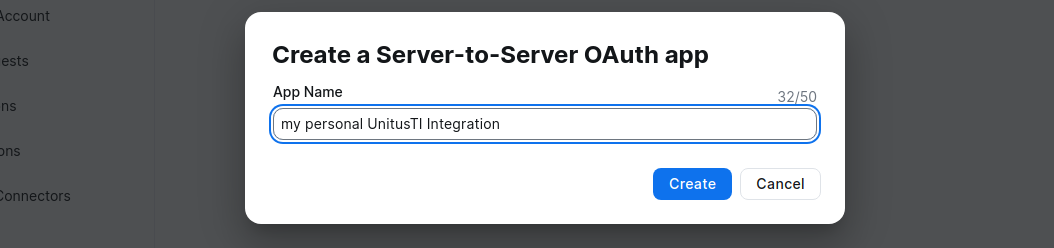
4. Provide basic company and developer (you) information:
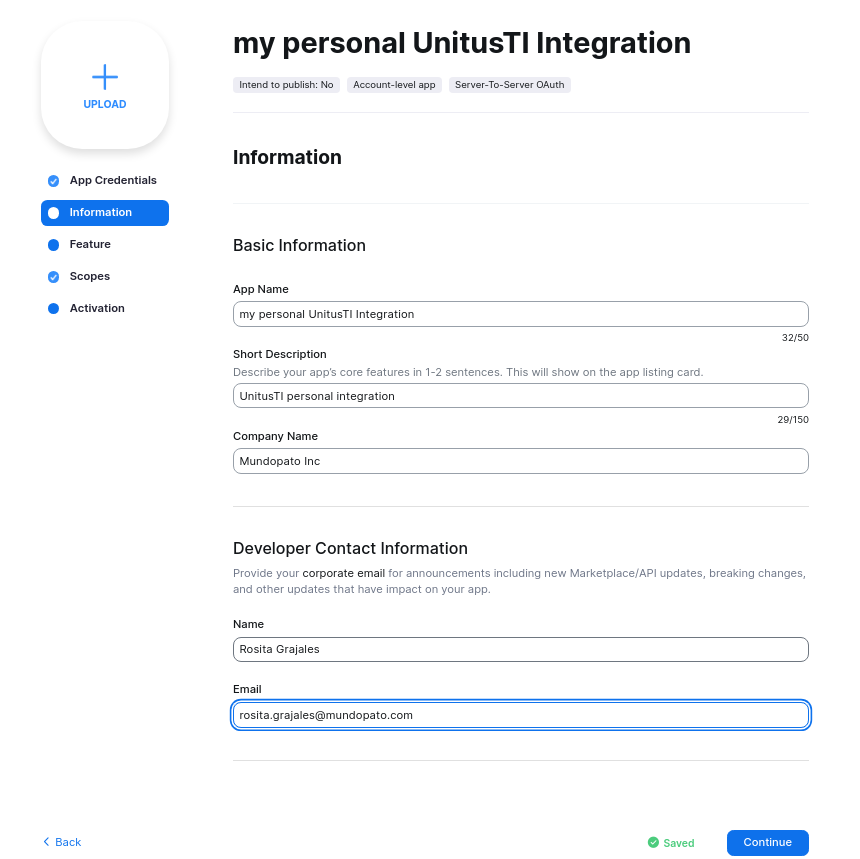
5. Copy the Account ID, Client ID and Client Secret. These are the values you will need to provide to UnitusTI in the final step.
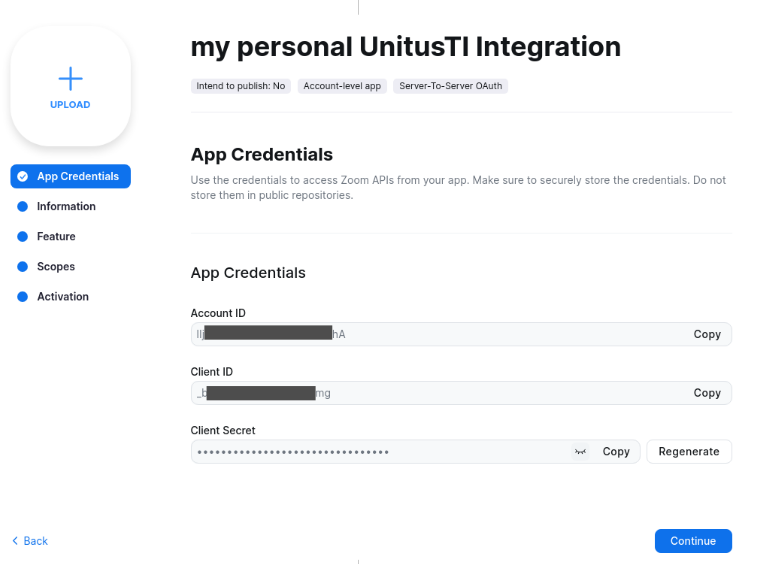
6. Add the “Meeting:write:admin” and “user:write:admin” scopes:
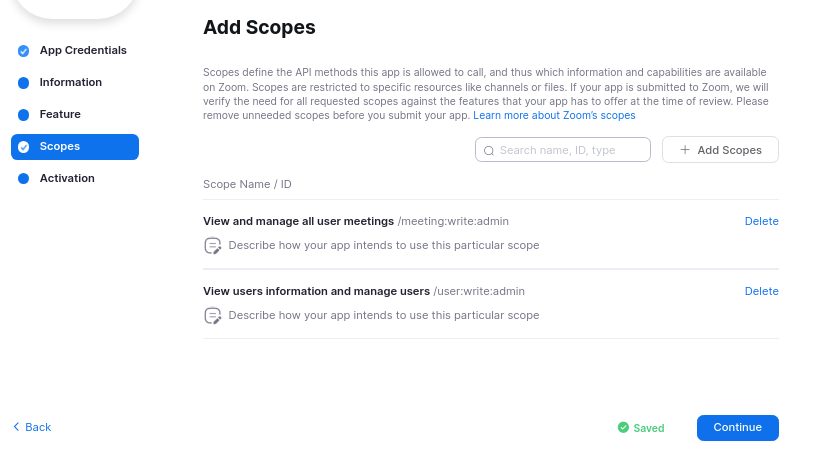
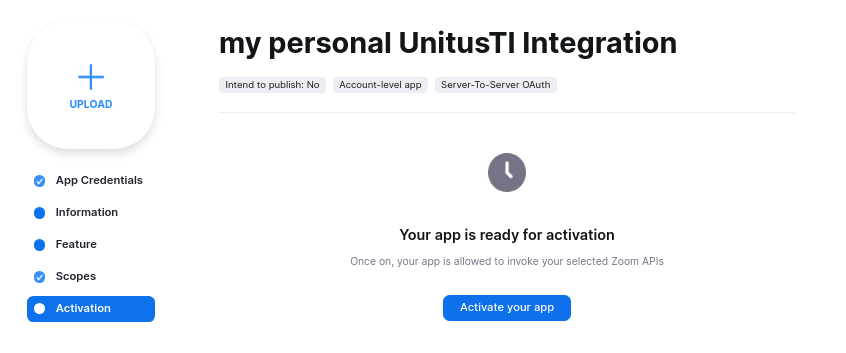
7. Activate the app:
Part 2: Providing Zoom credentials to UnitusTI
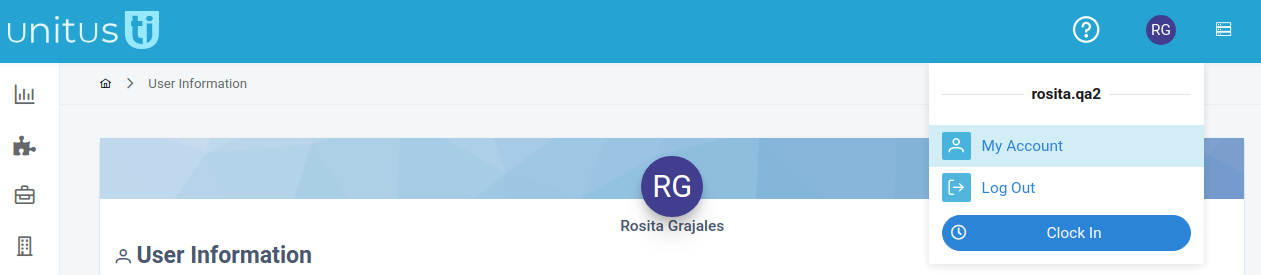
- In UnitusTI, click in your User Icon and select “My Account”:
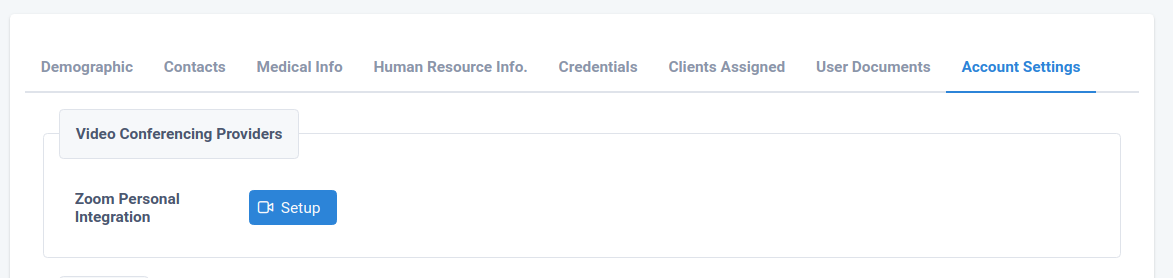
- Select the “Account Settings” tab and click in the “Setup” button in the Video Conferencing Provider area:
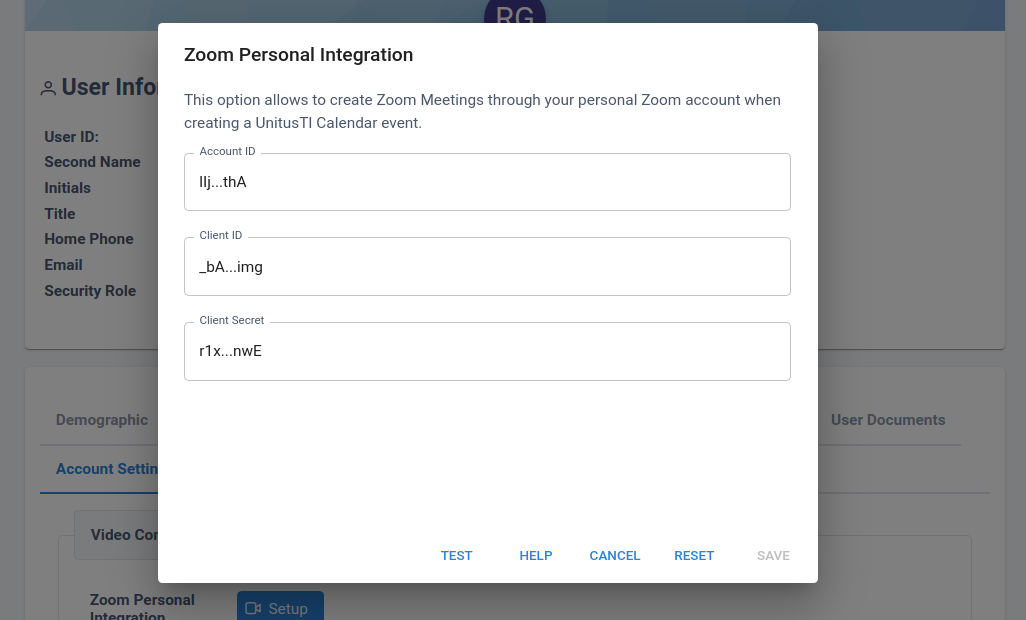
- Paste the Account ID, Client ID and Client Secret that you obtained in the previous part. Click Save. A success message will appear confirming the integration:
Creating Events
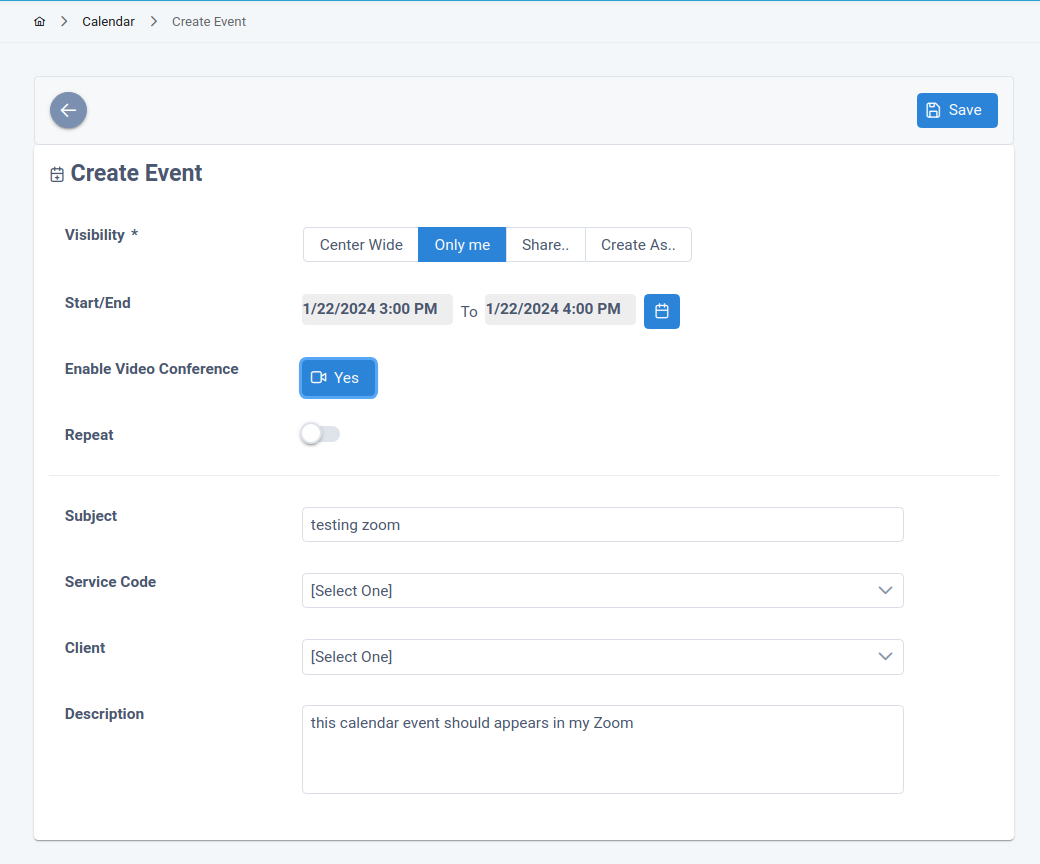
In UnitusTI, go to the Calendar screen and create an event as usual. If you provided valid credentials (either Center or User scoped), the “Enable Video Conference” option will appear. Check it to “Yes” and save your event:
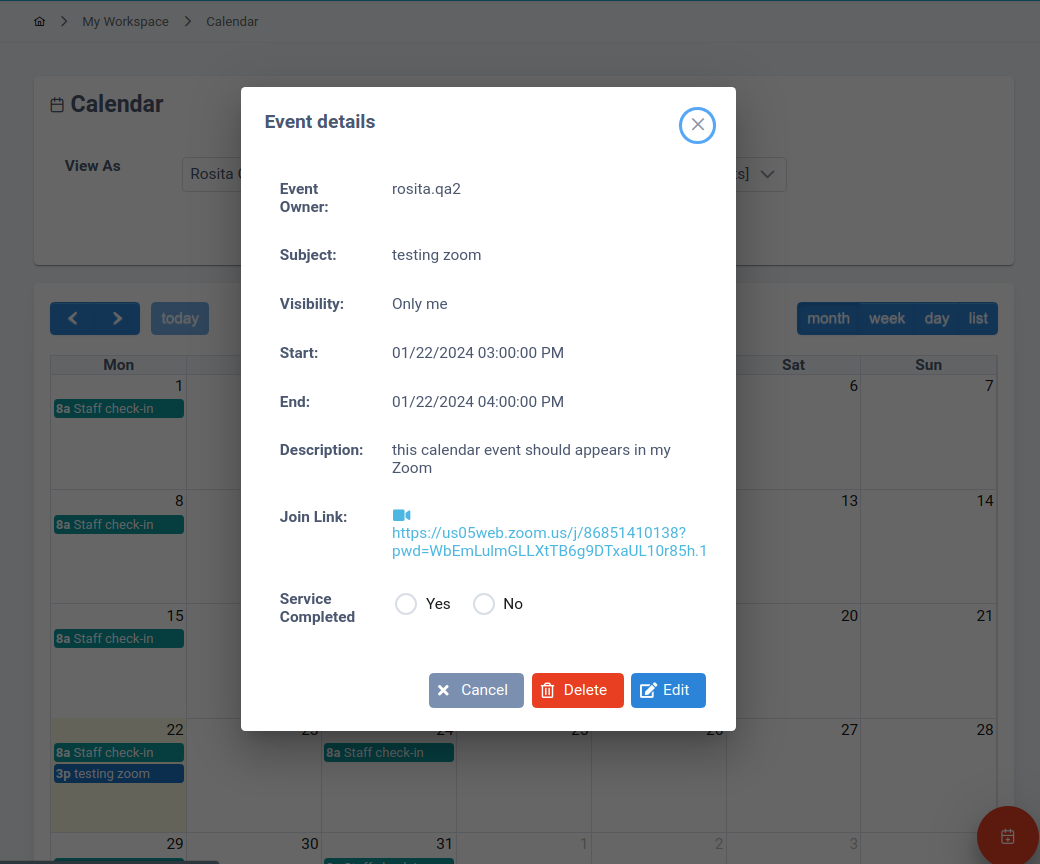
You can validate the Zoom integration by checking the details in the event in UnitusTI: it should present a Zoom’s Join Link:
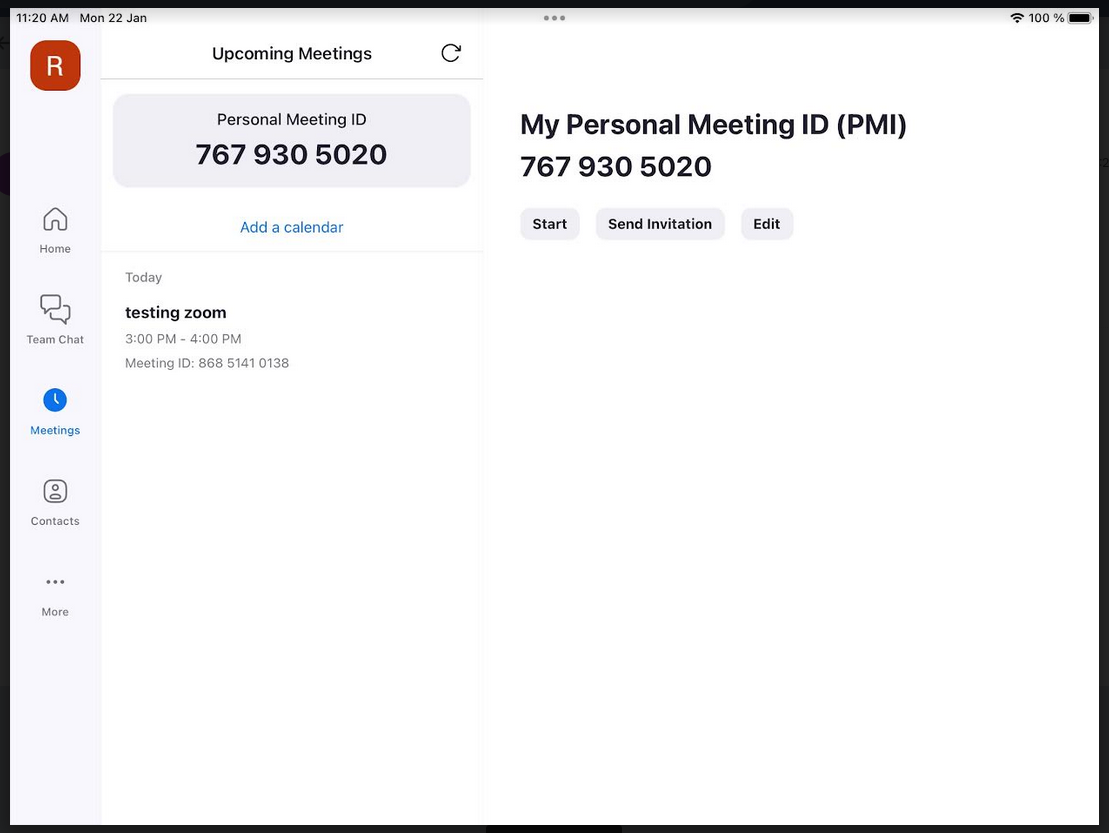
Additionally, the event should appears in your Zoom’s account:
Getting Support for Zoom
To get help for Zoom, check out the detailed Zoom Support Guides at support.zoom.us (Links to an external site.) . Zoom offers technical support and guides that include step-by-step instruction and video tutorials.