Managing user access securely is a vital part of maintaining your center's workflow. If a team member gets locked out or simply needs a credential update, any user with an Administrator role can quickly reset their password directly within the platform. This step-by-step guide will walk you through the process, using visual examples to show you exactly where to click to get your team back up and running in no time.
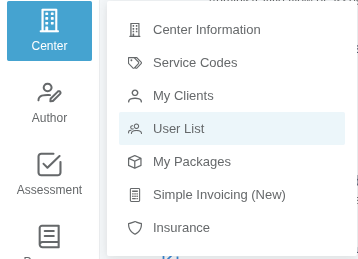
1. Navigate to the menu and select Center - User List .
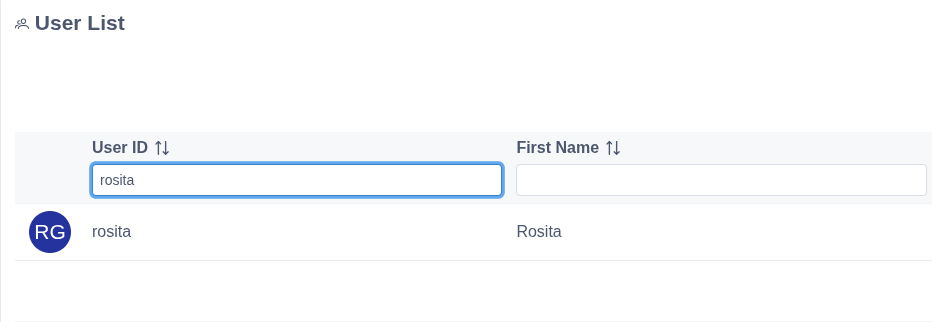
2. Find the specific user in the list.
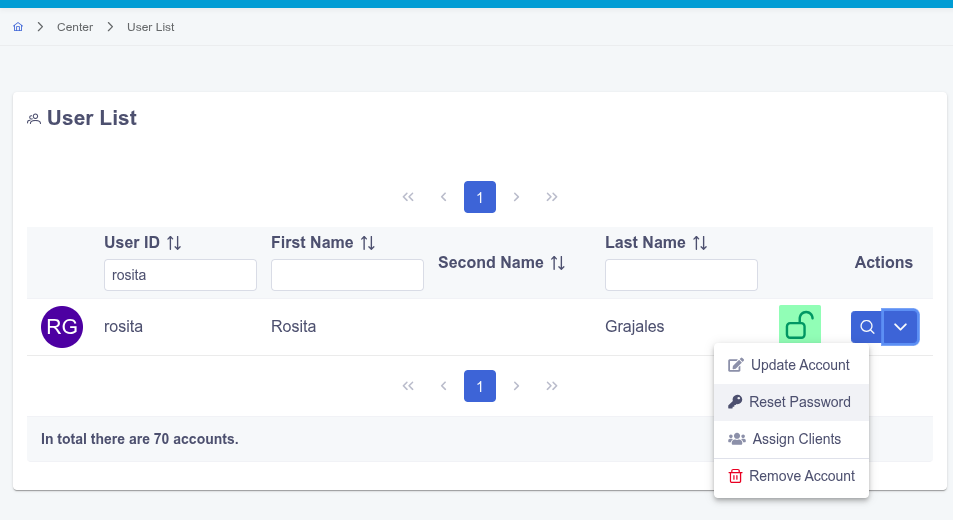
3. Click the Actions button on the right side of the user’s row, then select Reset Password .
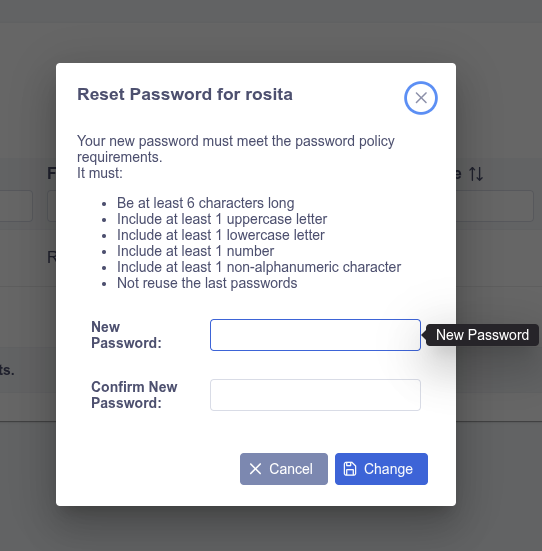
4. Enter and confirm a new password that meets the system requirements
Note: When an administrator manually resets a password from inside the account, UnitusTI does not send an automatic email notification for this particular case. You will need to securely share the new temporary password with the user yourself. (If users prefer to receive an automated password reset link via email, they can use the "Forgot Password" link on the main login screen instead.)