My Documents is one of several document storage areas in UnitusTI. Unlike the others (such as Client Documents, User Documents or Center Documents), which have automatic visibility to other users depending on their security role settings, My Documents is a completely private area where you can upload documents into customizable folders. Documents can be shared, if you wish, with specific users via the Internal Communication messaging system found in My Workspace.
To access the My Documents area, Select My Workspace in the main menu, and select My Documents.
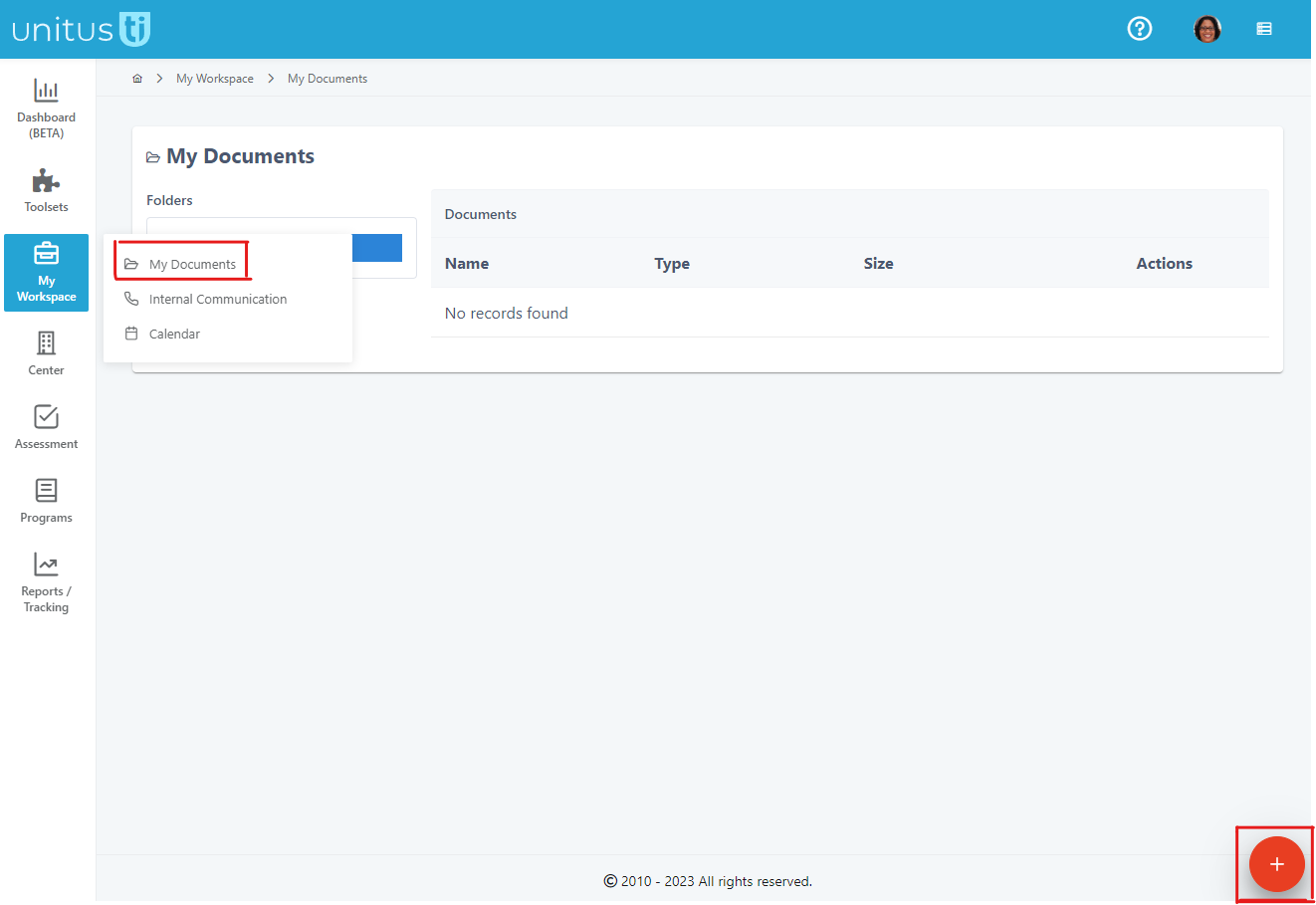
By clicking the red button at the bottom of the screen, you have the option to upload a new file, create a folder, or delete a folder.
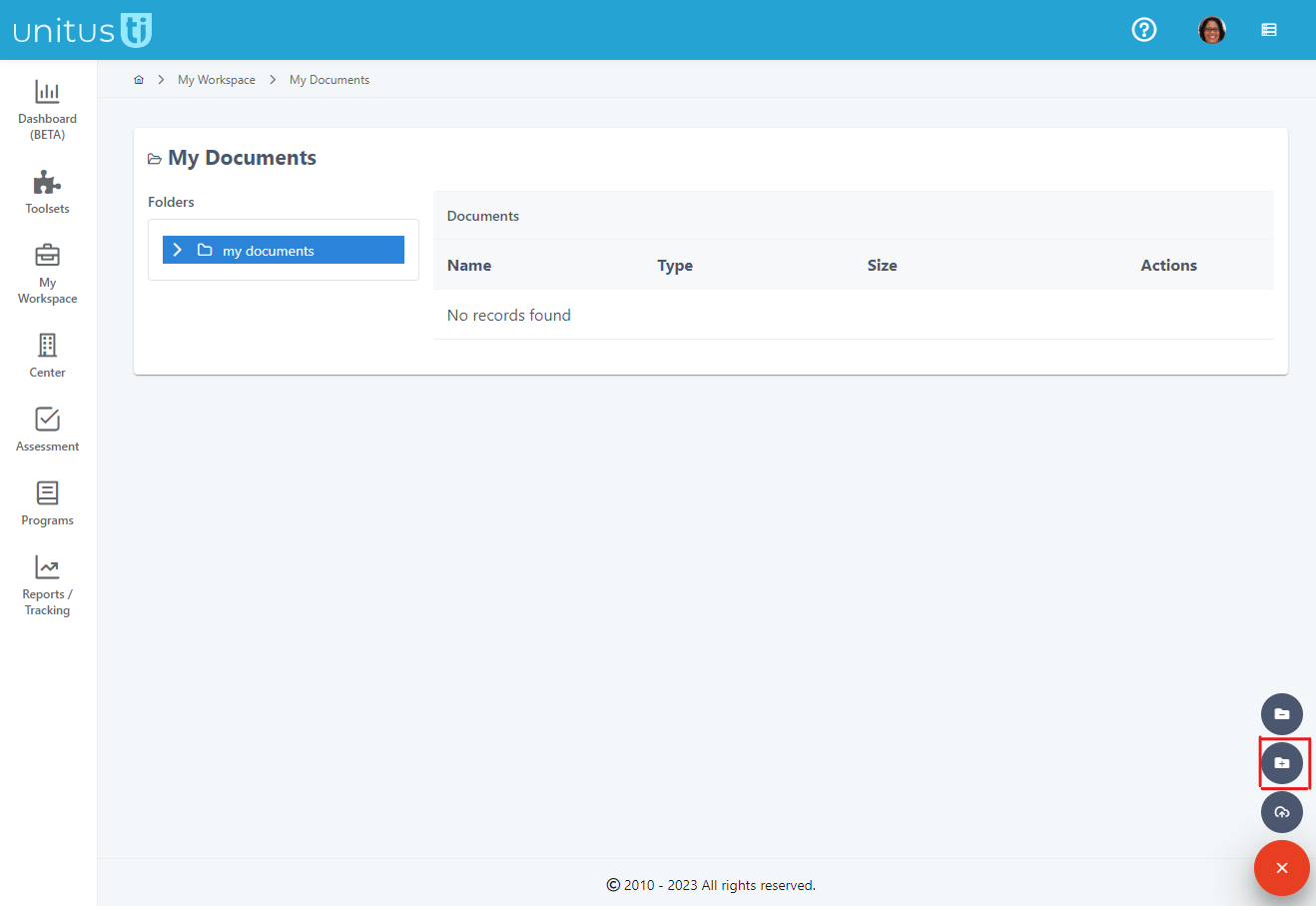
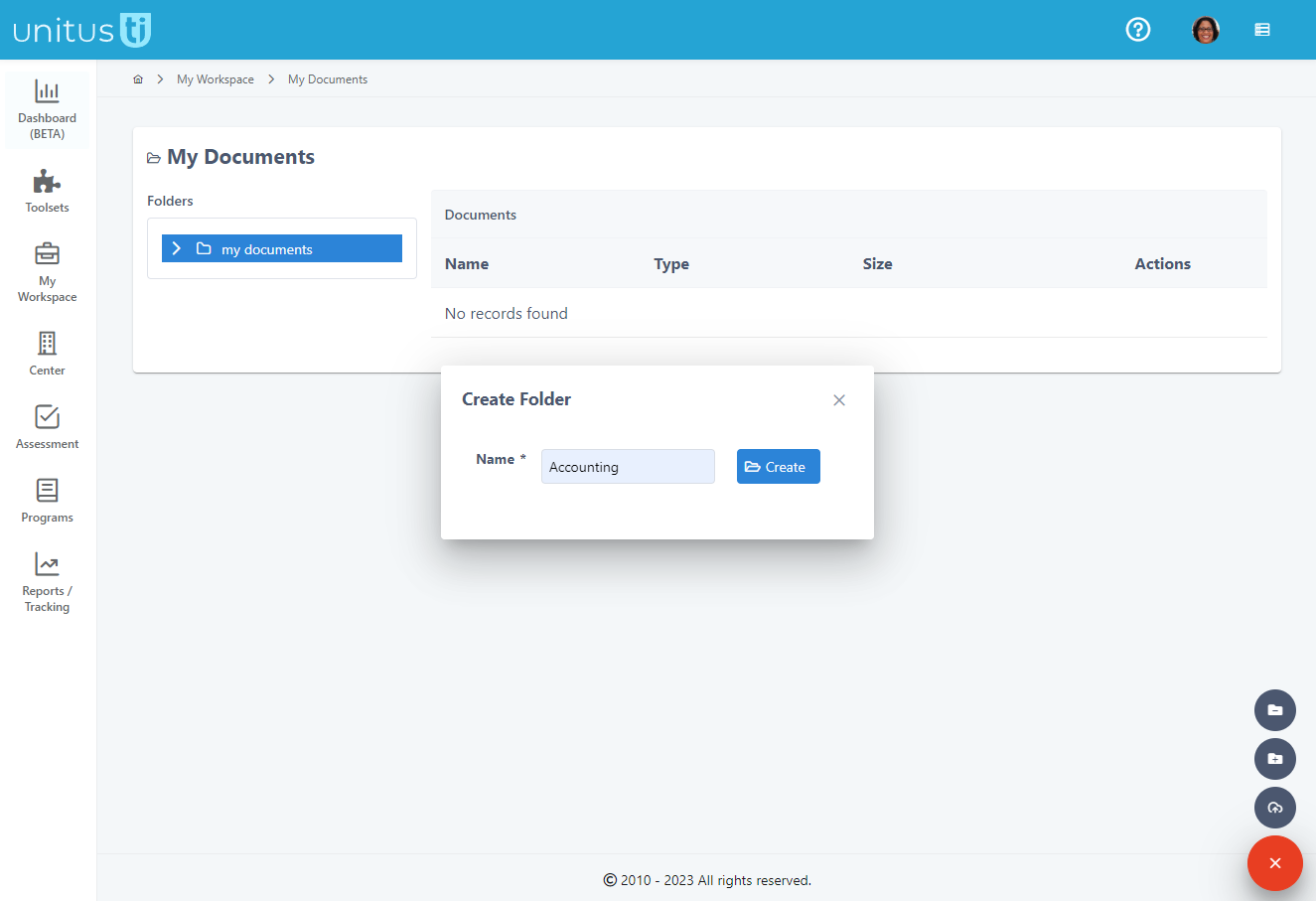
To create a folder, choose the “create folder” button, enter a folder name and click the Create button. The folder has been added to your Folders list, underneath “my documents”. You can create subfolders, that is, a folder within a folder, by selecting the folder you wish to add it to, and repeating the create folder process.
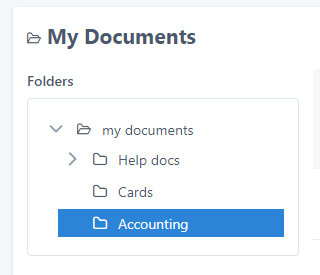
To upload a new document to a folder, select it in the Folders list, click the red button while the folder is highlighted, and click the Upload New File button.
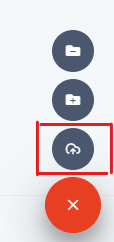
Choose a file from your device, repeat as you wish, then click Upload and you will see your document in the Documents list, for the folder you have highlighted. In the Actions column, you can delete that document using the trash can icon, download it using the download icon, or view it using the magnifying glass icon. If you decide that you no longer need a folder, you can always delete it by selecting it from the Folders list, clicking the red button and choosing the Delete Folder icon. It will also delete any subfolders and documents stored in that folder.