UnitusTI allows you to tailor your interface not only for different spoken languages but also for different "technical languages" or industry-specific terminology. This ensures the platform speaks your team's language, whether you're a clinic or a school.
What is a Technical Language?
A technical language refers to the specific terminology used within the UnitusTI platform to align with your organization's context. Since UnitusTI serves therapists, therapy centers, clinics, and schools, certain terms might change to better suit the needs of your users.
For example:
- In a school setting, you'll see "Student" instead of "Client."
- Similarly, "Teacher" will be used instead of "Therapist."
UnitusTI offers two technical languages: Therapy and Schools . This selection is made when your UnitusTI account is initially created and cannot be changed later.
What Spoken Languages Does UnitusTI Support?
In addition to technical languages, you can switch the UnitusTI user interface between English and Spanish . We plan to support more languages in the future!
The display language can be configured at two levels:
- Center-Level: Your organization's administrator can set a primary language for the entire account.
- User-Level: Each individual user can override the center's setting and choose their preferred language for their personal view.
Configuring Your Language Settings
Configure the Center Language
To set the language for your entire UnitusTI center:
- Navigate to the Center Information screen.
- Select the Account Setup tab.
- Scroll down to Account Preferences .
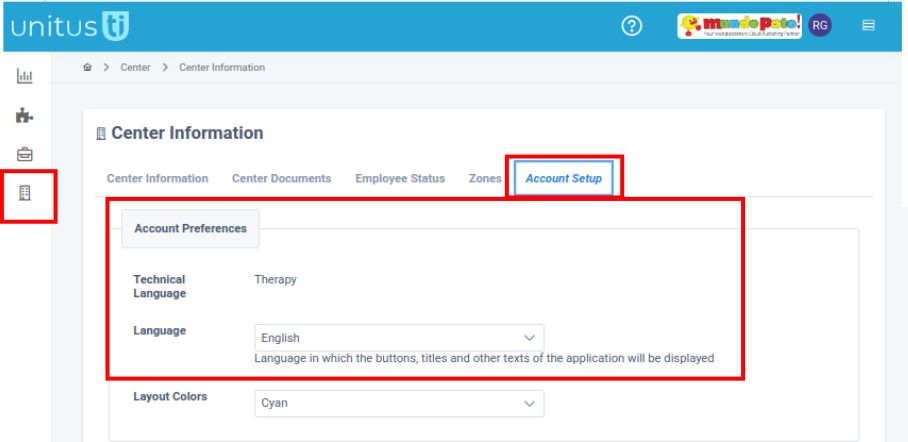
Note: Only users with the "Administrator" security role can change the center language. These changes will affect the menu and platform language for all users but will not impact the language used in content like assessments or programs.
Configure Your Personal User Account Language
To set the language for your individual user account:
- Click on your profile picture in the top-right corner of the screen.
- Select My Account .
- Choose the Account Settings panel.
- Scroll down to the User Preferences section.
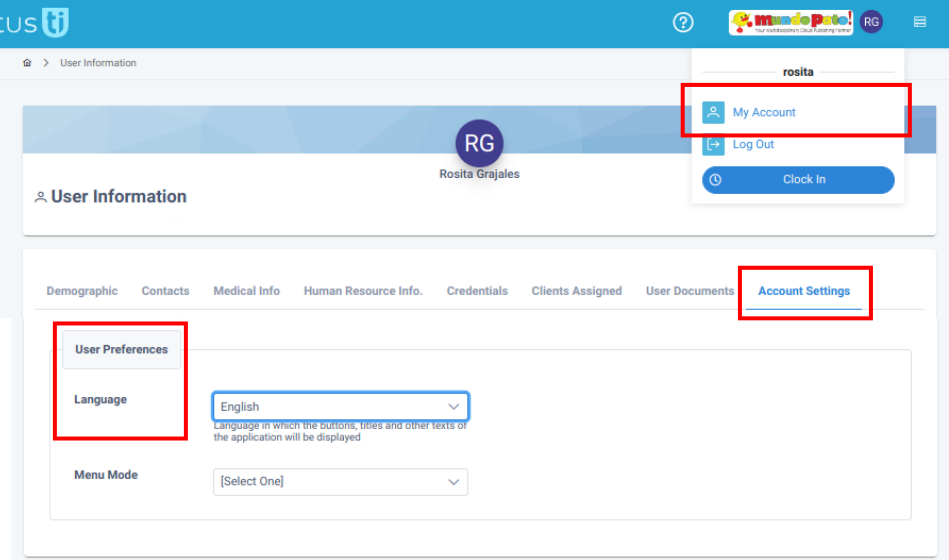
Note: Language changes made in "My Account" only affect your personal user view and change the menu and platform language. They do not impact the language used in content such as assessments or programs.