Virtual Materials offer some utilities to speed up the creation of cards, slides and decks in a Pack, by uploading spreadsheets in CSV format. You can also clone slides and replace specific cards during the cloning process.
Note 1: It is recommended to process small amounts of rows, around 10 - 20 until you get used to the tool.
Note 2: In case of errors, The CSVs can be uploaded multiple times. The process will skip those elements already created.
Uploading Cards
The CSV expect a header with the following columns:
name |
Desired name for the new card |
deck |
Name of a deck to put the card into. It can be “default”. If the deck doesn’t exist, a new one will be created. |
layout |
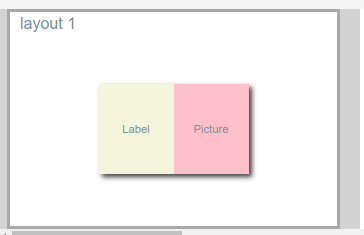
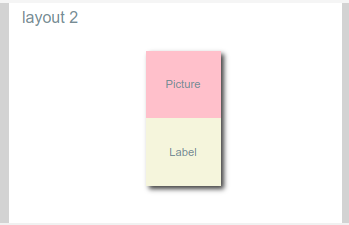
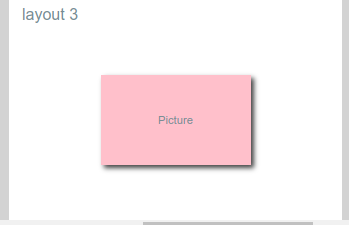
Internal code for the desired layout for the new card ( only_picture_vertical , word_and_picture_horizontal , etc) please check the Codes for Card Layouts section. |
picture |
If the layout that you selected requires a picture, use the name of the picture as appears in the Picture Library. Else, let the column empty. |
word |
If the layout that you selected requires a label, put the label in this column, let empty if not. |
Example
Let’s suppose we want to create cards for each one of the following pictures:
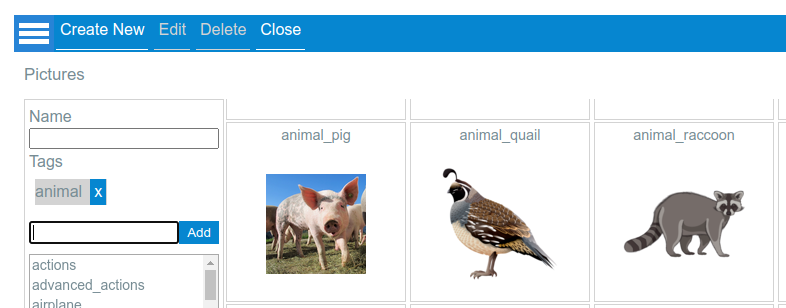
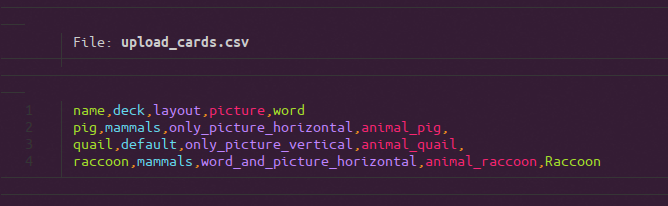
- We prepare a spreadsheet like this:

- We export it as CSV format:
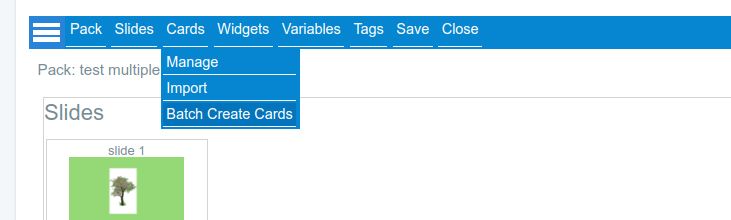
- We open the pack where we want to create the cards, and select “Cards - Batch Create Cards”:
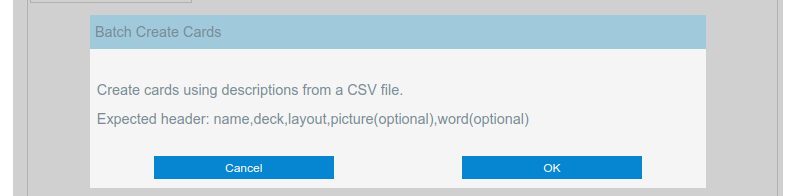
- We search for the csv file and press OK:
The process takes a while, but finally you should see the new cards and decks:
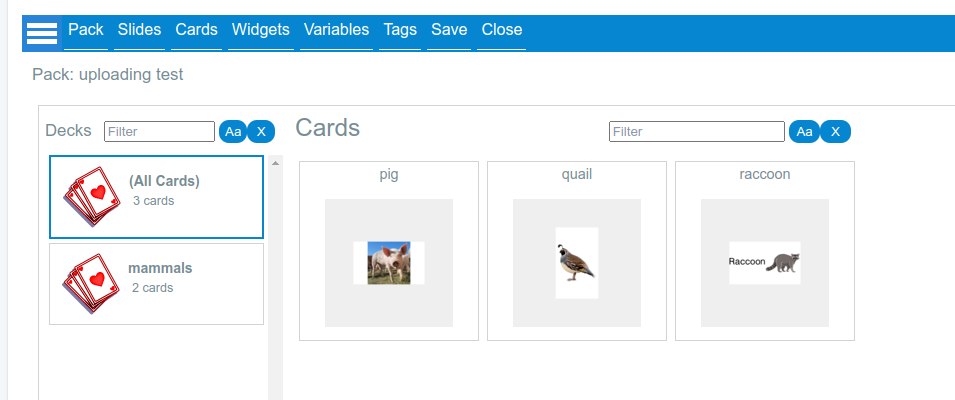
Tip : Open the developer console (CTRL+SHIFT+I) to keep an eye in error messages during the uploading process, like not found images or incorrect layout names.
Codes for Card Layouts
|
word_and_picture_horizontal |
|
word_and_picture_vertical |
|
only_picture_horizontal |
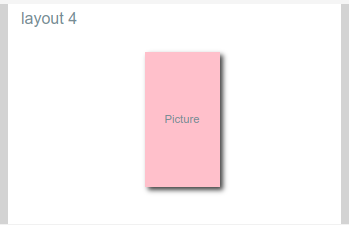
|
only_picture_vertical |
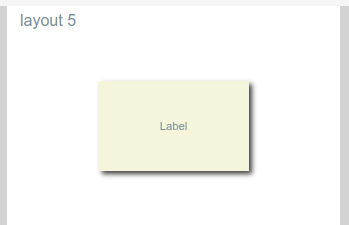
|
only_word_horizontal |
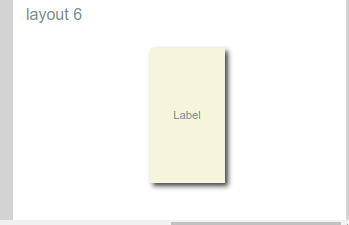
|
only_word_vertical |
Uploading Slides
This utility allows to create slides assuming that you had the required cards already created in the pack.
Please note that this is an experimental feature, right now we support only a single-card layout mode.
We support two kinds of slides: “Flashcards Slides” and “HTML Slides”. HTML slides is a very experimental feature, so we will focus here on the “Flashcards Slides”.
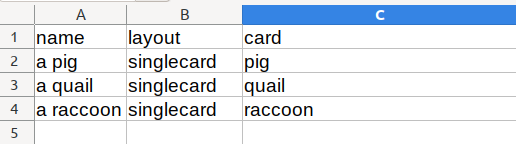
For Flashcard slides, the following columns are expected in the CSV:
name |
Name of the new slide |
layout |
Right now only “singlecard” is supported. |
card |
The name of the card |
Example
We want to create slides that contains each one of the cards created in the previous example.
First, we prepare the spreadsheet:
Now, we export it as a CSV file:
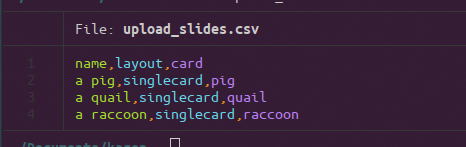
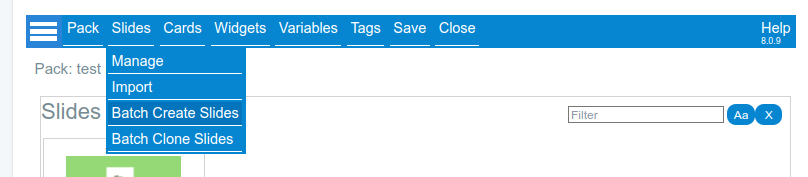
Finally, in our target Pack, we select “Slides - Batch Create Slides” and open the CSV:
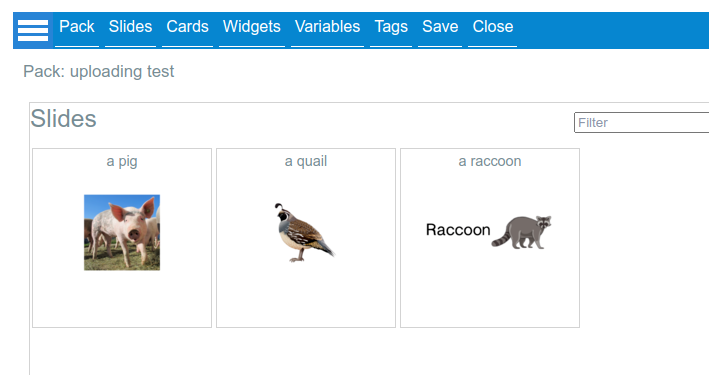
… and after a while, you should be able to see the new slides:
Cloning Slides
Batch cloning of slides allows to quickly create clones of existing slides, optionally replacing specific cards for any other existing card in the pack.
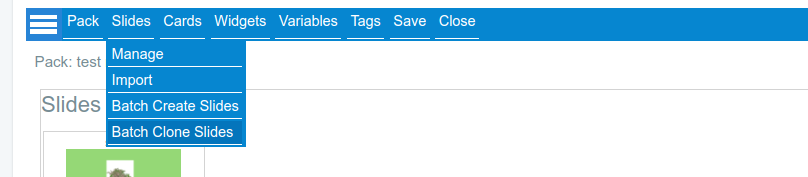
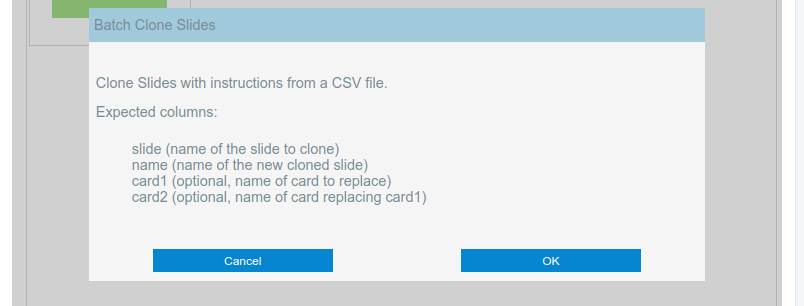
Once you select “Slides - Batch Clone Slides”, you will be presented with the expected structure for the CSV file:
This is a CSV that follows that structure:
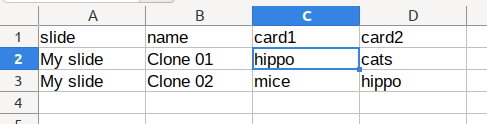
In this example, two clones of “My slide” will be created. For Clone 01, all occurrences of a card named “hippo” will be replaced by a card called “cats”.
In the second case, the card with the name “mice” will be replaced with “hippo”.