What is Custom HTML in Program ?
I have developers in my team! Can I write my own HTML code?
I don’t have developers in my team. How Can I produce HTML for my assessments?
Example 1: Single video from Youtube
Step 1: Copy the Youtube embed URL
Step 2: Open the HTML Generator
Step 5: Paste the code in the Program
What is Custom HTML in Program ?
When creating Program Templates, you’ll find a new field called Custom Code. This custom code block lets you embed content using HTML and javascript code, allowing you to create formatted text, tables, links, videos, pictures and audio files and all kinds of interactive elements in your assessment questions, far beyond what is available in the Additional Information field.
These are a few examples of custom HTML in Program Templates:
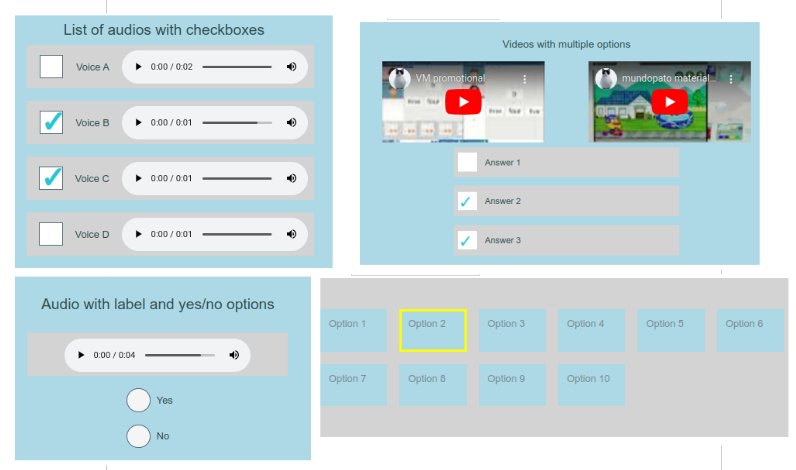
This feature is similar to “ Custom HTML in Assessment ”, but with certain differences:
- In Assessments, you can add custom HTML at the header of any section and as part of each particular questions. In Programs, you can only add HTML to the header of the program.
- In Assessments, you can use javascript code to make interact your HTML with the question’s answers. For example, clicking in a particular sound my be interpreted as the right or wrong answer, avoiding the need to use the answer options provided by the Assessment. In programs, there is no interaction at the moment between the HTML and the data capture button.
I have developers in my team! Can I write my own HTML code?
Writing custom HTML interactions from scratch is possible, but it demands basic knowledge of Javascript and HTML. If you want to follow this path, please check the instructions for developers in the Mundo Pato developers guide .
I don’t have developers in my team. How Can I produce HTML for my assessments?
The Virtual Materials Toolset offers a HTML Generator with a set of premade templates that you can use to generate your interactions.
You will find the Virtual Material Toolset under the Toolsets main menu:
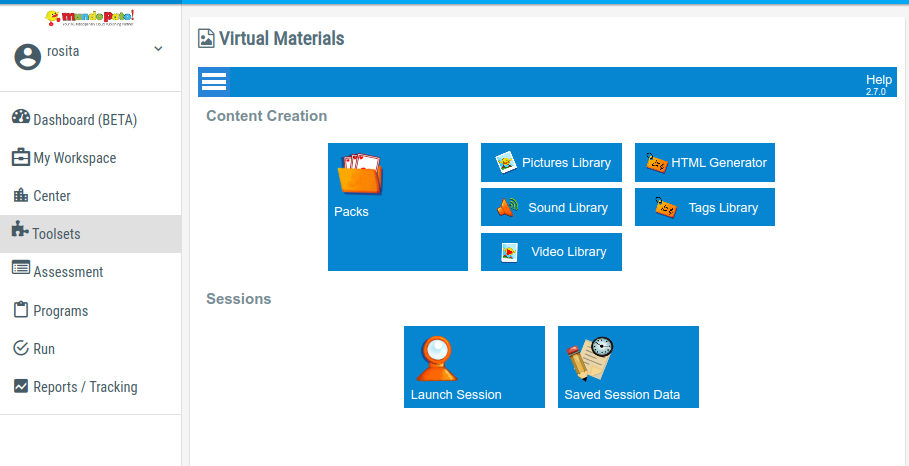
Tip: Use the Video Library and Audio Library to upload your media assets and customize your questions!
Example 1: Single video from Youtube
In this example, we are going to embed a video hosted in youtube in a Program Template.
Step 1: Copy the Youtube embed URL
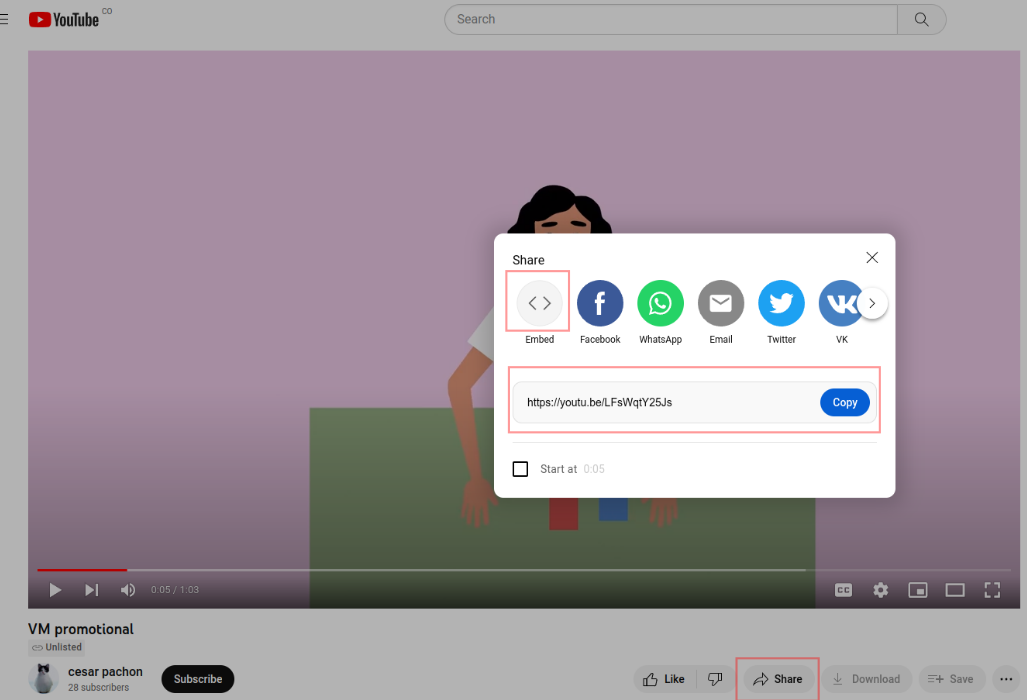
In youtube, click on “share” and then select the “Embed” option. Use the copy button to copy the URL to your clipboard.
Step 2: Open the HTML Generator
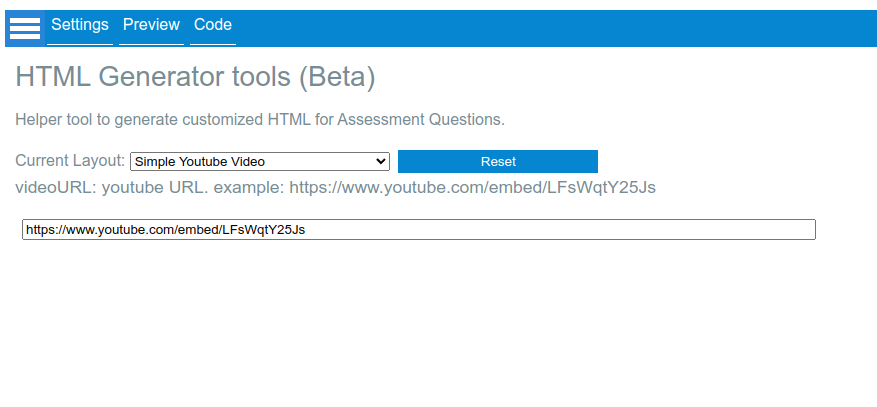
In the home menu of the Virtual Materials Toolset, select “HTML Generator” and then select the “Simple Youtube Video” layout.
Paste the URL that you copied in the step 1.
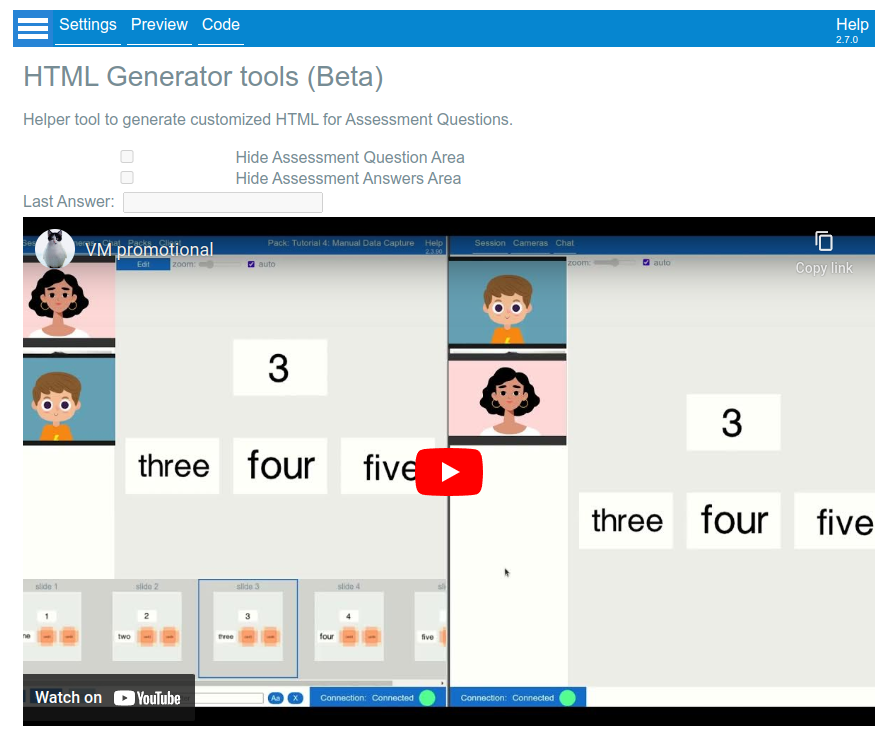
Step 3: Preview
Use the Preview option to visualize how your video will look:
Step 4: Copy the code
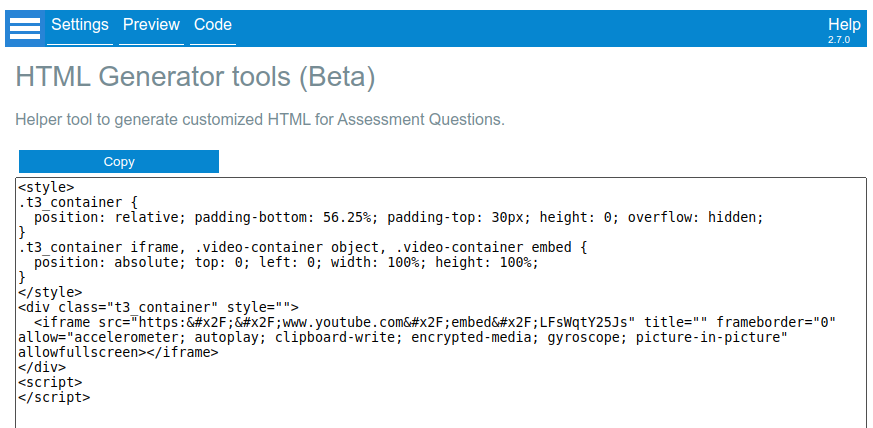
Select the option “Code” in the top menu, and use the “Copy” button to copy all the code to your clipboard.
Step 5: Paste the code in the Program
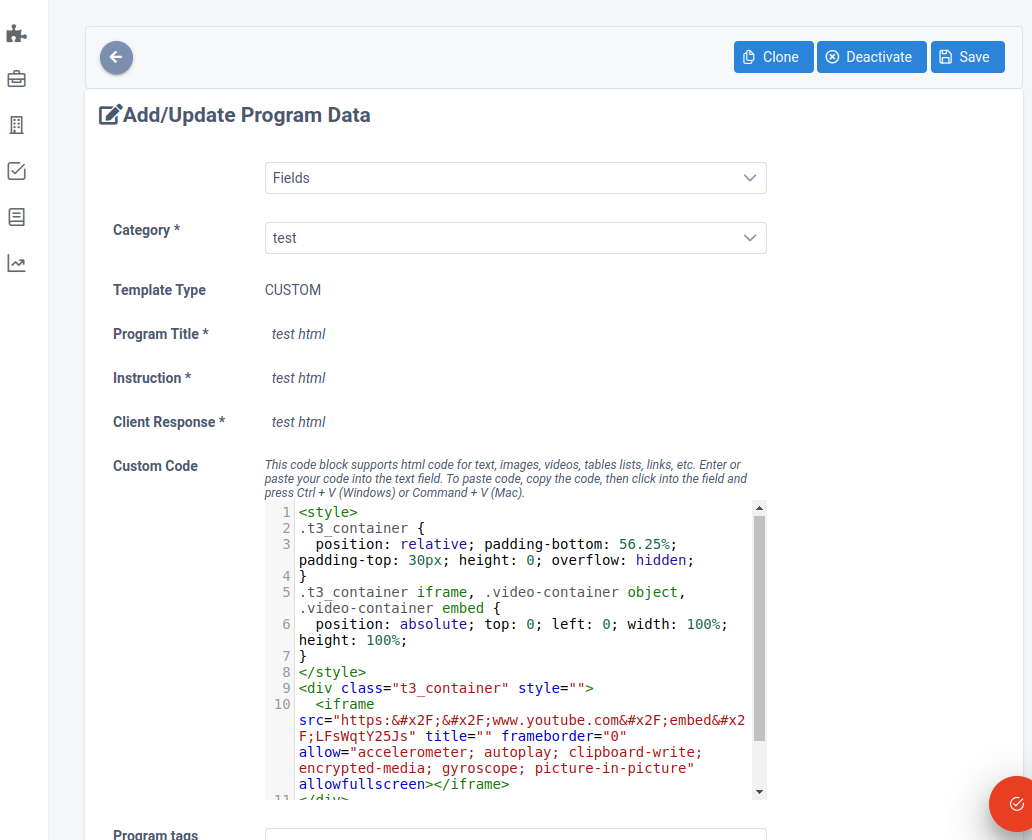
Enable the “Custom Code” field in your program template, and paste the custom code in the “Custom Code” text area (click the “Add Custom Html Code” button to expand it)
Step 6: Try your content!
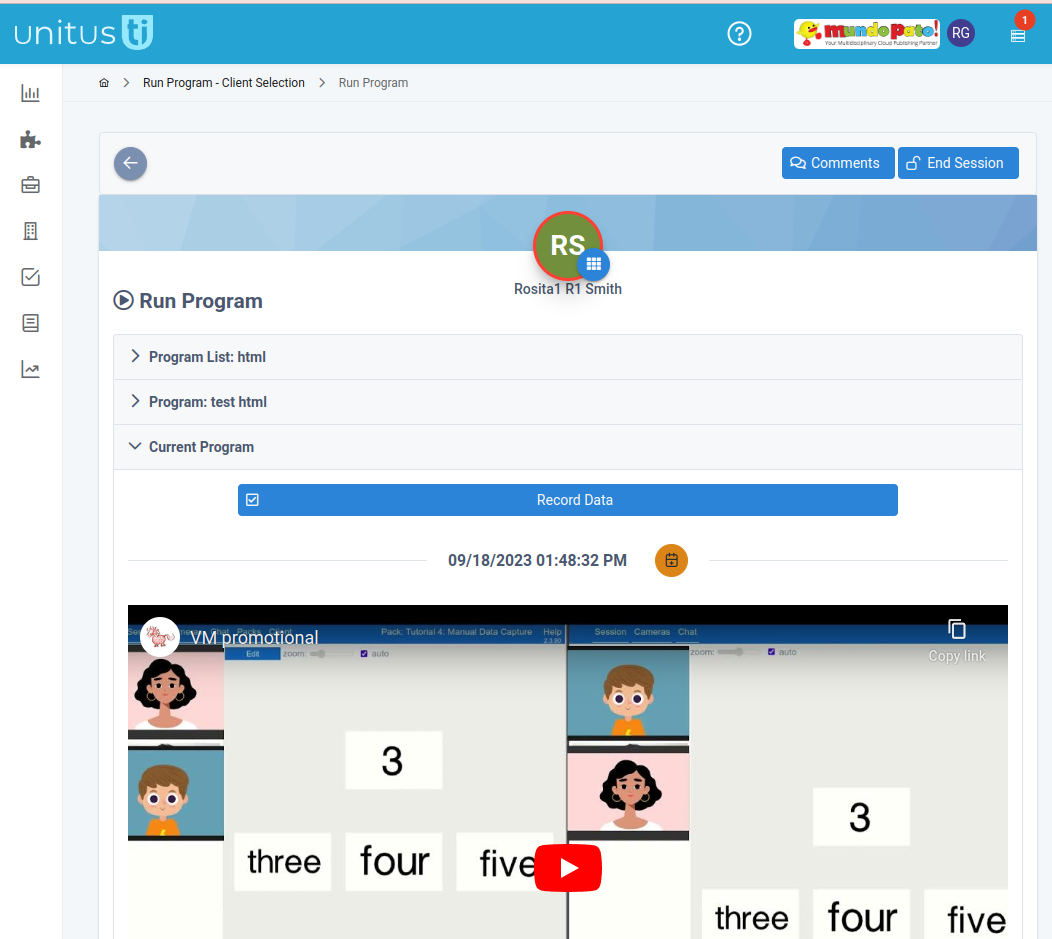
Assign the program template to a client, and run the program:
Things to remember
- Each template in the VM Toolset’s HTML Generator is an example of the kind of interactions that you can create. We are going to extend the list with new templates over the time, so be sure to check it to discover new possibilities.
- If your media content is not stored in youtube, you can make use of the VM Toolset’s video library to upload it.
- Check the Virtual Materials Toolset samples and tutorials and consider if your questions can be presented as Flashcards Slides to increase engagement!
- If you don’t have developers in your team, and you need very specific interactions that are not included into the templates or can’t be implemented as flashcards, please contact us to provide further assistance.