When pasting text from another source, such as a website or a document, it may not appear the same due to hidden formatting embedded in the original content. These hidden formatting elements, including font styles, colors, spacing, and special characters, can conflict with the formatting settings of the destination platform or application. As a result, the pasted text might look different, with inconsistencies in font size, style, or layout. Additionally, these inconsistencies may look one way in the editing screen and another in the Preview or Run screen.
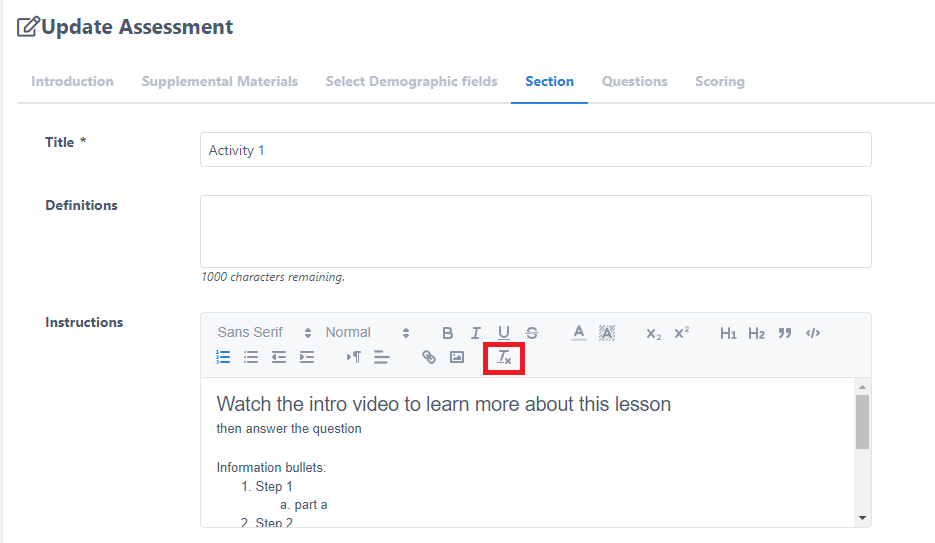
To ensure uniformity and eliminate discrepancies, it's advisable to paste text as plain text or use the “Remove formatting” button in the menu (see screenshot below) to remove any hidden formatting before finalizing the content. Once the formatting is removed, users have the freedom to format the text according to their preferences.
Options for removing text formatting
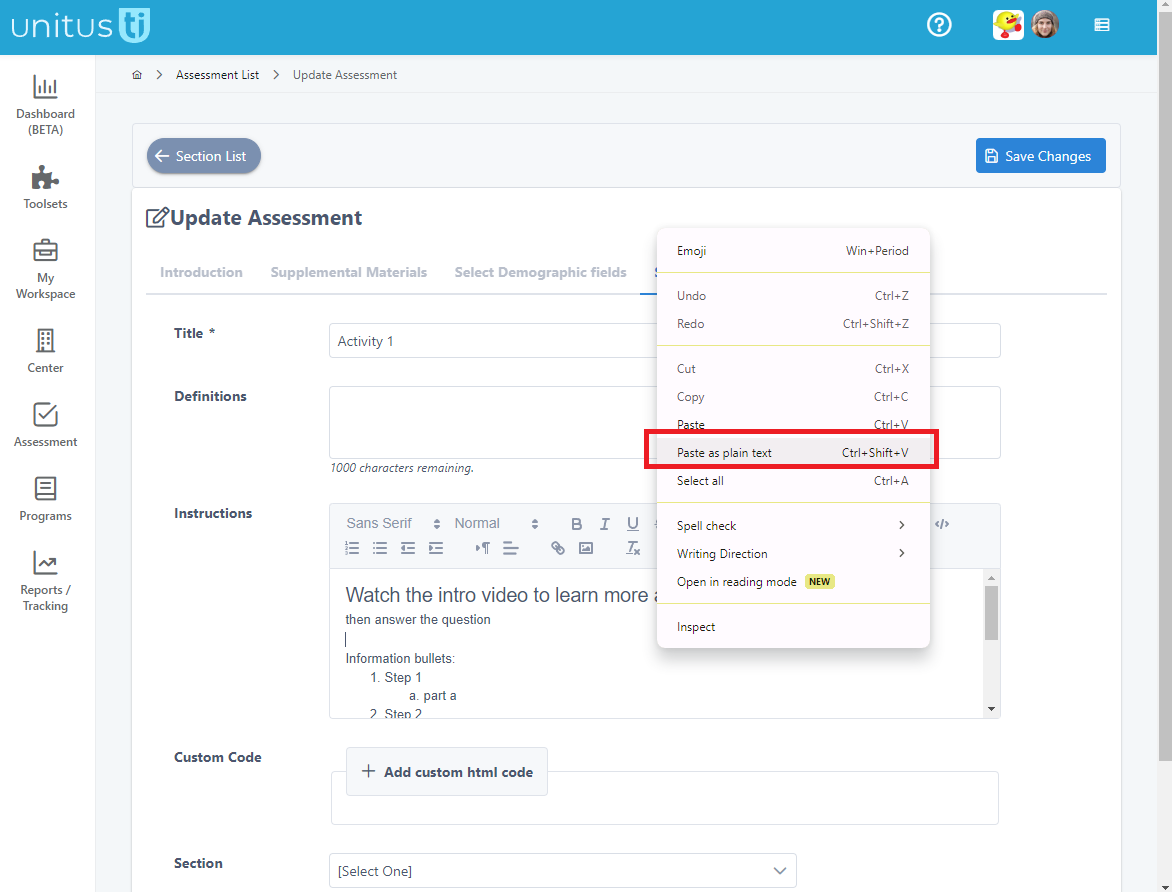
In HTML format enabled text fields, users can utilize a right-click function to paste content as plain text or select the pasted text and utilize the "remove formatting" button.
Paste as plain text
Right click in the field and choose “Paste as plain text” (this option may vary depending on the browser you are using):
Use button to remove formatting
Select the text and click the menu button to remove formatting: