When creating and managing client program lists in UnitusTI, you may find that you want to restrict certain users from accessing specific lists; for example, you may want to allow parents and guardians to be able to run only a list of programs designed to be run at home, and to hide program lists that are executed by therapists and technicians.
To restrict user access to a specific program list, select Programs in the main menu, and then select “Manage Programs”. Locate the appropriate client and select the Actions icon to enter their Program List Detail page, where you manage their programs. This page shows a list of previously created program lists. (If you need to create a program list, please view the tutorial for creating a program list in the UnitusTI help center.) In this example, you can see two program lists created for this client; they appear as separate tabs. Select the list you wish to restrict, then select the Actions button, then select Change Program List.
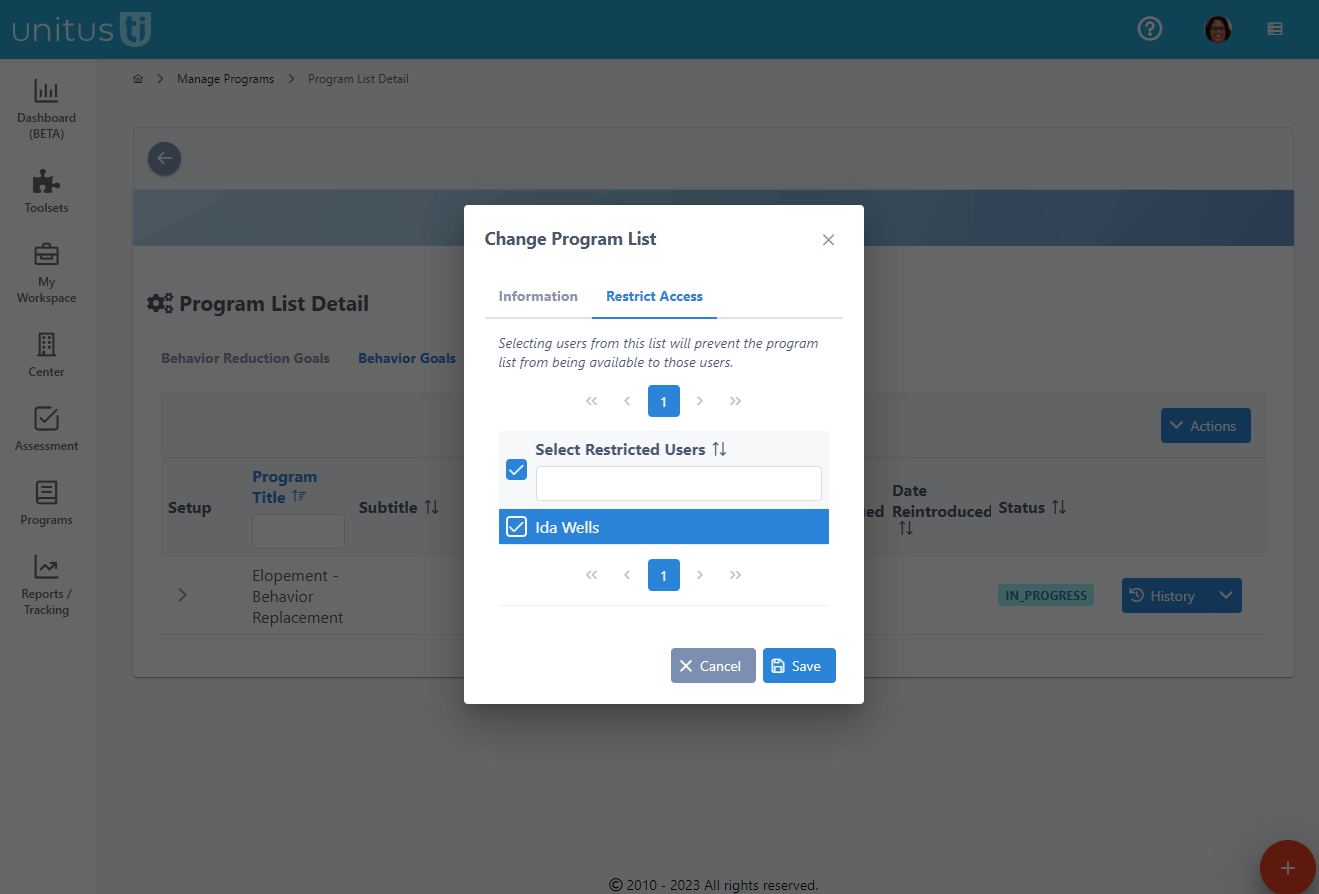
A popup window appears, and you can select the tab called “Restrict Access”. This tab displays a list of the users who have been assigned to this client. If you cannot find a particular person in this list, check the User List (in the main menu under Center) to ensure they have a user account created, and if they do, check their assigned clients list. Selecting the checkbox next to a user’s name indicates that that user should not be able to run the programs that are contained in this program list. Click save.
When that user logs in and navigates to the client’s program list page, the restricted list does not appear among their options of program lists to run. However, they are still able to access the program history, data, and graphs for that program.