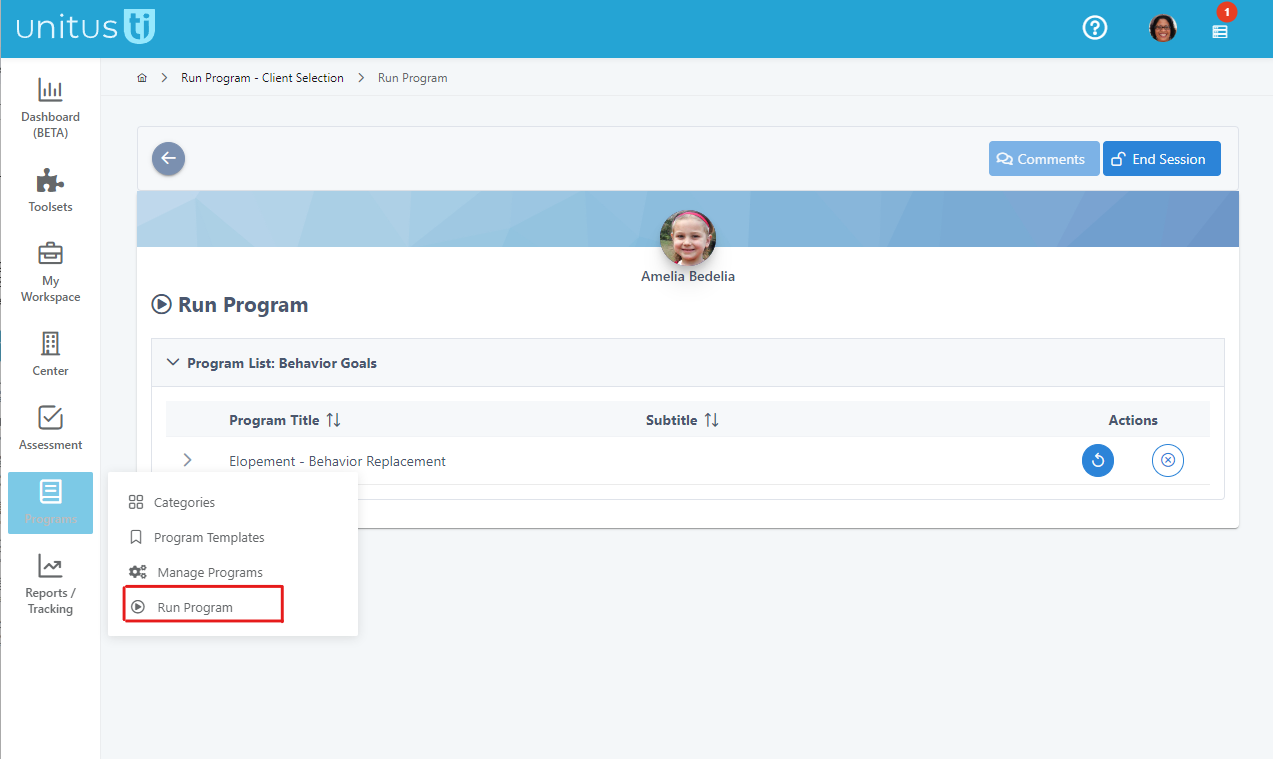
The Behavior log in UnitusTI is a running list of ABC entries for clients. To get to the Behavior Log, go to Programs in the main menu and select Run Program.
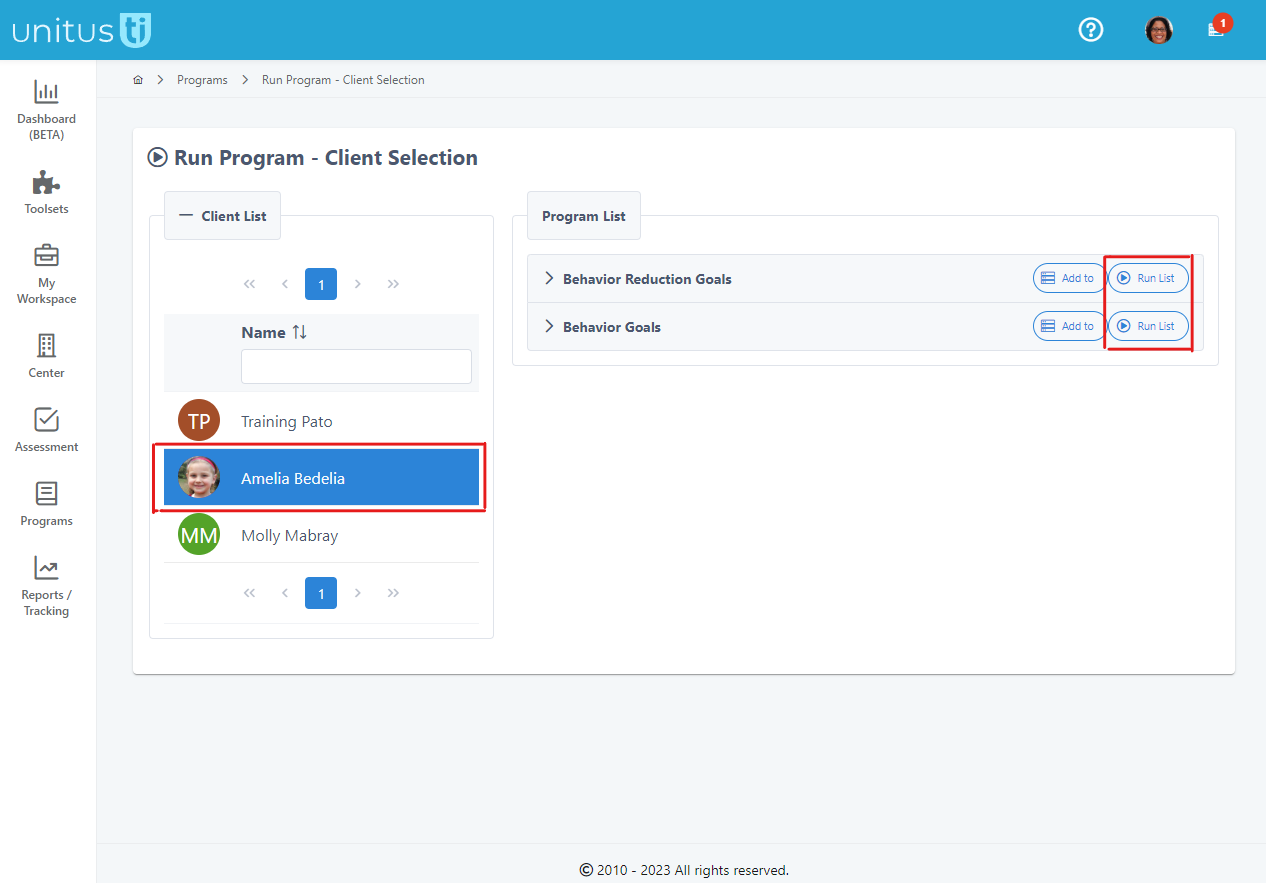
In this screen, you will see the clients you are assigned to. Select a client by clicking on them in the list, and then choose any program list to go to the Run Program screen.
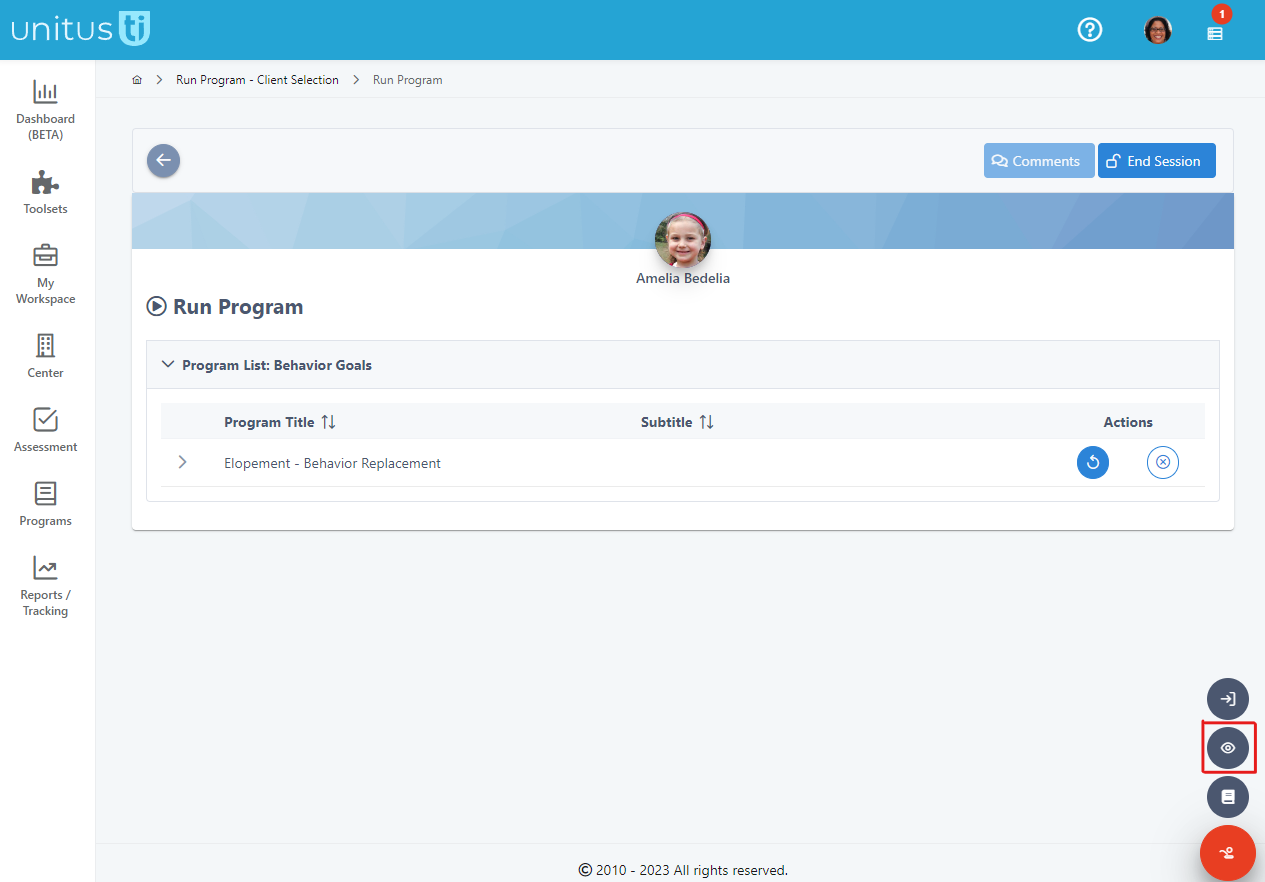
The ABC log is found by clicking the red button at the bottom of the screen. Select the eyeball icon to go to the Behavior Log screen, where you can see any previous logs created for this client. This is a universal log of all entries made by any user and is not linked to a particular program.
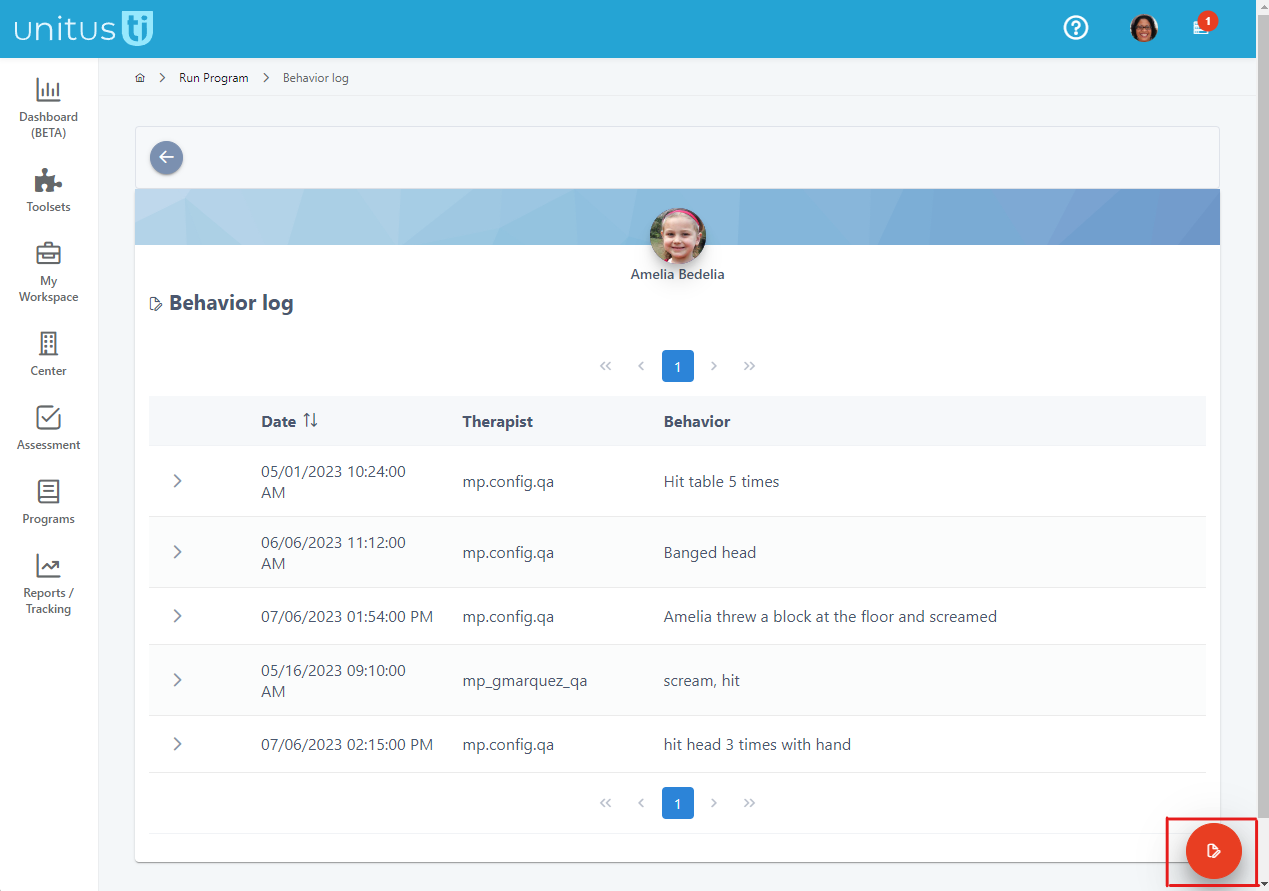
To create a new entry, click the red button at the bottom of the page, and a form will appear on the right side of the screen.
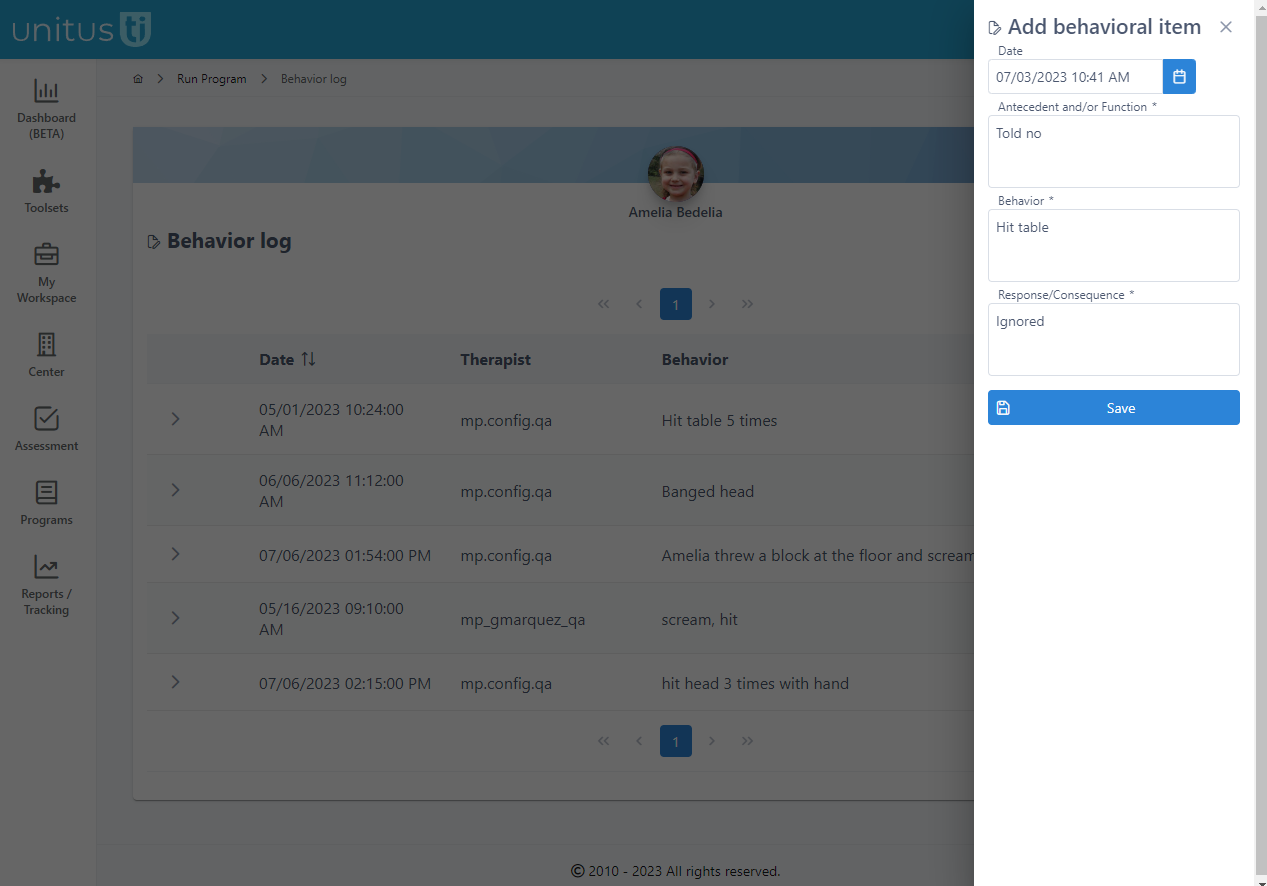
- Choose a date and time using the blue calendar icon.
- In the Antecedent field enter the events or circumstances that occurred before the behavior
- In the Behavior field, enter the behavior that occurred
- In the Consequence field, enter the action or response that followed the behavior
- Click save
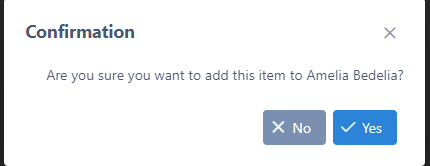
- The confirmation popup lets you take a last look to make sure you have no changes; then click Yes.
The newly created log entry has been added to the log in the order that it was created.
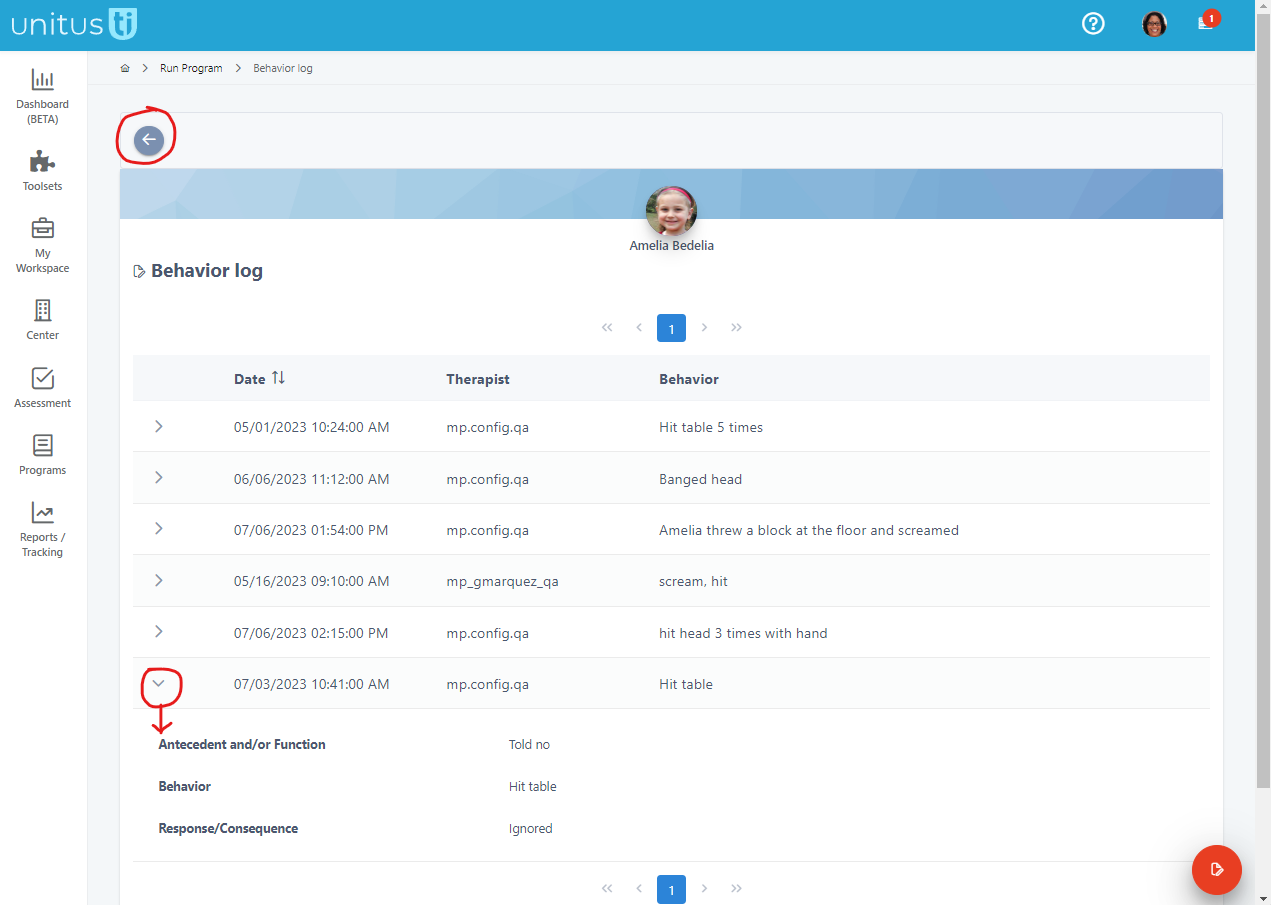
Summary information is displayed, showing the date and time selected in the calendar field, the user who made the entry and the Behavior. Expand an entry using the arrow on the left to see more details. Click the Back arrow button at the top of the screen if you wish to return to the client’s Run Program screen.