UnitusTI has an optional feature called the Program Queue that is designed to help you navigate the running of programs more easily with one or more clients. The program queue icon is found in the top right corner of the screen in the blue bar. Clicking the icon opens or closes the list below.
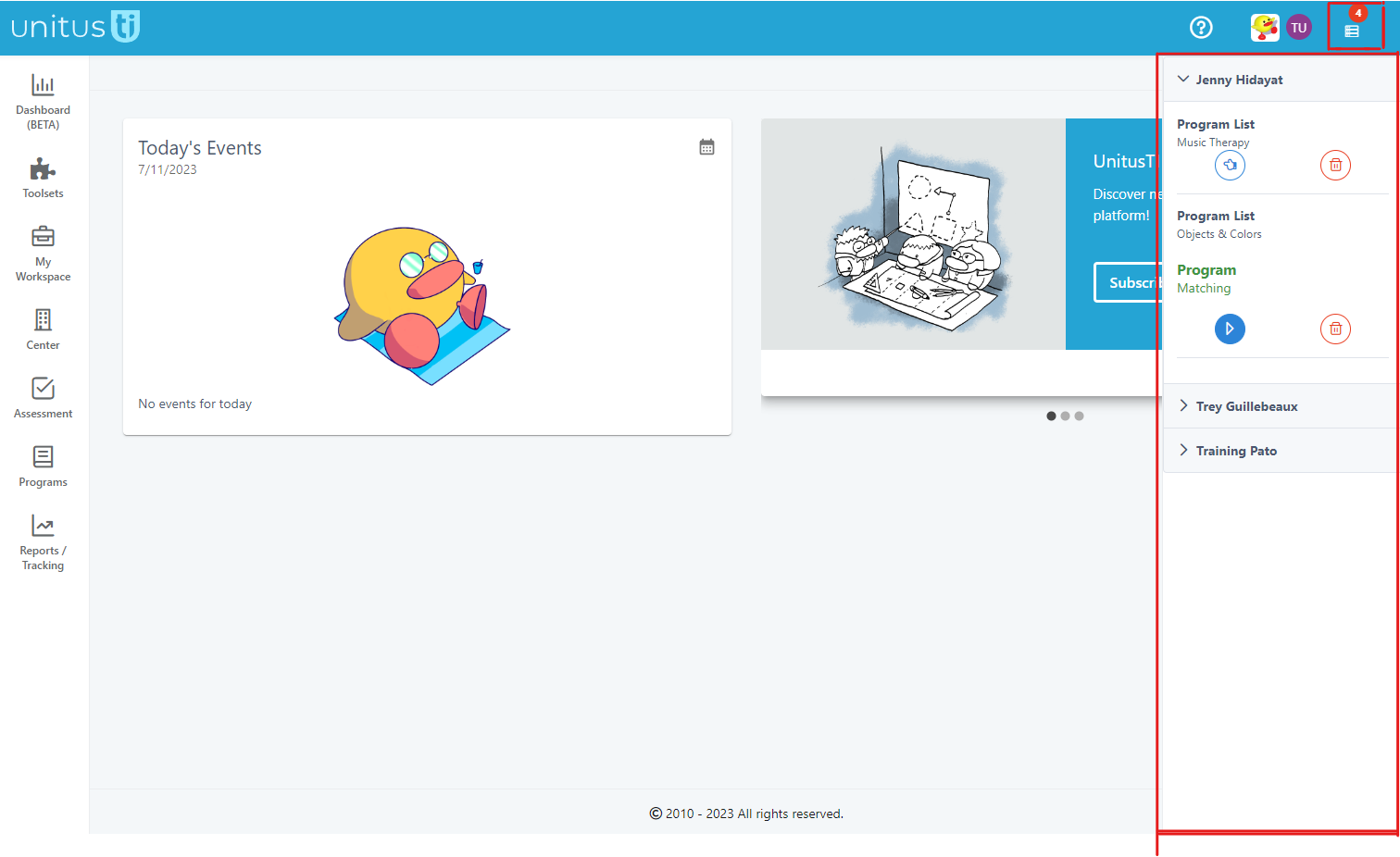
If you’ve just logged into UnitusTI, this list will be empty. Client program lists will be automatically displayed here when you initiate them in Run Program, or you can manually add lists here to plan your sessions. Let me show you how it works.
From the main menu, select Programs, then Run Program.
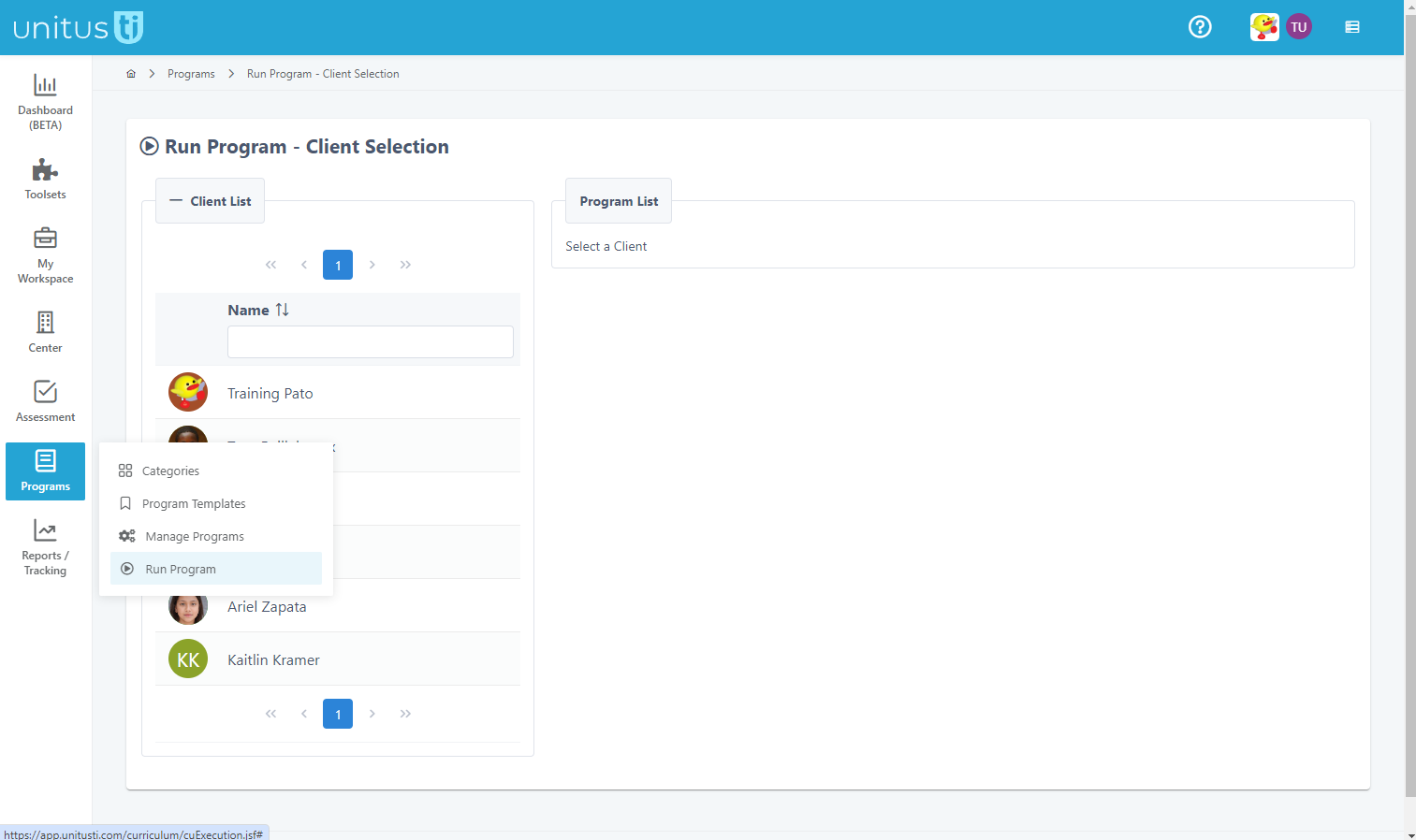
Select the client for whom you would like to run programs to see their program lists. If you do not see any lists here, create them in Manage Programs or check with your administrator to see if a list has been restricted from your view.
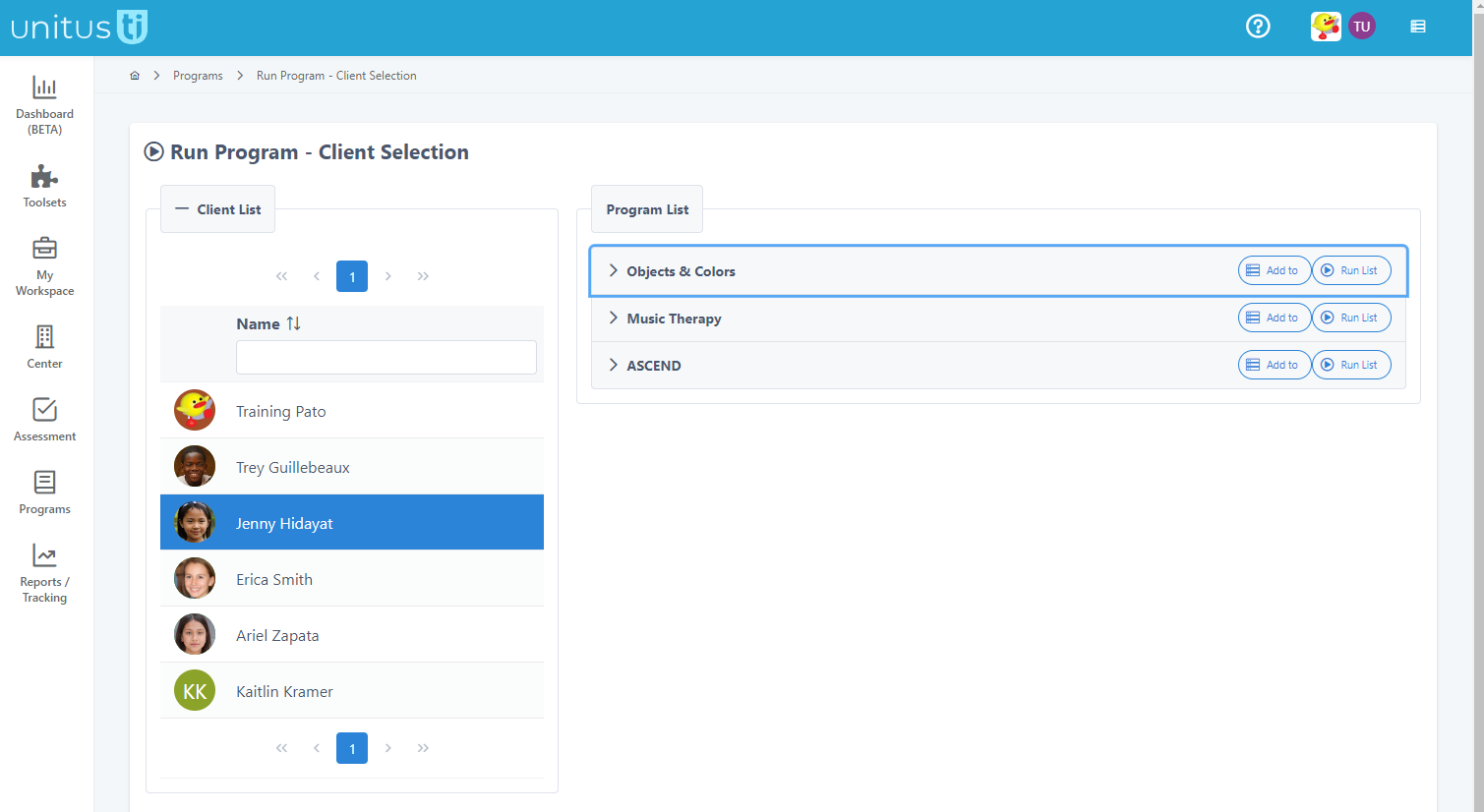
- Click the “Add to” button next to a program title to add it to the queue and stay on this page to continue adding programs for other clients.
- Click “Run List” to open the Run Program screen. This action automatically adds the list to the Program Queue.
Now, the Program Queue displays all the program lists that I started running or specifically added to this list, and are available for easy navigation from any other screen in UnitusTI. You can remove a program list from the queue by selecting the trash can icon. (Note: this will only remove it from the queue, it does not affect the session data nor will it end the session.) Quickly choose between clients by clicking on them. Click the Run Program List icon to jump the execution screen in Run Program to take data.
The program queue is a temporary list and the information will be removed upon logging out of your UnitusTI session. The program queue is an optional feature. You can bypass it if you prefer, and run programs by going directly to them in the Run Program area via the main menu.