Overview of Maintenance in UnitusTI
Configuring Maintenance Parameters
Selecting Targets for Maintenance
Viewing & Reporting Target Maintenance Data
Overview of Maintenance in UnitusTI
UnitusTI provides tools to help learners maintain acquired skills over time with two distinct types of maintenance: target maintenance and program maintenance . Maintenance can be individualized for each program according to your preference and the needs of the individual client. Both types of maintenance are optional and function independently of each other.
- Target maintenance focuses on reinforcing individual, mastered targets while the learner is still working toward mastering the entire program.
- Program maintenance focuses on maintaining a fully mastered program, and is available once the program is marked as mastered . (Note: once a program is mastered, the only maintenance option available is program maintenance.)
In this article, we're going to focus specifically on target maintenance in UnitusTI. (For help on whole program maintenance, please search for the article “Program Maintenance”.)
Target Maintenance
When to use this: Use target maintenance before all targets in a program have been mastered. Target maintenance is optional and may be set up only for discrete trial, probe, or natural environment programs. Target maintenance reinforces individual, mastered targets, ensuring they continue to be used even after direct teaching or practice has decreased. This document explains how to manage target maintenance in UnitusTI while other targets in the same program are still being learned. (After all targets are mastered, you can follow our guides to begin whole program maintenance.)
Setting Up Target Maintenance
Target maintenance is available for unmastered programs using discrete trial, probe, or natural environment (NET) data acquisition.
Navigate to "Manage Programs" within the "Programs" section of the main menu. Select the client or learner to access the program list detail page. For the desired program, click the arrow key, then "Target Maintenance."
Configuring Maintenance Parameters
On the Target Maintenance page, set the parameters and choose the targets.
- Activating and Deactivating Target Maintenance: The "Active" toggle indicates that target maintenance will now be active for this program; if you decide later that you do not want to collect maintenance data on this program, you can return to this page and move the toggle to “no”.
- Trials per Target: Set the number of practice opportunities for each mastered target during each maintenance session. This determines practice frequency.
- Maximum Number of Targets: Specify the maximum number of targets for maintenance in this program. If the total number of mastered targets exceeds this number, UnitusTI will randomly select up to this total to be available in the execution screen (Run Program/Current Program/Maintenance tab). This helps prioritize maintenance efforts. As targets are mastered, they will be automatically added to the maintenance plan, up to this limit.
- Stepback Criteria: This is the criteria that a maintenance target must meet or exceed in order to stay in mastery. If a target fails to meet or exceed stepback criteria for the specified number of sessions, it will be returned to acquisition for further practice. In this example, I’ll set my step back criteria to 50%, and the incorrect threshold will be two sessions; that is, if a maintenance target does not meet the stepback criteria for two consecutive sessions, it will return to the acquisition target list. Targets that return to acquisition will be able to be run once the current target is mastered. For example, if the client does not maintain ball, ball will be available to be run once the current target (cup) is mastered.
Selecting Targets for Maintenance
Now that you have selected parameters, it’s time to choose which targets will be included for maintenance. The “Targets” tab lists all the targets that are included in a program template; to designate a target for maintenance, just move it to the “targets selected” box. Once you have selected targets, click “store changes”, and you are ready to run maintenance.
When selected targets meet the program's mastery criteria, UnitusTI automatically adds them to the target maintenance tab for execution in Run Program. Targets can be added or removed from the maintenance plan as the learner progresses.
Running Target Maintenance
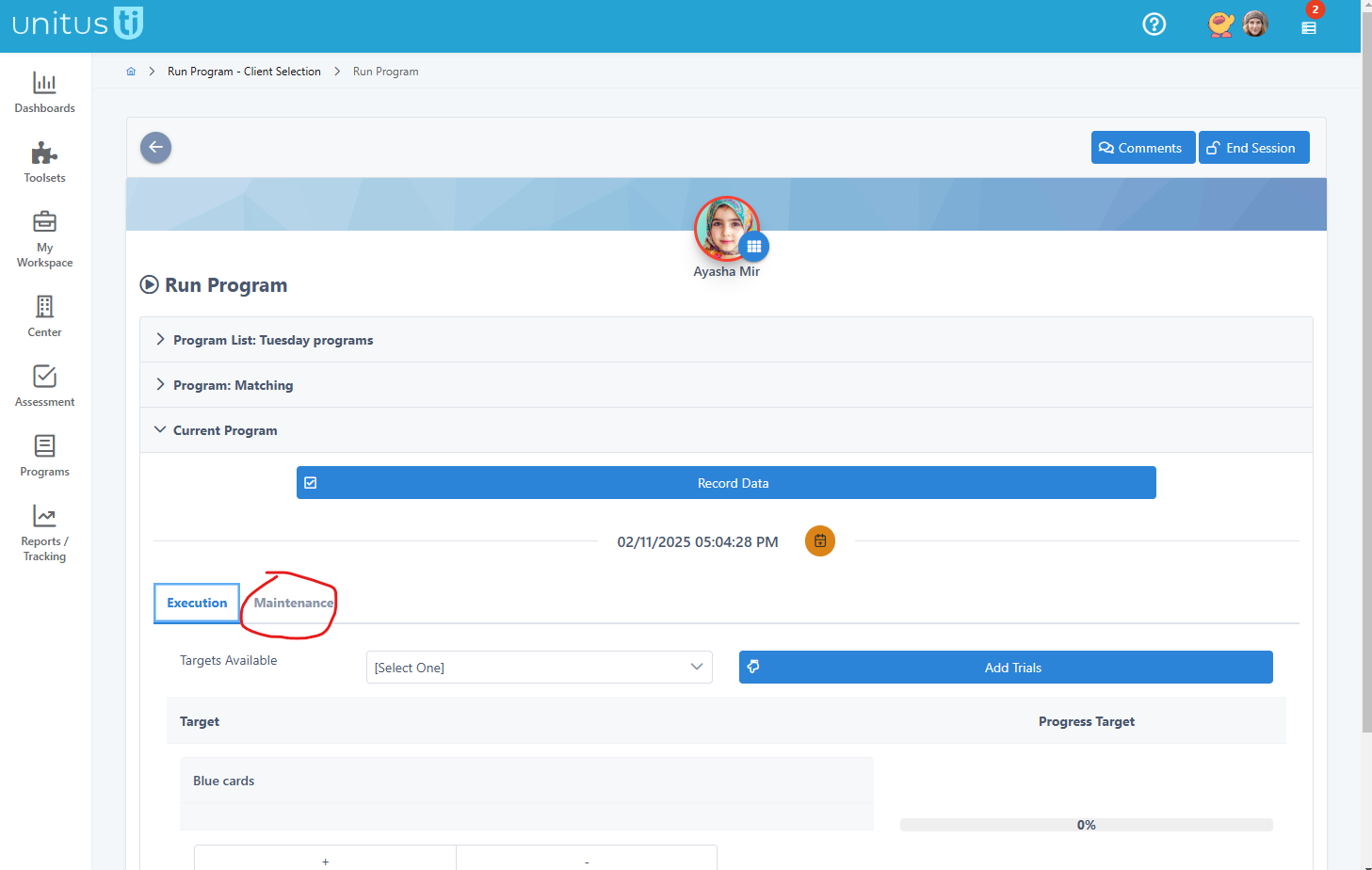
To collect maintenance data, run a program as you typically would. In the program execution screen (Run Program) a tab labeled “maintenance” has been added and contains the parameters for the maintenance trials of this program. Click “run this program”, to begin collecting data as you normally would. When it is time to take maintenance data, click on this Maintenance tab and select “Start Target Maintenance”. Users can easily tab between the targets in acquisition and maintenance targets.
Tip: y ou don't have to complete all maintenance trials at once. Unlike acquisition trials, which require completion, you can stop and resume maintenance sessions. UnitusTI saves your progress and incomplete trials will be graphed under the date they are completed.
Viewing & Reporting Target Maintenance Data
To review maintenance data for a program, select “ Program List Report ” from the Reports/Tracking section of the main menu. Select your client and select the history button next to the program whose data you would like to review. In the program list details screen, two tabs have been added - maintenance detail , and maintenance graph . Maintenance detail displays the raw maintenance data that has been collected, along with the program time stamp, user name, and icons depicting whether or not the maintenance trials passed, failed, returned to execution, or were left incomplete.
The maintenance graph displays 30 days’ worth of maintenance data, with the most recent date listed first and older dates in descending order. The same icons that appeared in the raw data appear in this scatter graph to denote the outcome of that maintenance execution. These buttons can be used to toggle between older and newer data. The date stamp for maintenance trials is at the top of the column in short form, and the initials of the user who completed the trials are just below the date. The initials are pulled from the user’s first and last name, as indicated in their user information page; however, administrators also have the option of creating custom initials of up to 4 characters for users. This can be done in the user’s account information page.
Disabling Target Maintenance
To disable maintenance trials for a program, select “Manage Programs” from the create programs section of the main menu. Select a client, and you will be redirected to the Program List Detail page. Locate the program for which you would like to disable maintenance, and select the arrow button in the far right column. Select “Target Maintenance”.
Disable maintenance by clicking the Active button to change it to “ No ” and then select the Save button in the top right corner of the screen. Maintenance trials will no longer be available when running this program. Maintenance can be reactivated at any time by changing the active button to “Yes”.