Team Members
The term “Team member” refers to users who share a client assignment.
You can verify the team members for a given client (i.e. users assigned) by visiting the client’s profile (located in Center - My Clients - Client Information page - Team Members tab):
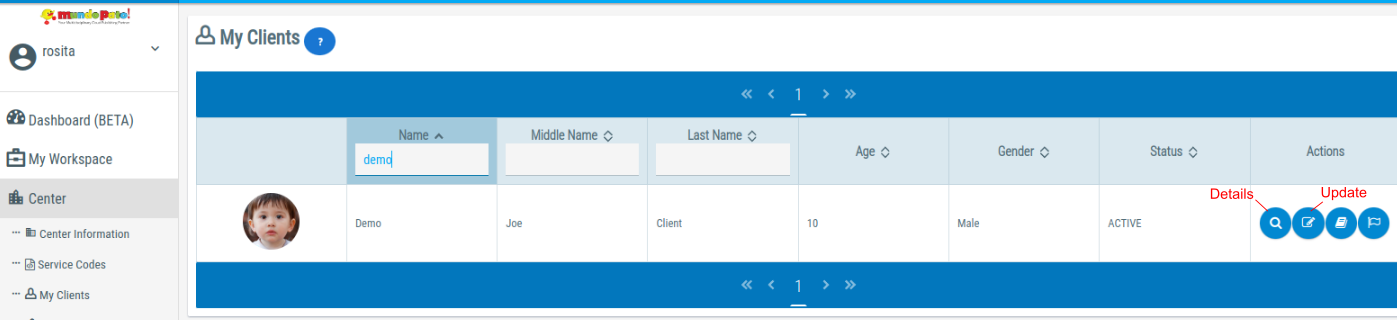
And then, check the tab “Team Members” in the bottom of the screen.
In this tab, you can add other users as Team Members, and also mark the members that will be Case Managers, by using the pencil icon at the end of the row:
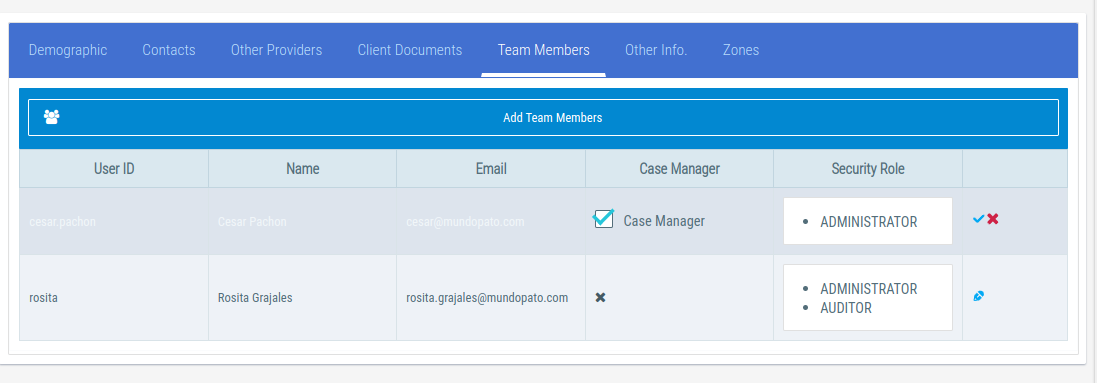
Note in the example screenshot above that the checkmark and red cross icons in the previous screenshot are used to confirm (save) or cancel the changes made to the Case Manager row, not to delete a team member.
How to remove a Team Member?
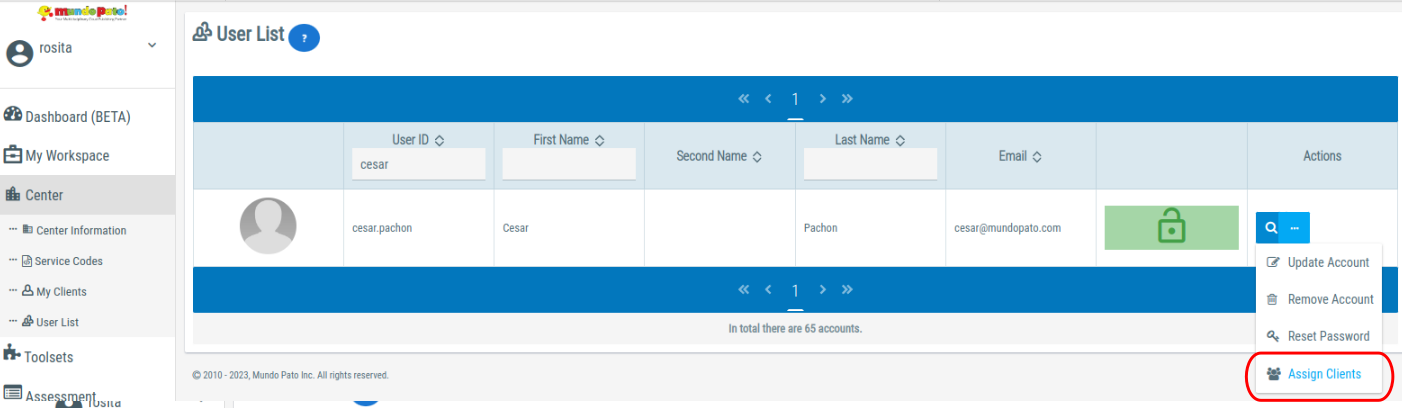
In order to remove a Team Member (remove the user assignment), please search for the user profile in the User List (located in Center - User List). Select the “...” icon in the Actions column, and then select the “Assign Clients” option:
Search for the client you wish to unassign the user from; if the user is a Team Member of the client, it should appear checked (see screenshot below):
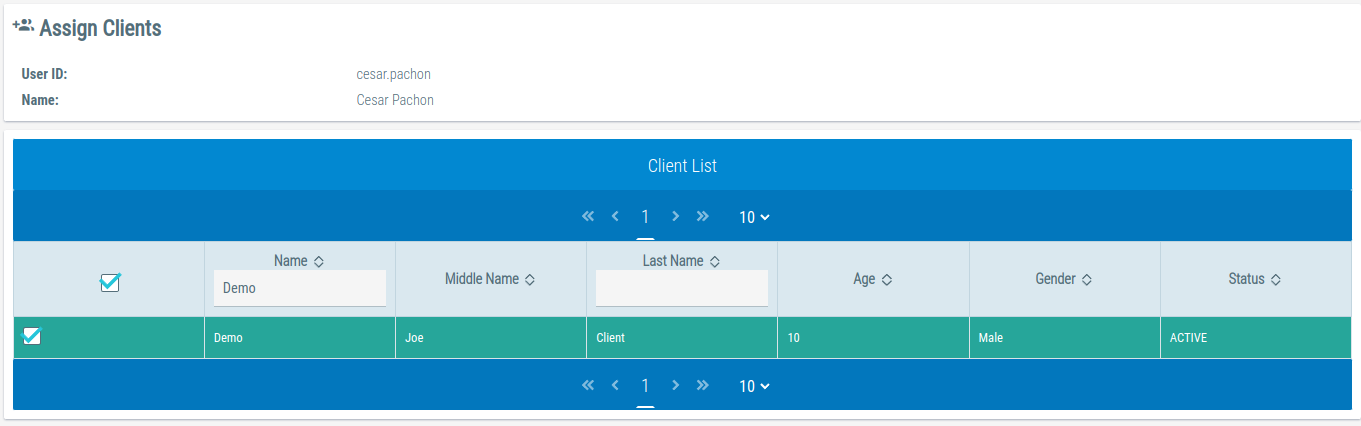
Uncheck the checkbox for the client you wish to unassign from the user and then save by clicking the “Store Selection” button (found in the top right corner of the screen, see screenshot below):
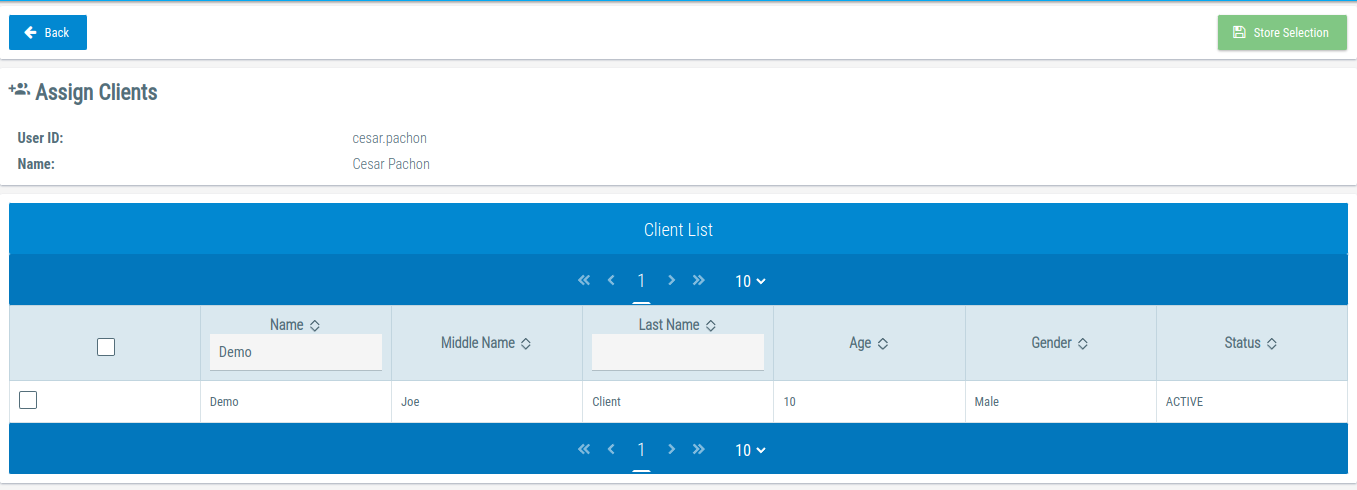
Now when you visit the Team Members list in the client’s Client Information page (in My Clients), the user will no longer appear in the list.