There are two places in UnitusTI where you can see the details of executed assessments, including the questions and answers, and the scoring in the case of assessments configured to score the results. These places are:
- The Assessment Dashboard
- The details area on the Manage Assessment Screen .
Both options will present you with the Assessment Execution Table .
The Assessment Dashboard
Select in the main menu the option: Dashboards - Assessment Dashboard
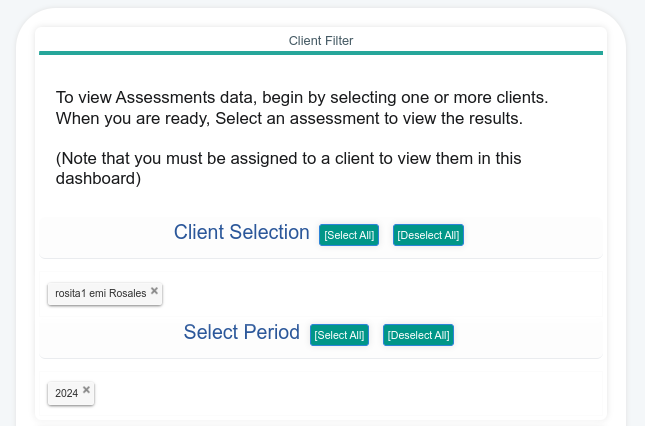
The first section of this dashboard is the Client Filter. You should select the clients whose assessments you want to inspect, and also the years of interest:
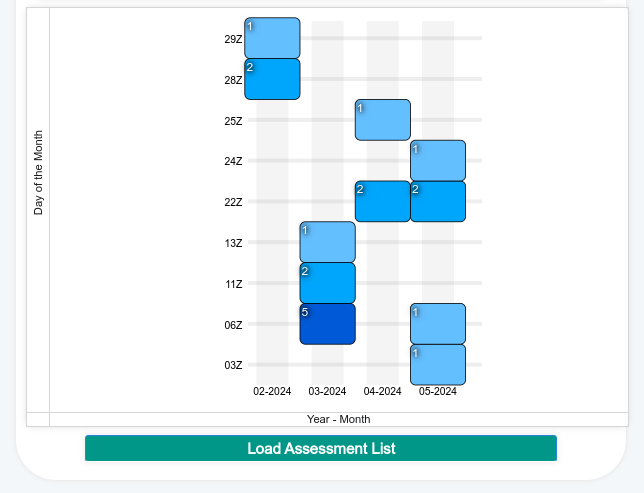
Right below the filters, there's a calendar that shows the number of assessments run for the selected time period. Tap or click the data to filter the results further .
Once you are satisfied with the filtering, press the “Load Assessment List” in order to retrieve the name of the assessments and the number of executions:

In the previous screenshot, we selected the Assessment “Example Average Scoring”, with two executions.
Changing the selected assessments will update the Assessment Execution Table with the execution details.
The Manage Assessments Screen
Select the menu options: “Assessments”, “Manage Assessments”.
In the “Manage Assessment” Screen, select the desired client, and click in the “Actions” icon:
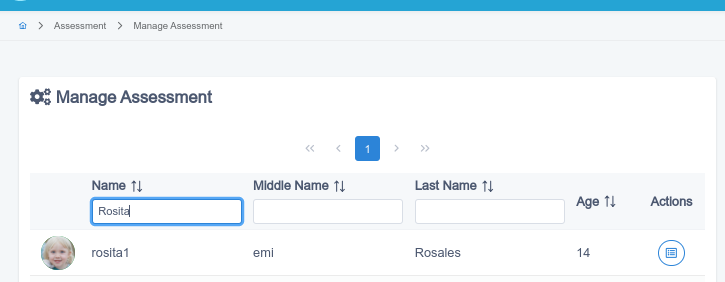
You will be presented with a list of assessments assigned to the client.
Find the assessment of your interest, and click on the “History” button:
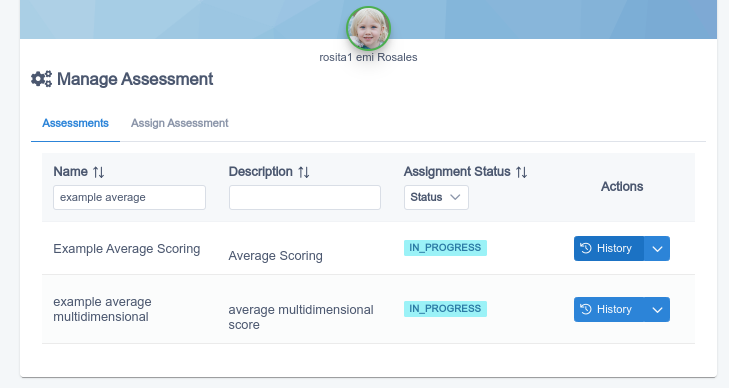
Now you will be presented with a list of executions for the selected assessment. You can click on the Actions icon in order to see the details of a single execution:
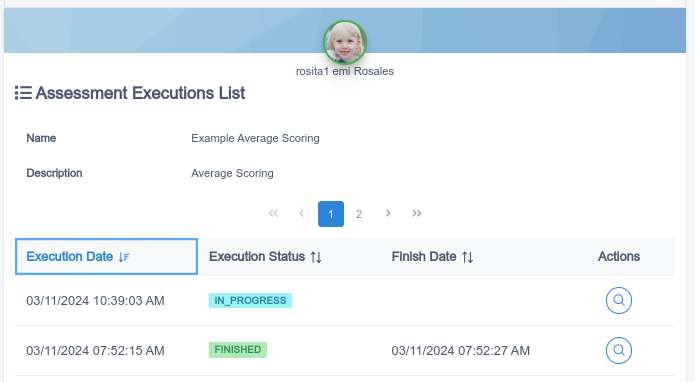
Finally, the Scoring screen shows all the details for the selected execution. In the bottom, you will see the Assessment Execution Table where you can filter and inspect both scoring and questions and answers.
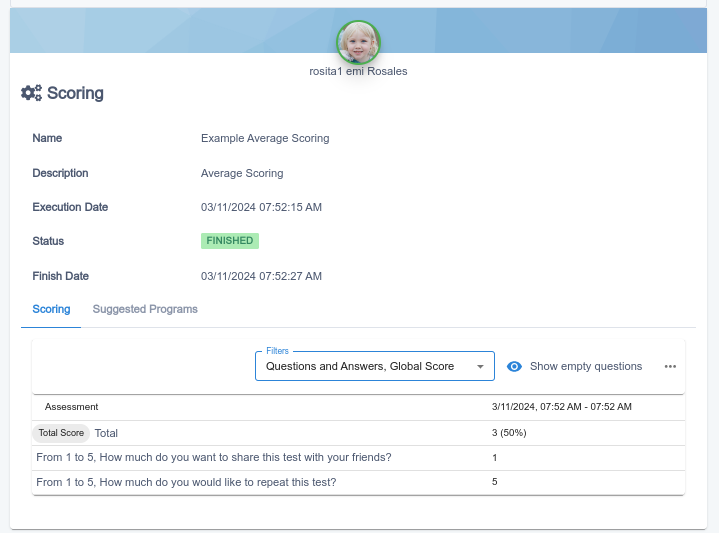
Using the Assessment Execution Table
The Assessment Execution Table is an interactive component used to explore details about the execution of an assessment. It can be found on the Assessment Dashboard and in the details area of the Manage Assessment Screen .
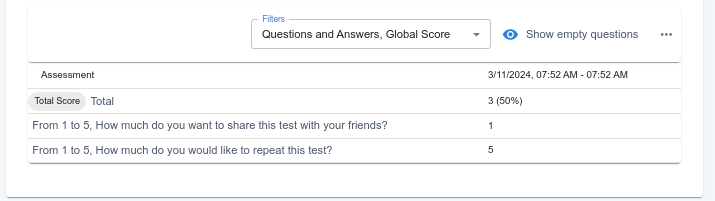
Depending on the complexity of your assessment (number of sections and subsections, and configuration of the Scoring), it can be as simple as this one:
Or it can present a large amount of information, organized as a tree that you can filter using the provided options:
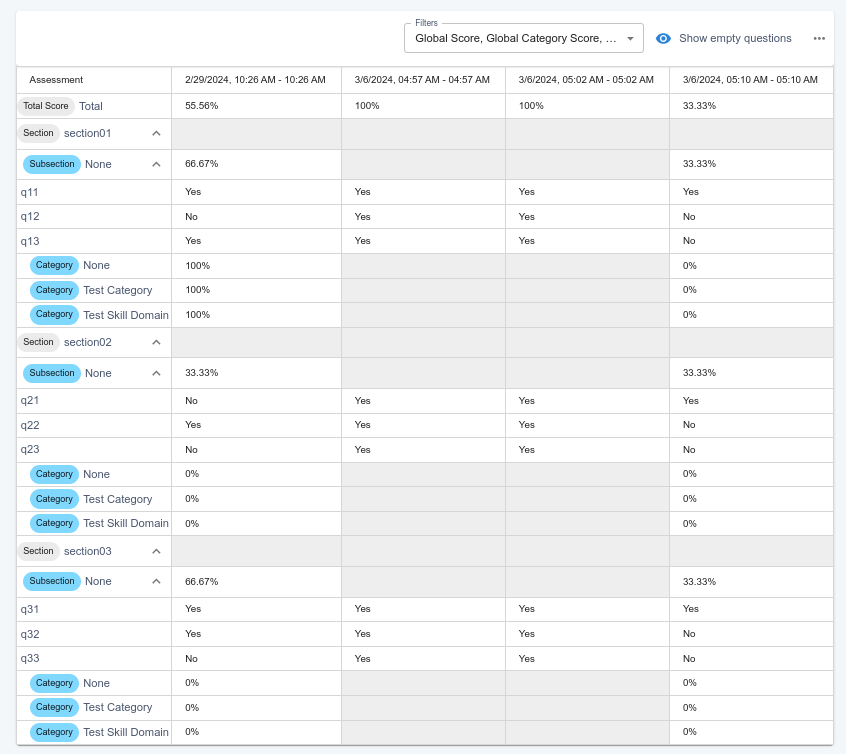
In the previous screenshot, we used the Assessment Dashboard to compare four different executions of the same assessment (In this example, all executions belongs to the same client, but the table can also be used to compare executions of the same assessment between different clients, if desired).
Filtering records
There are different kind of rows presented in an assessment execution. All of them can be filtered out using the “Filter” option.
This is how the filter looks with all the row types selected:
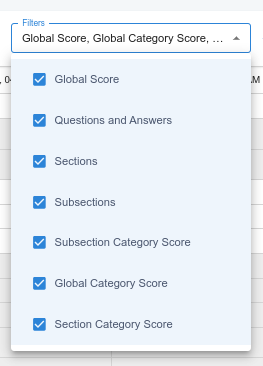
Let’s explore each one of them:
Sections, Subsections, Questions and Answers
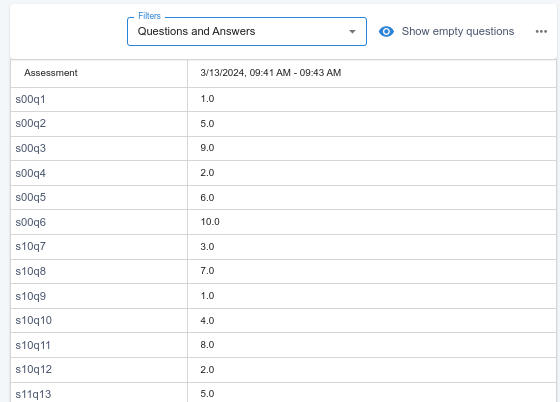
If you are interested in inspecting the answers to each one of the questions on your assessment, you can select only 'Questions and Answers' in the filter. There is an additional option next to the filter called 'Show Empty Questions.' This is a toggle that will hide those questions that have not been answered.
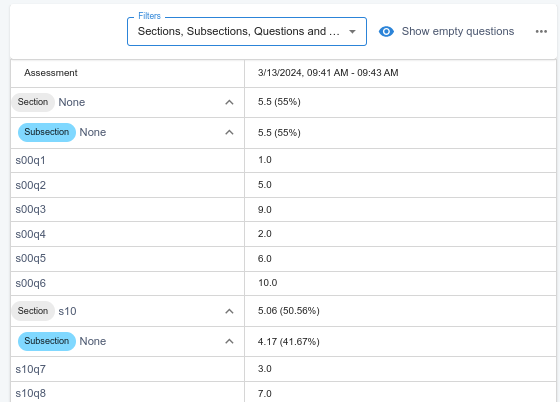
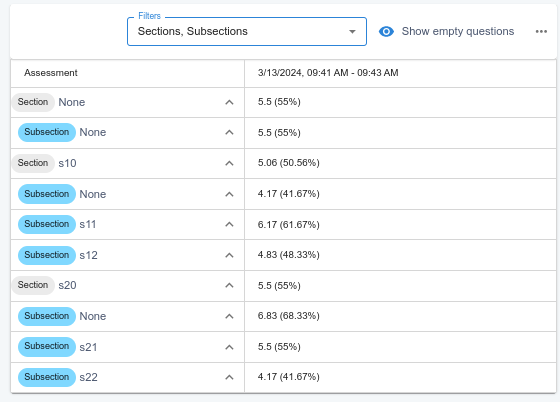
If the questions in your assessment have been organized into sections and subsections, you can also select 'Sections' and 'Subsections' to display the questions organized under each section/subsection element.
Please note that in UnitusTI, you may have questions that do not belong to any section or subsection. These 'orphan' questions will be presented in a section or subsection titled 'None'.
If your assessment includes the option of Scoring per Section, then the sections and subsections will display the associated score.
These are some examples of the different filters combined:
|
Only “Questions and Answers” |
|
Sections, Sub Sections and Questions & Answers |
|
Only Sections, Subsections |
Categories: Global, Section, Subsection Scores
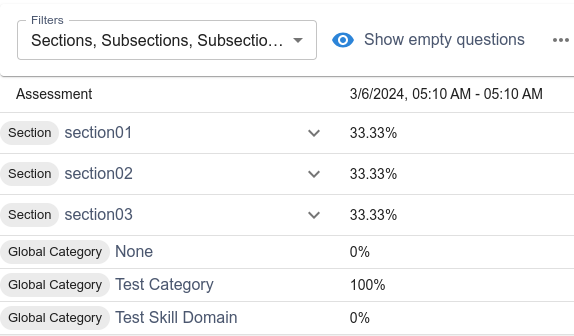
If you configured for your assessment an Scoring Model different from “None”, and selected the “Per Category Scoring” option, then you will be presented in the filter with options for Scores per category, with at least, “Global Category Score” entries:
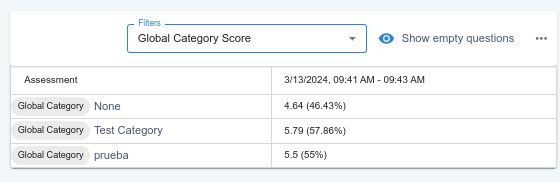
These entries present the score of each category.
Note that if you have questions without associated categories, a Global Category “None” will be present.
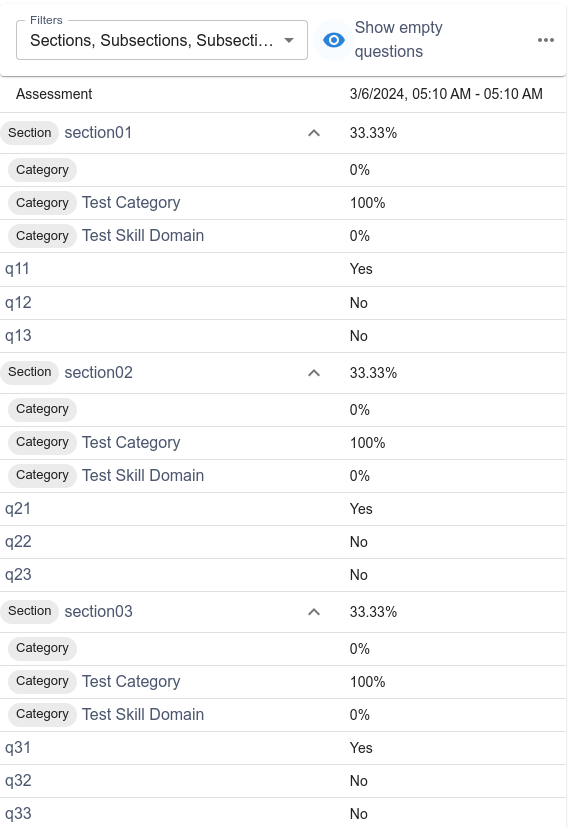
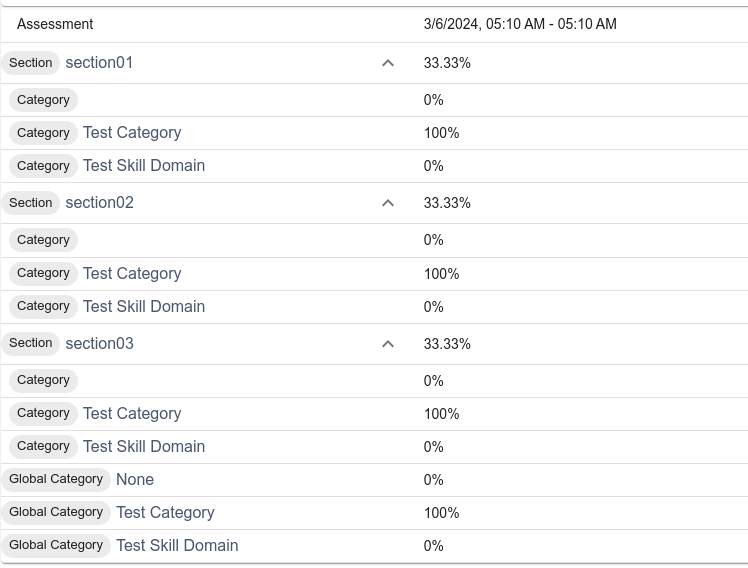
If in your Scoring model you checked both “Per Category Scoring” and “Per Section Scoring”, then “category” entries will appear under each section/subsection, reporting the scoring accordingly:
Other options: Collapsing & Expanding rows, exporting data
There is a menu with extra options at the right side of the table:
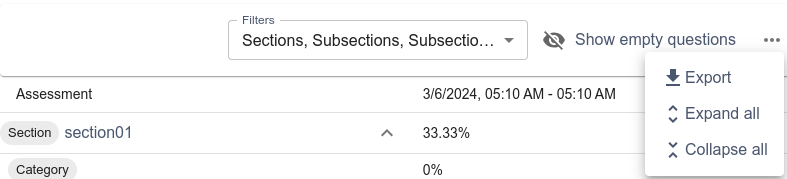
This menu offer options for exporting filtered data to spreadsheets and also options to quickly expand/collapse sections and subsections:
Expand all |
Collapse all |
|
|