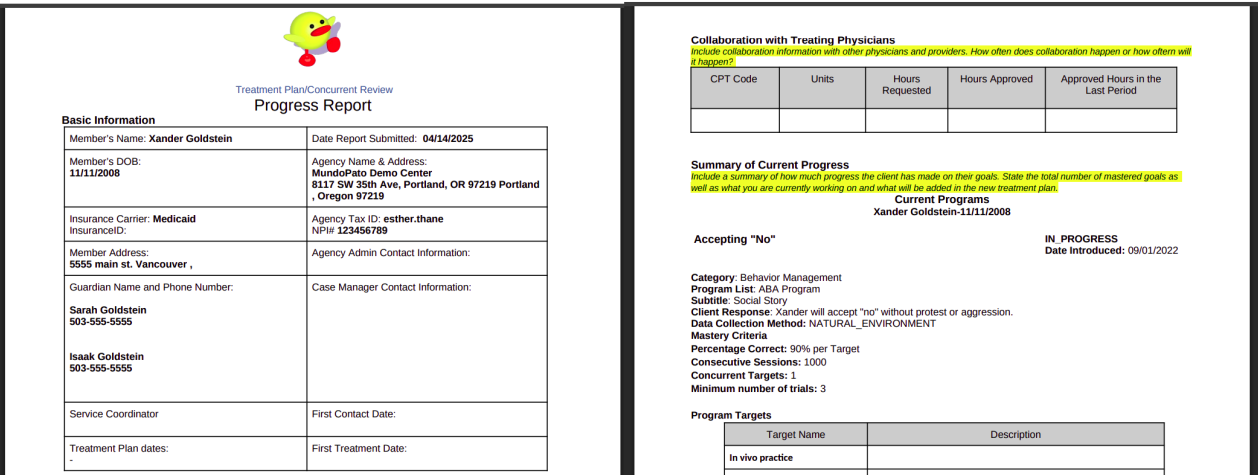
The Progress Report provides comprehensive details regarding program executions for a specific client.
Step 1: Accessing the Report
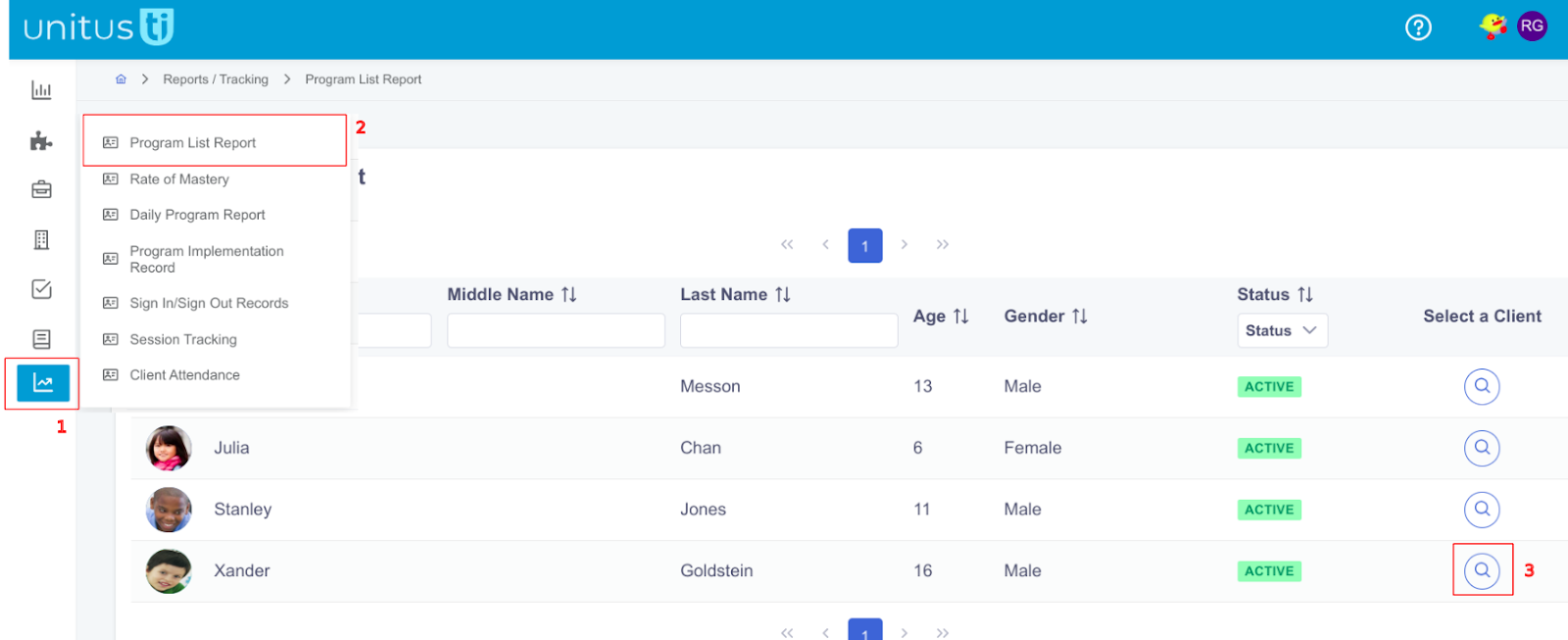
- Navigate to the “Reports” option in the main menu.
- Select “Program List Report.”
- Choose the desired client.
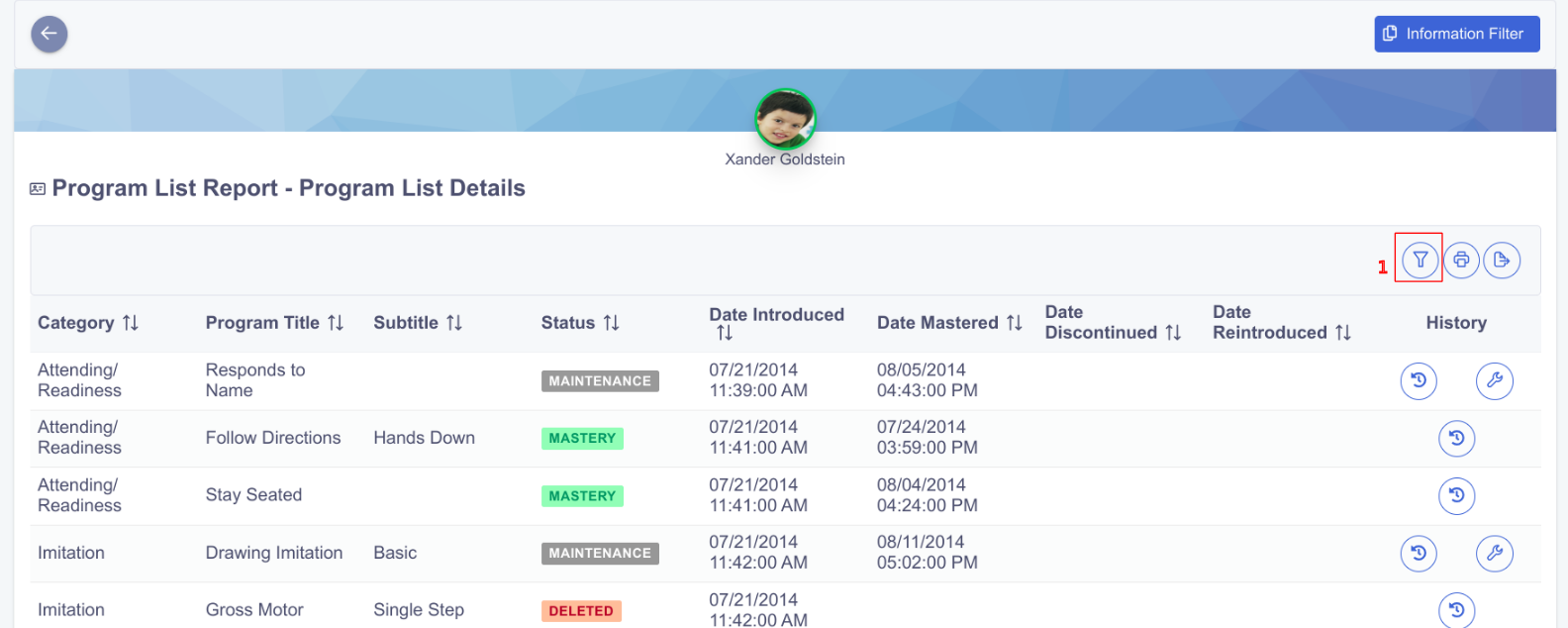
Step 2: Browse and filter programs
You will be presented with the complete program execution history for the selected client. To include only specific programs in the report, click the filter icon (1):
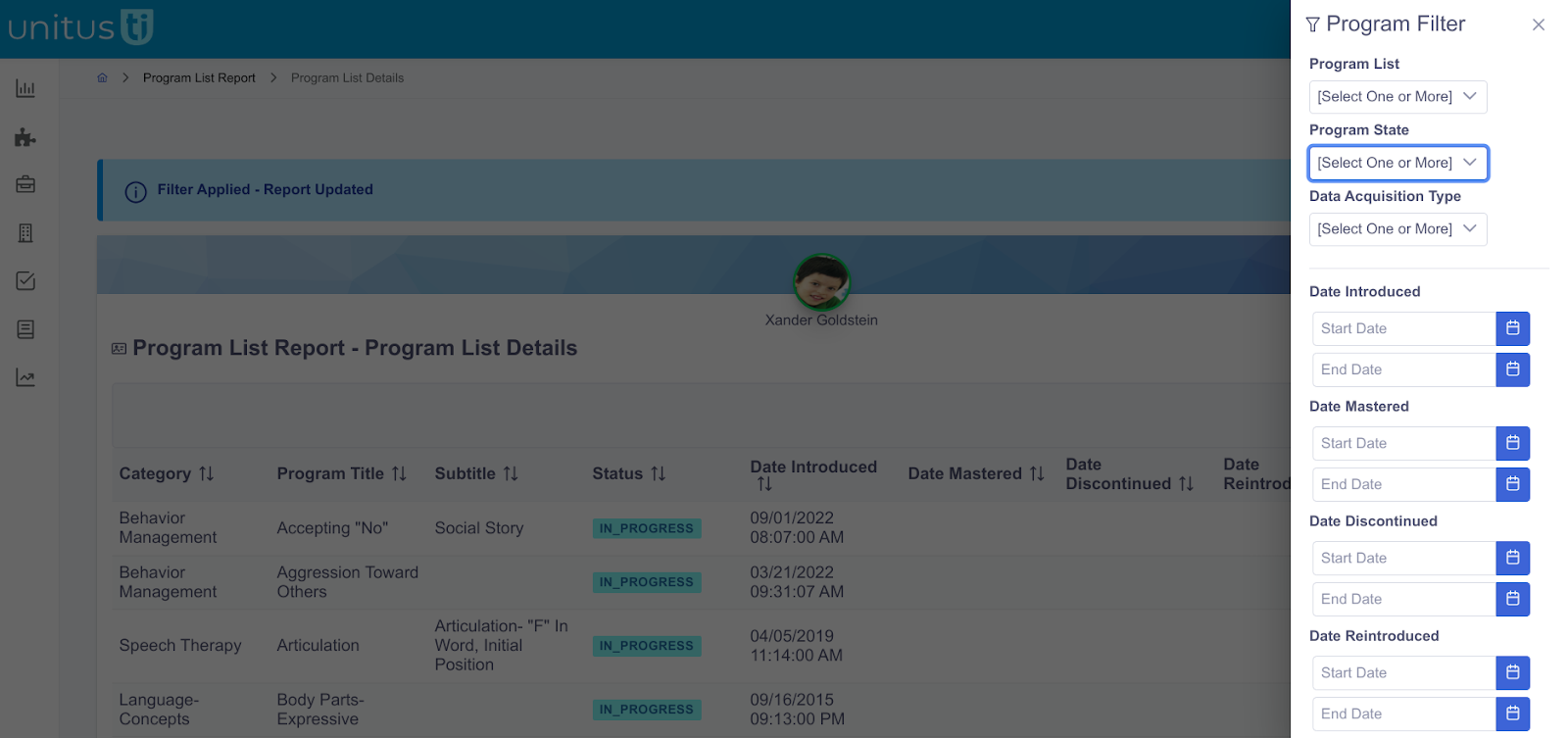
Clicking the filter icon will display a panel with various filtering options, including execution dates, mastered date, program list, program status, and others. Only program executions that meet the specified filter criteria will be included in the final report:
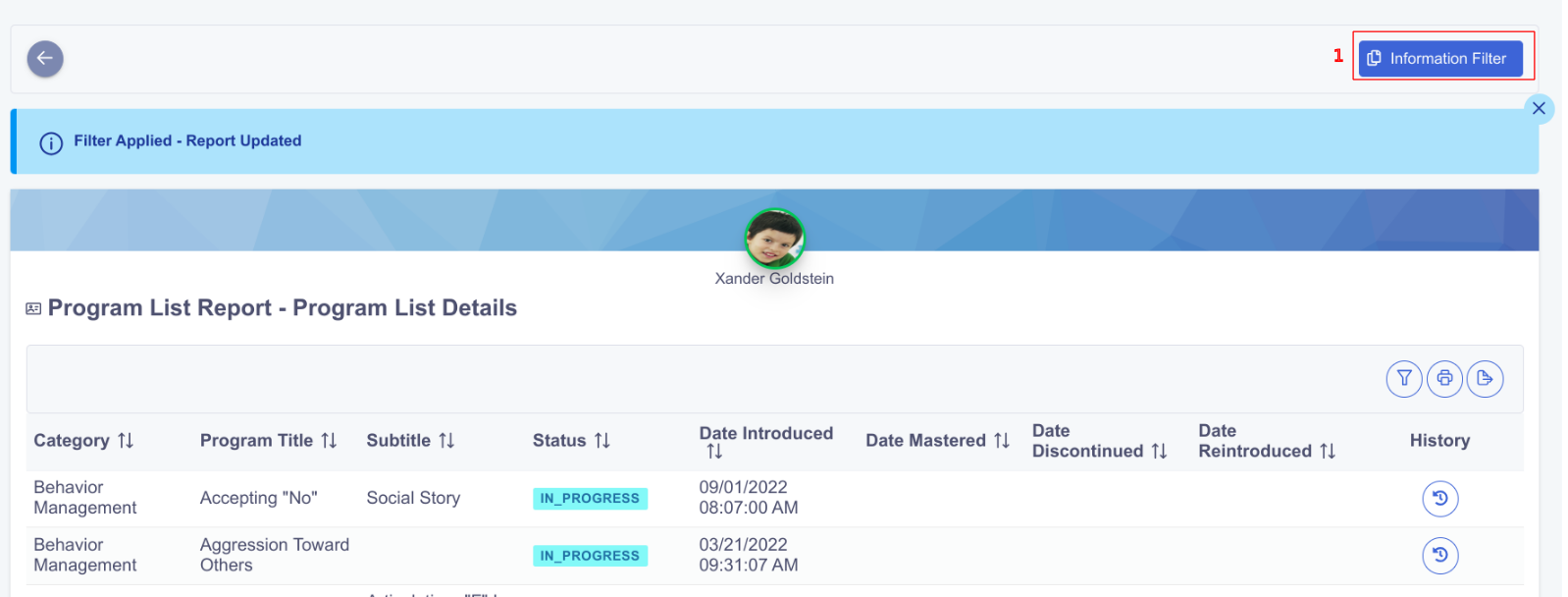
Step 3: click on Information Filter Button
Once you have applied your desired program filters, click the “Information Filter” button (1):
Step 4: Additional filtering
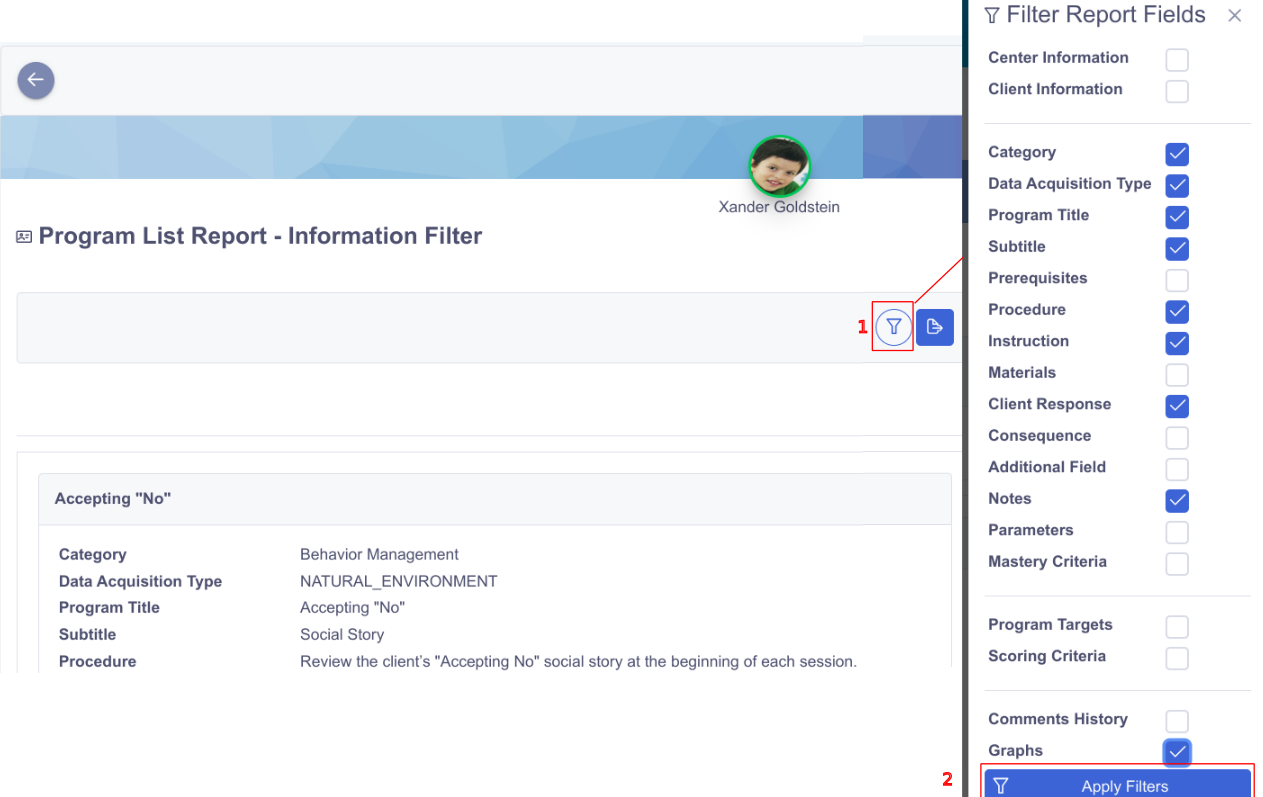
The Information Filter Screen displays the detailed records that will be included in the final report. You can utilize the filter icon on this screen (1) to customize the report by selecting which fields to include or exclude, such as pre-recorded Graphs, comment history, notes, and more.
Step 5: export
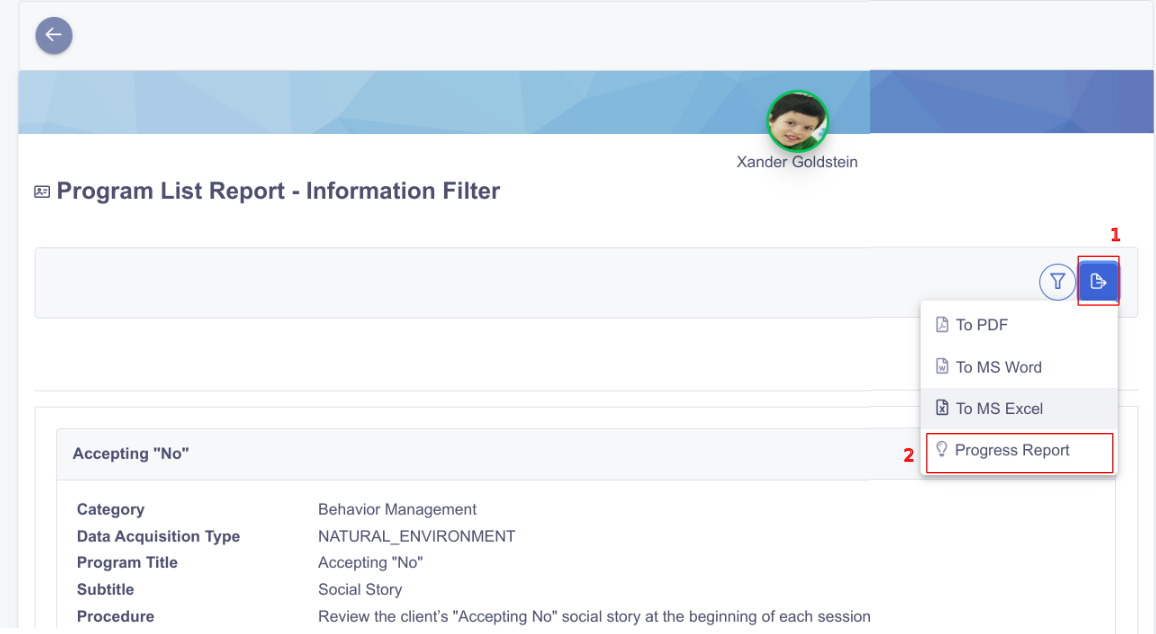
Finally, you can use the export icon (1) to generate a PDF or Word document of the information displayed on the screen. Additionally, selecting the “Progress Report” option (2) allows you to create a specialized report that can also be exported to either PDF or Word format:
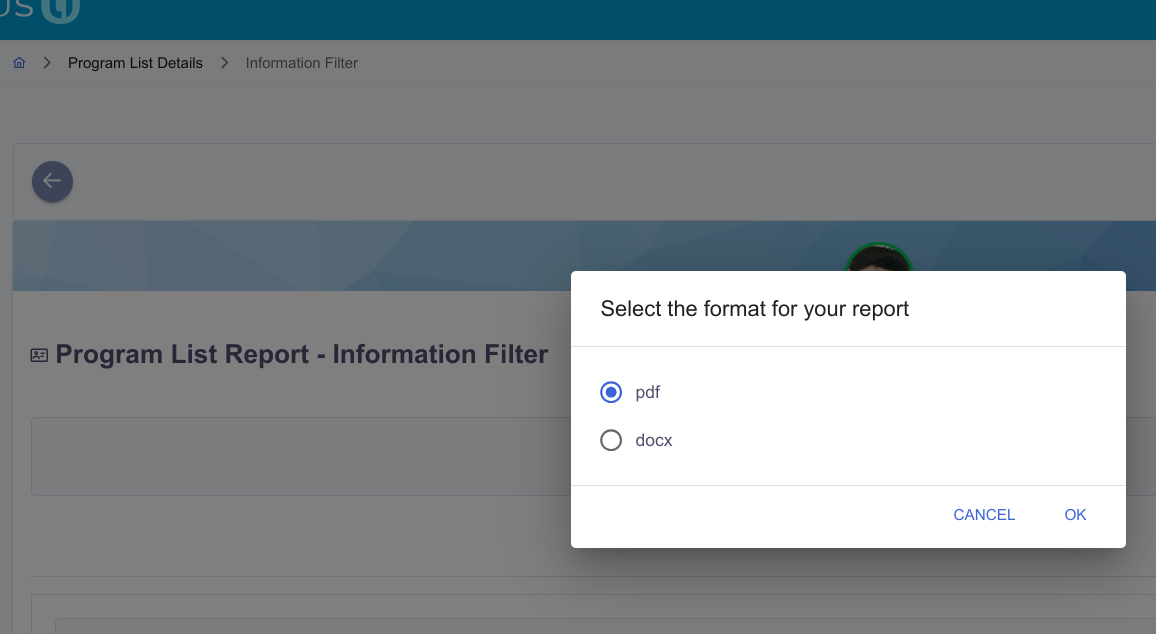
We select PDF for this example:
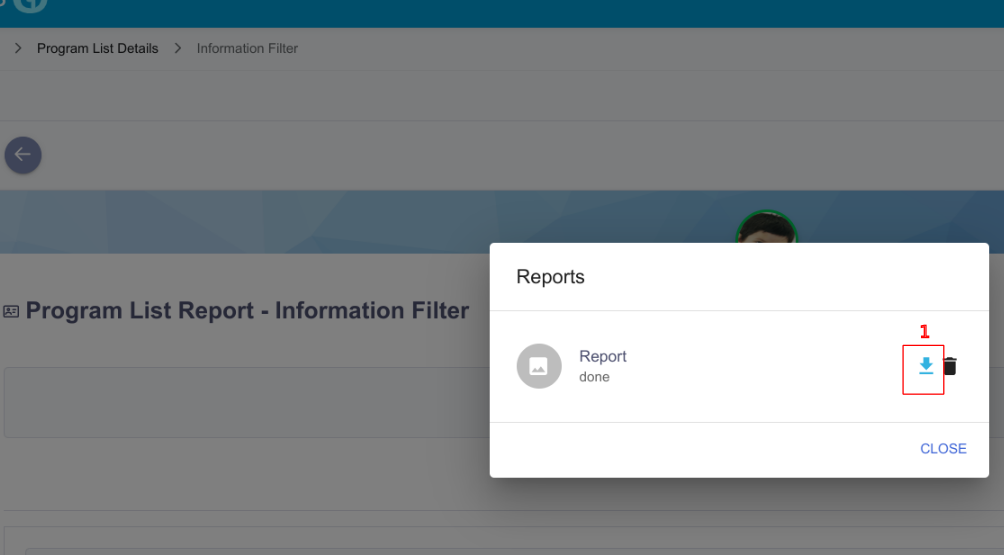
The report is available for downloading (1):
Preview of a Program Report: